1. Киришүү
This manual provides detailed instructions for the installation, operation, and maintenance of the Vivotek ND9425P 16-Channel 4K UHD Network Video Recorder (NVR). This NVR is designed to manage and record video streams from up to 16 IP cameras, offering 4K UHD resolution support for high-quality surveillance. It is an integral component of a comprehensive security system, suitable for various applications requiring reliable video monitoring and recording.
Key features of the Vivotek ND9425P NVR include:
- Multimedia SoC CPU for efficient processing.
- Support for H.265, H.264, and MJPEG video codecs for flexible compression.
- Seamless recording capabilities.
- Smart Stream III optimization for bandwidth efficiency.
- Integrated PoE technology for simplified camera connectivity (when used with compatible PoE cameras).
2. Коопсуздук маалыматы
Please read all safety instructions carefully before operating the device. Failure to follow these instructions may result in injury or damage to the product.
- Кубат булагы: Use only the power adapter supplied with the NVR. Ensure the power outlet provides the correct voltage.
- Вентиляция: Do not block any ventilation openings. Install the NVR in a well-ventilated area to prevent overheating.
- Курчап турган чөйрө: Avoid exposing the NVR to water, moisture, extreme temperatures, or direct sunlight.
- Тазалоо: Disconnect power before cleaning. Use a dry, soft cloth. Do not use liquid or aerosol cleaners.
- Тейлөө: Бул продуктту өзүңүз тейлөөгө аракет кылбаңыз. Бардык тейлөөнү квалификациялуу тейлөө кызматкерлерине тапшырыңыз.
- Кабелдер: Ensure all cables are properly connected and secured to prevent tripping hazards or accidental disconnections.
3. Пакеттин мазмуну
Орнотууну улантуудан мурун пакетте бардык элементтер бар экенин текшериңиз:
- Vivotek ND9425P 16-Channel 4K UHD NVR Unit
- Кубаттуу адаптер
- USB чычкан
- Ыкчам орнотуу колдонмосу
- Resource CD (containing full manual and software)
- Screws for HDD installation (if applicable)
- Ethernet кабели
Note: The package contents may vary slightly depending on the specific kit purchased. For example, some kits may include 8 x 2 MP Night Vision Dome Cameras and 8 x Ethernet Patch Cables.
4. Продукт бүтүп калдыview
Бул бөлүм ашыкча камсыз кылатview of the Vivotek ND9425P NVR's physical components and interfaces.
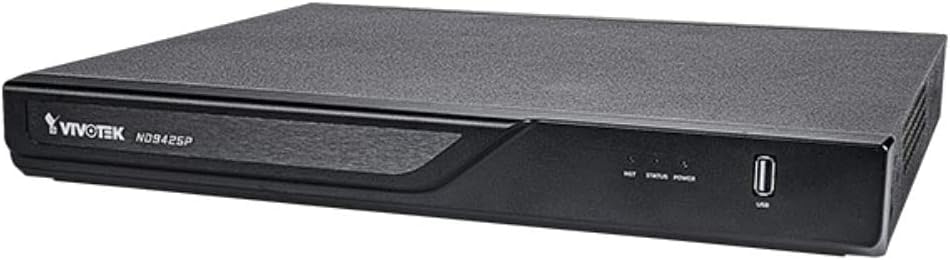
4.1-сүрөт: Vivotek ND9425P NVR Front Panel
The image displays the Vivotek ND9425P NVR unit, a compact black rectangular device. The front panel features the "VIVOTEK ND9425P" logo on the left, followed by three small indicator lights labeled "NET", "STATUS", and "POWER". On the far right of the front panel, there is a USB port, labeled "USB" below it. The top surface of the NVR has a textured finish.
4.1 Алдыңкы панелдин индикаторлору жана порттору
- NET LED: Тармактын активдүүлүгүн көрсөтөт.
- STATUS LED: Indicates system status (e.g., recording, error).
- POWER LED: Кубаттын абалын көрсөтөт.
- USB порт: For connecting a USB mouse, keyboard, or external storage devices for backup.
4.2 Арткы панелдин порттору
The rear panel typically includes ports for power input, Ethernet (LAN), HDMI/VGA video output, audio input/output, and additional USB ports for peripheral connections.
5. Орнотуу
5.1 Аппараттык камсыздоону орнотуу
- Катуу дискти орнотуу (эгерде алдын ала орнотулбаган болсо):
Unscrew the NVR cover. Carefully slide the hard drive into the bay and secure it with the provided screws. Reattach the cover.
- Камераларды туташтыруу:
Connect your IP cameras to the NVR's PoE ports (if available) or to your network switch. Ensure all cameras are powered on and accessible on the network.
- Тармакка туташуу:
NVRдин LAN портунан Ethernet кабелин роутериңизге же тармак коммутаторуна туташтырыңыз.
- Дисплейди туташтыруу:
Мониторду NVRдин HDMI же VGA чыгаруу портуна туташтырыңыз.
- Перифериялык түзүлүштөрдү туташтыруу:
USB чычканын NVRдеги USB портуна туташтырыңыз.
- Күйгүзүү:
Кубат адаптерин NVRдин кубат киргизүү булагына туташтырып, андан кийин аны розеткага сайыңыз. NVR автоматтык түрдө күйөт.
5.2 Initial Configuration Wizard
Upon the first boot, the NVR will typically launch an initial configuration wizard. Follow the on-screen prompts to:
- Администратордун сырсөзүн орнотуңуз.
- Тармак жөндөөлөрүн конфигурациялаңыз (DHCP же Статикалык IP).
- Издөө жана туташкан IP камераларды кошуңуз.
- Дата менен убакытты коюу.
- Жазуу үчүн катуу дискти баштапкы абалга келтириңиз.
6. NVRди иштетүү
6.1 Live View
Баштапкы орнотуудан кийин, NVR түз эфирди көрсөтөт view туташкан камералардын саны. Сиз бир камералуу камералардын ортосунда которула аласыз view жана көп камералуу тор views.
6.2 Жазуу конфигурациясы
Access the recording settings through the main menu to configure recording schedules and modes:
- Тынымсыз жаздыруу: Рекорддор 24/7.
- Кыймылды аныктоо жазуусу: Камера кыймылды аныктаганда гана жаздырат.
- Пландаштырылган жаздыруу: Күндүн же жуманын белгилүү бир убакыттарындагы жазуулар.
- Окуяны жаздыруу: Белгилүү бир окуяларга негизделген жазуулар (мисалы, сигнализацияны киргизүү).
6.3 Ойнотуу жана камдык көчүрмө
Кайраview foo жазылганtage:
- Navigate to the "Playback" section from the main menu.
- Каалаган камераны(ларды) жана дата/убакыт диапазонун тандаңыз.
- Жаздырууларды карап чыгуу үчүн убакыт тилкесин колдонуңуз.
- Азыктын камдык көчүрмөсүн сактоо үчүнtage, insert a USB drive into the NVR's USB port and follow the on-screen instructions for export.
6.4 Remote Access
The Vivotek ND9425P NVR supports remote access via a web browser or dedicated mobile applications (e.g., VIVOCloud). Refer to the full user manual on the Resource CD for detailed instructions on setting up remote access, including port forwarding or P2P cloud services.
7. Техникалык тейлөө
7.1 Микропрограмма жаңыртуулары
Regularly check for and install firmware updates to ensure optimal performance, security, and access to new features. Firmware updates can typically be performed via the NVR's web interface or through a USB drive.
7.2 Катуу дискти башкаруу
The NVR will automatically overwrite the oldest recordings when the hard drive is full. You can configure storage settings, check HDD health, and format the drive through the system settings.
7.3 Тазалоо
Keep the NVR unit clean by gently wiping its exterior with a dry, soft cloth. Ensure ventilation openings are free from dust and obstructions.
8. Кыйынчылыктарды
| Көйгөй | Мүмкүн себеп | Чечим |
|---|---|---|
| Күч жок | Power cable disconnected; faulty power adapter; power outlet issue. | Check power cable connection; try a different power outlet; contact support if adapter is faulty. |
| Видео чыгаруу жок | HDMI/VGA cable loose; incorrect display input selected; NVR not booted. | Ensure display cable is secure; select correct input on monitor; wait for NVR to boot up. |
| Камералар көрсөтүлбөй жатат | Network issue; camera not powered; incorrect camera IP address; camera not added to NVR. | Check network cables; ensure cameras are powered; verify camera IP settings; add cameras via NVR interface. |
| Жаздыруу жок | Hard drive not initialized; recording schedule not set; HDD full. | Initialize HDD in settings; configure recording schedule; check HDD status. |
| Remote Access Fails | Network configuration issue; port forwarding not set up; firewall blocking. | Verify network settings; configure port forwarding on router; check firewall rules. |
For more detailed troubleshooting, refer to the comprehensive user manual provided on the Resource CD or visit the VIVOTEK support webсайт.
9. Техникалык шарттар
| Өзгөчөлүк | Деталь |
|---|---|
| Модель номери | ND9425P |
| Өндүрүүчү | Vivotek USA |
| Продукциянын өлчөмдөрү | 19.69 x 19.69 x 11.02 дюйм |
| Элемент Салмагы | 8.62 фунт |
| Байланыш технологиясы | Ethernet |
| Шайкеш түзмөктөр | Камера |
| Эстутум сактоо сыйымдуулугу | 64 GB (referring to internal flash/RAM, not HDD capacity) |
| Каналдардын саны | 16 |
| Video Codecs | H.265, H.264, MJPEG |
| Max Resolution Support | 4K UHD (as per product title) |
10. Кепилдик жана колдоо
For warranty information, please refer to the warranty card included with your product or visit the official VIVOTEK website. VIVOTEK provides technical support for its products. If you encounter issues that cannot be resolved using this manual or the troubleshooting section, please contact VIVOTEK customer support through their official webсайт же атайын колдоо каналдары.
Official VIVOTEK Webсайт: www.vivotek.com


