1. Орнотуу жана орнотуу
This section guides you through the initial setup of your ViewSonic TD2223 touch screen monitor.
1.1 Кутудан чыгаруу жана Пакеттин мазмуну
Таңгактан бардык компоненттерди этияттык менен алып салыңыз. Төмөндө көрсөтүлгөн бардык нерселердин бар экенин текшериңиз.

1.1-сүрөт: Package Contents. The box includes the TD2223 monitor, power cable, USB-C cable, USB Type-B Uplink Cable, and a QuickStart Guide.
1.2 Стендди бекитүү
- Чийип кетпеши үчүн мониторду жумшак, таза бетке ылдый каратып кой.
- Align the stand base with the mounting holes on the back of the monitor.
- Берилген бурамалар аркылуу стендди мониторго бекитиңиз.
1.3 Туташтыруучу кабельдер
The TD2223 offers flexible connectivity options. Connect the necessary cables as follows:
- Кубат кабели: Бир учун монитордун кубат киресине, экинчи учун розеткага туташтырыңыз.
- Video Input: Connect an HDMI, VGA, or DVI cable from your computer to the corresponding port on the monitor.
- USB Uplink Cable: For touch functionality, connect the USB Type-B uplink cable from the monitor to an available USB port on your computer.
- USB хабы: Use the integrated USB Type-A ports to connect peripherals.
- Аудио: Connect audio cables to the Audio In/Out ports if external speakers or headphones are desired.
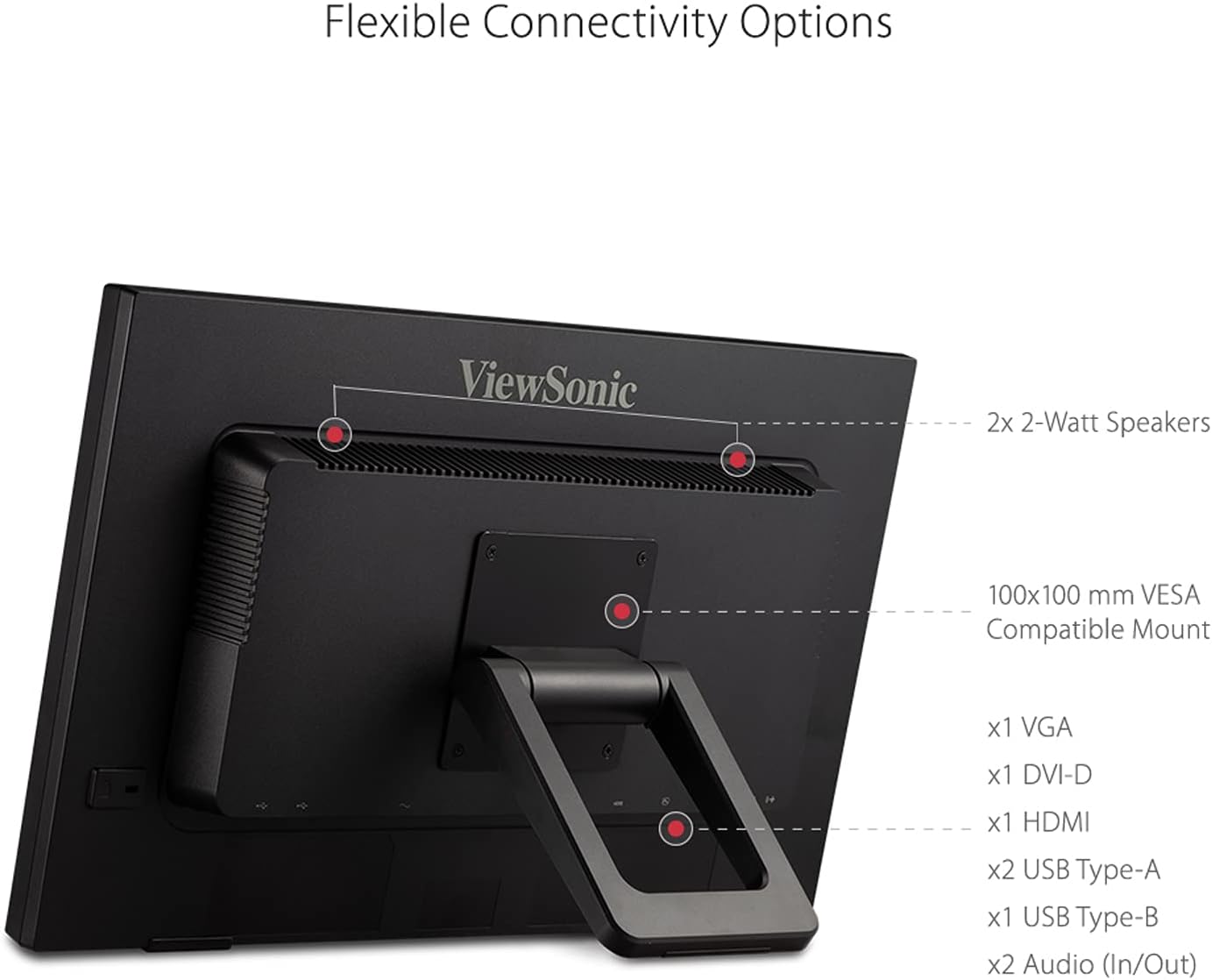
1.2-сүрөт: Flexible Connectivity Options. This image highlights the various input and output ports available on the back of the monitor.
2. Иштөө нускамалары
Learn how to effectively use the features of your TD2223 monitor.
2.1 Сенсордук функция
The TD2223 features robust 10-point IR touch technology, allowing for intuitive interaction with your content. Simply use your fingers to tap, swipe, pinch, and zoom.

2.1-сүрөт: 10-Point IR Touch. This image illustrates the multi-touch capabilities of the monitor.
2.2 Multi-OS Support
The monitor is compatible with various operating systems, including Windows, Android, Chrome OS, and Linux. For macOS users, touch and gesture controls can be accessed via ViewSonic's vTouch driver (not available for iPhone and iPad).

2.2-сүрөт: Multi-OS Compatibility. The monitor supports a wide range of operating systems for versatile use.
2.3 Көзгө кам көрүүнүн өзгөчөлүктөрү
The TD2223 incorporates Flicker-Free technology and a built-in Blue Light Filter to reduce eye strain and fatigue during extended viewing periods, promoting improved productivity.
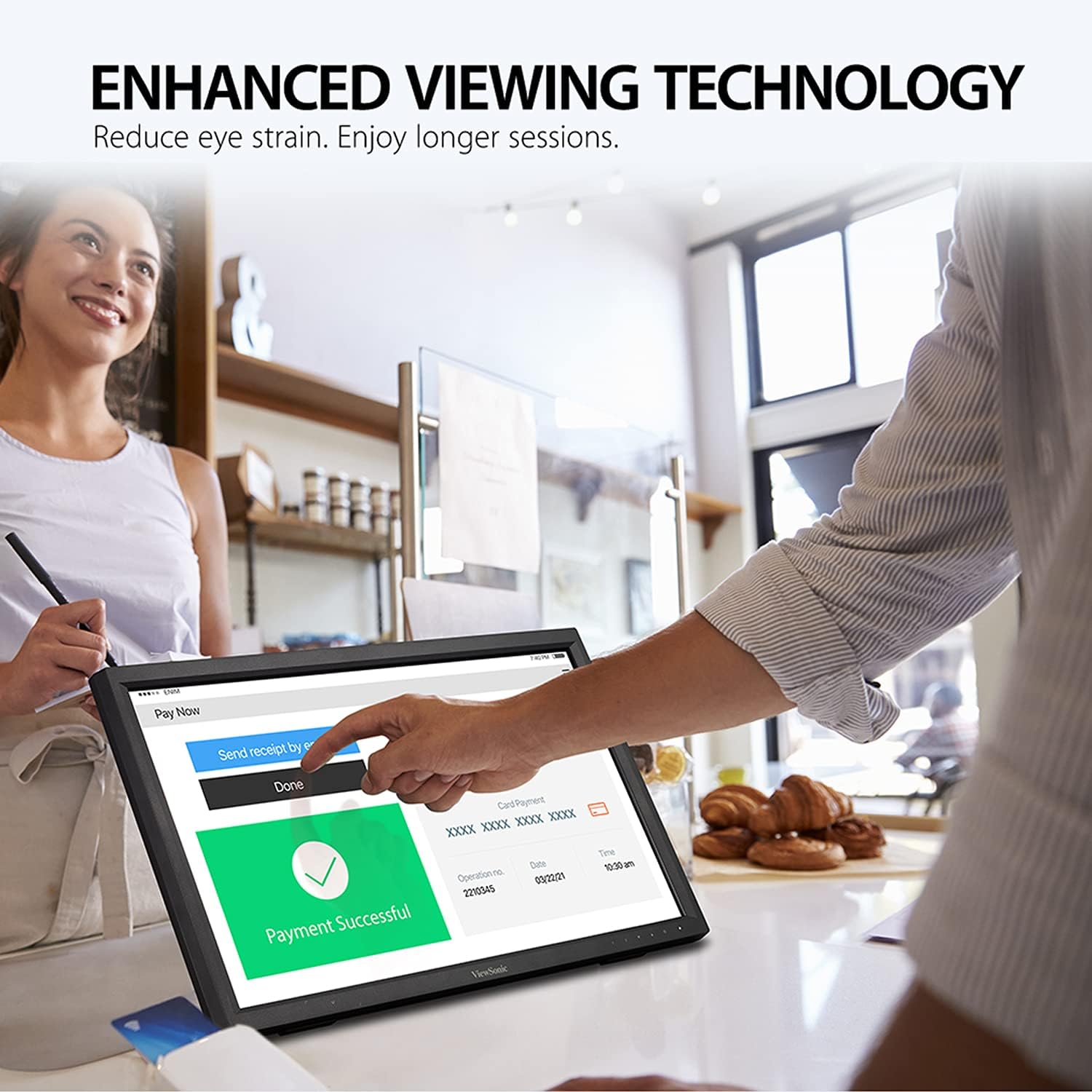
2.3-сүрөт: Өркүндөтүлгөн Viewing Comfort. This image highlights the monitor's features designed to reduce eye strain.
2.4 Экрандагы дисплей (OSD) менюсу
Access the OSD menu using the buttons located on the bottom right of the monitor to adjust settings such as brightness, contrast, color temperature, and input source.
3. Техникалык тейлөө
Туура кам көрүү мониторуңуздун узак иштөөсүн жана оптималдуу иштешин камсыз кылат.
3.1 Мониторду тазалоо
- Always power off the monitor and unplug it before cleaning.
- Жумшак, түксүз кездемени жеңил колдонуңуз dampсуу же жумшак, абразивдүү эмес экран тазалагыч менен иштетиңиз.
- Do not spray liquid directly onto the screen or casing.
- Катуу химиялык заттарды, абразивдик жаздыктарды же эриткичтерди колдонуудан алыс болуңуз.
3.2 Колдонуудагы сактык чаралары
The TD2223 features a 7H scratch-resistant surface, but proper handling is still recommended to prevent damage.
- Мониторго оор нерселерди коюудан алыс болуңуз.
- Мониторду экстремалдык температурага же нымдуулукка дуушар кылбаңыз.
- Transport the monitor carefully, preferably in its original packaging or a protective case.
4. Кыйынчылыктарды
Бул бөлүмдө мониторуңузда кездешүүсү мүмкүн болгон жалпы маселелер каралат.
4.1 Дисплей жок
- Кубат кабели мониторго да, розеткага да бекем туташтырылганын текшериңиз.
- Verify that the video cable (HDMI, VGA, or DVI) is properly connected to both the monitor and your computer.
- Компьютериңиз күйгүзүлгөнүн жана уйку режиминде эмес экенин текшериңиз.
- Press the 'Input' button on the monitor to cycle through available video inputs and select the correct one.
4.2 Touch Functionality Not Working
- Ensure the USB Type-B uplink cable is securely connected from the monitor to your computer.
- For macOS, ensure the ViewSonic vTouch driver is installed and configured correctly.
- Restart your computer and the monitor.
4.3 Сүрөттүн сапаты маселелери
- OSD менюсу аркылуу жарыктык, контраст жана түс жөндөөлөрүн тууралаңыз.
- Ensure your computer's display resolution is set to 1920x1080 (Full HD) for optimal clarity.
- Check for any physical damage to the video cable or monitor screen.
5. Техникалык шарттар
Key technical details for the ViewSonic TD2223 monitor.
| Өзгөчөлүк | Спецификация |
|---|---|
| Продукциянын өлчөмдөрү | 4 x 20.5 x 13.1 дюйм |
| Элемент Салмагы | 9.9 фунт |
| Screen Size | 22 дюйм |
| Резолюция | 1920 x 1080 пиксел (FHD 1080p) |
| Аспект катышы | 16:9 |
| Жаңыртуу ылдамдыгы | 75Hz |
| Touch Technology | 10-Point Infrared (IR) Touch |
| Screen Surface | Glossy, 7H Scratch Resistant |
| Сүрөттүн жарыктыгы | 250 кд/м² |
| Статикалык контраст катышы | 1000:1 |
| Байланыш | HDMI, VGA, DVI, 3x USB Ports (1x USB Type-B Uplink, 2x USB Type-A Downstream), Audio In/Out |
| Өзгөчөлүктөр | Eye Care (Flicker-Free, Blue Light Filter), VESA-Mount Compatible (100x100 mm) |
6. Кепилдик жана колдоо
This product is a manufacturer refurbished item. Please refer to the specific warranty information provided at the time of purchase for details regarding coverage and duration.
For technical support or service inquiries, please visit the official ViewSonic website or contact their customer service department. Ensure you have your model number (TD2223) and purchase details available.


