1. Киришүү
The ID-COOLING XF-12025-ARGB-TRIO is a 3-pack of 120mm case fans designed to provide efficient cooling and vibrant Addressable RGB (ARGB) lighting for your computer system. These fans feature Pulse Width Modulation (PWM) control for dynamic speed adjustment, ensuring optimal airflow and minimized noise. The ARGB lighting can be synchronized with compatible motherboards, allowing for a unified lighting experience.
Негизги өзгөчөлүктөр төмөнкүлөрдү камтыйт:
- PWM желдеткич башкаруусу: Dynamic speed adjustment from 700 RPM to 1,500 RPM for balanced performance.
- Addressable RGB Lighting: Customizable lighting effects to match your PC build.
- Motherboard синхрондоштуруу: Compatible with 5V 3-PIN ARGB headers for synchronized lighting (e.g., Asus Aura, Gigabyte RGB Fusion, MSI Mystic Lighting, AsRock Polychrome).
- Төмөн ызы-чуу менен иштөө: Engineered for quiet performance without sacrificing cooling efficiency.
- Жогорку аба агымы: Designed to maximize air movement within your PC chassis.
2. Коопсуздук маалыматы
Орнотуудан жана иштетүүдөн мурун төмөнкү коопсуздук чараларын окуп чыгып, түшүнүп алыңыз:
- Ensure your computer system is powered off and unplugged from the wall outlet before installing or handling any internal components.
- Avoid touching the fan blades while the fan is operating.
- Do not expose the fans or cables to moisture or extreme temperatures.
- Handle components with care to prevent damage to pins or connectors.
- Орнотуу кадамдарына ишенбесеңиз, квалификациялуу техникке кайрылыңыз.
3. Пакеттин мазмуну
Пакетиңизде бардык буюмдар бар экенин текшериңиз:
- 3 x ID-COOLING XF-12025-ARGB-TRIO 120mm Case Fans
- Mounting Screws (typically 12 screws for 3 fans)
- PWM Fan Cables (pre-attached or separate)
- ARGB 5V 3-PIN Cables (pre-attached or separate)
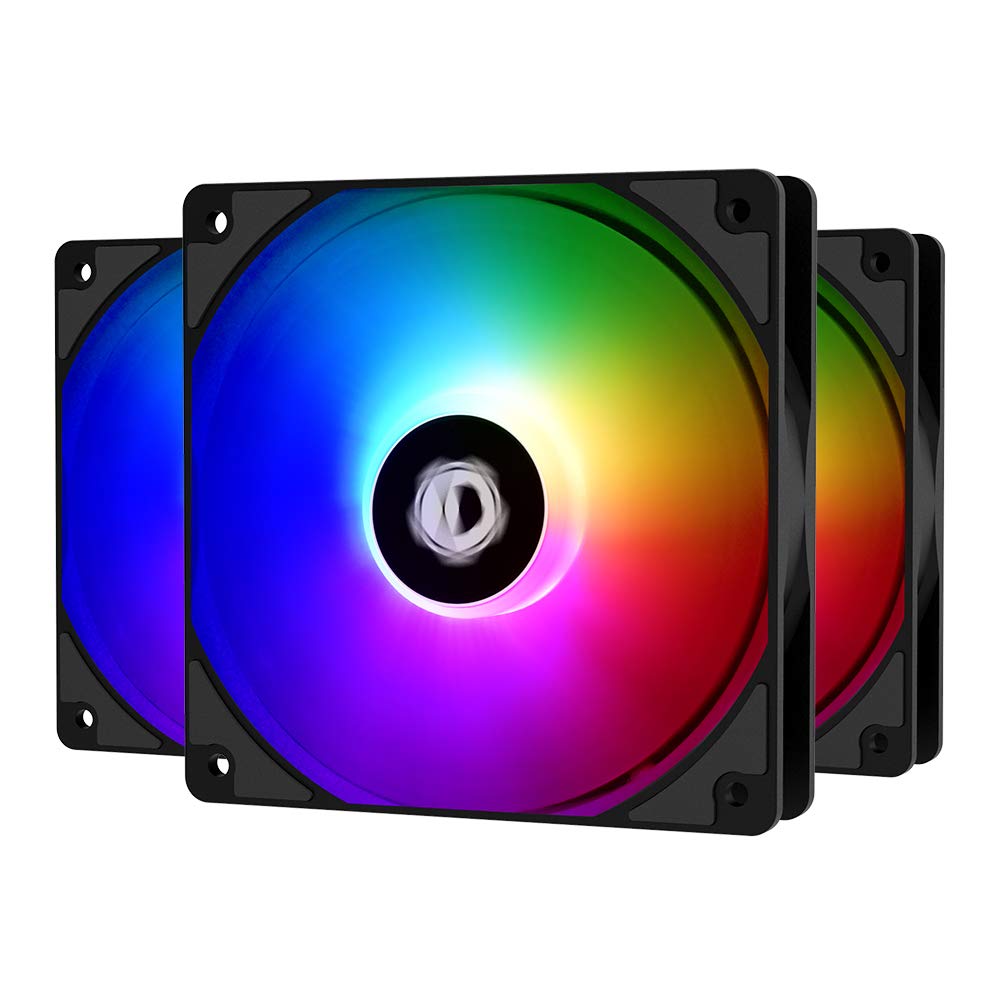
Image: The ID-COOLING XF-12025-ARGB-TRIO 3-pack of fans.
4. Орнотуу жана орнотуу
Follow these steps to install your ID-COOLING case fans:
- Системаңызды даярдаңыз: Power off your computer and unplug it from the power outlet. Open your PC case to access the fan mounting locations.
- Орнотуу жерлерин аныктоо: Determine where you want to install the fans (e.g., front, top, rear, bottom of the case). Ensure there is sufficient space and proper airflow direction.
- Күйөрмандарды тоо: Position each fan in the desired location. Use the included mounting screws to secure the fans to the case. Ensure the fan is oriented correctly for intake or exhaust airflow as per your system's cooling design.

Image: Fans installed within a PC case.
- Connect PWM Cables: Each fan has a 4-pin PWM cable. Connect these cables to the available 4-pin fan headers on your motherboard. Refer to your motherboard manual for header locations (e.g., CPU_FAN, SYS_FAN, CHA_FAN). If you have multiple fans and limited headers, you may need a fan hub (not included).
- Connect ARGB Cables: Each fan also has a 5V 3-PIN Addressable RGB cable. Connect these cables to the 5V 3-PIN ARGB headers on your motherboard. Do not connect to 12V 4-PIN RGB headers, as this will damage the LEDs. Refer to your motherboard manual for ARGB header locations (often labeled as ADD_HEADER, JRAINBOW, or similar). If you have multiple fans, you may daisy-chain them or use an ARGB hub (not included).

Image: Motherboard 5V 3-PIN ARGB header connection.
- Кабелдик башкаруу: Route the fan and ARGB cables neatly to improve airflow and aesthetics within your PC case. Use cable ties or Velcro straps if necessary.
- Капты жаап, күйгүзүү: Once all connections are secure and cables are managed, close your PC case. Reconnect the power cable and power on your computer.
5. Иштөө нускамалары
Your ID-COOLING fans are designed for easy operation once installed:
5.1 PWM Fan Speed Control
The fans utilize PWM technology, allowing your motherboard to dynamically adjust their speed based on system temperature. This ensures efficient cooling when needed and quiet operation during lighter loads.
- Автоматтык башкаруу: By default, your motherboard's BIOS/UEFI or fan control software will manage fan speeds automatically within the 700-1,500 RPM range.
- Кол менен тууралоо: Адатта, сиз желдеткичтин ийри сызыктарын тууралап, ылдамдыктын про режимин орното аласызfiles through your motherboard's BIOS/UEFI settings or dedicated software (e.g., ASUS Fan Xpert, Gigabyte SIV, MSI Dragon Center).

Image: Illustration of PWM fan speed control.
5.2 Addressable RGB Lighting Control
The ARGB lighting is controlled via your motherboard's ARGB software. This allows for a wide range of customizable colors, effects, and synchronization with other ARGB components.
- Шайкеш программалык камсыздоо:
- ASUS Aura синхрондоштуруу
- Gigabyte RGB Fusion
- MSI Mystic Light Sync
- AsRock Polychrome Sync
- Launch the respective software on your operating system to customize lighting modes, colors, brightness, and synchronize effects across all compatible devices.
5.3 Airflow and Noise
These fans are designed for both effective airflow and low noise levels. The fan blades and frame are engineered to minimize operational sound while moving a significant volume of air.

Image: Low-noise operation features.

Image: Fan airflow direction illustration.
6. Техникалык тейлөө
To ensure optimal performance and longevity of your fans, periodic maintenance is recommended:
- Чаңды тазалоо: Over time, dust can accumulate on fan blades and within the fan housing, reducing cooling efficiency and potentially increasing noise. Regularly (e.g., every 3-6 months) power off your PC, unplug it, and use compressed air to gently blow dust off the fan blades and heatsinks.
- Текшерүү: Periodically check fan cables for any signs of wear or damage. Ensure all connections remain secure.
7. Кыйынчылыктарды
If you encounter issues with your ID-COOLING fans, try the following troubleshooting steps:
- Айланбаган күйөрмандар:
- Ensure the 4-pin PWM fan cables are securely connected to the motherboard fan headers.
- Check your motherboard's BIOS/UEFI settings to ensure fan headers are enabled and configured correctly (e.g., not set to 0 RPM at low temperatures).
- Try connecting the fan to a different fan header on the motherboard to rule out a faulty header.
- RGB Lighting Not Working or Incorrect Colors:
- Verify that the 5V 3-PIN ARGB cables are correctly connected to a 5V 3-PIN ARGB header on your motherboard. Ensure it is not connected to a 12V 4-PIN RGB header.
- Check your motherboard's ARGB control software (e.g., Asus Aura Sync, Gigabyte RGB Fusion) to ensure the lighting is enabled and configured as desired.
- If daisy-chaining, ensure all connections between fans are secure.
- Try restarting your computer or reinstalling the motherboard's ARGB software.
- Ашыкча ызы-чуу:
- Вентиляторлордун бекем орнотулганын жана корпуска титиребегенин текшериңиз.
- Желдетүүчү пластинкаларга тийген кабелдер же тоскоолдуктар жок экенин текшериңиз.
- Желдетүүчү бычактагы чаңды тазалаңыз.
- Adjust fan speed settings in your motherboard's BIOS/UEFI or software to a lower RPM if noise is a concern and temperatures allow.
8. Техникалык шарттар
| Өзгөчөлүк | Спецификация |
|---|---|
| Модел | XF-12025-ARGB-TRIO |
| Fan өлчөмдөрү | 120мм x 120мм x 25мм (4.72"L x 0.98"W x 4.72"H) |
| Fan Speed | 700 - 1,500 RPM (PWM менен башкарылат) |
| Макс. Аба агымы | 62 CFM |
| Ызы-чуу деңгээли | 26.4 дБ(А) |
| Power Connector | 4-пин PWM |
| ARGB туташтыргычы | 5V 3-PIN Addressable RGB |
| Тtage | 5 Volts (for ARGB) |
| Ватtage | 3 ватт |
| Муздатуу ыкмасы | Аба |
| Шайкеш түзмөктөр | Desktop PCs (CPU Cooler, Radiator, PC Chassis) |
| Материал | Copper (as per product data, typically plastic/metal for fans) |
| Өндүрүүчү | ID-COLING |
| Дата биринчи жеткиликтүү | 8-декабрь, 2020-жыл |
9. Кепилдик жана колдоо
ID-COOLING products typically come with a manufacturer's warranty. Please refer to the warranty information provided with your purchase or visit the official ID-COOLING webкепилдик шарттары жана эрежелери жөнүндө кененирээк маалымат алуу үчүн сайтты караңыз.
For technical support, product inquiries, or warranty claims, please contact ID-COOLING customer service through their official channels. Keep your proof of purchase for warranty validation.
You can often find support information and FAQs on the ID-COOLING official webсайт: www.idcooling.com


