Introduction
This manual provides essential information for setting up, operating, maintaining, and troubleshooting your Microsoft Surface Pro 8. Please read this guide thoroughly to ensure optimal performance and longevity of your device.
Кутуда эмне бар:
- Surface Pro 8 түзмөгү
- Электр камсыздоо
- AC Cord
- Ыкчам баштоо колдонмосу (QSG)
- Ченемдик документтер
Жайгашуу
Follow these steps to set up your Surface Pro 8 for the first time.
- Аппаратты заряддоо: Connect the power supply to your Surface Pro 8 and a power outlet. Allow the device to charge for at least 30 minutes before initial use.
- Күйгүзүү: Press the power button located on the top edge of the device. The Microsoft logo will appear, followed by the Windows 11 setup screen.
- Initial Windows 11 Setup: Follow the on-screen prompts to select your language, region, connect to a Wi-Fi network, and set up your Microsoft account.
- Connect Accessories (Sold Separately): If you have a Surface Pro Signature Keyboard or Surface Slim Pen 2, attach the keyboard to the magnetic port at the bottom edge of the Surface Pro 8. The pen can be paired via Bluetooth or stored in the keyboard's charging slot.
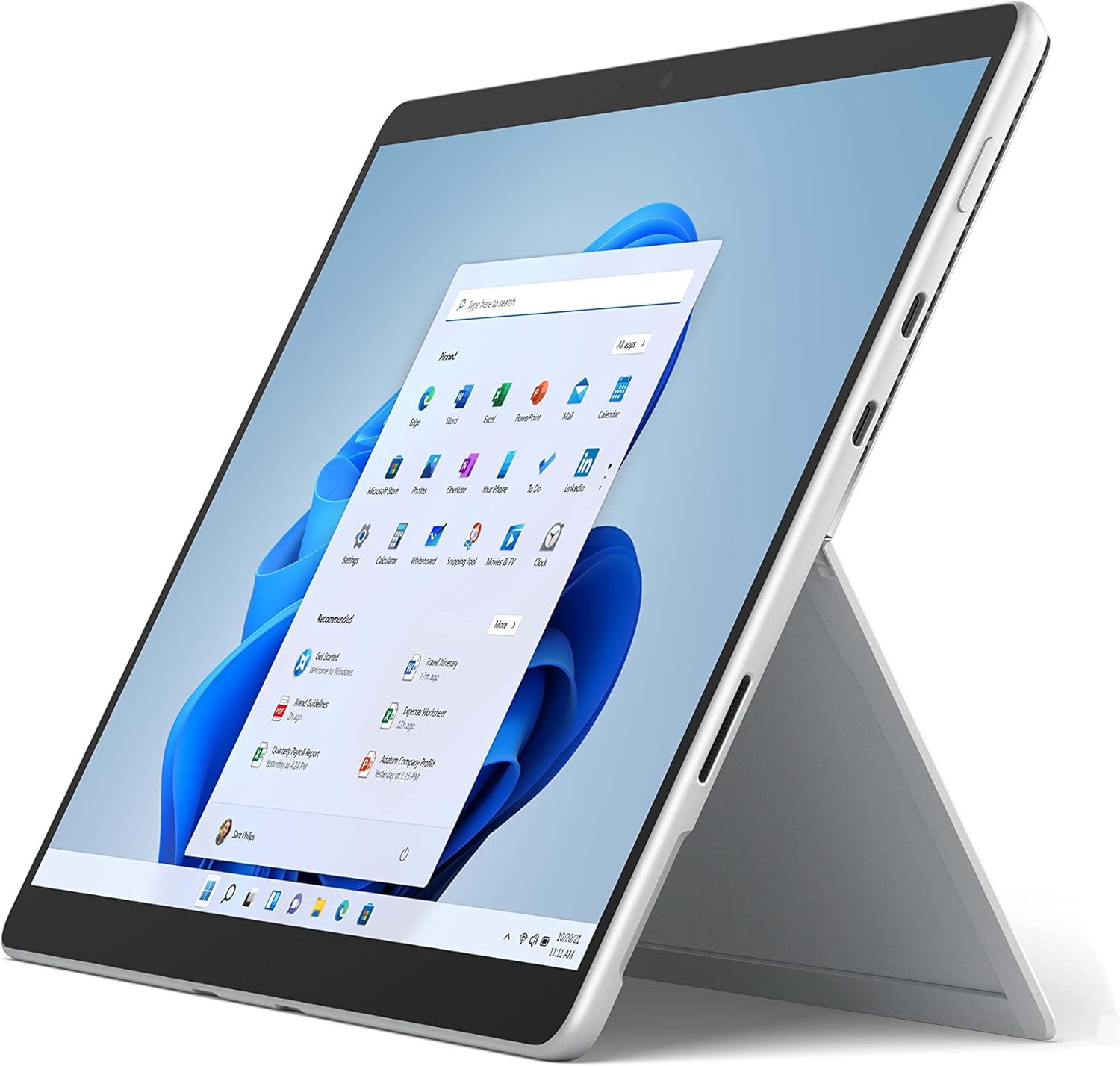
The image above shows the Microsoft Surface Pro 8 in tablet mode, with its 13-inch touchscreen displaying the Windows 11 Start menu. The device is silver with a black bezel, showcasing its sleek design and the intuitive user interface of Windows 11.

This image illustrates the Microsoft Surface Pro 8 alongside its optional accessories: the Surface Slim Pen 2 and the Surface Pro Signature Keyboard. The tablet is shown in a horizontal orientation, with the pen and keyboard positioned below it, highlighting the device's versatility and ecosystem.
Иштөө нускамалары
The Surface Pro 8 offers flexible usage modes to suit various tasks.
Планшет режими:
Use the Surface Pro 8 as a standalone tablet for touch-based interactions. The 13-inch touchscreen supports multi-touch gestures for navigation and app control.
Ноутбук режими:
Attach the Surface Pro Signature Keyboard (sold separately) to transform your device into a laptop. The integrated kickstand allows for adjustable viewбурчтар.

The image displays a side profile of the Microsoft Surface Pro 8 with its integrated kickstand fully extended, supporting the device at an angle. This view highlights the thin design and the functionality of the kickstand for hands-free use.

This image shows the Microsoft Surface Pro 8 with the Surface Pro Signature Keyboard attached, viewed from the side. The device is propped up by its kickstand, demonstrating its laptop configuration, ready for typing and productivity.
Using the Surface Slim Pen 2 (Sold Separately):
The Surface Slim Pen 2 provides a natural writing and drawing experience. It can be used for note-taking, sketching, and navigating the interface. Tactile signals enhance the pen-on-paper feel in supported applications.

The image depicts a hand holding a black Surface Slim Pen 2, actively writing or drawing on the screen of the Microsoft Surface Pro 8. This illustrates the precision and natural feel of using the pen for creative or productive tasks on the device.
Windows 11 Features:
- Snap макеттери: Organize your open windows efficiently.
- Виджеттер: Access personalized information at a glance.
- Microsoft дүкөнү: Download and install applications.
Техникалык тейлөө
Proper care ensures the longevity and performance of your Surface Pro 8.
Тазалоо:
- Жумшак, түксүз кездемени колдонуңуз dampэкранды сүртүү үчүн суу же бекитилген экран тазалагыч менен чайкаңыз.
- Avoid harsh chemicals, abrasive materials, or aerosol sprays.
- Тазалоодон мурун аппараттын өчүрүлгөнүн жана розеткадан ажыратылганын текшериңиз.
Батареяга кам көрүү:
- Ашыкча температурадан качыңыз, алар батареянын иштөө мөөнөтүн начарлатышы мүмкүн.
- Батареяны оптималдуу ден соолук үчүн, батареяны ырааттуу түрдө толугу менен зарядсыздандырбаңыз же аны узак убакыт бою 100% зарядда кармап туруңуз.
Программалык камсыздоо жаңыртуулары:
Regularly check for and install Windows updates to ensure your device has the latest security patches and performance improvements. Go to Орнотуулар > Windows Жаңыртуу.
Проблемаларды чечүү
Бул жерде сиз кабылышы мүмкүн болгон жалпы маселелерди чечүү жолдору бар.
Түзмөк күйбөй жатат:
- Ensure the device is charged. Connect the power supply and wait a few minutes before attempting to power on.
- Perform a force restart: Press and hold the power button for 30 seconds, then release. Press it again briefly to turn on.
Экран маселелери:
- Эгер экран жооп бербесе, түзмөктү өчүрүп-күйгүзүп көрүңүз.
- Adjust brightness settings in the Windows Action Center or Display Settings.
Туташуу көйгөйлөрү:
- For Wi-Fi issues, ensure Wi-Fi is enabled and try reconnecting to your network. Restart your router if necessary.
- For Bluetooth issues, ensure Bluetooth is enabled and try re-pairing your device.
For more detailed troubleshooting or persistent issues, visit the official Microsoft Surface support website or contact Microsoft customer service.
Техникалык шарттар
Key technical specifications for the Microsoft Surface Pro 8.
| Өзгөчөлүк | Спецификация |
|---|---|
| Туруктуу экран дисплей өлчөмү | 13 дюйм |
| Max Screen Resolution | 2880x1920 пиксел |
| Процессор | 4.2 GHz core_i5 (Intel Evo Platform) |
| RAM | 8 ГБ LPDDR4 |
| Катуу диск | 128 ГБ SSD |
| Графикалык сопроцессор | Intel Iris Xe графикасы |
| Операция системасы | Windows 11 |
| Зымсыз түрү | 802.11ax |
| Элемент Салмагы | 1.96 фунт |
| Продукциянын өлчөмдөрү | 12.22 x 9.06 x 1.97 дюйм |
| Порттар | 2x USB-C Thunderbolt 4, 3.5mm headphone jack, Surface Connect port |

Бул сүрөт жакындан тартууну камсыз кылат view of the side of the Microsoft Surface Pro 8, highlighting its connectivity options. Visible ports include two USB-C Thunderbolt 4 ports and a 3.5mm headphone jack, demonstrating the device's modern and versatile input/output capabilities.

The image displays an internal view of the Microsoft Surface Pro 8, revealing its sophisticated engineering. Key components such as the Intel processor, cooling system, and battery are visible, illustrating the hardware that powers the device's performance.
Кепилдик жана колдоо
Юридикалык баш тартуу:
Some accessories and software sold separately. Available colors and materials may vary by market and configuration. Battery life varies significantly based on usage, network and feature configuration, signal strength, settings and other factors. See Surface.com for details. Requires Dolby encoded content and audio. Pen storage and charging available on select Keyboards. Tactile signals with Surface Slim Pen 2 can be experienced on some applications on Surface Delia running Windows 11. Surface Slim Pen 2 sold separately.
Продукт Кепилдиги:
Your Microsoft Surface Pro 8 comes with a limited hardware warranty. Please refer to the regulatory documents included in your product packaging for specific terms and conditions, including warranty duration and coverage details. Proof of purchase may be required for warranty claims.
Кардарларды колдоо:
For technical assistance, warranty service, or additional product information, please visit the official Microsoft Support website or contact Microsoft customer service directly. Support resources include FAQs, troubleshooting guides, and contact options for live assistance.


