Introduction
The Logitech POP Keys Mechanical Wireless Keyboard is designed to bring personality and efficiency to your workspace. Featuring customizable emoji keys and satisfying mechanical switches, this keyboard offers a unique typing experience. It supports multi-device connectivity via Bluetooth or the Logi Bolt USB receiver, making it versatile for various operating systems and devices. Its compact design promotes better posture and saves desk space, while its durable construction ensures long-lasting performance.

The Logitech POP Keys keyboard in Daydream Mint, showcasing its vibrant design.
Жайгашуу
Батарея орнотуу
The POP Keys keyboard requires 2 AAA batteries, which are included. To install the batteries:
- Баскычтоптун астыңкы жагындагы батарея бөлүкчөсүн табыңыз.
- Gently slide open the battery cover.
- Туура полярдуулукту (+/-) камсыз кылуу менен 2 AAA батарейкасын салыңыз.
- Батареянын капкагын бекем жабыңыз.
The battery compartment and Logi Bolt USB receiver storage on the back of the keyboard.
Байланыш
The Logitech POP Keys keyboard offers two primary connection methods: Bluetooth and the Logi Bolt USB receiver.
- Bluetooth колдонуу:
1. Ensure Bluetooth is enabled on your device (computer, laptop, iPad, tablet, or phone).
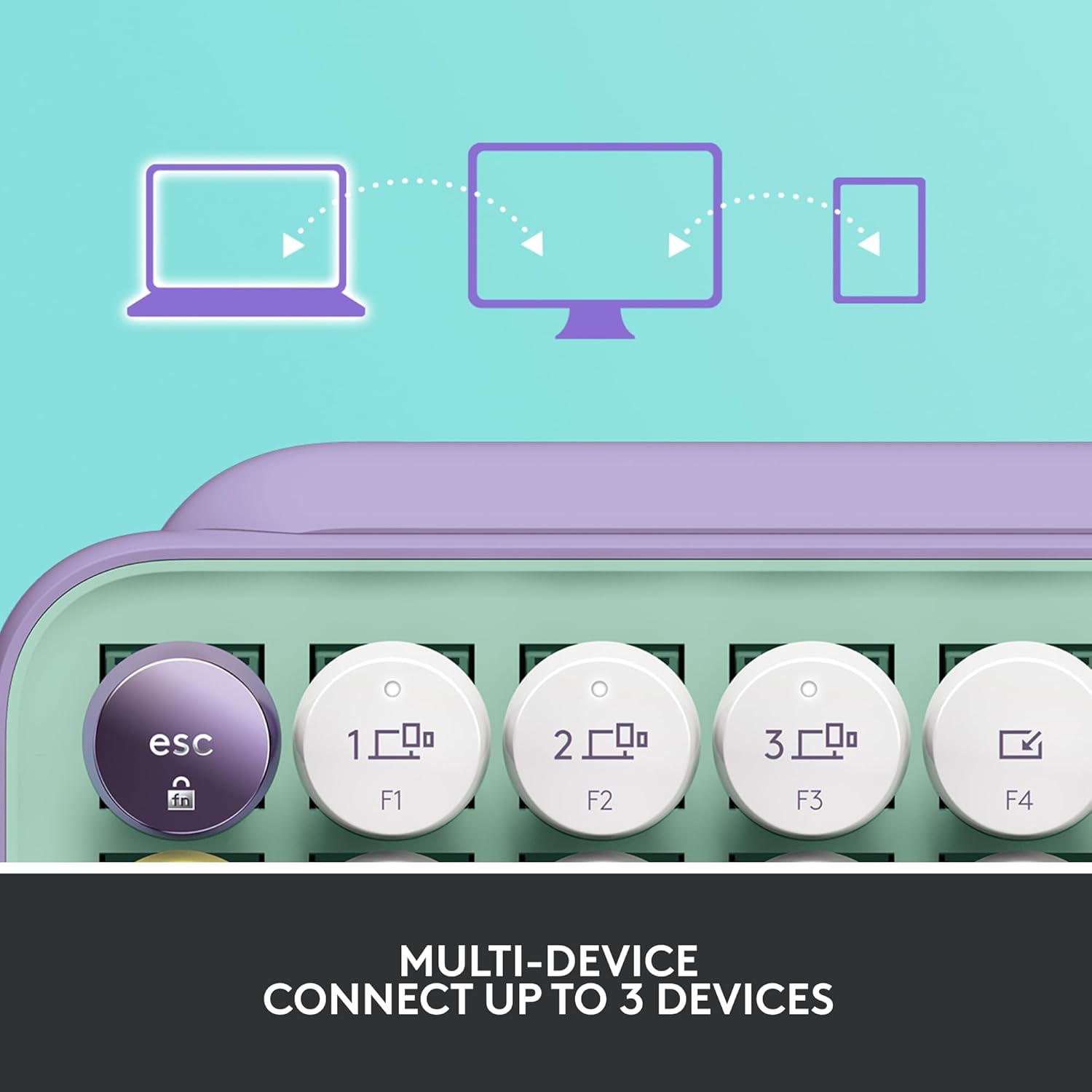
2. On the POP Keys keyboard, press and hold one of the Easy-Switch keys (F1, F2, or F3) for 3 seconds until the LED light above the key starts blinking rapidly.
3. On your device, search for Bluetooth devices and select "Logi POP Keys" to pair.
4. The LED light on the keyboard will turn solid for 5 seconds to confirm successful pairing. - Logi Bolt USB кабыл алгычын колдонуу:
1. Plug the Logi Bolt USB receiver into an available USB port on your computer.
2. The keyboard should automatically connect to the receiver. If not, press any key on the keyboard to wake it up.

The keyboard can connect to up to three devices simultaneously, easily switching between them.
Баскычтопту иштетүү
Customizable Emoji Keys
The POP Keys keyboard features 8 swappable emoji keys and 1 emoji menu key, allowing you to personalize your typing experience. Four emoji keys are pre-installed, with four extra keys included in the box. You can easily remove and replace these keys to match your preferred emojis.
To customize the emoji keys, download and install the Logitech Options software on your Windows or macOS device. This software allows you to assign specific emojis or other functions to these keys.
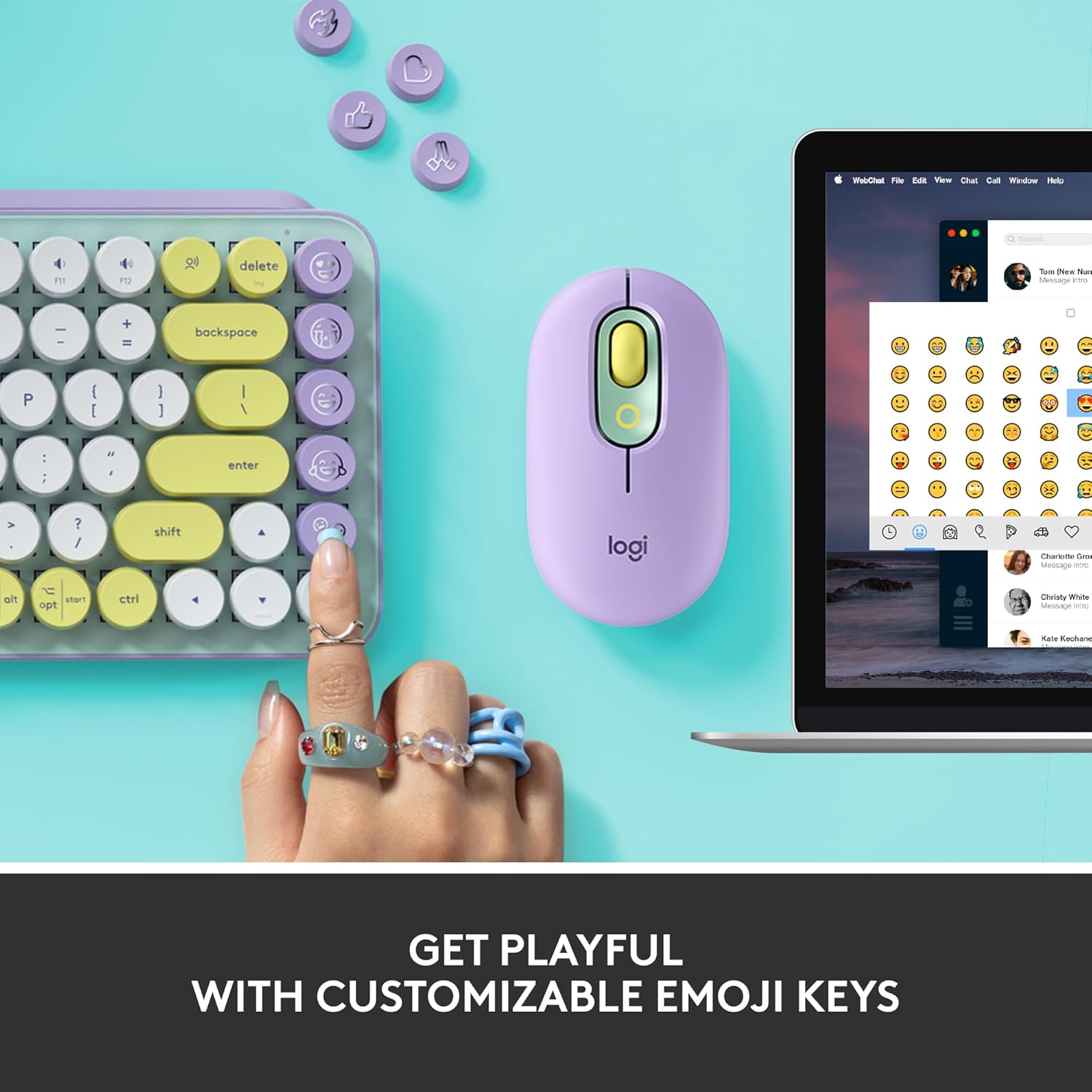
The customizable emoji keys are located on the right side of the keyboard.
Көп түзмөктү которуу
The Easy-Switch keys (F1, F2, F3) allow you to seamlessly switch between up to three connected devices. Once paired with multiple devices, simply press the corresponding F-key to switch the keyboard's active connection.
Shortcut and Media Keys
The POP Keys keyboard includes a series of dedicated shortcut and media keys for enhanced productivity and control. These include:
- Snip Screen: Capture screenshots quickly.
- Микрофондун үнүн басуу: Mute or unmute your microphone.
- Медиа ачкычтары: Control playback (play/pause, next/previous track) and volume.
- Voice-to-Text: Activate dictation features (availability may vary by operating system and region).
Техникалык тейлөө
Батареянын иштөө мөөнөтү
The Logitech POP Keys keyboard is designed for extended battery life, offering up to 3 years of use on a single set of AAA batteries. Actual battery life may vary based on usage patterns and environmental conditions.
Тазалоо
To maintain your keyboard's appearance and functionality, regularly clean its surface. Use a soft, lint-free cloth slightly dampened with water or a mild cleaning solution. Avoid using harsh chemicals or abrasive materials that could damage the keyboard's finish or keys.
Проблемаларды чечүү
If you encounter issues with your Logitech POP Keys keyboard, consider the following common troubleshooting steps:
- Байланыш жок/жооп бербей жатат:
1. Ensure the keyboard is powered on and batteries are correctly installed.
2. Check if the batteries need replacement.
3. For Bluetooth connection, ensure Bluetooth is enabled on your device and the keyboard is paired. Try unpairing and re-pairing.
4. For Logi Bolt USB receiver, ensure the receiver is securely plugged into a working USB port. Try a different USB port.
5. Ensure the keyboard is within the wireless range (up to 32.81 ft / 10 m). - Ачкычтар иштебейт:
1. Check for any debris or obstructions under the keys.
2. Restart your computer or device.
3. If specific keys are not responding, it might indicate a hardware issue. - Emoji Keys Not Customizing:
1. Ensure you have installed the latest version of Logitech Options software.
2. Verify your operating system is compatible with Logitech Options (Windows and macOS only).
For more detailed troubleshooting or persistent issues, refer to the official Logitech support webсайт же толук колдонуучу колдонмо PDF.
Техникалык шарттар
| Өзгөчөлүк | Деталь |
|---|---|
| Бренд | Logitech |
| Модель номери | 920-010708 |
| Байланыш технологиясы | Bluetooth, USB (Logi Bolt Receiver) |
| Keyboard Description | Механикалык |
| Негизги которгучтар | Brown, tactile |
| Ачкычтардын саны | 84 |
| Операциялык системанын шайкештиги | Windows 10+, macOS 10.15+, iPadOS 14+, iOS 14+, Chrome OS, Android 8+ |
| Элемент Салмагы | 1.72 фунт (779 г) |
| Продукциянын өлчөмдөрү | 12.65 x 5.45 x 1.4 дюйм (321.2 x 138.47 x 35.4 мм) |
| Түс | Daydream Mint |
| Power Source | Battery Powered (2 x AAA included) |
| Батареянын иштөө мөөнөтү | Up to 3 years (may vary) |
| Зымсыз диапазон | 32.81 фут (10 м) |
Кутуда эмне бар
Пакетти ачканда, сиз төмөнкү нерселерди табышыңыз керек:
- Logitech POP Keys Mechanical Wireless Keyboard
- Logi Bolt USB Receiver
- 2 x AAA батареялары (алдын ала орнотулган же өзүнчө камтылган)
- 4 Extra Emoji Keycaps
- Колдонуучунун документтери
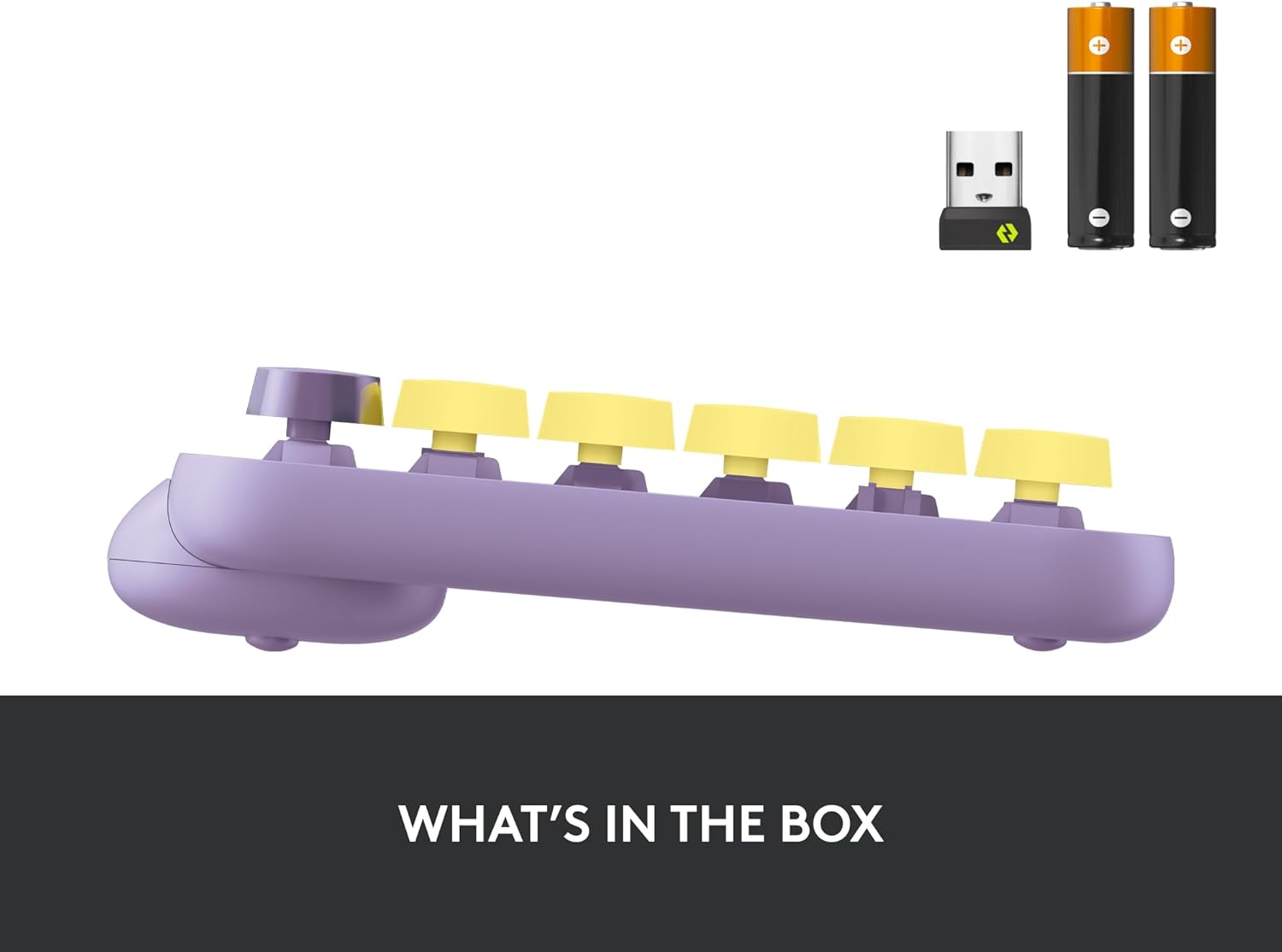
The Logitech POP Keys keyboard, Logi Bolt USB receiver, and AAA batteries as typically found in the product packaging.
Кепилдик жана колдоо
Logitech products are manufactured to high quality standards and come with a limited hardware warranty. For specific warranty terms and conditions applicable to your region, please refer to the warranty information provided in the product packaging or on the official Logitech webсайт.
For additional support, FAQs, and the latest drivers or software, please visit the official Logitech support page. You can also download the full user manual in PDF format for comprehensive instructions and information:


