1. Киришүү
This manual provides comprehensive instructions for the installation, operation, and maintenance of your TP-Link Archer C5 AC1200 Dual-Band Gigabit Wireless Wi-Fi Router. The Archer C5 is designed to provide seamless Wi-Fi coverage with its dual-band capabilities, offering speeds up to 750Mbps on the 5GHz band and up to 300Mbps on the 2.4GHz band. It features four external antennas for stable wireless connections and full Gigabit ports for high-speed wired connections.
Please read this manual carefully before using the device to ensure proper setup and optimal performance.
2. Пакеттин мазмуну
Пакетиңизде төмөнкү заттар бар экенин текшериңиз:
- TP-Link Archer C5 роутери
- Power Adapter (DC Adapter)
- Ethernet кабели (RJ45)
- Quick Installation Guide (may be a separate document)
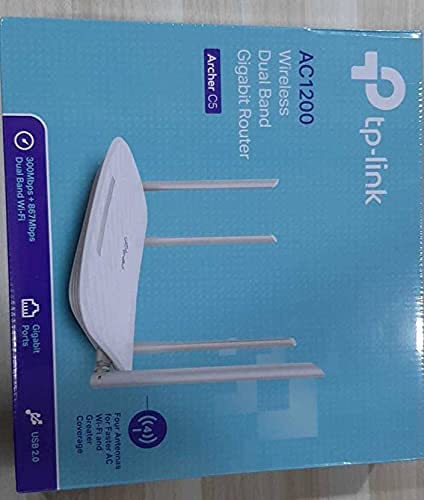
3. Продукт бүтүп калдыview
3.1 алдыңкы панели

The front panel features LED indicators that provide information about the router's status, including power, internet connectivity, Wi-Fi status for both 2.4GHz and 5GHz bands, and LAN port activity.
3.2 Арткы панель

The rear panel includes all physical connection ports and buttons:
- Кубат киргизүү: Берилген кубат адаптерине туташат.
- Кубат баскычы: Роутерди күйгүзөт же өчүрөт.
- USB порт: Бөлүшүү үчүн USB сактагыч түзмөктөрүн туташтыруу үчүн fileтармак аркылуу.
- WAN порту (Көк): Connects to your modem for internet access. This is a Gigabit port.
- LAN порттору (сары): Four Gigabit Ethernet ports for connecting wired devices such as computers, gaming consoles, or smart TVs.
- Калыбына келтирүү баскычы: Маршрутизатордун демейки жөндөөлөрүнө кайтаруу үчүн колдонулат.
- WPS/Wi-Fi баскычы: Press to enable WPS (Wi-Fi Protected Setup) for easy connection, or press and hold to turn Wi-Fi on/off.
4. Орнотуу колдонмосу
Follow these steps to set up your TP-Link Archer C5 router:
- Модемиңизди өчүрүү: Учурдагы модемиңизден электр кубатын ажыратыңыз.
- Роутерди туташтыруу:
- Connect one end of the provided Ethernet cable to the WAN port (blue) on your Archer C5 router.
- Ethernet кабелинин экинчи учун модемиңиздин Ethernet портуна туташтырыңыз.
- Түзмөктөрдү күйгүзүү:
- Кубат адаптерин роутердин кубат киргизүү булагына туташтырып, аны розеткага сайыңыз.
- Power on your modem, then wait for it to fully boot up (usually indicated by stable LED lights).
- Power on the Archer C5 router. Wait for the LED indicators to stabilize, particularly the Internet LED.
- Маршрутизатордун Wi-Fi тармагына туташыңыз:
- Роутериңиздин ылдый жагындагы этикеткада басылган Wi-Fi тармагынын атын (SSID) жана сырсөздү табыңыз.
- On your computer or mobile device, select the router's Wi-Fi network and enter the password to connect.
- кирүү Web Башкаруу интерфейси:
- ачуу а web браузер (мисалы, Chrome, Firefox) жана териңиз
http://tplinkwifi.netor192.168.0.1дарек тилкесине. - Демейки колдонуучу атын жана паролду колдонуп кириңиз (адатта
adminэкөөнө тең же роутердин этикеткасында көрсөтүлгөндөй). - Follow the Quick Setup wizard to configure your internet connection and personalize your Wi-Fi network name and password.
- ачуу а web браузер (мисалы, Chrome, Firefox) жана териңиз
- Optional: Use the TP-Link Tether App: Download the TP-Link Tether app from your mobile device's app store for easy setup and management.
5. Иштөө нускамалары
Once your router is set up, you can manage its functions through the web management interface or the TP-Link Tether app.
5.1 Кош тилкелүү Wi-Fi
The Archer C5 operates on two Wi-Fi bands:
- 2.4 ГГц диапазону: Кеңири камтууну жана дубалдар аркылуу жакшыраак кирүү мүмкүнчүлүгүн камсыз кылат, жалпы интернет колдонуу жана эски түзмөктөр үчүн ылайыктуу.
- 5 ГГц диапазону: Offers faster speeds and less interference, ideal for bandwidth-intensive activities like online gaming and HD video streaming.
You can configure separate SSIDs (network names) and passwords for each band or use a single SSID with Band Steering enabled (if available in your firmware) to allow the router to automatically assign devices to the best band.
5.2 Тармакты башкаруу
аркылуу web интерфейси, сиз:
- Change Wi-Fi settings (SSID, password, security type).
- Set up a Guest Network for visitors.
- Configure parental controls to manage internet access for children.
- Prioritize devices or applications using Quality of Service (QoS).
- Туташкан түзмөктөрдү башкаруу.
- Access advanced settings like port forwarding, VPN server, and dynamic DNS.
6. Техникалык тейлөө
Үзгүлтүксүз тейлөө сиздин роутериңиздин узак иштөөсүн жана оптималдуу иштешин камсыз кылууга жардам берет.
- Программалык камсыздоонун жаңыртуулары: Мезгил-мезгили менен TP-Link кызматкерин текшерип туруңуз webмикропрограммалык камсыздоону жаңыртуу сайты. Микропрограммалык камсыздоону жаңыртуу иштин натыйжалуулугун жакшыртып, жаңы функцияларды кошуп, коопсуздук кемчиликтерин оңдой алат.
- Физикалык жайгаштыруу: Place the router in a central location, away from obstructions and devices that emit electromagnetic interference (e.g., microwaves, cordless phones). Elevating the router can also improve signal distribution.
- Тазалоо: Keep the router clean and free from dust. Ensure ventilation holes are not blocked to prevent overheating.
- Кайра жүктөлүүдө: If you experience slow speeds or connectivity issues, try rebooting the router by unplugging its power adapter for 10 seconds and then plugging it back in.
7. Кыйынчылыктарды
Бул бөлүмдө Archer C5 роутериңиз менен кездешиши мүмкүн болгон жалпы көйгөйлөр каралат.
7.1 Интернетке кирүү жок
- Кабель туташууларын текшерүү: Ensure the Ethernet cable from your modem is securely connected to the router's blue WAN port.
- Модем абалы: Модемиңиз туура иштеп жатканын жана активдүү интернет байланышы бар экенин текшериңиз.
- Роутердин светодиоддору: Check the Internet LED on the router. If it's off or red, there might be an issue with your internet service provider (ISP) or modem connection.
- Түзмөктөрдү кайра жүктөө: Power cycle your modem and then your router.
- Clone MAC Address: Some ISPs require MAC address cloning. Access the router's web interface and check WAN settings for this option.
7.2 Wi-Fi Signal Drops or is Weak
- Маршрутизатордун жайгашуусу: Move the router to a central location, away from obstacles and interference sources.
- Антенна багыты: Adjust the four external antennas for optimal signal reception.
- Канал кийлигишүүсү: Маршрутизатордо web interface, try changing the Wi-Fi channel for both 2.4GHz and 5GHz bands to a less congested one.
- Орнотулган программаны жаңыртуу: Роутериңиздин микропрограммасы жаңыртылганын текшериңиз.
7.3 Forgot Router Login Password
Эгер сиз паролду унутуп калсаңыз web management interface, you will need to reset the router to its factory default settings. Locate the Reset button on the rear panel, press and hold it for about 10 seconds until the LEDs flash, then release. The router will reboot with default settings (usually admin for username and password).
8. Техникалык шарттар
| Өзгөчөлүк | Деталь |
|---|---|
| Бренд | TP-Link |
| Модель аты | Жаачы C5 |
| Зымсыз стандарт | IEEE 802.11ac/n/a 5 ГГц, IEEE 802.11n/b/g 2.4 ГГц |
| Wi-Fi ылдамдыгы | AC1200 (5 ГГцде 867 Мбит/сек, 2.4 ГГцде 300 Мбит/сек) |
| Жыштык тилкесинин классы | Кош тилкелүү (2.4 ГГц жана 5 ГГц) |
| Ethernet порттору | 1 гигабиттик WAN порту, 4 гигабиттик LAN порту |
| USB порту | 1x USB 2.0 порту |
| Антенналар | 4x тышкы антенналар |
| Коопсуздук протоколу | WPA2-PSK |
| Операция системасы | RouterOS (as per product data, typically TP-Link custom firmware) |
| Өзгөчө өзгөчөлүк | Remote Access |
| Элемент Салмагы | 710 г |
| Камтылган компоненттер | Router, DC Adapter, RJ45 Ethernet Cable |
9. Кепилдик жана колдоо
9.1 Кепилдик маалыматы
The TP-Link Archer C5 router typically comes with a 1 жылдык кепилдик. Please refer to the warranty card included in your product packaging or visit the official TP-Link webСиздин аймакка тиешелүү деталдуу кепилдик шарттары жана шарттары үчүн сайт.
9.2 Техникалык колдоо
For technical assistance, firmware updates, or further information, please visit the official TP-Link support website. You can usually find FAQs, troubleshooting guides, and contact information for customer support there.
TP-Link расмий Webсайт: www.tp-link.com


