1. Киришүү
Thank you for choosing the PRITOM Tronpad 7-inch Android 10 Tablet PC. This manual provides essential information to help you set up, operate, and maintain your new device. Please read these instructions carefully before use to ensure optimal performance and longevity of your tablet.
2. Продукт бүтүп калдыview
The PRITOM Tronpad tablet features a 7-inch HD IPS display, a Quad-Core processor, 32GB of internal storage, and runs on Android 10. It includes dual cameras, Wi-Fi, and Bluetooth connectivity, designed for general use and entertainment.
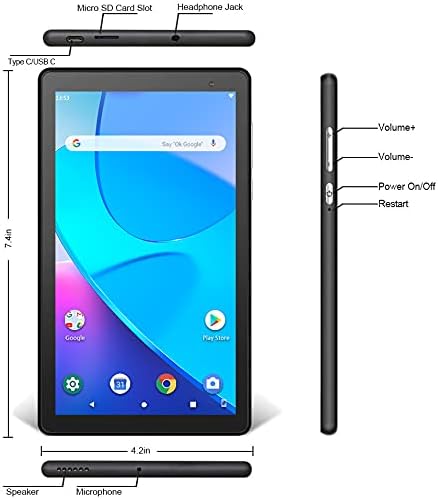
Сүрөт: алдыңкы жана каптал view of the PRITOM Tronpad tablet, highlighting the location of its ports and buttons. These include the Micro SD Card Slot, Headphone Jack, Type C/USB C port, Speaker, Microphone, Volume Up and Down buttons, Power On/Off button, and a dedicated Restart button.
Физикалык компоненттер:
- Микро SD карта слоту: Сактоо көлөмүн кеңейтүү үчүн.
- Гарнитура уячасы: Зымдуу кулакчындарды туташтыруу үчүн.
- Type C/USB C Port: Заряддоо жана маалыматтарды өткөрүү үчүн.
- Баяндамачы: Аудио чыгаруу.
- Микрофон: Аудио киргизүү үчүн.
- Үн баскычтары (+/-): Аудио үнүн жөндөө үчүн.
- Күйгүзүү / Өчүрүү баскычы: To power the device on or off, or to put it to sleep/wake it up.
- Кайра баштоо баскычы: A dedicated button for restarting the tablet if it becomes unresponsive.
3. Орнотуу
3.1 Алгачкы заряддоо
Before first use, fully charge your tablet. Connect the provided USB-C cable to the tablet's USB-C port and the other end to a compatible power adapter. The charging indicator will typically show the charging status on the screen.
3.2 Күйгүзүү/өчүрүү
- Күйгүзүү үчүн: Press and hold the Power On/Off button until the PRITOM logo appears.
- Өчүрүү үчүн: Press and hold the Power On/Off button until a power menu appears on the screen. Select "Power off" and confirm.
- Уйку/ойгонуу үчүн: Briefly press the Power On/Off button to put the tablet to sleep or wake it up.
3.3 Баштапкы орнотуу устасы
Upon first power-on, the tablet will guide you through an initial setup process:
- Тил тандоо: Өзүңүзгө жаккан тилди тандаңыз.
- Wi-Fi туташуусу: Wi-Fi тармагыңызды тандап, интернетке туташуу үчүн сырсөзүңүздү киргизиңиз.
- Google аккаунту: Sign in with your existing Google account or create a new one. This is necessary to download apps from the Google Play Store.
- Дата жана убакыт: Туура күн менен убакытты коюңуз же тармакка аны автоматтык түрдө коюуга уруксат бериңиз.
- Коопсуздук: Коопсуздук үчүн экран кулпусун (PIN код, үлгү же сырсөз) орнотуңуз.
4. Иштөө нускамалары
4.1 Негизги навигация
Планшет навигация үчүн тийүү жаңсоолорун колдонот:
- таптаңыз: Бир нерсени тандоо же колдонмону ачуу.
- Басып кармап туруу: Контексттик менюларга же сүрөтчөлөрдү жылдыруу үчүн.
- Серпүү: Барактарды же тизмелерди карап чыгуу үчүн.
- Чымчуу: Сүрөттөрдү чоңойтуу же кичирейтүү үчүн жана web барактар.
4.2 Wi-Fi туташуусу
- барыңыз Орнотуулар > Тармак жана интернет > Wi-Fi.
- Wi-Fi которуштуруу On.
- Тизмеден каалаган тармакты тандап, суралса сырсөздү киргизиңиз.
4.3 Bluetooth жупташтыруу
- барыңыз Орнотуулар > Туташкан түзмөктөр > Bluetooth.
- Bluetooth которуштуруу On.
- Ensure the device you want to pair is in pairing mode.
- Жупташтырууну аяктоо үчүн жеткиликтүү түзмөктөр тизмесинен түзмөктү тандап, экрандагы көрсөтмөлөрдү аткарыңыз.
4.4 Камераны колдонуу
The tablet is equipped with dual cameras (front and rear).

Image: The PRITOM Tronpad tablet being used to capture a moment with its dual camera functionality.
- ачыңыз Камера колдонмо.
- Алдыңкы жана арткы камералардын ортосунда которулуу үчүн камера сөлөкөтүн таптап коюңуз.
- Сүрөткө тартуу же видео жазууну баштоо/токтоо үчүн жапкычты таптаңыз.
4.5 Колдонмо башкаруу
- Колдонмолорду орнотуу: ачыңыз Google Play дүкөнү app, search for your desired app, and tap "Install".
- Колдонмолорду орнотуудан чыгаруу: Tap and hold the app icon on the home screen or app drawer, then drag it to "Uninstall" or select "App info" and then "Uninstall". Alternatively, go to Орнотуулар > Колдонмолор жана эскертмелер, колдонмону тандап, "Жок кылууну" таптаңыз.
4.6 Сактагычты башкаруу
The tablet comes with 32GB of internal storage. You can expand this using a Micro SD card.
- To Insert Micro SD Card: Micro SD картаны белгиленген уячага ал ордуна чыкылдаганча акырын салыңыз.
- To Manage Storage: барыңыз Орнотуулар > Сактагыч чейин view сактагычты колдонуу жана башкаруу files.
4.7 Батареяны башкаруу
Батареянын иштөө мөөнөтүн оптималдаштыруу үчүн:
- Экран жарыктыгын ыңгайлуу деңгээлге тууралаңыз.
- Колдонулбай турган учурда Wi-Fi жана Bluetooth'ду өчүрүп коюңуз.
- Фондо иштеп жаткан колдонулбаган колдонмолорду жабуу.
- Батареяны үнөмдөө режимин иштетүү Орнотуулар > Батарея.
5. Техникалык тейлөө
5.1 Планшетти тазалоо
Планшеттин экранын жана корпусун тазалоо үчүн жумшак, мамыксыз чүпүрөктү колдонуңуз. Экранга же сырткы көрүнүшүнө зыян келтириши мүмкүн болгон катуу химиялык заттарды же абразивдүү материалдарды колдонуудан алыс болуңуз.
5.2 Программалык камсыздоо жаңыртуулары
Планшетиңизде эң акыркы функциялар жана коопсуздук жаңыртуулары бар экенин текшерүү үчүн программалык камсыздоонун жаңыртууларын мезгил-мезгили менен текшерип туруңуз. Орнотуулар > Система > Системаны жаңыртуу.
5.3 Маалыматтын резервдик көчүрмөсү
Regularly back up important data to a cloud service (like Google Drive) or an external storage device to prevent data loss.
6. Кыйынчылыктарды
If you encounter issues with your PRITOM Tronpad tablet, try the following solutions:
- Планшет жооп бербей жатат: Press and hold the Power On/Off button for about 10-15 seconds to force a restart. Alternatively, use the dedicated Restart button if available (refer to Product Overview диаграмма).
- Жай аткаруу: Close unused apps, clear cache (Settings > Storage > Cached data), or restart the tablet. Consider uninstalling rarely used apps to free up storage.
- Wi-Fi туташуу көйгөйлөрү: Wi-Fi иштетилгенин текшериңиз. Wi-Fi роутериңизди жана планшетиңизди өчүрүп-күйгүзүңүз. Тармакты унутуп, кайра туташыңыз.
- Батарея кубатталбай жатат: Ensure the USB-C cable and power adapter are securely connected and functional. Try a different cable or adapter.
- Колдонмолор бузулуп жатат: Clear the app's cache and data (Settings > Apps & notifications > [App Name] > Storage & cache). If the issue persists, uninstall and reinstall the app.
If these steps do not resolve the issue, please contact PRITOM customer support for further assistance.
7. Техникалык шарттар
| Өзгөчөлүк | Спецификация |
|---|---|
| Бренд | PRITOM |
| Модель аты | Tronpad Tablet |
| Screen Size | 7 дюйм |
| Screen Resolution | 1024x600 |
| Операция системасы | Android 10 |
| Процессор | Quad Core |
| RAM | 1 ГБ |
| Катуу дисктин/флеш эс тутумдун өлчөмү | 32 ГБ |
| Зымсыз түрү | 802.11bgn (Wi-Fi) |
| Арткы Webcam Resolution | 2.2 депутат |
| Элемент Салмагы | 8.8 унция |
| Продукциянын өлчөмдөрү | 7.5 x 4.3 x 0.4 дюйм |
| Батареянын орточо иштөө мөөнөтү | 6 саат |
8. Кепилдик жана колдоо
8.1 Кепилдик маалыматы
PRITOM products are designed for quality and reliability. For specific warranty terms and conditions, please refer to the warranty card included with your product or visit the official PRITOM webсайт.
8.2 Кардарларды колдоо
If you have any questions, issues, or require technical assistance, please contact PRITOM customer support. The PRITOM team aims to provide attentive service and will respond to inquiries promptly, typically within 24 hours.
You can often find support contact information (such as email) on the PRITOM brand store page or within the product packaging.


