Introduction
This manual provides comprehensive instructions for setting up, operating, maintaining, and troubleshooting your Apple iPad (9th Generation). Please read this guide thoroughly to ensure optimal use of your device.

Сүрөт: алдыңкы view of the Apple iPad (9th Generation) with its display active.
1. Орнотуу
1.1 Кутудан чыгаруу жана алгачкы текшерүү
Бардык компоненттерди таңгактан кылдаттык менен алып салыңыз. Төмөндө саналган нерселердин бардыгы бар экенин жана бузулбаганын текшериңиз.
- iPad (9-муун)
- USB-C - Lightning кабели
- 20W USB-C кубаттуу адаптер
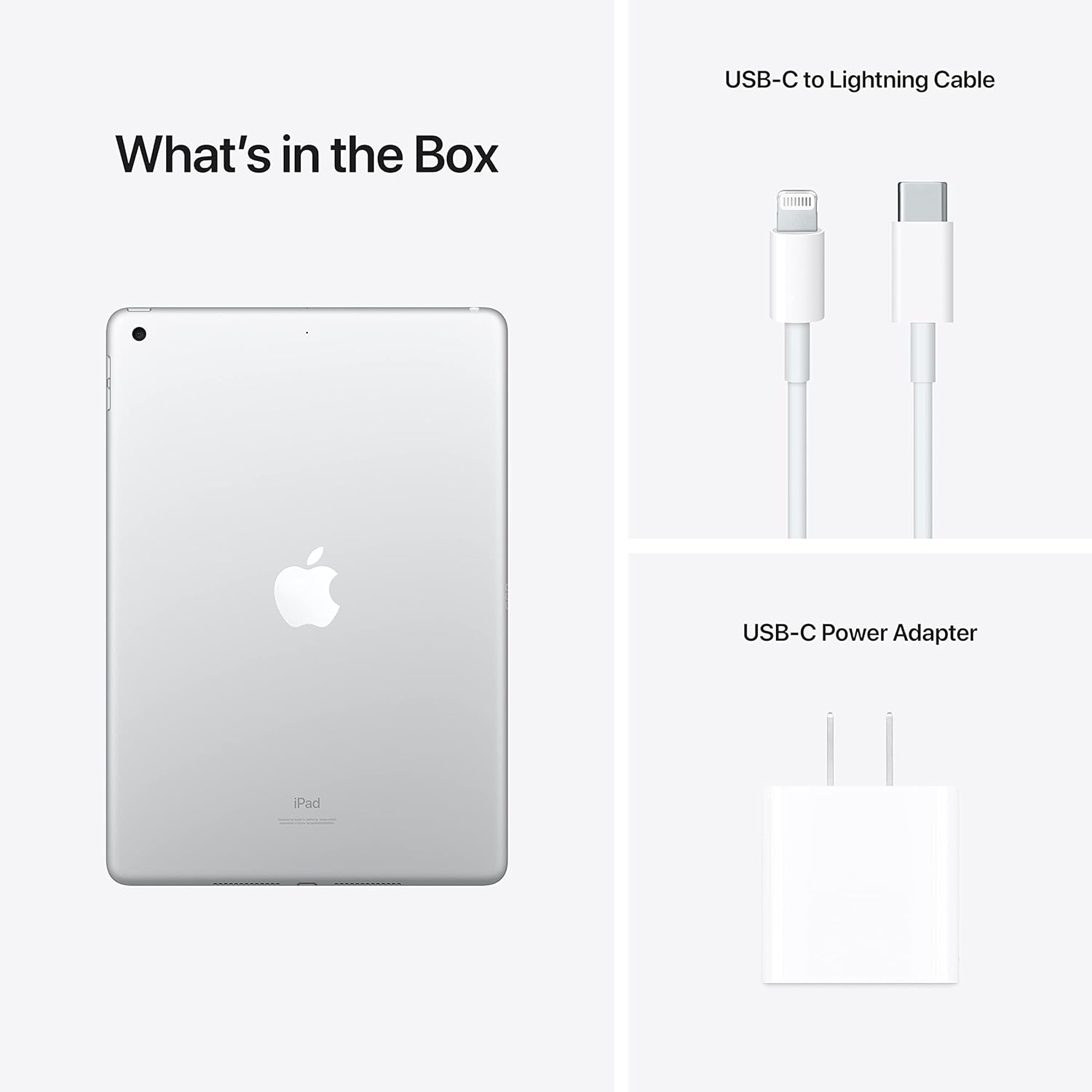
Image: The iPad and its included accessories: USB-C to Lightning Cable and 20W USB-C Power Adapter.
1.2 Charging the iPad
Before first use, it is recommended to fully charge your iPad. Connect the USB-C to Lightning cable to the iPad's Lightning port and the 20W USB-C Power Adapter. Plug the adapter into a power outlet.
The battery icon on the screen will indicate charging status. A full charge typically takes a few hours.
1.3 Күйгүзүү жана баштапкы конфигурация
- басып, кармап туруңуз Жогорку баскычы Apple логотиби пайда болгонго чейин.
- Тилди, аймакты тандоо жана Wi-Fi тармагына туташуу үчүн экрандагы нускамаларды аткарыңыз.
- Set up Touch ID for secure unlocking and purchases.
- Sign in with your Apple ID or create a new one. This is essential for downloading apps and using Apple services.
- Configure other settings such as Location Services, Siri, and analytics preferences.
2. iPad'ыңызды иштетүү
2.1 Негизги навигация
- Үй баскычы: Press once to return to the Home screen. Double-press to open the App Switcher. Press and hold for Siri.
- Touch ID: Integrated into the Home button for secure authentication.
- Жогорку баскыч: Press to wake or sleep the iPad. Press and hold to power off.
- Үн баскычтары: Located on the side to adjust audio volume.

Image: Detail of the iPad's side, highlighting the top button, volume controls, and rear camera lens.
2.2 iPadOS жана тиркемелер
Your iPad runs on iPadOS, designed for intuitive multi-touch gestures. Swipe from the bottom to go home, swipe down from the top-right for Control Center, and swipe down from the center for Search.
Access millions of applications through the App Store. Essential apps like Safari, Mail, Photos, and Messages are pre-installed.
2.3 Wi-Fi байланышы
Wi-Fi тармагына туташуу үчүн:
- барыңыз Орнотуулар > Wi-Fi.
- Wi-Fi күйгүзүңүз.
- Тизмеден каалаган тармакты тандаңыз.
- Эгер суралса, сырсөздү киргизип, таптаңыз Кошулуу.
2.4 Камераларды колдонуу
The iPad (9th Generation) features a 12MP Ultra Wide front camera with Center Stage and an 8MP Wide back camera.
- ачыңыз Камера колдонмо.
- Сүрөткө тартуу үчүн жапкыч баскычын басыңыз.
- Switch between photo, video, and other modes by swiping.
- Борбор Сtage видео чалуулар учурунда сизди автоматтык түрдө кадрдын ичинде кармап турат.
2.5 Accessories (Sold Separately)
The iPad (9th Generation) is compatible with the Apple Pencil (1st Generation) for drawing and note-taking, and the Акылдуу клавиатура for a comfortable typing experience.

Image: User interacting with the iPad and Smart Keyboard.

Image: Visual representation of core features including the A13 Bionic chip, battery life, camera, and accessory compatibility.
3. Техникалык тейлөө
3.1 iPad'ыңызды тазалоо
To clean your iPad, use a soft, lint-free cloth. Avoid abrasive materials, aerosols, solvents, or ammonia-based cleaners. For stubborn marks, slightly dampen the cloth with water. Do not spray cleaners directly onto the iPad.
3.2 Батареяга кам көрүү
Батареянын иштөө мөөнөтүн көбөйтүү үчүн:
- Ашыкча температурадан сактаныңыз.
- Keep the software updated.
- Экран жарыктыгы жана фон колдонмосун жаңыртуу сыяктуу жөндөөлөрдү оптималдаштырыңыз.
- For long-term storage, charge the iPad to about 50% and power it off.
3.3 Программалык камсыздоо жаңыртуулары
Оптималдуу иштөөнү, коопсуздукту жана эң акыркы функцияларга жетүүнү камсыз кылуу үчүн iPadOS'уңузду үзгүлтүксүз жаңыртып туруңуз. Орнотуулар > Генерал > Программалык камсыздоону жаңыртуу жаңыртууларды текшерүү жана орнотуу үчүн.
3.4 Сактагычты башкаруу
To manage your iPad's storage, go to Орнотуулар > Генерал > iPad сактагычы. Here you can see how much space is used by apps and media, and offload or delete content to free up space.
4. Кыйынчылыктарды
4.1 Түзмөк жооп бербей жатат
If your iPad is unresponsive, try a force restart:
- экөөнү тең басып, кармап туруңуз Башкы бет баскычы жана Жогорку баскычы бир эле убакта.
- Continue holding until the Apple logo appears.
- Эки баскычты бошотуңуз.
4.2 Wi-Fi туташуу маселелери
- Wi-Fi күйгүзүлгөнүн текшериңиз Орнотуулар > Wi-Fi.
- Wi-Fi роутериңизди өчүрүп күйгүзүңүз.
- Тармакты унутуп, кайра туташыңыз: Барыңыз Орнотуулар > Wi-Fi, tap the "i" next to your network, then tap Бул тармакты унут. Rejoin the network.
- Reset Network Settings: Go to Орнотуулар > Генерал > Өткөрүңүз же iPad'ди баштапкы абалга келтириңиз > Калыбына келтирүү > Тармак жөндөөлөрүн баштапкы абалга келтирүү. This will reset all network settings, including Wi-Fi passwords.
4.3 Колдонмодогу көйгөйлөр
If an app is not working correctly:
- Force quit the app: Double-press the Home button, then swipe the app's preview экранды өйдө жана төмөн карай жылдырыңыз. Колдонмону кайра ачыңыз.
- iPad'иңизди өчүрүп күйгүзүңүз.
- App Store дүкөнүнөн колдонмо жаңыртууларын текшериңиз.
- Delete and reinstall the app.
4.4 Factory Reset (Data Erase)
Эскертүү: A factory reset will erase all data and settings from your iPad. Back up your device before proceeding.
Заводдук абалга кайтаруу үчүн: Төмөнкүгө өтүңүз Орнотуулар > Генерал > Өткөрүңүз же iPad'ди баштапкы абалга келтириңиз > Бардык Мазмунду жана Орнотууларды тазалооЭкрандагы көрсөтмөлөрдү аткарыңыз.
5. Техникалык шарттар
| Өзгөчөлүк | Деталь |
|---|---|
| Модель номери | MK2P3LL/A |
| Бренд | Apple |
| Модель аты | iPad (9-муун) |
| Эстутум сактоо сыйымдуулугу | 256 ГБ |
| Screen Size | 10.2 дюйм |
| Дисплейдин максималдуу чечилиши | 2160x1620 пиксел |
| Продукциянын өлчөмдөрү | 9.87 x 6.85 x 0.3 дюйм |
| Элемент Салмагы | 1.07 фунт |
| Батареялар | 1 литий-иондук батарейка (кошулган) |
| Дата биринчи жеткиликтүү | 14-сентябрь, 2021-жыл |
6. Кепилдик маалыматы
Your Apple iPad (9th Generation) is covered by a limited warranty provided by Apple. This warranty typically covers manufacturing defects for a specified period from the date of purchase.
For detailed information regarding warranty terms, conditions, and coverage, please refer to the official Apple warranty documentation included with your product or visit the official Apple Support webсайт:
Apple Product Warranty Information
Additional protection plans, such as AppleCare+, may be available for purchase separately to extend coverage and support.
7. Колдоо жана ресурстар
For further assistance, technical support, or to explore more features of your iPad, please visit the official Apple Support webсайт:
You can find articles, user guides, community forums, and contact options for Apple support specialists.


