1. Киришүү
This manual provides detailed instructions for the setup, operation, and maintenance of your MOES Smart Temperature Humidity Monitor with IR Remote Control. This device integrates temperature and humidity sensing with universal infrared remote control capabilities, allowing you to monitor your environment and control various IR-enabled appliances via a smartphone application or voice commands.
2. Продукт бүтүп калдыview
The MOES Smart Temperature Humidity Monitor is a compact device designed to provide real-time environmental data and smart control. It features an LCD display for immediate readings and connects to your home Wi-Fi network for remote access and automation.

Image 2.1: MOES Smart Temperature Humidity Monitor displaying temperature and humidity, alongside a smartphone showing the companion app interface.
Негизги өзгөчөлүктөрү:
- реалдуу убакыт мониторинг: Displays current temperature and humidity on an LCD screen.
- IR алыстан башкаруу: Controls various infrared appliances such as TVs, air conditioners, and fans.
- Wi-Fi туташуусу: Connects to 2.4GHz Wi-Fi for remote access via the Tuya Smart or Smart Life app.
- Smart Automation: Create rules to automatically control IR devices based on temperature and humidity changes.
- Үн менен башкаруу: Handsfree иштөө үчүн Amazon Alexa жана Google Assistant менен шайкеш келет.
- Температура бирдигин которуштуруу: Easily switch between Celsius and Fahrenheit.
3. Техникалык шарттар
Detailed technical specifications for the MOES Smart Temperature Humidity Monitor.

Image 3.1: Product dimensions and component labels for the MOES Smart Temperature Humidity Monitor.
| Өзгөчөлүк | Спецификация |
|---|---|
| Продукт аты | Smart IR алыстан башкаруу |
| Модель номери | WR-TY-THR-BK-MS |
| Өлчөмдөр | 65мм x 65мм x 17мм (2.56 x 2.56 x 0.67 дюйм) |
| Элемент Салмагы | 3.2 унция |
| Power Input | DC 5V/1A (Micro USB, adapter not included) |
| LED көрсөткүч | Көк |
| Температуранын тактыгы | ±1°C |
| Температураны өлчөө диапазону | 0°C – 60°C |
| Жумуштун нымдуулугу | ±5% RH |
| Инфракызыл Жыштык | 38KHz |
| IR Дистанция | <10м |
| Байланыш | 2.4GHz Wi-Fi |
| Шайкеш түзмөктөр | Air Conditioner, Humidifier, Fan, TV, Set-top Box, Projector, etc. |
| Өзгөчөлүктөр | Voice Search, App Control, Automation |
4. Орнотуу
4.1 Кутуда эмне бар
- MOES Smart Temperature Humidity Monitor
- Микро USB кабели
- Колдонуучунун Колдонмосу (бул документ)
4.2 Физикалык орнотуу
- Кубат туташуу: Connect the provided Micro USB cable to the Micro USB port on the device and plug the other end into a 5V/1A USB power adapter (not included). The device will power on and the LCD display will activate.
- Жайгашкан жери: Place the monitor in a central location within the room where you intend to measure temperature and humidity and control IR devices. Ensure there are no obstructions between the monitor and the IR-controlled appliances. The IR distance is typically up to 10 meters.
4.3 Колдонмону орнотуу жана жупташтыруу
The MOES Smart Temperature Humidity Monitor works with the Tuya Smart or Smart Life app.
- Колдонмону жүктөп алыңыз: Издөө "Tuya Smart" or "Smart Life" in your smartphone's app store (iOS App Store or Google Play Store) and download it.
- Катталуу/Кирүү: Колдонмону ачып, жаңы аккаунтка катталыңыз же сизде мурунтан эле бар болсо кириңиз.
- Түзмөк кошуу:
- Смартфонуңуз 2.4 ГГц Wi-Fi тармагына туташкандыгын текшериңиз.
- In the app, tap the "+" icon in the top right corner to add a device.
- Select "Sensor" or "Universal Remote Control" from the device list, or use the auto-scan feature.
- Жупташтыруу режимине кирүү: On the MOES monitor, press and hold the "Reset Button" (located at the back, often labeled 'C/F Switch' or 'Reset') for 5-7 seconds until the Wi-Fi icon on the LCD display starts blinking rapidly.
- Follow the on-screen instructions in the app to connect the device to your Wi-Fi network. This usually involves confirming the blinking indicator and entering your Wi-Fi password.
- Once successfully paired, the Wi-Fi icon on the monitor will stop blinking and remain solid.
5. Иштөө нускамалары
5.1 ЖК дисплей аштыview
The LCD display provides essential information at a glance:

Сүрөт 5.1: Детальдуу view of the LCD display and its indicators.
- Температура дисплейи: Shows the current temperature (in °C or °F).
- Нымдуулук дисплей: Shows the current relative humidity (%).
- Wi-Fi сигналы: Wi-Fi байланышынын абалын көрсөтөт.
- Убакыт жана дата: Учурдагы убакытты жана датаны көрсөтөт.
- Week/AM/PM: Shows the day of the week and AM/PM indicator.
5.2 Которуу температурасынын бирдиктери (°C/°F)
To switch between Celsius and Fahrenheit, briefly press the "Reset Button" on the back of the device. The unit on the LCD display will change accordingly. This can also be adjusted within the Tuya Smart/Smart Life app.

Image 5.2: Switching temperature units via the Smart Life app.
5.3 IR Remote Control Functionality
The device can learn and emit IR signals to control various home appliances.
- Adding IR Devices:
- In the Tuya Smart/Smart Life app, navigate to your MOES monitor device.
- Look for an option like "IR Remote Control" or "Add Remote".
- Select the type of appliance you want to control (e.g., TV, Air Conditioner, Fan, Set-top Box).
- Follow the app's instructions to either select from a pre-programmed library of remote codes or use the "DIY" (Do It Yourself) function to learn commands from your original remote control.
- For DIY learning, point your original remote at the MOES monitor and press the desired button when prompted by the app.
- Башкаруучу түзмөктөр: Once an IR device is added, you can control it directly from the app interface, even when you are away from home.
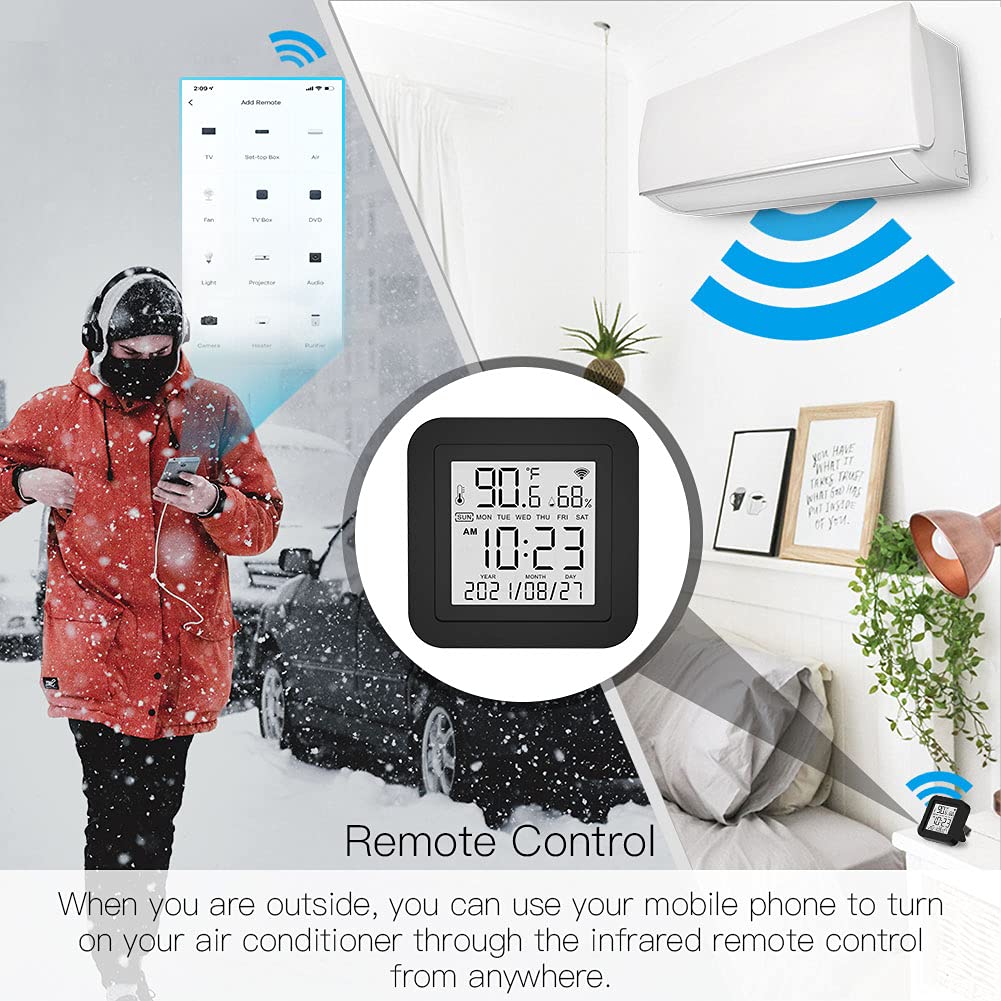
Image 5.3: Remote control functionality via the smartphone app.
5.4 Smart Automation
Leverage the temperature and humidity data to create automated routines for your IR-controlled devices.
- Access Automation: In the Tuya Smart/Smart Life app, go to the "Smart" or "Automation" section.
- Create a Scene/Automation:
- Select "When device status changes" or "Schedule" as the condition.
- Choose your MOES monitor and set a condition based on temperature or humidity (e.g., "Temperature rises above 26°C" or "Humidity drops below 50%").
- For the task, select "Run the device" and choose the IR-controlled appliance (e.g., Air Conditioner, Humidifier). Set the desired action (e.g., "Turn On", "Set Temperature to 24°C").

Сүрөт 5.4: Мисample of temperature-based automation for an air conditioner.

Сүрөт 5.5: Мисample of humidity-based automation for a humidifier.
5.5 Үн менен башкаруу
The MOES Smart Temperature Humidity Monitor is compatible with Amazon Alexa and Google Assistant.
- Каттоо эсептерин байланыштыруу: In the Alexa or Google Home app, enable the "Tuya Smart" or "Smart Life" skill/service and link your account.
- Түзмөктөрдү табуу: Once linked, ask your voice assistant to discover new devices. Your MOES monitor and any configured IR devices will appear.
- Үн буйруктары: You can now use voice commands to control your IR appliances. Examples:
- "Alexa, turn on the TV."
- "Hey Google, set the AC to 22 degrees."
- "Алекса, желдеткичти өчүр."

Image 5.6: Voice control integration with Amazon Alexa and Google Assistant.
6. Техникалык тейлөө
- Тазалоо: Use a soft, dry cloth to clean the device. Do not use liquid cleaners or sprays, as they may damage the internal components.
- Жайгашкан жери: Avoid placing the device in direct sunlight, near heat sources, or in areas with high humidity to ensure accurate readings and optimal performance.
- Программалык камсыздоонун жаңыртуулары: The device's firmware may be updated periodically via the Tuya Smart/Smart Life app. Ensure your app is up-to-date and follow any prompts for device firmware updates.
7. Кыйынчылыктарды
| Көйгөй | Мүмкүн чечим |
|---|---|
| Түзмөк күйбөй жатат | Ensure the Micro USB cable is securely connected and the power adapter is working. Try a different USB port or adapter. |
| Wi-Fi'га туташпай жатат |
|
| IR remote control not working |
|
| Температура/нымдуулук көрсөткүчтөрү туура эмес |
|
| Үн менен башкаруу жооп бербей жатат |
|
| Device unresponsive / needs reset | Press and hold the "Reset Button" on the back of the device for approximately 10 seconds until the device restarts or enters pairing mode. You may need to re-pair it with the app. |
8. Кепилдик жана колдоо
MOES products are designed for reliability and performance. For warranty information, technical support, or further assistance, please refer to the official MOES webсайтка же түздөн-түз кардарларды тейлөөгө кайрылыңыз. Сатып алуу квитанциясын кепилдик дооматтары үчүн сатып алуунун далили катары сактаңыз.
Онлайн ресурстар:
- зыярат кылыңыз Amazon'догу MOES дүкөнү өнүмдөрдү жаңыртуу жана тиешелүү аксессуарлар үчүн.


