Продукт бүттүview
The Intel NUC 11 Extreme Kit (NUC11BTMi9) is a high-performance barebone mini PC designed for gaming and demanding applications. It offers uncompromised performance within a compact form factor, allowing users to customize it with their preferred RAM, storage, and operating system.

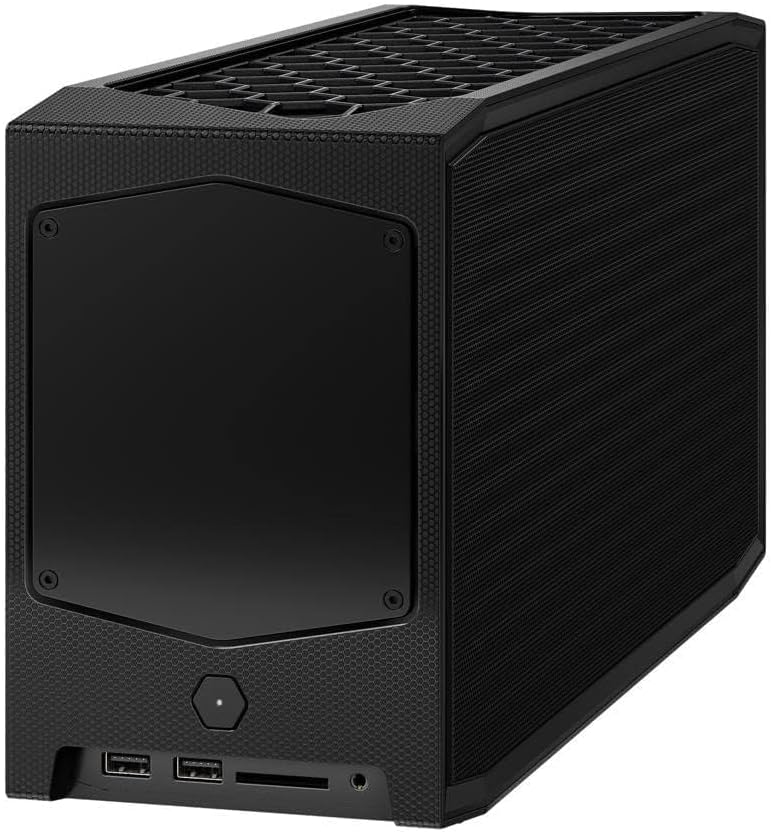
Сүрөт 1: Алдыңкы бурчтуу view of the Intel NUC 11 Extreme Kit, showcasing its compact design and the illuminated skull logo.
Пакеттин мазмуну
Орнотууну улантуудан мурун, таңгактагы бардык буюмдардын бар экендигин текшериңиз:
- Intel NUC 11 Extreme Kit (NUC11BTMi9) Barebone System
- US Power Cord
- Документтер (Ыкчам баштоо колдонмосу, коопсуздук маалыматы)
Note: Additional components such as RAM, storage drives, and operating system are sold separately and are required for full system functionality.
Орнотуу колдонмосу
This section outlines the steps required to set up your Intel NUC 11 Extreme Kit. As a barebone system, it requires the installation of memory (RAM) and storage (SSD) before initial use.
1. Эстутумду орнотуу (RAM)
- Unscrew and remove the top cover of the NUC chassis.
- Энелик платадагы DDR4 SO-DIMM уячаларын табыңыз.
- SO-DIMM модулундагы оюкту оюктагы оюк менен тегиздеңиз.
- Модулду 45 градус бурчта салып, бекитүүчү клиптер ордуна орнотулганга чейин бекем басыңыз.
- Эгер мүмкүн болсо, кошумча эс тутум модулдары үчүн кайталаңыз.
2. Installing Storage (SSD)
The NUC 11 Extreme Kit supports M.2 NVMe SSDs.
- Motherboard боюнча M.2 уячаларын табыңыз.
- M.2 SSDди уячага бурч менен салыңыз.
- Gently push down the SSD and secure it with the provided screw.
- The system also supports Serial ATA/600 interface for additional storage options.
3. Перифериялык түзүлүштөрдү туташтыруу
Connect your monitor, keyboard, mouse, and other peripherals to the appropriate ports. The system features 12 USB ports for extensive connectivity.
2-сүрөт: Арткы view of the Intel NUC 11 Extreme Kit, highlighting the array of input/output ports for connecting external devices.
- Дисплей: Connect your monitor using HDMI or DisplayPort.
- USB түзмөктөрү: Use the available USB ports for keyboard, mouse, external drives, etc.
- Тармак: Connect an Ethernet cable for wired network access, or use the integrated Wi-Fi.
- Аудио: Динамиктерди же гарнитураны аудио уячаларына туташтырыңыз.
4. Power Connection
Connect the provided power cord to the NUC and then to a power outlet.
5. Операциялық системаны орнотуу
Once RAM and storage are installed, you will need to install an operating system (e.g., Windows 10, Linux) from a bootable USB drive or disc.
Иштөө нускамалары
This section provides basic instructions for operating your Intel NUC 11 Extreme Kit.
Күйгүзүү/өчүрүү
- Күйгүзүү: Press the power button located on the front of the unit. The power indicator light will illuminate.
- Өчүрүү:
- Стандарттык өчүрүү: Use the operating system's shutdown function.
- Мажбурлап өчүрүү: Press and hold the power button for 5-10 seconds until the unit powers off. Use this only as a last resort.
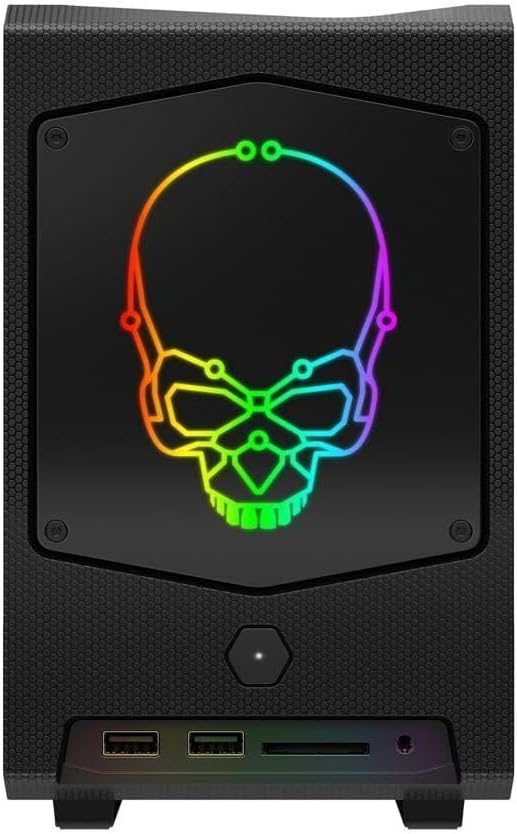
Сүрөт 3: Алдыңкы view of the Intel NUC 11 Extreme Kit, showing the power button and front panel connectivity options.
USB түзмөктөрүн туташтыруу
The NUC 11 Extreme Kit offers numerous USB ports (up to 12) for connecting various peripherals. Devices can be connected or disconnected without needing to shut down the system.
BIOS/UEFI мүмкүнчүлүгү
To access the BIOS/UEFI settings, power on the system and repeatedly press the F2 key during startup. This allows configuration of boot order, system settings, and hardware diagnostics.
Техникалык тейлөө
Proper maintenance ensures the longevity and optimal performance of your Intel NUC 11 Extreme Kit.
- Тазалоо: Regularly clean the exterior with a soft, dry cloth. Use compressed air to clear dust from vents and fan areas to ensure proper airflow and prevent overheating. Ensure the system is powered off and unplugged before cleaning.
- Программалык камсыздоо жаңыртуулары: Keep your operating system, drivers, and BIOS/UEFI firmware updated to the latest versions. Visit the official Intel support website for driver downloads specific to the NUC11BTMi9 model.
- Вентиляция: Ensure the NUC is placed in a well-ventilated area, away from direct sunlight or heat sources. Do not block the ventilation openings.
- Маалыматтын камдык көчүрмөсү: Дайыма маалыматтын жоголушун алдын алуу үчүн тышкы дискке же булут сактагычка маанилүү маалыматтардын камдык көчүрмөсүн сактоо.
Проблемаларды чечүү
This section provides solutions to common issues you might encounter with your Intel NUC 11 Extreme Kit.
No Power / System Does Not Turn On
- Ensure the power cord is securely connected to both the NUC and a working power outlet.
- Башка аспапка сайып, розетка иштеп жатканын текшериңиз.
- If using a power strip or surge protector, ensure it is switched on.
Дисплей чыгаруу жок
- Check that the monitor is powered on and the video cable (HDMI/DisplayPort) is securely connected to both the NUC and the monitor.
- Башка видео кабелин же бар болсо мониторду колдонуп көрүңүз.
- Ensure RAM modules are properly seated in their slots. Reseat them if necessary.
System Freezes or Crashes
- Ensure the system has adequate ventilation and is not overheating.
- Update your operating system and device drivers to the latest versions.
- Run a memory diagnostic tool to check for RAM issues.
- Check the health of your storage drive.
Перифериялык түзмөк аныкталган жок
- Перифериялык түзүлүштү башка USB портуна туташтырууга аракет кылыңыз.
- Перифериялык драйверлердин орнотулганын жана жаңыртылганын текшериңиз.
- Системаны кайра иштетиңиз.
Техникалык мүнөздөмөлөр
Below are the key technical specifications for the Intel NUC 11 Extreme Kit (NUC11BTMi9).

4-сүрөт: Каптал view of the Intel NUC 11 Extreme Kit, illustrating its physical dimensions.
| Өзгөчөлүк | Спецификация |
|---|---|
| Модель номери | NUC11BTMi9 |
| Процессор | Intel Core i9-11900KB Octa-core (8 Core) @ 3.3 GHz |
| Memory (RAM) Type | DDR4 SDRAM (Barebone - user installable) |
| Сактагыч интерфейси | M.2 (SSD), Serial ATA/600 |
| Графикалык сопроцессор | Intel UHD графикасы |
| Графикалык картанын RAM өлчөмү | 8 GB (Integrated) |
| Зымсыз байланыш | Bluetooth, WiFi |
| USB порттору | 12 |
| Operating System (Pre-installed) | None (Supports Windows 10) |
| Элемент Салмагы | 5 фунт |
| Пакеттин өлчөмдөрү | 21.1 x 15 x 13.6 дюйм |
| Түс | Кара |
| Биринчи жеткиликтүү күн | 13-октябрь, 2021-жыл |
Кепилдик жана колдоо
Intel provides a limited warranty for its NUC products. For detailed warranty information, technical support, driver downloads, and troubleshooting resources, please visit the official Intel support webсайт.
You can typically find support by searching for "Intel NUC support" or by visiting Intel's Official Support Page.
When contacting support, please have your product model number (NUC11BTMi9) and serial number ready.


