1. Киришүү
This manual provides essential information for the installation, operation, maintenance, and troubleshooting of your Crucial 32GB DDR5 4800MHz Desktop Memory Kit (CT2K16G48C40U5). This memory kit is designed to enhance system performance for a wide range of computing tasks.

Image 1.1: Crucial 32GB DDR5 4800MHz Desktop Memory Kit (2x16GB) modules.
2. Негизги өзгөчөлүктөрү
- Enhanced System Performance: This 32GB DDR5 RAM desktop memory kit (2x16GB) operates at 4800MHz, improving multitasking capabilities and system responsiveness for smoother overall performance.
- Оюндар үчүн оптималдаштырылган: Designed to provide accelerated gaming performance, allowing for higher frame rates and efficient handling of demanding workloads.
- Кеңири шайкештик: Optimized for 13th Gen Intel Core and AMD Ryzen 7000 Series processors. Supports Intel XMP 3.0 and AMD EXPO for performance tuning.
- Micron Quality Assurance: Manufactured with Micron technology, this DDR5 RAM undergoes rigorous testing at both component and module levels to ensure reliable performance and stability.
- Техникалык мүнөздөмөлөрү: Non-ECC, UDIMM form factor, 288-pin, PC5-38400 speed, and 1.1V operating voltage.
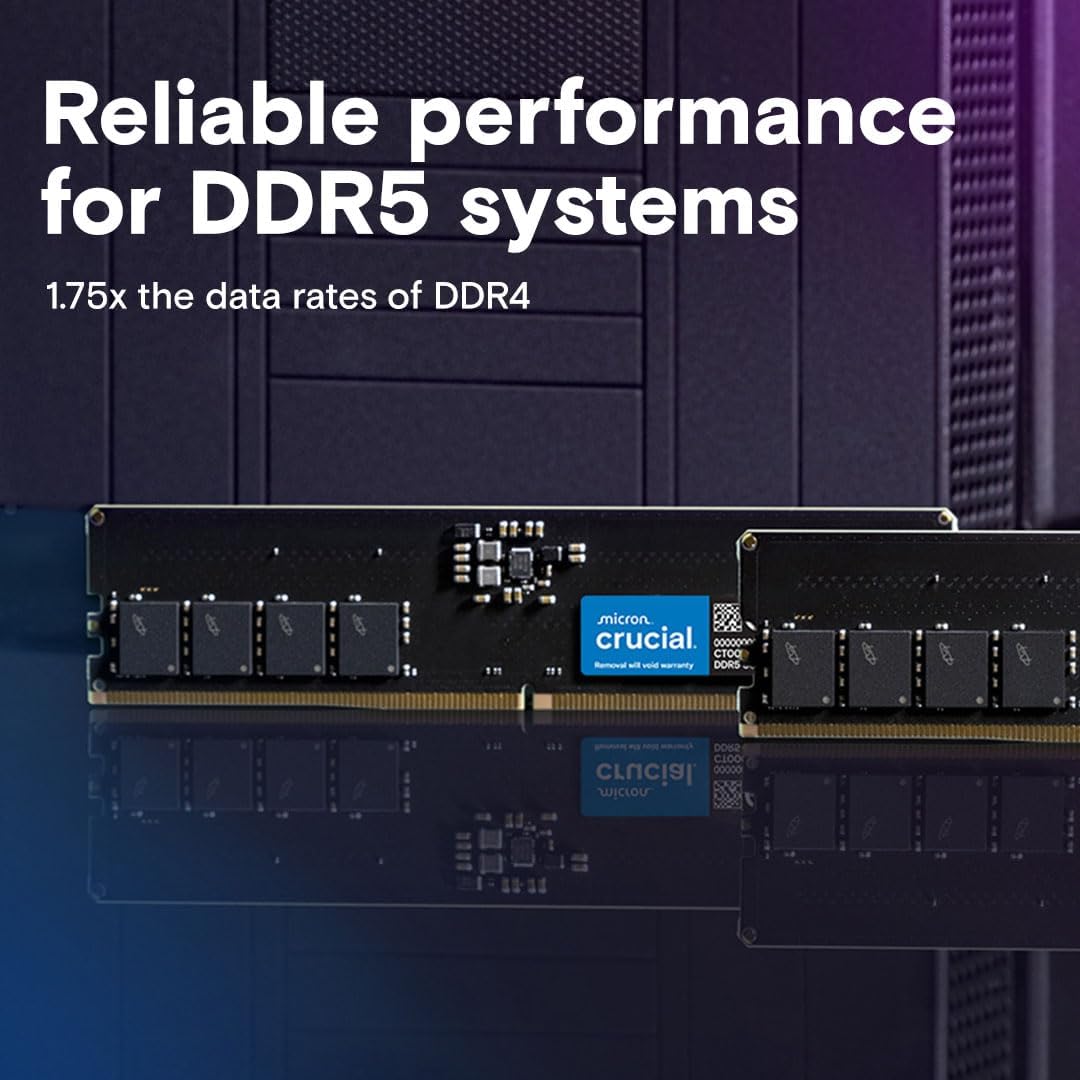
Image 2.1: Illustration of DDR5 module highlighting reliable performance and data rates.

Image 2.2: Depiction of a user interacting with a computer, emphasizing flexible compatibility with Intel XMP 3.0 and AMD EXPO.
3. Орнотуу жана орнотуу
Before installing your new memory modules, ensure your computer is powered off and unplugged from the wall outlet. It is recommended to wear an anti-static wrist strap to prevent electrostatic discharge (ESD) damage to components.
3.1. Даярдоо
- Маалыматтын камдык көчүрмөсү: Although memory installation is generally safe, it is always prudent to back up important data before making hardware changes.
- Consult Motherboard Manual: Refer to your motherboard's user manual for specific instructions on memory slot population and configuration, especially for dual-channel or quad-channel setups.
- Эстутум слотторун табыңыз: Identify the DDR5 DIMM slots on your motherboard. These are typically located near the CPU socket.
3.2. Орнотуу кадамдары
- Сактоо клиптерин ачуу: Gently push the small clips at each end of the memory slot outwards to open them.
- Align Module: Hold the memory module by its edges, avoiding touching the gold contacts. Align the notch on the module with the key in the DIMM slot. DDR5 modules have a single notch, which is offset to prevent incorrect insertion.
- Модулду киргизүү: Place the module into the slot and apply firm, even pressure to both ends until the clips snap into place, securing the module.
- Орнотууну текшерүү: Ensure both clips are fully engaged and the module is seated evenly in the slot.
- Кошумча модулдар үчүн кайталаңыз: If installing multiple modules, repeat the process for each, following your motherboard's recommended slot configuration.
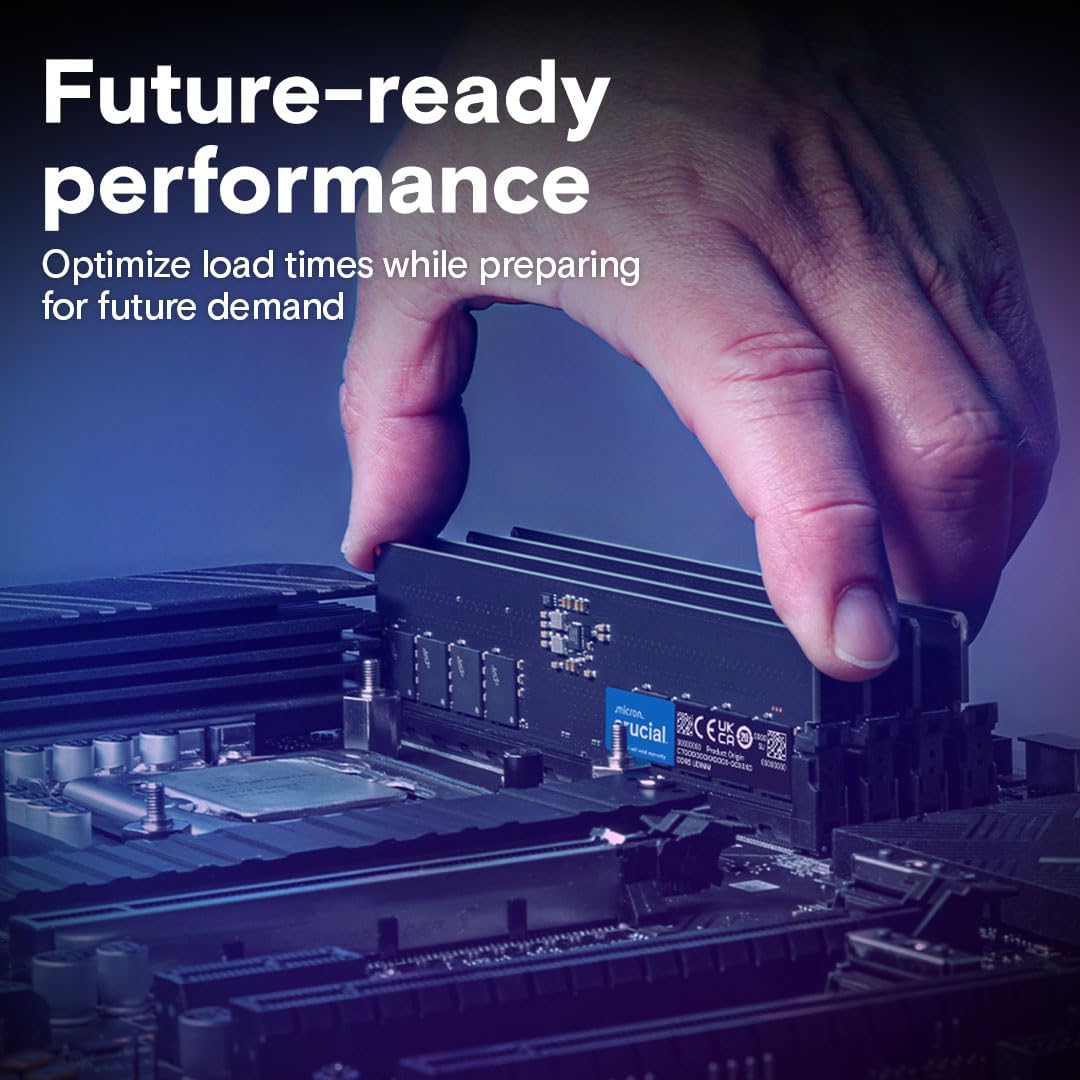
Image 3.1: A hand carefully inserting a DDR5 RAM module into a motherboard slot, demonstrating proper installation technique.
3.3. Орнотуудан кийинки
- Күйгүзүү: Бардык кабелдерди кайра туташтырыңыз жана компьютериңизди кубаттандырыңыз.
- BIOS/UEFI текшерүү: Enter your system's BIOS/UEFI settings (usually by pressing DEL or F2 during startup) to confirm that the new memory is recognized and operating at the correct speed. Enable Intel XMP 3.0 or AMD EXPO profiles if desired for optimal performance.
- Операция системасы: Boot into your operating system. The system should automatically detect the new memory.
4. Operating Your Memory
Once installed, your Crucial DDR5 memory operates automatically to provide enhanced system performance. The benefits include:
- Faster Data Processing: 4800MHz speed allows for quicker data access and processing, beneficial for all applications.
- Seamless Multitasking: Increased memory capacity and speed enable running multiple applications simultaneously without slowdowns.
- Жакшыртылган оюн тажрыйбасы: Higher frame rates and smoother gameplay in modern titles.
- Efficient Content Creation: Faster rendering and editing in demanding software like video editors and graphic design tools.
Video 4.1: Official Crucial video demonstrating the features and benefits of Crucial DDR5 4800MHz Desktop UDIMM DRAM. This video highlights the performance advantages of DDR5 memory.
5. Техникалык тейлөө
DDR5 memory modules are generally maintenance-free. However, following these guidelines can help ensure their longevity and optimal performance:
- Системаны таза кармоо: Regularly clean the interior of your computer case to prevent dust buildup, which can impede airflow and lead to overheating.
- Туура иштетүү: When handling memory modules, always hold them by the edges and avoid touching the gold contacts or the chips.
- Экологиялык көзөмөл: Operate your computer in a well-ventilated area with stable temperature and humidity to prevent thermal stress on components.
- Программалык камсыздоо жаңыртуулары: Keep your operating system and motherboard BIOS/UEFI updated to ensure compatibility and access to the latest performance optimizations.
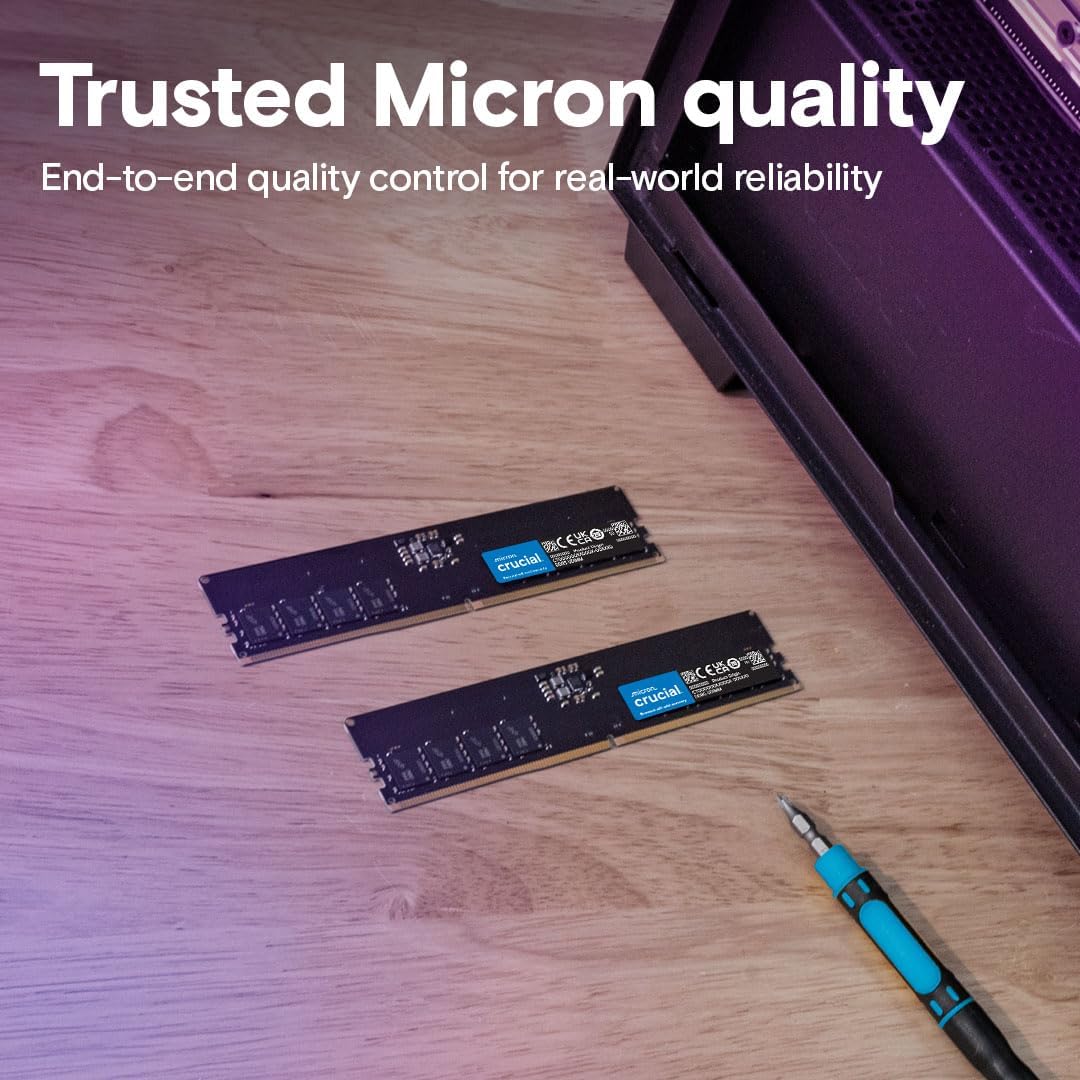
Image 5.1: Crucial DDR5 memory modules displayed on a surface, representing the trusted quality and ease of handling.
6. Кыйынчылыктарды
If you encounter issues after installing your Crucial DDR5 memory, consider the following troubleshooting steps:
6.1. Жалпы маселелер жана чечүү жолдору
- Система жүктөлбөй жатат / Дисплей жок:
- Ensure modules are fully seated in their slots. Re-seat them firmly.
- Verify that the modules are installed in the correct slots as per your motherboard manual.
- Test one module at a time to identify a potentially faulty module.
- Incorrect Memory Capacity or Speed Detected:
- Check BIOS/UEFI settings. Ensure XMP/EXPO profiles are enabled if you expect speeds higher than the default JEDEC standard.
- Update your motherboard's BIOS/UEFI to the latest version, as this often includes improved memory compatibility.
- Системанын туруксуздугу / кыйроолор:
- Каталарды текшерүү үчүн эстутум диагностикалык куралын (мисалы, Windows Memory Diagnostic, MemTest86) иштетиңиз.
- Кубат булагы (PSU) бардык компоненттерге жетиштүү жана туруктуу кубат берээрин текшериңиз.
- Check for overheating. Ensure proper case ventilation and CPU cooler functionality.
6.2. Кошумча жардам
If these steps do not resolve your issue, please contact Crucial customer support or consult a qualified computer technician.
7. Техникалык шарттар
| Өзгөчөлүк | Деталь |
|---|---|
| RAM сыйымдуулугу | 32 GB (2x16GB Kit) |
| Memory Type | DDR5 SDRAM |
| Memory Speed | 4800 МГц (PC5-38400) |
| CAS Latency | CL40 |
| Форма фактору | UDIMM (Unbuffered Dual In-line Memory Module) |
| Pin саны | 288-пин |
| ECC Type | Келишимдик ПСК |
| Тtage | 1.1V |
| Шайкештик | 13th Gen Intel Core and AMD Ryzen 7000 Series processors |
| Модель номери | CT2K16G48C40U5 |
8. Кепилдик жана колдоо
Crucial memory products are backed by a limited lifetime warranty. For detailed warranty information, product support, or technical assistance, please visit the official Crucial webсайтка же кардарларды тейлөө бөлүмүнө кайрылыңыз. Кепилдик дооматтар үчүн сатып алганыңыздын далилин сактаңыз.


