1. Продукт бүтүп калдыview
The Konnek Stein QC21S is an advanced 2K (2304 x 1296) wireless smart home IP camera designed for indoor security. It features dual-band 2.4G/5G WiFi connectivity, enabling flexible placement and reliable connection. This camera offers comprehensive monitoring capabilities including 355° horizontal and 110° vertical pan/tilt/zoom (PTZ) functionality, two-way audio communication, AI human motion detection with tracking, and clear infrared night vision.

Фронт view of the Konnek Stein QC21S Indoor Security Camera, showcasing its compact white design and camera lens.

An illustration highlighting the key features: PTZ control, HD resolution, cloud service, two-way audio, hotspot, motion detection, IR night vision, and motion auto-tracking.

Visual comparison demonstrating the superior clarity of 2K (2304x1296) resolution compared to 1080P (1920x1080) for enhanced visual and video recording.

An image illustrating the camera's efficient surveillance system, providing clear images both during the day and in low-light conditions with night vision.
2. Пакеттин мазмуну
Please check the package contents carefully upon opening to ensure all items are present and undamaged.
- Camera Body (Konnek Stein QC21S)
- USB-A кабели
- Кубаттуу адаптер
- Колдонуучунун Колдонмосу (бул документ)
3. Орнотуу колдонмосу
Follow these steps to set up your Konnek Stein QC21S camera using the mobile application. Ensure your smartphone is connected to a 2.4 GHz Wi-Fi network during the initial setup process.
- Колдонмону жүктөп алыңыз: Scan the QR code below or search for "Smart Life" in your mobile app store (Google Play for Android, App Store for iOS) to download and install the application.
- Катталуу/Кирүү: Smart Life колдонмосун ачып, жаңы аккаунт түзүңүз же эгер сизде мурунтан эле бар болсо, кириңиз.
- Түзмөк кошуу: Tap the "+" icon or "Add Device" button in the app. Select "Security & Video Surveillance" and then choose "Smart Camera (Wi-Fi)".
- Камераны күйгүзүү: Plug in your camera. Ensure the camera is powered on and ready for pairing. The camera will emit a prompt sound or indicate readiness.
- Индикаторду ырастоо: In the app, confirm that the indicator light on the camera is blinking rapidly or that you hear a prompt tone. If not, reset the camera by pressing and holding the reset button (usually a small pinhole) until the indicator blinks rapidly or a tone is heard.
- Wi-Fi'га туташуу: Enter your 2.4 GHz Wi-Fi network name and password in the app. The camera supports both 2.4G and 5G dual-band WiFi, but initial setup often requires 2.4G.
- QR кодун сканерлөө: The app will display a QR code. Hold your phone with the QR code approximately 15-20 cm (6-8 inches) in front of the camera lens until you hear a confirmation tone from the camera.
- Байланыш аяктады: Once the camera connects, it will indicate successful pairing. The app will then show the camera added to your device list. You can now rename the camera and begin using it.

A visual guide demonstrating the step-by-step process of setting up the camera using the Smart Life mobile application, from downloading the app to connecting the device via QR code.
Smart Life колдонмосун жүктөп алыңыз: http://smartapp.tuya.com/smartlife
4. Иштөө нускамалары
4.1 Live View жана PTZ Control
Once connected, access the live video feed through the Smart Life app. Use the on-screen controls to remotely pan (355° horizontal) and tilt (110° vertical) the camera lens to monitor different areas of your room. The camera also supports digital zoom.
An illustration showing the camera's 360° comprehensive monitoring capability with 355° horizontal and 80° vertical rotation.
4.2 Эки тараптуу аудио
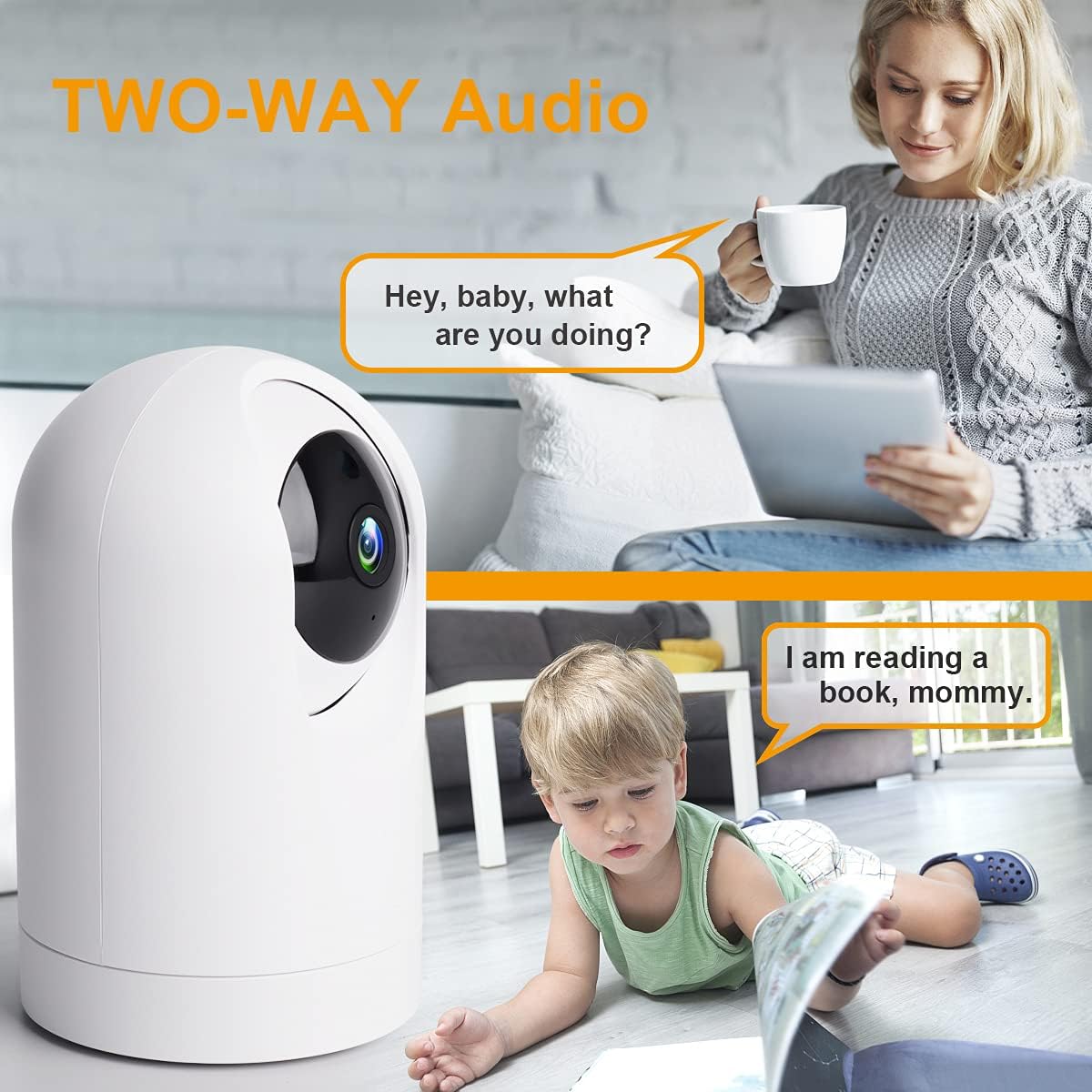
The built-in microphone and speaker allow for clear two-way communication. Tap the microphone icon in the app to speak, and listen through the camera's speaker. This feature is ideal for communicating with family members or pets.

An image depicting the two-way audio functionality, allowing real-time conversation between the user and individuals near the camera.
4.3 AI Human Motion Detection and Tracking
Enable AI human motion detection in the app settings. When human motion is detected, the camera will automatically track the movement, record a video clip, and send an alert notification to your smartphone. Motion events can be saved to an SD card or cloud storage.

An image illustrating the AI motion detection feature, showing an alert notification on a smartphone when suspicious activity is detected by the camera.
4.4 Түнкү көрүнүш
The camera is equipped with infrared lights for clear night vision, allowing it to record full HD live video even in complete darkness. This ensures continuous surveillance around the clock.
4.5 Сактоо параметрлери
The camera supports local storage via a TF (microSD) card (up to 128GB) and optional cloud storage services. You can choose either option for recording and playback of video history.

An image showing the camera's support for both SD card local storage and cloud storage options for video recordings.
4.6 Multi-Terminal and Multi-User Sharing
The Smart Life app allows for multi-terminal viewing on Android and iOS devices. You can also share access to your camera's feed with other authorized users.

An image illustrating the ability to view the camera feed on multiple devices (phone, tablet) and share access with other users.
4.7 Үн жардамчысын интеграциялоо
The Konnek Stein QC21S camera is compatible with Amazon Alexa and Google Assistant. You can use simple voice commands to view your live camera feed on compatible smart displays.
5. Техникалык тейлөө
- Тазалоо: Use a soft, dry cloth to clean the camera body. For the lens, use a lens cleaning cloth specifically designed for optics. Do not use harsh chemicals or abrasive cleaners.
- Жайгашкан жери: Камераны туруктуу жерге, түз күн нурунан, жылуулук булактарынан жана ашыкча нымдуулуктан алыс коюңуз.
- Программалык камсыздоо жаңыртуулары: Regularly check the Smart Life app for firmware updates to ensure optimal performance and security.
6. Кыйынчылыктарды
| Көйгөй | Мүмкүн себеп | Чечим |
|---|---|---|
| Камера Wi-Fi'га туташа албай жатат. | Incorrect Wi-Fi password; Camera too far from router; Not connected to 2.4 GHz network during setup; Router issues. | Double-check Wi-Fi password. Move camera closer to router. Ensure your phone is on a 2.4 GHz network during setup. Restart your router. Reset the camera and try setup again. |
| No indicator light or prompt tone during setup. | Camera not powered on correctly; Camera not in pairing mode. | Ensure the power adapter is securely connected. Press and hold the reset button on the camera for 5-10 seconds until you hear a prompt tone or the indicator light starts blinking rapidly. |
| Live view is blurry or dark. | Protective film on lens; Poor lighting; Night vision not active. | Remove any protective film from the camera lens. Ensure adequate lighting in the room. Check if night vision is enabled in the app settings if it's dark. |
| Two-way audio is unclear or not working. | Microphone/speaker blocked; App volume too low; Network latency. | Ensure nothing is obstructing the microphone or speaker. Adjust volume settings in the app and on your phone. Check your internet connection speed. |
For more detailed troubleshooting or specific issues, please refer to the official user manual PDF available online or contact customer support.
7. Техникалык шарттар
| Өзгөчөлүк | Деталь |
|---|---|
| Модель аты | QC21S |
| Ички/тышкы колдонуу | Indoor |
| Видео тартуунун резолюциясы | 2K (2304 x 1296) |
| Байланыш технологиясы | Зымсыз (Wi-Fi) |
| Зымсыз байланыш технологиясы | Wi-Fi (2.4G/5G Dual-Band) |
| Power Source | Электр зымдары |
| Тtage | 5 вольт (ток) |
| Ватtage | 10 ватт |
| Controller Type | Google Assistant, Amazon Alexa, App |
| Монтаж түрү | Wall Mount (also suitable for table placement) |
| Өзгөчөлүктөр | HD Resolution, Night Vision, PTZ Technology, Motion Sensor (AI Human Detection) |
| Эки тараптуу аудио | Ооба |
| Сактагыч параметрлери | TF картасы (128 ГБ чейин), булут сактагычы |
| Түс | Ак |
| Материал | Пластик |
| Элементтин өлчөмдөрү (L x W x Y) | 1 x 1 x 1 дюйм |
| Элемент Салмагы | 13.1 унция |
8. Кепилдик жана колдоо
8.1 Өндүрүүчүнүн кепилдиги
The Konnek Stein QC21S Indoor Security Camera comes with a 1 жылдык өндүрүүчүнүн кепилдиги сатып алынган күндөн тартып. Бул кепилдик нормалдуу колдонуудагы материалдардагы жана жасалгадагы кемчиликтерди камтыйт. Кепилдик дооматтары үчүн сатып алганыңыздын далилин сактап коюңуз.
8.2 Кошумча колдоо
For further assistance, detailed instructions, or to download the complete user manual in PDF format, please refer to the official product support page or the document link provided at the time of purchase. You can also find the user manual PDF at: https://manuals.plus/m/cba3a38fdf5a6165f229686b2142bdbbe27727e2e796c909eaec5ce4ab42cea8


