1. Киришүү
This manual provides comprehensive instructions for the HP LaserJet MFP M140w, a compact multifunction monochrome laser printer designed for efficient printing, scanning, and copying. It features Wi-Fi, Wi-Fi Direct, and USB 2.0 connectivity, offering a print speed of up to 20 pages per minute (ppm).

Сүрөт 1.1: Алдыңкы view of the HP LaserJet MFP M140w printer.
2. Коопсуздук маалыматы
Please read all safety instructions before using the printer to prevent damage or injury. Keep this manual for future reference.
- Принтерди туруктуу, тегиз бетке коюңуз.
- Принтердин айланасында туура желдетүүнү камсыз кылыңыз.
- Принтер менен берилген кубат шнурын гана колдонуңуз.
- Принтерди сууга же ашыкча нымдуулукка дуушар кылбаңыз.
- Иштеп жаткан учурда колду кыймылдуу бөлүктөрдөн алыс кармаңыз.
- Only use original HP toner cartridges to ensure optimal performance and avoid potential damage.
3. Пакеттин мазмуну
Пакетте бардык буюмдар бар экенин текшериңиз:
- HP LaserJet MFP M140w принтери
- Original HP Toner Cartridge
- Электр кабели
- Орнотуу колдонмосу
4. Орнотуу
4.1 Пакеттен чыгаруу жана жайгаштыруу
- Принтерди таңгагынан чыгарып, бардык коргоочу ленталарды жана таңгактоочу материалдарды алып салыңыз.
- Принтерди түз, туруктуу бетке коюңуз.
4.2 Тонер-картриджди орнотуу
- Тонерге кирүү эшигин ачыңыз.
- Жаңы тонер картриджди таңгагынан чыгарып, тонерди таратуу үчүн аны акырын чайкаңыз.
- Insert the cartridge into the printer until it clicks into place.
- Тонерге кирүү эшигин жабыңыз.
4.3 Кагазды жүктөө
- Киргизүүчү лотокту тартыңыз.
- Adjust the paper guides to the correct paper size (e.g., A4).
- Киргизүүчү лотокко 150 баракка чейин кагаз салыңыз.
- Киргизүүчү лотокту кайра принтерге түртүңүз.

Image 4.1: The printer with paper loaded and ready for use.
4.4 Кубат туташтыруу
- Электр шнурду принтерге, андан кийин розеткага туташтырыңыз.
- Принтерди иштетүү үчүн кубат баскычын басыңыз.
4.5 Программаны орнотуу жана туташуу
For full functionality, install the HP Smart App on your computer or mobile device. The app guides you through connecting the printer to your network.
- Wi-Fi туташуусу: The printer supports dual-band Wi-Fi with automatic reset. Follow the on-screen instructions in the HP Smart App to connect to your wireless network.
- Wi-Fi Direct: This feature allows direct connection from your mobile device to the printer without a router. Consult the HP Smart App for setup.
- USB 2.0: Connect the printer directly to your computer using a USB 2.0 cable (not included).
- Bluetooth: The printer supports Bluetooth connectivity for certain functions.
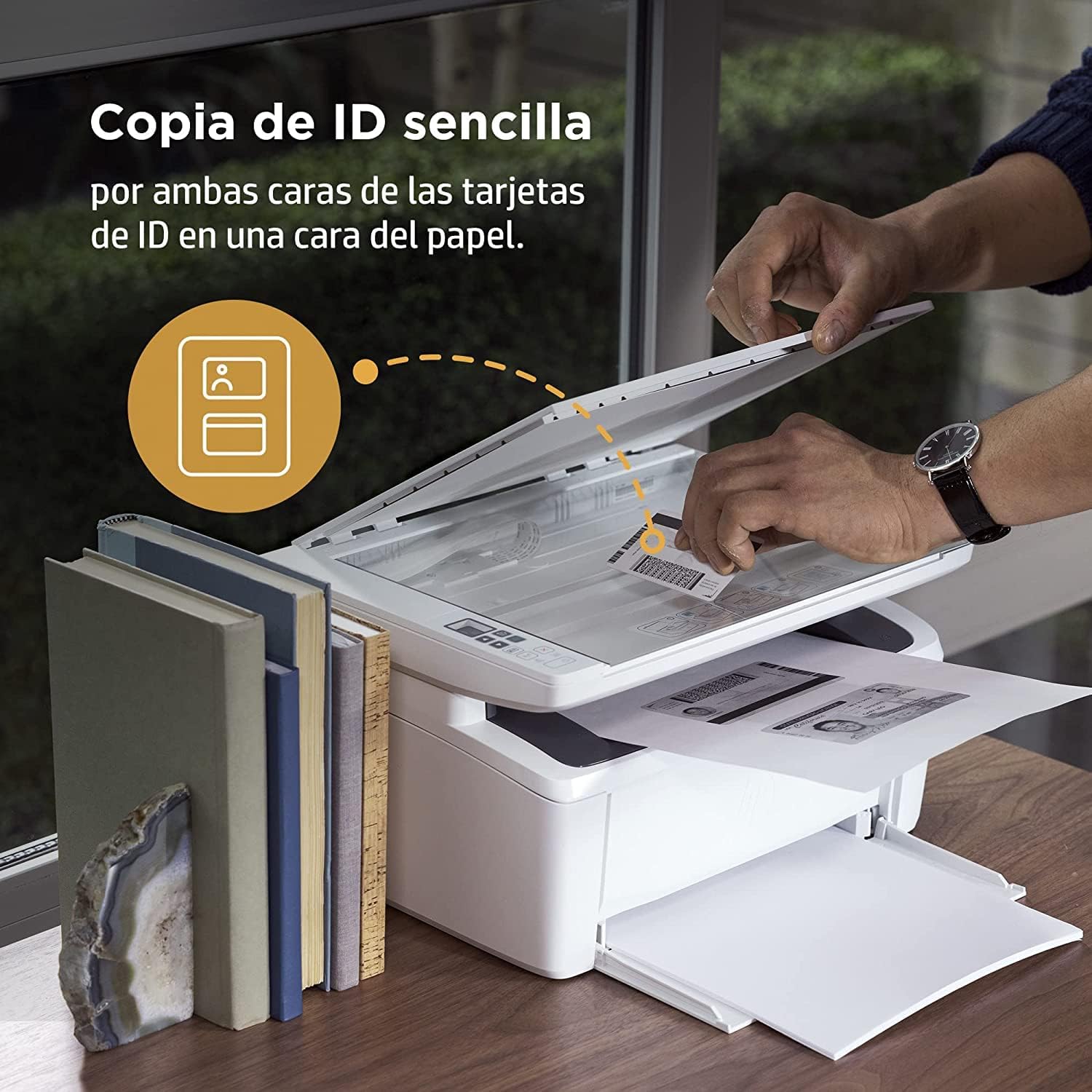
Image 4.2: The compact HP LaserJet MFP M140w printer with a mobile device displaying the HP Smart App interface.
5. Иштөө нускамалары
5.1 Басып чыгаруу
The HP LaserJet MFP M140w prints at speeds up to 20 ppm in monochrome. It supports A4 paper size.
- Компьютерден: Select the HP LaserJet MFP M140w from your printer list in any application. Adjust print settings as needed (e.g., paper size, quality).
- Мобилдик түзмөктөн (HP Smart колдонмосу): HP Smart колдонмосун колдонуп, документтерди жана сүрөттөрдү түз смартфонуңуздан же планшетиңизден оңой басып чыгарыңыз.
- Кол менен дуплекстүү басып чыгаруу: For two-sided printing, the printer supports manual duplex. Follow the prompts on your computer or the HP Smart App to reinsert the paper to print the second side.
5.2 Скандоо
The printer features a flatbed scanner for digitizing documents and images.
- Сканердин капкагын көтөрүңүз.
- Place the document face down on the scanner glass, aligning it with the guides.
- Сканердин капкагын жабыңыз.
- Initiate the scan from your computer or the HP Smart App. You can choose scan settings such as resolution and file формат.
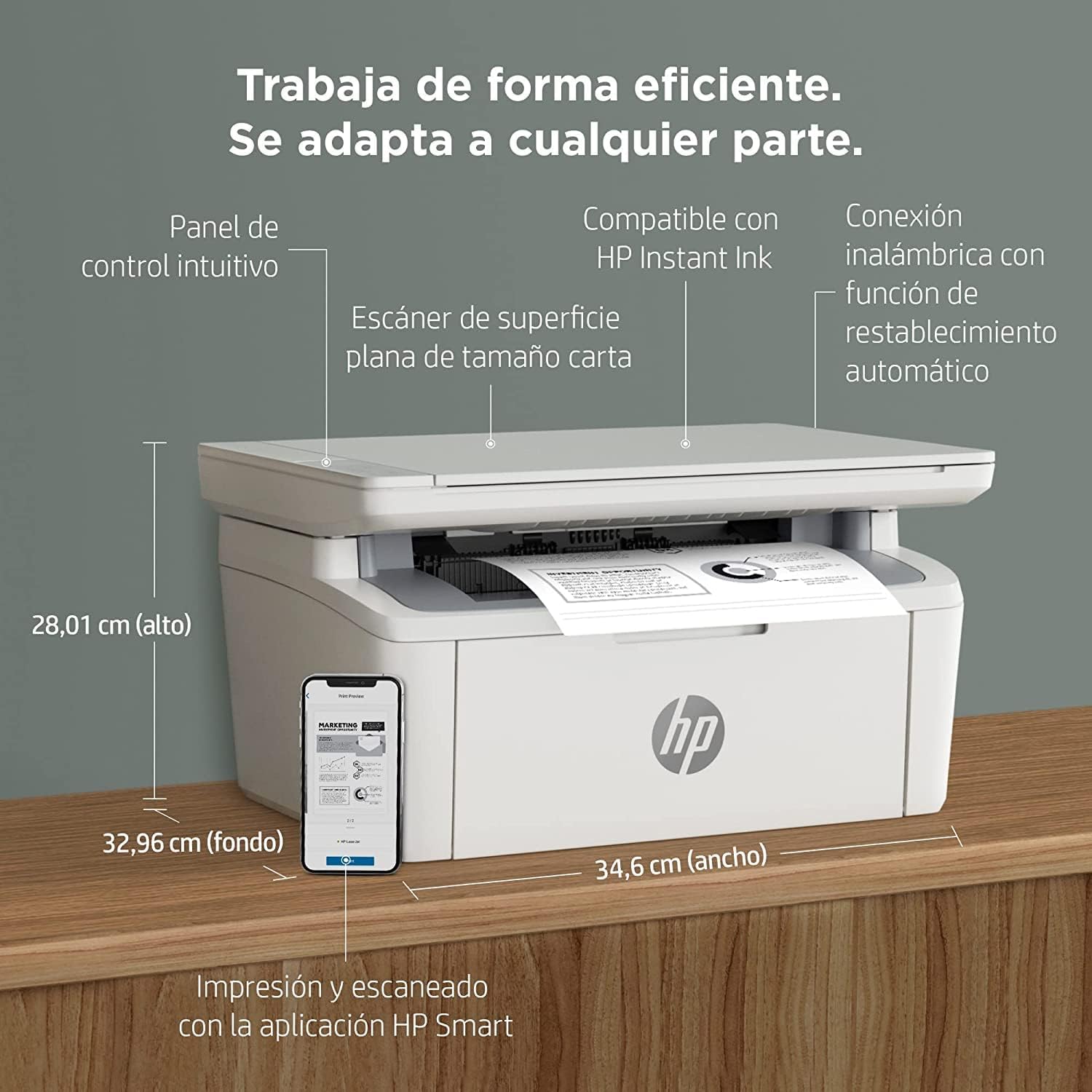
Image 5.1: Using the scanner for ID card copying.
5.3 Көчүрүү
The printer can make up to 150 copies per job.
- Place the original document on the scanner glass.
- Use the control panel on the printer or the HP Smart App to select the number of copies and start the copying process.
- ID Copy Function: This feature allows you to copy both sides of an ID card onto a single side of paper. Follow the instructions on the printer's control panel or the HP Smart App.
6. Техникалык тейлөө
6.1 Тонер картриджди алмаштыруу
When the toner level is low, replace the cartridge with an original HP 142A Black (W1420A) toner cartridge. Using non-HP cartridges may void your warranty and affect print quality.
- Тонерге кирүү эшигин ачыңыз.
- Remove the old toner cartridge.
- Unpack the new HP 142A toner cartridge and gently shake it.
- Жаңы картриджди ордуна бекитилмейинче салыңыз.
- Тонерге кирүү эшигин жабыңыз.
6.2 Принтерди тазалоо
Үзгүлтүксүз тазалоо басып чыгаруу сапатын сактоого жардам берет жана принтердин иштөө мөөнөтүн узартат.
- Принтердин сыртын жумшак, түксүз чүпүрөк менен сүртүңүз.
- Сканер айнегин жумшак чүпүрөк менен тазалаңыз dampайнек тазалагыч менен тазалаңыз (тазалоочу каражатты түз айнекке эмес, кездемеге сүйкөңүз).
- Refer to the HP Smart App or HP support website for specific cleaning instructions for internal components.
6.3 Микропрограмма жаңыртуулары
HP periodically releases firmware updates to improve printer performance and security. Ensure your printer is connected to the internet and check for updates via the HP Smart App or the printer's embedded web сервер.
7. Кыйынчылыктарды
This section addresses common issues you might encounter with your HP LaserJet MFP M140w printer.
7.1 Байланыш маселелери
- Printer not found on network: Ensure the printer is powered on and connected to the correct Wi-Fi network. Use the HP Smart App's troubleshooting tools or try resetting the Wi-Fi connection on the printer.
- Wi-Fi connection drops: The printer features dual-band Wi-Fi with automatic reset. If issues persist, ensure your router is functioning correctly and the printer is within range.
- USB байланышы таанылган жок: Verify the USB cable is securely connected to both the printer and the computer. Try a different USB port or cable.
7.2 Басып чыгаруу көйгөйлөрү
- Басып чыгаруу жок: Check if the printer is online and there are no error messages. Ensure paper is loaded correctly and the toner cartridge is installed.
- Начар басып чыгаруу сапаты: Replace the toner cartridge if it's low. Ensure you are using original HP toner. Clean the printer if necessary.
- Кагаз тыгындары: Follow the instructions on the printer's display or in the HP Smart App to clear any jammed paper. Ensure paper is loaded correctly and not overfilled.
7.3 Scanning/Copying Issues
- Сканер жооп бербей жатат: Ensure the scanner lid is fully closed and the document is placed correctly. Restart the printer and your computer/mobile device.
- Poor scan/copy quality: Clean the scanner glass. Ensure the original document is clean and flat.
7.4 Toner Cartridge Issues
The printer is designed to work exclusively with original HP toner cartridges. Firmware updates may affect the functionality of non-HP cartridges. If you experience issues with a non-HP cartridge, replace it with an original HP cartridge.
8. Техникалык шарттар
| Өзгөчөлүк | Спецификация |
|---|---|
| Модель аты | M140w |
| Продукт моделинин номери | 7MD72F |
| Функциялар | Басып чыгаруу, сканерлөө, көчүрүү |
| Басып чыгаруу технологиясы | Лазер |
| Print Output | Монохромдуу |
| Басып чыгаруу ылдамдыгы (монохромдуу) | 20 промиллеге чейин |
| Max Print Resolution (Monochrome) | 1200 dpi |
| Дуплекстүү басып чыгаруу | Manual |
| Сканер түрү | Планшет |
| Максималдуу киргизүү барагынын сыйымдуулугу | 150 барак |
| Max Copies per Run | 150 |
| Байланыш | Wi-Fi (Dual-band, auto-reset), Wi-Fi Direct, USB 2.0, Bluetooth |
| Процессордун ылдамдыгы | 500 МГц |
| Эс | 64 MB |
| Шайкеш операциялык системалар | Mac OS 10.15 Catalina (and later), Android |
| Өлчөмдөрү (W x D x H) | 34.6 x 32.96 x 28.01 см (болжол менен) |
| Салмагы | 5.4 кг |
| Энергияны керектөө | 60 Kilowatts (operating), 3600.0 Watts (peak) |
| Шайкеш тонер | HP 142A Black (W1420A) |
9. Кепилдик жана колдоо
9.1 Кепилдик маалыматы
The product includes a 2-year availability of spare parts in the EU. For specific warranty terms and conditions, please refer to the documentation provided with your printer or visit the official HP support webсайт.
9.2 Программалык камсыздоо жаңыртуулары
Software updates are guaranteed until April 13, 2030. These updates ensure continued functionality and security for your printer.
9.3 Кардарларды колдоо
Кошумча жардам, техникалык колдоо же кошумча ресурстарга жетүү үчүн, расмий HP колдоо бөлүмүнө баш багыңыз website or use the HP Smart App. The HP Smart App provides guided troubleshooting and access to support documentation.
Көбүрөөк маалымат жана колдоо таба аласыз HP колдоо Webсайт.