Introduction
This manual provides essential information for setting up, operating, maintaining, and troubleshooting your HP Pavilion 15 Laptop. Please read this guide thoroughly to ensure optimal performance and longevity of your device.

Image: The HP Pavilion 15 Laptop displaying the Windows 10 operating system desktop, showcasing its micro-edge display and full-size keyboard.
1. Орнотуу
1.1 Кутудан чыгаруу жана алгачкы текшерүү
Бардык компоненттерди таңгактан кылдаттык менен алып салыңыз. Төмөнкү заттар бар экенин текшериңиз:
- HP Pavilion 15 Laptop
- 45 Вт Smart AC кубаттуу адаптер
- Setup poster/Quick Start Guide
- Microfiber Cloth (if bundled)
Inspect the laptop and accessories for any signs of damage. If any items are missing or damaged, contact HP support.

Image: An illustration of the HP Pavilion 15 Laptop, highlighting its physical dimensions (14.11" W x 9.53" D x 0.71" H) and labeling its various ports: Multi-format SD media card reader, Headphone/microphone combo, SuperSpeed USB Type-C, HDMI 1.4b, AC smart pin, and SuperSpeed USB Type-A.
1.2 Кубатка туташуу
- AC кубат адаптерин ноутбукуңуздагы кубат туташтыргычына туташтырыңыз.
- Электр шнурын электр розеткасына сайыңыз.
- Allow the battery to charge for a sufficient period before initial use, or use the laptop while connected to power.
1.3 Баштапкы жүктөө жана Windows орнотуу
- Ноутбуктун капкагын ачып, кубат баскычын басыңыз.
- Windows 10 Home орнотуусун аяктоо үчүн экрандагы нускамаларды аткарыңыз. Буга аймакты, тилди тандоо, Wi-Fi тармагына туташуу жана колдонуучу каттоо эсебин түзүү кирет.
- Your laptop is eligible for a free upgrade to Windows 11. You can initiate this upgrade through Windows Update after the initial setup is complete and your system is fully updated.
2. Ноутбугуңузду иштетүү
2.1 Баскычтоп жана сенсордук такта
The HP Pavilion 15 features a full-size keyboard with an integrated numeric keypad for efficient data entry. The touchpad supports multi-touch gestures for navigation.
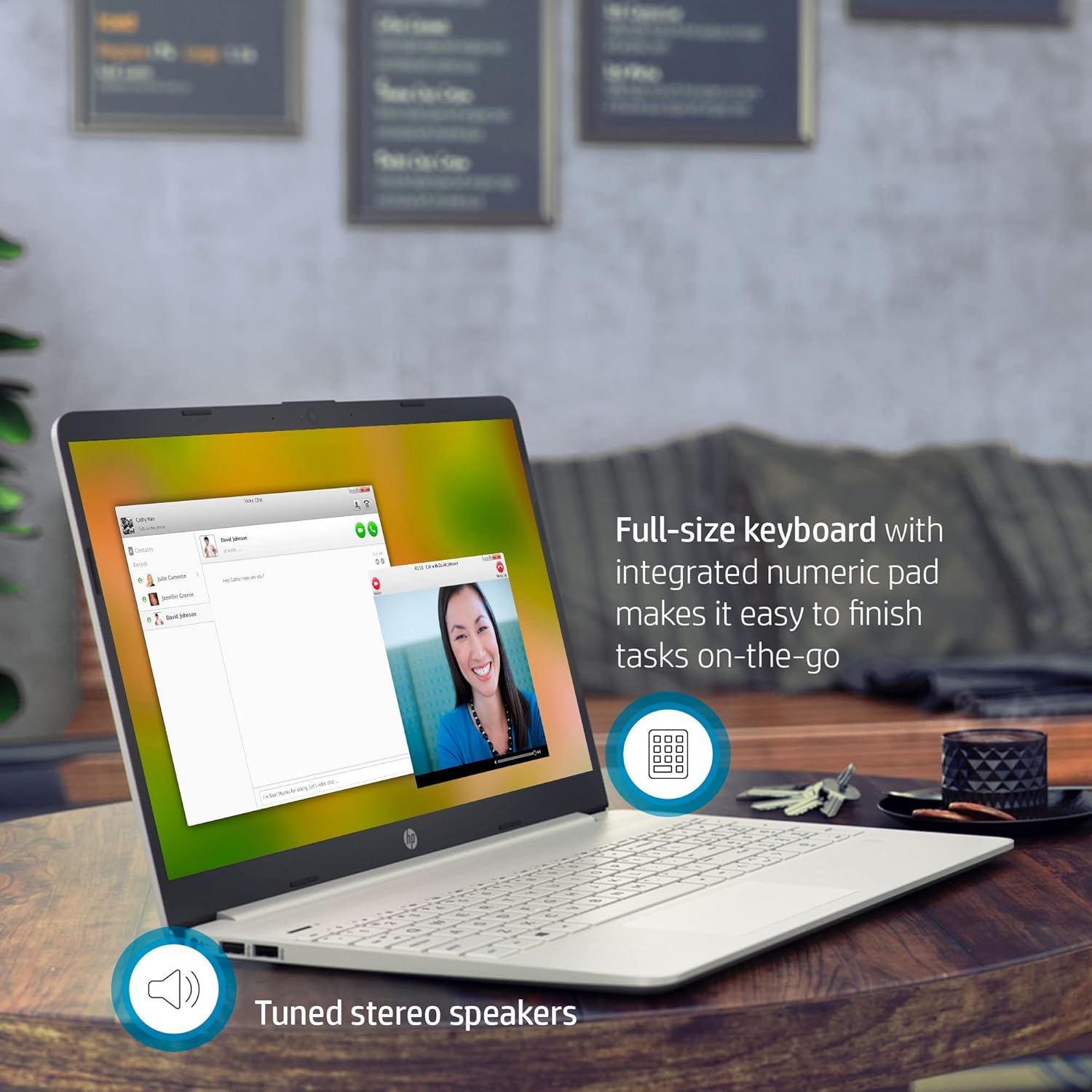
Image: The HP Pavilion 15 Laptop from an angled view, highlighting its full-size keyboard with numeric pad and indicating the presence of tuned stereo speakers.
2.2 Перифериялык түзүлүштөрдү туташтыруу
Сиздин ноутбук тышкы түзүлүштөрдү туташтыруу үчүн ар кандай порттор менен жабдылган:
- USB порттору: 1 SuperSpeed USB Type-C (5Gbps signaling rate) and 2 SuperSpeed USB Type-A (5Gbps signaling rate) for connecting USB devices like external drives, mice, or keyboards.
- HDMI: 1 HDMI 1.4b port for connecting to external displays or projectors.
- Наушник/микрофон айкалышы: A single port for connecting headphones, external microphones, or headsets.
- SD картаны окугуч: A multi-format SD media card reader for accessing data from memory cards.
2.3 Зымсыз байланыш
- Wi-Fi: Connect to wireless networks using the integrated Intel Wireless Wi-Fi. Access Wi-Fi settings through the Windows taskbar network icon.
- Bluetooth: Pair Bluetooth-enabled devices such as headphones, speakers, or mice. Bluetooth settings are accessible via Windows Settings > Devices > Bluetooth & other devices.
2.4 Аудио жана Webcam
The laptop features High Definition Audio and tuned stereo speakers for clear sound. For video conferencing and communication, it includes a built-in HD webcam and dual array digital microphones.

Image: The HP Pavilion 15 Laptop screen showing a video conference call, emphasizing the HP True Vision Camera with dual array digital microphone and the edge-to-edge HD display.
3. Техникалык тейлөө
3.1 Батареяга кам көрүү
- Батареянын иштөө мөөнөтүн узартуу үчүн, экстремалдык температурадан алыс болуңуз.
- Periodically allow the battery to discharge partially before recharging.
- Ноутбукту узак убакытка сактасаңыз, батареянын болжол менен 50% га чейин заряддалганын текшериңиз.
- The average battery life is up to 11 hours, depending on usage.
3.2 Тазалоо боюнча нускамалар
- Экран: Use a soft, lint-free cloth (like the bundled microfiber cloth) slightly dampсуу же экран тазалоочу менен бүттү. Суюктукту экранга түз чачпаңыз.
- Баскычтоп жана шасси: Жумшак, кургак чүпүрөктү колдонуңуз. өжөр кир үчүн, бир аз гampжумшак самын эритмеси менен чүпүрөктү колдонсо болот, эч кандай суюктук тешиктерге кирбесин.
- Тазалоодон мурун ноутбукту ар дайым өчүрүп, розеткадан ажыратыңыз.
3.3 Программалык камсыздоо жаңыртуулары
Regularly check for and install Windows updates and HP driver updates to ensure optimal performance, security, and compatibility. Access Windows updates via Settings > Update & Security > Windows Update.
4. Кыйынчылыктарды
Бул бөлүмдө HP Pavilion 15 ноутбугуңузда кездешиши мүмкүн болгон жалпы көйгөйлөр каралат.
| Көйгөй | Мүмкүн чечим |
|---|---|
| Ноутбук күйбөйт. |
|
| Экран бош же кара. |
|
| Wi-Fi туташуу маселелери. |
|
| Жай аткаруу. |
|
5. Техникалык шарттар
Key technical specifications for the HP Pavilion 15 Laptop (Model: HP Pavilion 15 Series):
| Өзгөчөлүк | Деталь |
|---|---|
| Процессор | 11th Generation Intel Core i3-1115G4 (up to 4.1 GHz) |
| Графика | Intel UHD графикасы (интегралдык) |
| Дисплей | 15.6-inch HD (1366 x 768) Micro-Edge, Anti-Glare |
| RAM | Up to 32 GB DDR4 SDRAM |
| Сактагыч | Up to 1 TB PCIe NVMe M.2 Solid State Drive |
| Операция системасы | Windows 10 Home (64-bit, English) - Free upgrade to Windows 11 available |
| Зымсыз байланыш | Intel Wireless Wi-Fi, Bluetooth |
| Порттар | 1 SuperSpeed USB Type-C (5Gbps), 2 SuperSpeed USB Type-A (5Gbps), 1 HDMI 1.4b, 1 AC smart pin, 1 Headphone/microphone combo, Multi-format SD Media Card Reader |
| Webcam | Камтылган HD Webcam with dual array digital microphone |
| Батареянын иштөө мөөнөтү | 11 саатка чейин (орточо) |
| Өлчөмдөрү (L x W x Y) | 14.11 x 9.53 x 0.71 дюйм |
| Салмагы | Баштапкы 3.72 фунт (1.69 кг) |
| Түс | Табигый күмүш |
6. Кепилдик жана колдоо
Your HP Pavilion 15 Laptop comes with a standard manufacturer's warranty. For detailed warranty information, please refer to the warranty card included with your product or visit the official HP support webсайт.
Техникалык жардам, драйверди жүктөп алуу же кошумча колдоо алуу үчүн, расмий HP колдоо бөлүмүнө баш багыңыз webсайт:
When contacting support, please have your laptop's serial number and model information ready.