1. Киришүү
Thank you for choosing the Rapoo M100 Wireless Bluetooth Mouse. This manual will guide you through the setup, operation, and maintenance of your new mouse, ensuring you get the most out of its features. The Rapoo M100 is designed for comfort, precision, and multi-device connectivity, making it ideal for various computing environments.
2. Продукциянын өзгөчөлүктөрү
- Easy Support for up to 3 Devices: This wireless Bluetooth mouse supports Bluetooth 3.0/4.0 and 2.4G technology, allowing connection to up to 3 devices: two via Bluetooth and the third via a 2.4GHz USB dongle. With one mouse, you can easily switch between devices using a simple button. Please note that you cannot control three devices simultaneously.
- Тынч дизайн: This silent wireless mouse reduces noise by 90%. Quiet clicks eliminate worries about disturbing others and allow you to focus better on your work. Enjoy peace and quiet during your browsing and working experiences. The outer shell is resistant to fingerprints and sweat, allowing air circulation and absorbing moisture, keeping it cool and refreshing. Suitable for laptops, computers, MacBooks, notebooks, and Chromebooks.
- Comfortable and High-Precision Design: Symmetrical shape designed for left or right hand use with a flat radian design that fits the hand's curve. It relieves strain and is suitable for all-day use. High-precision optical engine, allowing mouse use on various surfaces such as leather, fabric, paper, desk, wood, or resin, without a mouse pad.
- Узак мөөнөттүү батареянын иштөө мөөнөтү: Rapoo mouse applies energy-saving technology and design with power switches to extend battery life, which can last up to 9 months under normal conditions. Portable compact size makes it easy to carry for business trips, office, or travel.
3. Пакеттин мазмуну
Сураныч, пакетте төмөнкү нерселерди текшериңиз:
- Rapoo M100 Wireless Bluetooth Mouse
- USB 2.4 ГГц кабыл алгыч
- AA Батарея (алдын ала орнотулган же камтылган)
- Ыкчам баштоо колдонмосу (бул колдонмо)
4. Орнотуу
4.1. Батареяны орнотуу
The Rapoo M100 mouse uses one AA battery. If the battery is not pre-installed, open the battery compartment cover on the underside of the mouse, insert the AA battery with the correct polarity, and close the cover.

The underside of the Rapoo M100 mouse, with labels pointing to key components: anti-slip pads, the ON/OFF switch, the Bluetooth Pairing Button/Device Switch Button, the Invisible Optical sensor, the Battery Slot, and the storage compartment for the USB Receiver.
4.2. Чычканыңызды туташтыруу
The Rapoo M100 offers two primary connection methods: 2.4GHz Wireless via USB receiver and Bluetooth.
4.2.1. 2.4GHz Wireless Connection (via USB Receiver)
- Locate the USB receiver stored in the battery compartment of the mouse.
- USB ресиверди компьютериңиздеги жеткиликтүү USB портуна сайыңыз.
- Turn on the mouse using the ON/OFF switch on the bottom.
- Чычкан компьютериңизге автоматтык түрдө туташуу керек.
4.2.2. Bluetooth Connection (up to 2 devices)
- Turn on the mouse using the ON/OFF switch on the bottom.
- Press the Bluetooth Pairing Button/Device Switch Button on the bottom of the mouse to select a Bluetooth channel (e.g., Bluetooth 1 or Bluetooth 2). The indicator light will blink slowly.
- Press and hold the Bluetooth Pairing Button/Device Switch Button for 3 seconds until the indicator light starts blinking rapidly. This indicates the mouse is in pairing mode.
- Түзмөгүңүздө (ноутбук, планшет, смартфон) Bluetooth жөндөөлөрүнө өтүп, жаңы түзмөктөрдү издеңиз.
- Select "Rapoo M100" from the list of available devices to complete the pairing process. The indicator light on the mouse will stop blinking once connected.

An illustration demonstrating the wide compatibility of the Rapoo M100 mouse with different operating systems and device types, including laptops, tablets, cellphones, and PCs, through both Bluetooth 3.0/4.0 and 2.4G USB connectivity.

Үстүбүздөгү чыгым view of a workspace featuring the Rapoo M100 mouse, a keyboard, a laptop, and a tablet, demonstrating how the mouse can connect seamlessly across multiple devices via Bluetooth or the USB receiver.
5. Иштөө нускамалары
5.1. Туташкан түзмөктөрдүн ортосунда которулуу
To switch between the 2.4GHz wireless connection and the two Bluetooth connections, simply press the Bluetooth Pairing Button/Device Switch Button on the bottom of the mouse. Each press will cycle through the connected devices (2.4G, Bluetooth 1, Bluetooth 2).

Diagram showing the Rapoo M100 mouse's ability to connect to and switch between three different devices: a laptop, a tablet, and a PC, highlighting its multi-device pairing capability.
5.2. Үнсүз чыкылдатуу функциясы
The Rapoo M100 is designed with silent click buttons, reducing the noise produced by clicks by up to 90%. This feature allows for a quieter working environment without disturbing others.

Close-up of the Rapoo M100 mouse, illustrating its silent click feature with visual cues indicating reduced noise from the left and right mouse buttons.
5.3. Эргономикалык дизайн
The symmetrical shape of the mouse is suitable for both left and right-handed users, with a flat radian design that comfortably fits the curve of your hand. This design helps reduce strain during prolonged use.
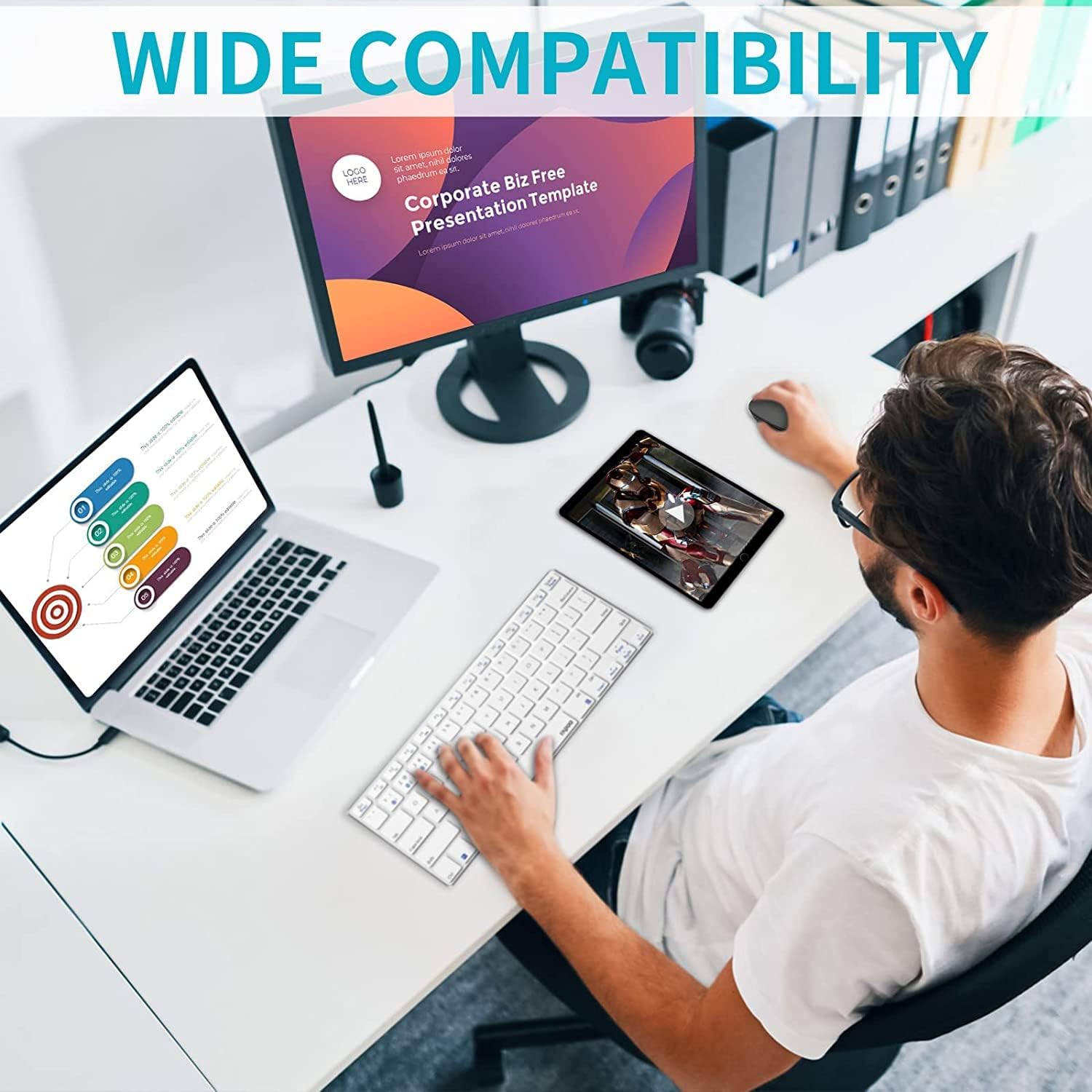
A person working at a desk, using the Rapoo M100 mouse with a desktop computer and a laptop, illustrating its comfortable design during extended use.
6. Техникалык тейлөө
6.1. Тазалоо
Чычканыңызды тазалоо үчүн жумшак, кургак чүпүрөктү колдонуңуз. өжөр кир үчүн, бир аз гamp cloth can be used, but ensure no moisture enters the mouse. Avoid using harsh chemicals or abrasive materials.

Детальдуу жагы view of the Rapoo M100 mouse, emphasizing its anti-slip lattice texture on both sides and the anti-fingerprint and sweat-proof outer shell, designed for breathability and moisture absorption.
6.2. Батареяны алмаштыруу
When the mouse performance degrades or the indicator light signals low battery, replace the AA battery. Turn off the mouse before replacing the battery.
7. Кыйынчылыктарды
| Көйгөй | Мүмкүн себеп | Чечим |
|---|---|---|
| Чычкан жооп бербей жатат | Battery low or dead; Mouse is off; USB receiver not connected; Bluetooth not paired. | Replace battery; Turn on mouse; Plug in USB receiver; Re-pair Bluetooth. |
| Lag or delayed response (especially with Bluetooth) | Interference from other wireless devices; Device's Bluetooth module issue; Mouse went into sleep mode. | Move mouse closer to device; Reduce other wireless interference; Update Bluetooth drivers; Click mouse to wake it up. |
| Түзмөктөрдүн ортосунда которула албай жатат | Incorrect button press; Devices not properly paired. | Ensure you are pressing the correct device switch button; Re-pair devices if necessary. |
| Чычкан курсору туура эмес же жылмакай эмес | Кир оптикалык сенсор; Ылайыксыз бет; Батареянын заряды аз. | Clean optical sensor; Use on a clean, non-reflective surface; Replace battery. |
8. Техникалык шарттар
- Модель аты: M100 Унчукпай
- Байланыш технологиясы: Bluetooth 3.0/4.0, 2.4 ГГц зымсыз байланыш
- Кыймылды аныктоо: Оптикалык
- Button Quantity: 2 (Сол, Оң, Жылдыруу дөңгөлөгүн чыкылдатуу)
- Колдун багыты: Ambidextrous (uses both hands)
- Өзгөчөлүктөр: Silent Click, Multi-device connectivity
- Шайкеш түзмөктөр: Personal Computer, Laptop, Mac, Tablet, Smartphone
- Сунушталган колдонуулар: Office
- Түсү: Боз
- Продукциянын өлчөмдөрү: 10.39 x 6.54 x 0.1 см
- Элемент Салмагы: 80 грамм
- Келип чыккан өлкө: Кытай
- Биринчи жеткиликтүү датасы: 22-февраль, 2022-жыл
9. Кепилдик жана колдоо
Rapoo products are designed to provide reliable performance. For warranty information and technical support, please refer to the official Rapoo webсайтына кириңиз же жергиликтүү дистрибьюторуңузга кайрылыңыз. Кепилдик талаптары үчүн сатып алуу дүмүрчөгүңүздү сактап коюңуз.
Кошумча жардам алуу үчүн, кириңиз www.rapoo.com.


