Introduction
This manual provides detailed instructions for the setup, operation, maintenance, and troubleshooting of your Oversteel KOVAR USB Gaming Keyboard. Please read this manual thoroughly before using the product to ensure proper functionality and longevity.
The Oversteel KOVAR keyboard features a full layout with 108 keys, RGB illumination, Outemu Blue mechanical switches, and anti-ghosting technology for precise input.
Пакеттин мазмуну
Пакетте бардык буюмдар бар экенин текшериңиз:
- Oversteel KOVAR USB Gaming Keyboard
- USB кабели (тиркелген)
- Көрсөтмө (бул документ)
Жайгашуу
Системалык талаптар
- Operating System: Windows, macOS, Android compatible
- Жеткиликтүү USB порту
Баскычтопту туташтыруу
- Unpack the Oversteel KOVAR keyboard from its packaging.
- Компьютериңизде же шайкеш түзүлүшүңүздө жеткиликтүү USB портун табыңыз.
- Баскычтоп кабелинин USB туташтыргычын USB портуна кыстарыңыз.
- Иштөө системасы автоматтык түрдө керектүү драйверлерди таап, орнотот. Бул процесс бир нече мүнөткө созулушу мүмкүн.
- Орнотуу аяктагандан кийин, клавиатура колдонууга даяр.
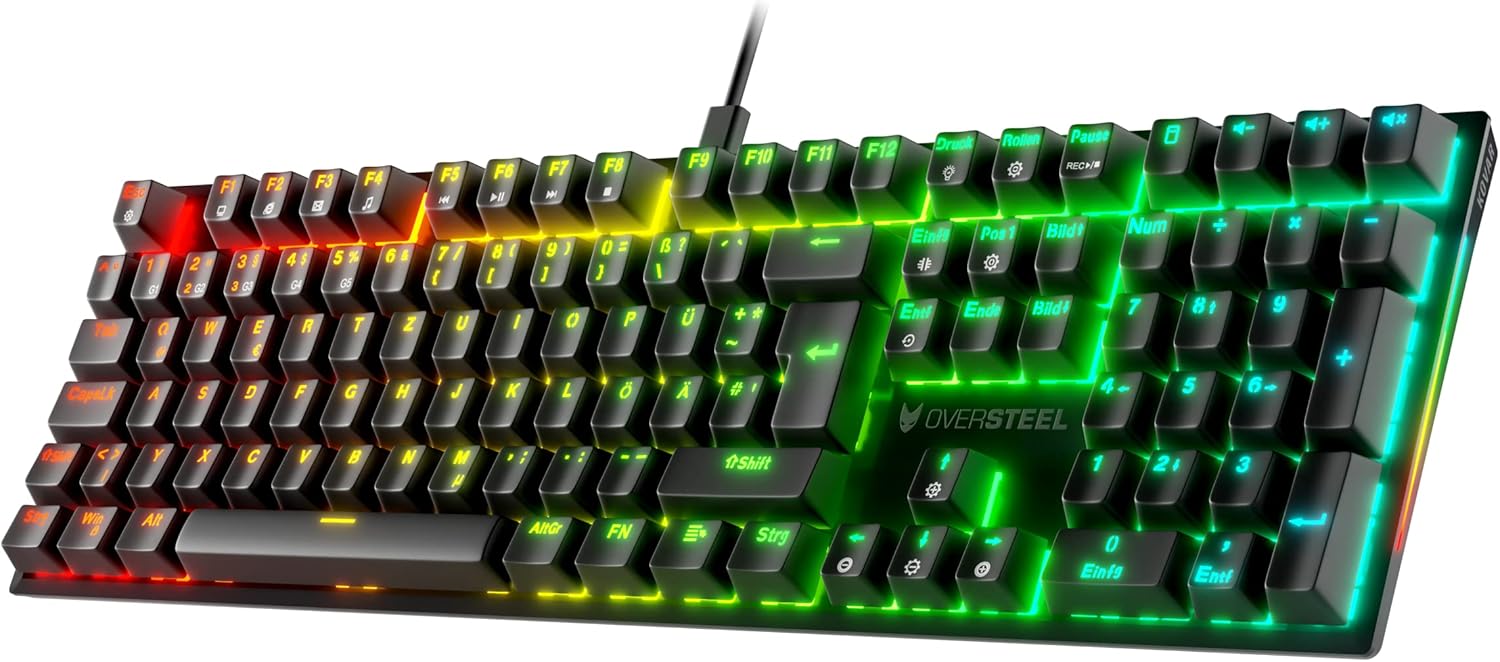
Image: The Oversteel KOVAR USB Gaming Keyboard, showcasing its full layout and RGB illumination, connected via its USB cable.
Иштөө нускамалары
Негизги баскычтоп функциялары
The KOVAR keyboard functions as a standard 108-key layout keyboard. All standard alphanumeric keys, function keys (F1-F12), navigation keys, and the numeric keypad operate as expected.
RGB жарык көзөмөлдөө
The keyboard features customizable RGB lighting with 22 modes. Use the following key combinations to control the lighting effects:
- Fn + Esc: Toggles the keyboard backlighting On/Off.
- Fn + Print Screen (Druck): Cycles through different lighting effects/modes.
- Fn + Scroll Lock (Rollen): Changes colors for single-color lighting effects.
- Fn + Home (Pos 1): Activates specific lighting modes (may vary by mode).
- Fn + Up Arrow (↑): Арткы жарыктын жарыктыгын жогорулатат.
- Fn + Down Arrow (↓): Арткы жарыктын жарыктыгын азайтат.
- Fn + Left Arrow (←): Decreases the speed of dynamic lighting effects.
- Fn + Right Arrow (→): Increases the speed of dynamic lighting effects.

Сүрөт: деталдуу view of the Oversteel KOVAR keyboard, highlighting the RGB illuminated keys and the German layout.
Anti-Ghosting жана N-Key Rollover
The KOVAR keyboard features anti-ghosting technology on every key and full N-Key Rollover. This ensures that all key presses are registered accurately, even when multiple keys are pressed simultaneously, which is beneficial for fast-paced typing and gaming.
Техникалык тейлөө
Баскычтопту тазалоо
- Тазалоодон мурун клавиатураны компьютерден ажыратыңыз.
- Бир аз жумшак, түксүз кездемени колдонуңуз dampклавиатуранын бетин сүртүү үчүн суу же жумшак тазалоо эритмеси менен иштетиңиз.
- Ачкычтардын ортосундагы чаң жана таштанды үчүн кысылган абаны же кичинекей щетканы колдонуңуз.
- Do not immerse the keyboard in water or use harsh chemicals.
- Клавиатураны кайра туташтыруудан мурун, анын толугу менен кургак экенин текшериңиз.
Сактагыч
Узак мөөнөткө колдонулбаганда, клавиатураны таза, кургак чөйрөдө күн нурунан жана экстремалдык температурадан алыс сактаңыз.
Проблемаларды чечүү
Баскычтоп жооп бербейт
- USB туташуусун текшерүү: Ensure the USB cable is securely plugged into both the keyboard and the computer's USB port. Try a different USB port.
- Компьютерди кайра иштетүү: Системаны өчүрүп күйгүзүү көбүнчө туташуу маселелерин чечет.
- Башка түзмөктө сыноо: Connect the keyboard to another computer or compatible device to determine if the issue is with the keyboard or the original device.
- Драйверди кайра орнотуу: On Windows, go to Device Manager, find the keyboard, uninstall the driver, and then restart your computer to allow it to reinstall automatically.
RGB жарыктандыруу иштебей жатат же туура эмес
- Жарыктыкты текшерүү: Ensure the brightness is not set to the lowest level (Fn + Up Arrow to increase).
- Жарыкты күйгүзүү/өчүрүү: Use Fn + Esc to turn the lighting off and on again.
- Цикл режимдери: Use Fn + Print Screen to cycle through all available lighting modes.
- Software (if applicable): If Oversteel provides specific software for lighting control, ensure it is installed and updated.
Ачкычтар катталбайт же эки жолу терилбейт
- Таза ачкычтар: Dust or debris under the keycap can interfere with switch operation. Use compressed air to clean around the affected keys.
- Тестке тиешелүү ачкычтар: Use an online keyboard tester to identify if specific keys are consistently failing.
- Орнотулган программаны жаңыртуу: Check the Oversteel support website for any available firmware updates for the KOVAR keyboard.
Техникалык шарттар
| Модель аты | Болоттон ашыкча KOVAR |
| Модель номери | NAT-OV-KOVAR-DE-BLUE |
| Байланыш | USB |
| Которуу түрү | Outemu көк механикалык өчүргүчтөрү |
| Ачкычтын жайгашуусу | Full Layout (108 keys), German (DE) |
| Арткы жарыктандыруу | RGB, 22 modes |
| Anti-Ghosting | Толук N-Key Rollover |
| Өлчөмдөрү (L x W x Y) | 17.13 x 5.04 x 1.54 дюйм (43.5 x 12.8 x 3.9 см) |
| Салмагы | 2.27 фунт (1.03 кг) |
| Материал | Пластик |
| Шайкеш OS | PC (Windows), MAC, Android |

Сүрөт: бурчтуу view of the Oversteel KOVAR keyboard, showing its full size and keycap profile.
Кепилдик маалымат
Oversteel products are covered by a limited warranty against defects in materials and workmanship. The specific duration and terms of the warranty may vary by region and retailer. Please retain your proof of purchase for warranty claims.
This warranty does not cover damage caused by accident, abuse, misuse, natural disaster, or unauthorized modification or repair.
Кардарларды колдоо
For technical assistance, warranty inquiries, or further information, please visit the official Oversteel webсайтына кириңиз же алардын кардарларды колдоо бөлүмүнө кайрылыңыз.
Webсайт: www.oversteel.com
Please have your product model number (KOVAR) and proof of purchase ready when contacting support.


