1. Киришүү
This manual provides comprehensive instructions for the WD 20TB Elements Desktop External Hard Drive (Model WDBWLG0200HBK-NESN). This device offers high-capacity, reliable storage for your digital files, featuring fast data transfer rates via USB 3.0 and universal compatibility with USB 3.0 and USB 2.0 devices. It is designed for plug-and-play use with Windows PCs and can be reformatted for use with macOS.

Сүрөт 1.1: Алдыңкы view of the WD Elements Desktop External Hard Drive.
2. Кутуда эмне бар
Таңгакта бардык компоненттер бар экенин текшериңиз:
- WD Elements hard drive
- USB 3.0 кабели
- AC адаптер
- Ыкчам орнотуу көрсөтмөсү
3. Орнотуу
Follow these steps to set up your WD Elements Desktop External Hard Drive:
- AC адаптерин туташтыруу: Plug the AC adapter into the power port on the back of the WD Elements drive. Connect the other end of the AC adapter to a power outlet.
- USB кабелин туташтыруу: Connect one end of the included USB 3.0 cable to the USB port on the back of the WD Elements drive. Connect the other end of the USB cable to an available USB 3.0 or USB 2.0 port on your computer.
- Күйгүзүү: The drive will typically power on automatically when connected. The LED indicator on the front of the drive will illuminate.
- Алгачкы таануу: For Windows PCs, the drive is pre-formatted and ready for immediate use. It should appear as a new drive in 'This PC' or 'My Computer'. For macOS, reformatting is required. Refer to your macOS documentation for instructions on how to format an external drive using Disk Utility.

Сүрөт 3.1: Арткы view of the drive, highlighting the power and USB 3.0 ports.
4. Иштөө нускамалары
The WD Elements Desktop External Hard Drive is designed for simple plug-and-play operation.
- Дискке кирүү: Once connected and recognized by your computer, the drive will appear as a removable storage device. You can access it like any other drive on your system.
- Өткөрүлүүдө Files: Сүйрөп барып таштаңыз files or folders to and from the WD Elements drive. You can also use copy and paste functions. The USB 3.0 interface ensures fast data transfers for large files.
- Коопсуз алып салуу: Always safely eject the drive before disconnecting it from your computer to prevent data corruption.
- Windows: Click the 'Safely Remove Hardware and Eject Media' icon in the system tray, then select your WD Elements drive.
- MacOS: Drag the drive icon from your desktop to the Trash, or right-click (Control-click) the drive icon and select 'Eject'.

Image 4.1: The WD Elements drive integrated into a typical desktop setup.
5. Техникалык тейлөө
Proper maintenance ensures the longevity and optimal performance of your external hard drive:
- Физикалык кам көрүү: Keep the drive in a stable, well-ventilated area. Avoid exposing it to extreme temperatures, direct sunlight, or moisture. Do not block the ventilation slots.
- Тазалоо: Дискинин сыртын тазалоо үчүн жумшак, кургак чүпүрөктү колдонуңуз. Суюк тазалагычтарды же аэрозолдорду колдонбоңуз.
- Маалыматтын камдык көчүрмөсү: While the WD Elements drive provides reliable storage, it is recommended to maintain backups of critical data on multiple devices or cloud services to prevent data loss from unforeseen circumstances.
- Программалык камсыздоонун жаңыртуулары: Periodically check the official WD support website for any available firmware updates for your drive model. Updates can improve performance and stability.
6. Кыйынчылыктарды
If you encounter issues with your WD Elements drive, try the following solutions:
- Диск аныкталган жок:
- Ensure the AC adapter is securely connected to both the drive and a working power outlet.
- Verify the USB cable is firmly connected to both the drive and your computer.
- Дискти компьютериңиздин башка USB портуна туташтырууга аракет кылыңыз.
- Мүмкүн болсо, башка USB кабели менен сынап көрүңүз.
- Компьютериңизди өчүрүп күйгүзүңүз.
- Жай өткөрүү ылдамдыгы:
- Ensure you are connected to a USB 3.0 port on your computer for optimal performance. USB 2.0 ports will result in slower speeds.
- Чоң мезгилде бир нече талап кылынган колдонмолорду иштетүүдөн качыңыз file которуулар.
- Check your computer's drivers for USB ports are up to date.
- Drive Making Unusual Noises:
- A slight hum or whirring is normal for a mechanical hard drive. However, if you hear clicking, grinding, or loud scraping sounds, safely disconnect the drive immediately and contact WD support.
- Drive Requires Formatting (Windows): If your Windows PC prompts you to format the drive, it may indicate a file system issue. If you have data on the drive, do not proceed with formatting without attempting data recovery first. If it's a new drive and you intend to use it with macOS, proceed with macOS formatting.
For further assistance, visit the official WD support webсайт.
7. Техникалык шарттар
| Өзгөчөлүк | Деталь |
|---|---|
| Модель номери | WDBWLG0200HBK-NESN |
| Санариптик сактоо сыйымдуулугу | 20 ТБ (20000 ГБ) |
| Катуу диск түрү | Механикалык катуу диск |
| Катуу диск интерфейси | USB 3.0 |
| Байланыш технологиясы | USB |
| Аппараттык платформа | PC, Mac (reformatting required for macOS) |
| Элемент Салмагы | 1.98 фунт |
| Продукциянын өлчөмдөрү (LxWxH) | 5.31 x 1.89 x 6.53 дюйм |
| Түс | Кара |
| Өндүрүүчү | Western Digital Technologies, Inc. |
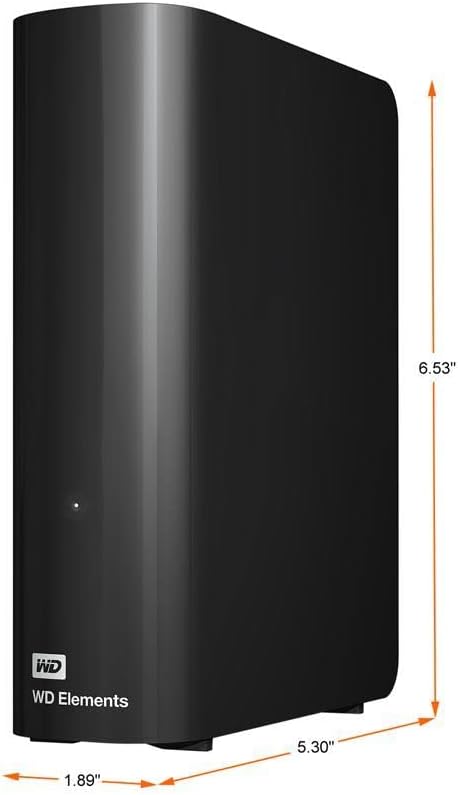
Image 7.1: Product dimensions of the WD Elements Desktop External Hard Drive.
8. Кепилдик жана колдоо
Your WD Elements Desktop External Hard Drive is covered by a limited warranty. For specific warranty terms, conditions, and duration, please refer to the warranty information included with your product or visit the official Western Digital webсайт. Техникалык колдоо, продуктуну каттоо жана кошумча ресурстар үчүн бул жерге кириңиз support.wdc.com.