1. Киришүү
This manual provides detailed instructions for the setup, operation, and maintenance of your Rapoo E9700M Wireless Keyboard. Please read this manual thoroughly before using the product to ensure proper functionality and to prevent damage.

Image 1.1: The Rapoo E9700M Wireless Keyboard. This image shows the keyboard from an angled perspective, highlighting its slim profile and dark gray finish.
2. Пакеттин мазмуну
Пакетте бардык буюмдар бар экенин текшериңиз:
- Rapoo E9700M зымсыз баскычтобу
- USB-C заряддоо кабели
- Nano USB Receiver (typically stored in the keyboard's battery compartment)
- Quick Start Guide (this document serves as a comprehensive guide)
3. Өзгөчөлүктөрү
- Multi-Mode Wireless Connectivity: Supports Bluetooth 3.0, 5.0, and 2.4 GHz for stable transmission up to 10 meters.
- Smart Switching: Automatically pairs and connects to multiple devices, allowing one-click switching.
- Ultra-Slim дизайн: Constructed with an aluminum alloy for stability and durability.
- Кайра заряддалуучу батарея: Integrated eco-friendly lithium battery eliminates the need for disposable batteries.
- Мультимедиялык Ыкчам баскычтар: Dedicated keys for quick access to multimedia functions.
- DE-Layout QWERTZ: German keyboard layout.
4. Орнотуу
4.1. Баскычтопту заряддоо
Before initial use, fully charge the keyboard. Connect the supplied USB-C cable to the keyboard's charging port and the other end to a USB power source (e.g., computer USB port, USB wall adapter).
- Заряддоо индикатору заряддоо учурунда күйөт.
- The light will turn off or change color once fully charged.
4.2. Connecting via 2.4 GHz Wireless
- Locate the Nano USB receiver, typically stored in a compartment on the underside of the keyboard.
- Nano USB кабыл алгычын компьютериңиздеги жеткиликтүү USB портуна сайыңыз.
- Turn on the keyboard using the power switch (usually located on the side or back).
- басыңыз fn+4 key combination to activate 2.4 GHz mode. The corresponding indicator light will blink.
- Your computer should automatically detect and install the necessary drivers. The keyboard is ready for use.

Сүрөт 4.2: жогорудан ылдыйга view of the Rapoo E9700M keyboard, showing the German (DE-Layout QWERTZ) key arrangement. Note the function keys with blue icons for connectivity modes.
4.3. Bluetooth аркылуу туташуу
The keyboard supports two Bluetooth channels (Bluetooth 1 and Bluetooth 2).
- Кубат которгучу менен клавиатураны күйгүзүңүз.
- Басыңыз fn+1 for Bluetooth 1 or fn+2 for Bluetooth 2. The corresponding indicator light will blink slowly.
- Жупташтыруу режимине өтүү үчүн басып, кармап туруңуз fn+1 or fn+2 for 3 seconds until the indicator light blinks rapidly.
- On your device (PC, Mac, smartphone, tablet), open Bluetooth settings and search for new devices.
- Select "Rapoo E9700M" from the list of available devices.
- Follow any on-screen prompts to complete the pairing process. The indicator light will stop blinking once connected.
4.4. Туташкан түзмөктөрдүн ортосунда которулуу
The Rapoo E9700M allows seamless switching between up to three connected devices (one 2.4 GHz and two Bluetooth devices).
- Басыңыз fn+1 Bluetooth түзмөгүнө которулуу үчүн 1.
- Басыңыз fn+2 Bluetooth түзмөгүнө которулуу үчүн 2.
- Басыңыз fn+4 to switch to the 2.4 GHz wireless connection.
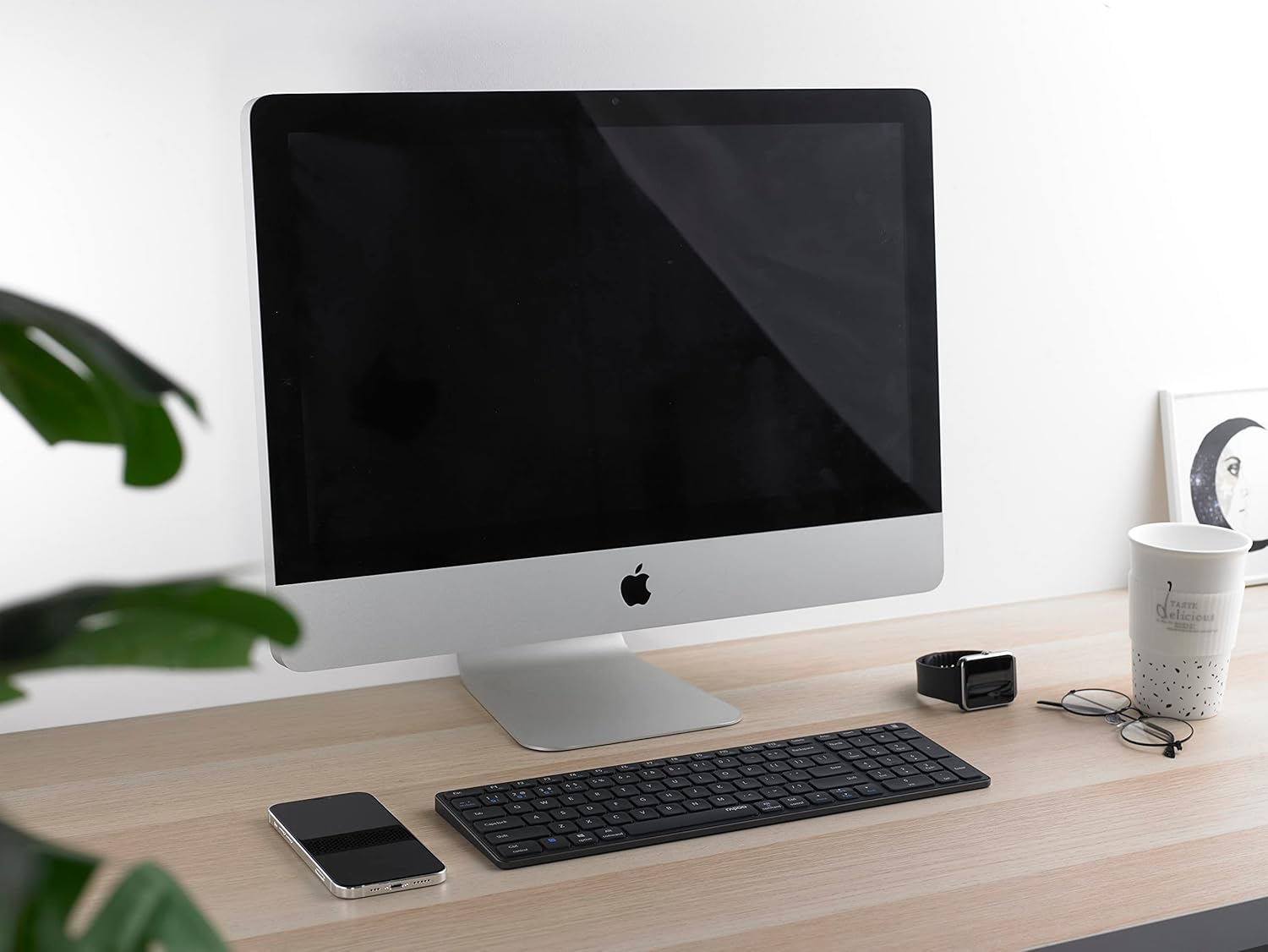
Image 4.4: The Rapoo E9700M keyboard positioned on a desk next to an iMac, demonstrating its compatibility with macOS devices.
5. Иштөө нускамалары
5.1. Мультимедиялык ысык баскычтар
The keyboard features multimedia hotkeys for quick access to various functions. These keys are typically activated by pressing the Fn key simultaneously with the corresponding function key (F1-F12).
| Ачкыч айкалышы | Функция |
|---|---|
| Fn + F1 | Медиа ойноткуч |
| Fn + F2 | Үндү төмөндөтүү |
| Fn + F3 | Үндү көтөрүү |
| Fn + F4 | Үнсүз |
| Fn + F5 | Мурунку трек |
| Fn + F6 | Кийинки трек |
| Fn + F7 | Ойнотуу/Тыныгуу |
| Fn + F8 | Токто |
| Fn + F9 | Башкы бет |
| Fn + F10 | |
| Fn + F11 | Менин компьютерим |
| Fn + F12 | Сүйүктүүлөр |
5.2. Индикатор жарыктары
The keyboard has indicator lights to show connection status and battery level:
- Bluetooth 1/2/4 (2.4G) Indicator: Blinks slowly when searching for connection, blinks rapidly when in pairing mode, solid when connected.
- Caps Lock көрсөткүчү: Caps Lock иштетилгенде күйөт.
- Батареянын абалынын көрсөткүчү: Illuminates when charging, blinks when battery is low.
6. Техникалык тейлөө
To ensure the longevity and optimal performance of your Rapoo E9700M keyboard, follow these maintenance guidelines:
- Тазалоо: Баскычтоптун бетин сүртүү үчүн жумшак, кургак чүпүрөктү колдонуңуз. өжөр кир үчүн, бир аз гampчүпүрөктү суу же жумшак, абразивдүү тазалагыч менен жууп салыңыз. Ашыкча нымдуулуктан сактаныңыз.
- Сактагыч: Клавиатураны күн нурунан жана экстремалдык температурадан алыс, салкын, кургак жерде сактаңыз.
- Суюктуктардан алыс болуңуз: Do not expose the keyboard to liquids. In case of accidental spills, immediately power off the keyboard and allow it to dry completely before reuse.
- USB кабыл алгыч: When not in use, store the Nano USB receiver in its designated compartment within the keyboard to prevent loss.

Image 6.1: The underside of the Rapoo E9700M keyboard, showing the smooth aluminum finish and regulatory markings. The USB receiver compartment is typically located here.
7. Кыйынчылыктарды
Эгерде сиз клавиатураңызда көйгөйлөргө туш болсоңуз, төмөнкү кеңири таралган көйгөйлөрдү жана чечимдерди караңыз:
- Баскычтоп жооп бербей жатат:
- Баскычтоп күйгүзүлгөнүн текшериңиз.
- Батареянын деңгээлин текшерип, керек болсо заряддаңыз.
- Verify the correct connection mode (2.4 GHz, Bluetooth 1, or Bluetooth 2) is selected using Fn + 1/2/4.
- For 2.4 GHz, ensure the Nano USB receiver is securely plugged into a working USB port.
- Bluetooth үчүн түзмөгүңүздө Bluetooth иштетилгенин жана баскычтоп жупташканын текшериңиз. Зарыл болсо, кайра жупташтырып көрүңүз.
- Try connecting to a different USB port or device to rule out port/device issues.
- Кечигип же үзгүлтүктүү байланыш:
- Reduce the distance between the keyboard and your device (maximum 10 meters).
- Remove any obstacles that might interfere with the wireless signal (e.g., large metal objects).
- Avoid using the keyboard near other strong wireless interference sources (e.g., Wi-Fi routers, other wireless devices).
- Баскычтоп толук кубатталганын текшериңиз.
- Ачкычтар иштебей жатат же туура эмес терилген:
- Баскычтарга тоскоол болушу мүмкүн болгон калдыктарды тазалоо үчүн клавиатураны тазалаңыз.
- Компьютериңизди/түзмөгүңүздү өчүрүп күйгүзүңүз.
- If using Bluetooth, try unpairing and re-pairing the keyboard.
8. Техникалык шарттар
| Өзгөчөлүк | Деталь |
|---|---|
| Бренд | Rapoo |
| Модел | Э9700М |
| Байланыш технологиясы | Bluetooth 3.0, Bluetooth 5.0, 2.4 GHz Wireless (USB-C, WLAN) |
| Шайкеш түзмөктөр | Laptop, PC, Smart TV, Gaming Console, Smartphone, Tablet |
| Keyboard Description | Мультимедиа |
| Өзгөчө өзгөчөлүк | Multimedia Hotkeys, Rechargeable Battery |
| Түс | Кара боз |
| Стиль | Classic |
| Материал | Алюминий |
| Камтылган компоненттер | Keyboard, USB-C Cable, Nano USB Receiver |
| Макет | DE-Layout (QWERTZ) |
9. Кепилдик жана колдоо
Rapoo products are designed with quality and reliability in mind. For warranty information and technical support, please refer to the warranty card included with your product or visit the official Rapoo webсайт. Кепилдик дооматтар үчүн сатып алганыңыздын далилин сактаңыз.
For further assistance, please contact Rapoo customer support through their official channels.


