1. Киришүү
This manual provides essential information for the proper use and maintenance of your Headwolf FPad 1 Android Tablet. Please read this guide thoroughly before operating the device to ensure optimal performance and longevity. The Headwolf FPad 1 is an 8-inch tablet designed for everyday use, featuring a responsive display and the Android 12 operating system.
2. Пакеттин мазмуну
Upon unboxing your Headwolf FPad 1 tablet, please verify that all the following items are included:
- Headwolf FPad 1 Tablet
- Колдонуучунун колдонмосу (бул документ)
- Power Adapter (USB-A wall charger)
- USB-Aдан USB-Cге заряддоо кабели
Note: The tablet may come with a pre-applied screen protector for immediate use.
3. Device Layout and Overview
Familiarize yourself with the physical components and ports of your Headwolf FPad 1 tablet.

Сүрөт 3.1: Алдыңкы жана арткы view of the Headwolf FPad 1 Tablet.
3.1. Арткы панель
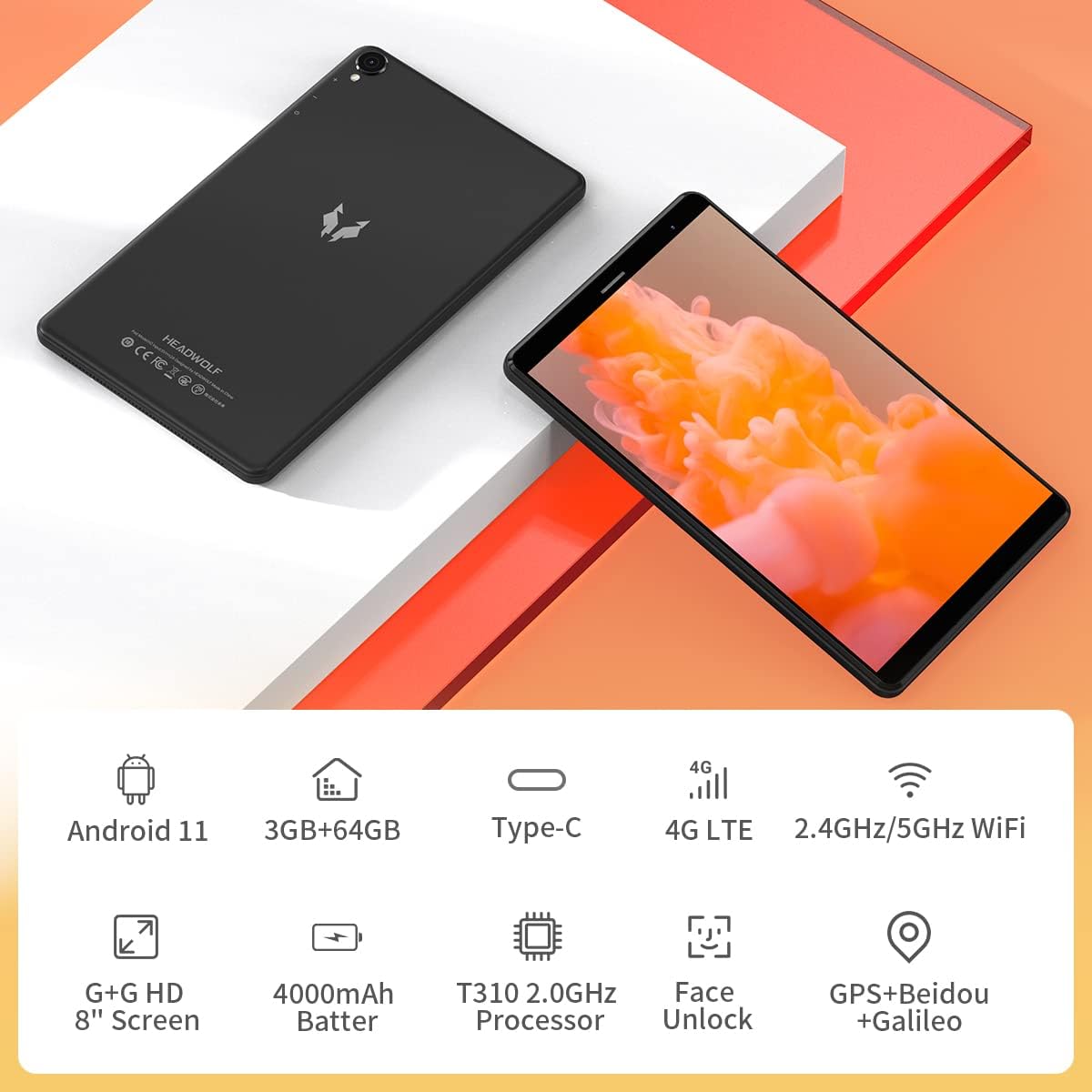
Figure 3.2: The back panel features the Headwolf logo, regulatory markings, and the rear camera module.
3.2. Алдыңкы панель

Figure 3.3: The front of the tablet displays the 8-inch screen, the front-facing camera, and an earpiece for calls.
3.3. тарап Viewс жана порттор

Figure 3.4: The side of the tablet includes the power button, volume rocker, 3.5mm headphone jack, SIM card slot, MicroSD card slot, and USB-C charging port.
- Кубат баскычы: Оң жагында жайгашкан, түзмөктү күйгүзүү/өчүрүү же ойготуу/уйку режимине өткөрүү үчүн колдонулат.
- Volume Rocker: Кубат баскычынын жанында аудионун үнүн башкарат.
- Арткы камера: 5MP camera with LED flash, located on the back panel.
- Алдыңкы камера: 5MP camera, located on the front bezel above the screen.
- USB-C порту: For charging and data transfer, located on the top edge.
- 3.5 мм гарнитура уячасы: For connecting wired headphones, located on the top edge.
- SIM карта слоту: Supports 4G LTE connectivity (check regional compatibility), located on the top edge.
- MicroSD картасынын уячасы: For expandable storage, located on the top edge.
- Баяндамачылар: Located on the bottom edge.
4. Орнотуу
4.1. Баштапкы күйгүзүү
- Press and hold the Power Button on the right side of the tablet until the Headwolf logo appears on the screen.
- The tablet will boot up, displaying the Android welcome screen.
4.2. Тилди жана аймакты тандоо
Follow the on-screen prompts to select your preferred language and region. This will configure the tablet's default settings.
4.3. Тармакка кошулуу
Connect your tablet to a Wi-Fi network to access the internet and complete the setup process. You may also insert a 4G LTE SIM card for mobile data connectivity (if supported in your region).
4.4. Google аккаунтун орнотуу
Sign in with your Google account or create a new one. This is necessary to download apps from the Google Play Store and access Google services.
5. Иштөө нускамалары
5.1. Негизги навигация
- Сенсордук экран жаңсоолор: Тандоо үчүн таптаңыз, сыдыруу үчүн серпиңиз, чоңойтуу үчүн чымчыңыз.
- Башкы экран: Access your apps and widgets. Swipe left or right to navigate between screens.
- Эскертме панели: Эскертмелерге жана тез жөндөөлөргө жетүү үчүн экрандын өйдө жагынан ылдый сүрүңүз.
5.2. Байланыш
- Wi-Fi: Go to Settings > Network & Internet > Wi-Fi to connect to available networks. The tablet supports 2.4GHz and 5GHz Wi-Fi.
- Bluetooth: Go to Settings > Connected devices > Bluetooth to pair with Bluetooth accessories (e.g., headphones, speakers). The tablet supports Bluetooth 5.0.
- 4G LTE: If a compatible SIM card is inserted, mobile data can be enabled via Settings > Network & Internet > Mobile network.
- GPS: The tablet has built-in GPS for navigation and location services.
5.3. Камералар
The Headwolf FPad 1 features 5MP front and rear cameras.

Figure 5.1: The tablet is equipped with dual 5MP cameras and supports face unlock.
- Сүрөткө тартуу: Open the Camera app, select photo mode, and tap the shutter button.
- Видеолорду жаздыруу: In the Camera app, switch to video mode and tap the record button. Video recording is supported up to 1080p.
- Камера орнотуулары: Adjust settings like filters, white balance, and composition lines within the Camera app.
5.4. Медиа керектөө
Enjoy videos, music, and e-books on your tablet's HD display.

Figure 5.2: The 8-inch HD IPS display provides a clear viewар кандай маалымат каражаттары үчүн тажрыйба.
- Видеону ойнотуу: Use pre-installed apps like YouTube or download others from the Play Store.
- Аудио: The tablet features stereo speakers. For a more immersive experience, connect headphones via the 3.5mm jack or Bluetooth.
5.5. Оюн ойноо
The UNISOC T310 Quad-Core processor allows for smooth performance in most casual games. For graphically intensive games, performance may vary, and lower settings might be required for optimal gameplay.

Figure 5.3: The tablet's processor is capable of handling various gaming applications.
6. Техникалык тейлөө
- Тазалоо: Экранды жана денени тазалоо үчүн жумшак, түксүз чүпүрөктү колдонуңуз. Катуу химиялык заттардан алыс болуңуз.
- Батареяга кам көрүү: Батареянын иштөө мөөнөтүн узартуу үчүн, экстремалдык температурадан жана батареяны бат-баттан толук кубаттап турбаңыз.
- Программалык камсыздоо жаңыртуулары: Оптималдуу аткарууну жана коопсуздукту камсыз кылуу үчүн системанын жаңыртууларын дайыма текшерип, орнотуңуз.
- Сактагычты башкаруу: Мезгил-мезгили менен ачык-айкын керексиз files and apps to free up internal storage. Consider using a MicroSD card for additional storage.
7. Кыйынчылыктарды
This section addresses common issues you might encounter with your Headwolf FPad 1 tablet.
7.1. Түзмөк күйбөй жатат
- Ensure the battery is charged. Connect the tablet to the power adapter and wait a few minutes before attempting to power it on again.
- Press and hold the Power Button for at least 10-15 seconds to perform a forced restart.
7.2. Slow Performance/Freezing
- Фондо иштеп жаткан колдонулбаган колдонмолорду жабуу.
- Clear cache data from apps and the system.
- Планшетти кайра иштетиңиз.
- жетиштүү бош орун камсыз кылуу.
7.3. Wi-Fi туташуу маселелери
- Toggle Wi-Fi off and on in Quick Settings or Settings.
- Wi-Fi роутериңизди өчүрүп күйгүзүңүз.
- Тармакты унутуп, кайра туташыңыз.
7.4. Camera Quality
The 5MP cameras are designed for basic photography and video calls. For optimal results, ensure good lighting conditions. Camera performance may not be comparable to high-end smartphone cameras.
8. Техникалык шарттар
| Өзгөчөлүк | Спецификация |
|---|---|
| Бренд | баш карышкыр |
| Модель аты / Серия | FPad 1 / F1 |
| Элемент моделинин номери | F2 |
| Операция системасы | Android 12 (some marketing may refer to Android 11) |
| Screen Size | 8 дюйм |
| Display Resolution | 1280x800 HD IPS |
| Процессор | UNISOC T310 Quad-Core A75 (2 GHz) |
| RAM | 3 ГБ |
| Ички сактагыч | 64 ГБ |
| Кеңейтүүчү сактагыч | MicroSD up to 512GB (some sources indicate up to 2TB) |
| Арткы камера | 5 депутат |
| Алдыңкы камера | 5 депутат |
| Батарея сыйымдуулугу | 4000mAh (up to 7-8 hours usage) |
| Заряддоо порту | USB Type-C |
| Зымсыз байланыш | 5G WiFi, Bluetooth 5.0, 4G LTE |
| Навигация | GPS, Beidou, Galileo |
| Өлчөмдөрү (LxWxH) | 8.31 x 0.38 x 4.97 дюйм |
| Элемент Салмагы | 11.4 унция (болжол менен 320 г) |
| Түс | Purple (as listed in specifications, though product images show black/grey) |
9. Кепилдик жана колдоо
For warranty information and technical support, please refer to the documentation included with your purchase or visit the official Headwolf webсайт. Ар кандай кепилдик дооматтары үчүн сатып алганыңыздын далилин сактаңыз.


