Introduction
This comprehensive guide provides detailed instructions for using your Apple iPhone 13, iPhone 13 Pro, and iPhone 13 Pro Max. It covers essential setup procedures, operational features, and troubleshooting tips to help you maximize your device's capabilities.
The iPhone 13 series offers advanced features designed to enhance daily tasks and communication. This manual aims to simplify the learning process, ensuring a smooth user experience for all users.

This image displays the front cover of the instructional guide, featuring the title 'iPhone 13 User Guide For Seniors' and an illustration of the iPhone 13 Pro's camera system.
About This Guide's Author
Joseph F. Morris, the author of the original guide, is an enthusiast of technology and gadgets. He explores new features in the tech space and shares practical tips to help users quickly familiarize themselves with their devices and their usage.
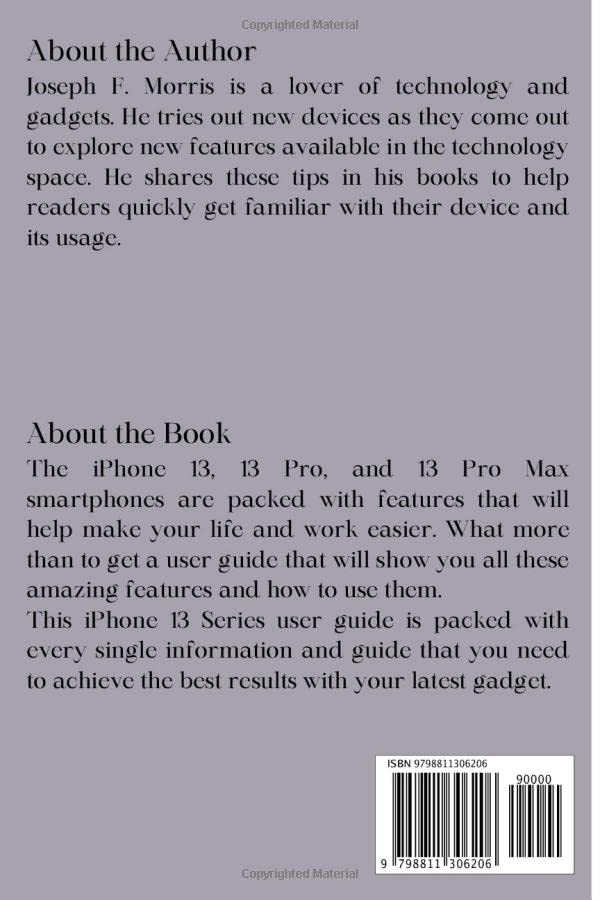
The back cover of the guide provides details about the author, Joseph F. Morris, and a summary of the book's content, highlighting its comprehensive nature for iPhone 13 series users. It also includes the ISBN barcode.
1. Баштоо: Баштапкы орнотуу
1.1 Кутудан чыгаруу жана биринчи күйгүзүү
Carefully remove your iPhone from its packaging. Press and hold the side button until the Apple logo appears to power on the device.
1.2 Баштапкы конфигурация
Follow the on-screen prompts to select your language and region. You will then be guided through setting up Wi-Fi, Face ID or Touch ID, and creating a passcode.
1.3 Apple ID Setup
An Apple ID is essential for downloading apps, using iCloud, and accessing Apple services. Either sign in with an existing Apple ID or create a new one during the setup process.
1.4 Маалыматтарды өткөрүп берүү (милдеттүү эмес)
If you are upgrading from another iPhone or Android device, you can transfer your data during setup using Quick Start, iCloud backup, or the Move to iOS app.
1.5 eSIM Setup
The iPhone 13 series supports eSIM. To set up your eSIM, navigate to Орнотуулар > Уюлдук байланыш > Уюлдук тарифти кошуу and follow your carrier's instructions.
2. Operating Your iPhone 13 Series
2.1 Basic Navigation and Gestures
Learn to navigate your iPhone using intuitive gestures. Swipe up from the bottom to go home, swipe down from the top-right for Control Center, and swipe down from the top-center for Notifications. Access more controls in the Control Center by customizing it in Орнотуулар > Башкаруу борбору.
2.2 Customizing Your Device
2.2.1 Personalizing Wallpaper
Change your device's background by going to Settings > Wallpaper > Choose a New Wallpaper.
2.2.2 Эскертмелерди башкаруу
Control how and when you receive alerts. Access Орнотуулар > Эскертүүлөр to customize notification styles for individual apps.
2.2.3 Adjusting Screen Time
To keep your screen on longer, go to Settings > Display & Brightness > Auto-Lock and select your preferred duration.
2.2.4 Setting Vibration and Sound Options
Customize your iPhone's sounds and haptics in Орнотуулар > Үндөр жана сенсорлор.
2.3 Essential Features
2.3.1 Фонарды колдонуу
Access the Control Center by swiping down from the top-right corner and tap the flashlight icon.
2.3.2 Taking Screenshots and Screen Recordings
To take a screenshot, simultaneously press the side button and the volume up button. For screen recording, add the 'Screen Recording' control to your Control Center via Орнотуулар > Башкаруу борбору.
2.3.3 Multitasking with Picture in Picture
When watching a video, swipe up from the bottom of the screen to activate Picture in Picture mode, allowing the video to play in a small window while you use other apps.
2.3.4 AirDrop for File Бөлүшүү
Share photos, videos, and documents with nearby Apple devices using AirDrop. Select the item, tap the share icon, and choose AirDrop.
2.3.5 Siri үн жардамчысы
Activate Siri by saying "Hey Siri" or by pressing and holding the side button. Siri can assist with calls, messages, app launches, and information retrieval.
2.4 Байланыш
2.4.1 Making Calls with Wi-Fi Calling
Wi-Fi чалууларды иштетүү Орнотуулар > Телефон > Wi-Fi чалуу to make and receive calls over a Wi-Fi network when cellular service is weak or unavailable.
2.4.2 Sending and Replying to Messages
Use the Messages app to send text messages (SMS/MMS) and iMessages. Tap on a message to reply directly.
2.4.3 Voicemail Management
Access and manage your voicemail messages through the Phone app. Visual Voicemail allows you to see a list of messages and listen to them in any order.
2.4.4 Managing Blocked Contacts
View and manage your list of blocked contacts in Settings > Phone > Blocked Contacts.
2.5 Өркүндөтүлгөн функциялар
2.5.1 Apple Pay
Set up Apple Pay in the Wallet app to make secure purchases in stores, within apps, and on webсайттар.
2.5.2 Camera Tips
Explore the various camera modes and features, including Cinematic mode, Photographic Styles, and Night mode, to capture high-quality photos and videos.
2.5.3 Using iPhone as a Remote Microphone
With Live Listen, you can use your iPhone as a remote microphone to send sound to your AirPods or Beats headphones. Enable it in Settings > Accessibility > Hearing Devices > Live Listen.
2.5.4 Surfing the Web with Safari
Use the Safari browser for secure and efficient internet browsing. Explore features like Tab Groups and Intelligent Tracking Prevention.
3. Техникалык тейлөө жана кам көрүү
3.1 Maximizing Battery Life
Optimize battery performance by adjusting settings such as screen brightness, background app refresh, and using Low Power Mode. Check battery health in Орнотуулар > Батарея > Батареянын абалы.
3.2 iPhone'уңузду тазалоо
Use a soft, lint-free cloth to gently wipe your iPhone. Avoid abrasive materials or harsh cleaning agents.
3.3 Программалык камсыздоо жаңыртуулары
Keep your iPhone's software up to date by regularly checking for updates in Орнотуулар > Жалпы > Программаны жаңыртуу.
4. Жалпы көйгөйлөрдү чечүү
4.1 Force Restarting Your iPhone
If your iPhone is unresponsive, quickly press and release the volume up button, then quickly press and release the volume down button, then press and hold the side button until the Apple logo appears.
4.2 Force Closing Apps
Экранды ылдый жагынан өйдө сүрүп, ортосуна чейин тындырыңыз view open apps. Swipe up on an app's preview аны жабуу үчүн.
4.3 Backing Up Your iPhone
Regularly back up your iPhone to iCloud or your computer to protect your data. Go to Settings > [Your Name] > iCloud > iCloud Backup or connect to a computer and use Finder/iTunes.
4.4 Эрasing Your iPhone
To erase all content and settings, go to Орнотуулар > Жалпы > iPhone'ду өткөрүп берүү же баштапкы абалга келтирүү > Бардык мазмунду жана жөндөөлөрдү өчүрүүУлантуудан мурун камдык көчүрмөңүз бар экенин текшериңиз.
4.5 Hiding Duplicate Contacts
The Contacts app can help manage duplicate entries. Look for options to merge or hide duplicates within the Contacts app or iCloud settings.
5. Specifications (of this Guide)
| Өзгөчөлүк | Деталь |
|---|---|
| Продукт түрү | User Guide / Instruction Manual (Book) |
| Максаттуу түзмөктөр | Apple iPhone 13, iPhone 13 Pro, iPhone 13 Pro Max |
| Автор | Joseph F. Morris |
| Жарыялоочу | Көз карандысыз басылып чыккан |
| Жарыяланган датасы | 26-апрель, 2022-жыл |
| Тил | Англисче |
| Басып чыгаруу узундугу | 253 бет |
| ISBN-13 | 979-8811306206 |
| Элемент Салмагы | 15.8 унция |
| Өлчөмдөр | 6 x 0.57 x 9 дюйм |
6. Кепилдик жана колдоо
This document is an instructional guide for the Apple iPhone 13 series. For information regarding the warranty of your Apple iPhone device, please refer to Apple's official website or the documentation included with your iPhone purchase.
For technical support related to your iPhone, visit the official Apple колдоо webсайт or contact Apple customer service directly. This guide does not provide warranty coverage for the iPhone devices.


