1. Киришүү
This manual provides detailed instructions for the installation, operation, and maintenance of your GAMEMAX Master M905 ATX Full Tower Computer Case. Please read this manual thoroughly before beginning assembly to ensure proper setup and safe usage. This computer case is designed to accommodate ATX motherboards and offers ample space for high-performance components and advanced cooling solutions.
2. Коопсуздук маалыматы
- Always disconnect the power supply from the wall outlet before installing or removing any components to prevent electrical shock.
- Handle internal components with care. Avoid touching circuit boards directly; hold them by their edges.
- Wear an anti-static wrist strap when handling sensitive electronic components to prevent electrostatic discharge (ESD) damage.
- Майда тетиктерди жана бурамаларды балдардан алыс кармаңыз.
- Ensure proper ventilation around the computer case to prevent overheating.
3. Пакеттин мазмуну
Төмөндө тизмеленген нерселердин баары пакетиңизде бар экенин текшериңиз:
- GAMEMAX Master M905 ATX Full Tower Computer Case
- Accessory Box (containing screws, standoffs, cable ties, and user manual)
- Pre-installed cooling fans (quantity may vary by model variant)
4. Компонентти идентификациялоо
Familiarize yourself with the various parts of the GAMEMAX Master M905 case.

4.1-сүрөт: Алдыңкы-сол view of the GAMEMAX Master M905 case, showcasing the tempered glass side panel and the front mesh panel with two illuminated blue fans. The top panel features front I/O ports.

4.2-сүрөт: Top-front perspective of the case, showing the top ventilation grille and the front I/O panel which includes USB 2.0 and USB 3.0 ports, audio jacks, and power/reset buttons.
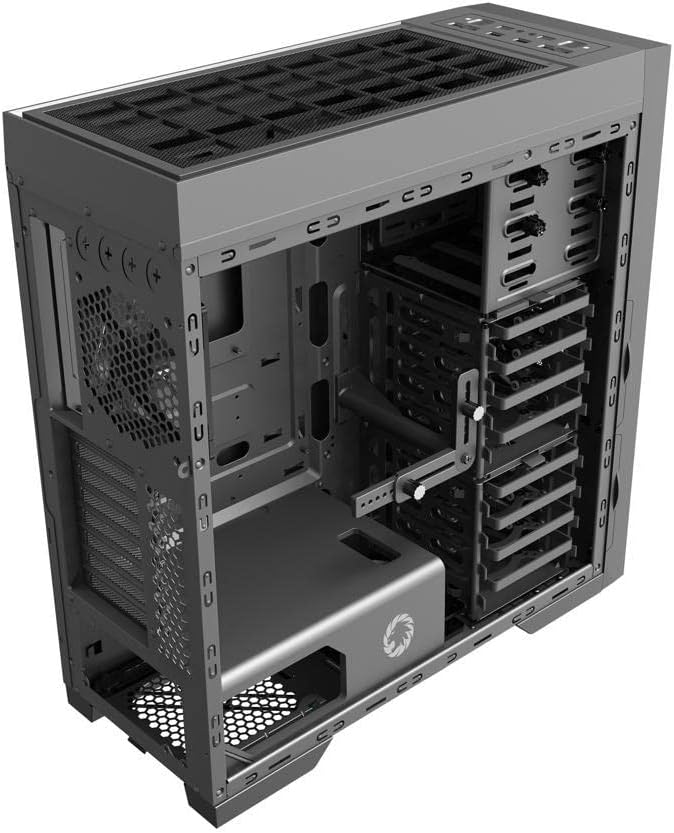
4.3-сүрөт: Ички view of the case, illustrating the spacious interior with multiple drive bays, the motherboard mounting area, and the dedicated power supply shroud at the bottom.
5. Орнотуу боюнча колдонмо
5.1. Ишти даярдоо
- Каптал панелдерин алып салуу: Locate the thumbscrews on the rear of the case. Unscrew them and carefully slide off the tempered glass side panel and the solid steel side panel. Set them aside on a soft, non-abrasive surface.
- Аксессуар кутусу: Locate the accessory box inside the case, usually secured in a drive bay. This box contains all necessary screws, standoffs, and cable ties for installation.
5.2. Motherboard орнотуу
- Standoffs орнотуу: Identify the correct standoff locations for your ATX motherboard. The Master M905 typically has pre-installed standoffs for ATX. If not, install them using the provided tool.
- I/O Shield орнотуу: Snap your motherboard's I/O shield into the opening at the rear of the case from the inside. Ensure it is securely seated.
- Mount Motherboard: Carefully align your motherboard with the standoffs and the I/O shield. Gently lower the motherboard into place.
- Коопсуз Motherboard: Use the provided motherboard screws to secure the motherboard to the standoffs. Do not overtighten.
5.3. Электр менен камсыздоо блогун (PSU) орнотуу
- Кызмат орду: PSU The Master M905 supports bottom-mounted PSUs. Slide your PSU into the designated compartment at the bottom rear of the case, ensuring the fan faces downwards (if the case has a bottom vent) or upwards.
- Коопсуз PSU: Align the PSU with the screw holes at the rear of the case. Secure it with the provided PSU screws.
5.4. Storage Drive Installation (HDD/SSD)
The case supports various drive configurations. Refer to the internal layout for specific bay types.
- 3.5" HDD: Typically installed in tool-less drive cages or trays. Slide the HDD into a tray and secure it with clips or screws.
- 2.5" SSD: Can be mounted on dedicated SSD brackets behind the motherboard tray or in 3.5" drive trays using adapter screws.
5.5. Кеңейтүү картасын орнотуу (PCIe)
- Slot капкактарын алып салуу: Unscrew or remove the necessary PCIe slot covers from the rear of the case corresponding to your motherboard's PCIe slots.
- Картаны орнотуу: Carefully insert your expansion card (e.g., graphics card) into the appropriate PCIe slot on the motherboard until it clicks into place.
- Коопсуз карта: Secure the expansion card to the case with the provided screws.
5.6. Front Panel Connector Installation
Connect the front panel cables from the case to the corresponding headers on your motherboard. Consult your motherboard manual for exact header locations.
- USB 2.0/3.0: Connect the USB cables to the motherboard's USB headers.
- Аудио: Connect the HD Audio cable to the motherboard's audio header.
- Кубат/Кайрадан баштоо/LED жарыктары: Connect the small individual cables (Power SW, Reset SW, HDD LED, Power LED) to the front panel header pins on your motherboard. Pay close attention to polarity for LEDs.
5.7. Кабелдик башкаруу
Кабельдерди уюштуруу үчүн энелик плата лотоктун артындагы кабелдик маршруттук кескичтерди жана байлоо пункттарын колдонуңуз. Бул аба агымын жана эстетиканы жакшыртат.
6. Операция
6.1. Күйгүзүү
Once all components are installed and cables are connected, replace the side panels. Connect your monitor, keyboard, mouse, and power cable to the PSU. Press the power button on the front panel to start your system.
6.2. Алдыңкы киргизүү/чыгаруу порттору
Алдыңкы панель төмөнкүлөргө ыңгайлуу мүмкүнчүлүк берет:
- USB 2.0 порттору: For connecting peripherals like keyboards, mice, and older USB devices.
- USB 3.0 порттору: шайкеш түзмөктөр менен жогорку ылдамдыктагы маалыматтарды берүү үчүн.
- Аудио уячалары: Кулакчындарды жана микрофондорду туташтыруу үчүн.
- Кубат баскычы: Системаны күйгүзүү/өчүрүү үчүн.
- Калыбына келтирүү баскычы: Системаны кайра иштетүү үчүн.
7. Техникалык тейлөө
7.1. Тазалоо
Regular cleaning helps maintain optimal performance and extends the lifespan of your components.
- Сырткы: Сырткы беттерин жумшак менен сүртүңүз, гamp кездеме. Катуу химиялык заттардан алыс болуңуз.
- Ички иштер: Use compressed air to remove dust from fans, heatsinks, and other components. Perform this outdoors or in a well-ventilated area.
7.2. Dust Filter Maintenance
The Master M905 case is equipped with dust filters to prevent dust buildup. Regularly clean these filters:
- Locate and remove the dust filters (e.g., front, top, bottom PSU intake).
- Rinse them under running water or use a soft brush to remove accumulated dust.
- Чыпкаларды кайра орнотуудан мурун, алардын толугу менен кургак экенине ынаныңыз.
8. Кыйынчылыктарды
Эгер көйгөйлөргө туш болсоңуз, көйгөйлөрдү чечүүнүн төмөнкү негизги кадамдарын карап көрүңүз:
- Система иштебей жатат: Check all power connections, including the PSU to the wall, the 24-pin ATX connector, and the 8-pin CPU power connector to the motherboard. Ensure the front panel power switch cable is correctly connected to the motherboard.
- Вентиляторлор айланбай жатат: Verify that all fan cables are securely connected to the motherboard fan headers or a fan controller.
- USB порттору иштебей жатат: Ensure the front panel USB cables are correctly connected to the motherboard's USB headers.
- No display output: Confirm that your graphics card is properly seated in its PCIe slot and that all necessary power cables are connected to it. Ensure your monitor cable is connected to the graphics card, not the motherboard's integrated graphics ports (unless you are using integrated graphics).
9. Техникалык шарттар
| Өзгөчөлүк | Спецификация |
|---|---|
| Бренд | GAMEMAX |
| Модел | Мастер M905 |
| Иштин түрү | Толук мунара |
| Motherboard шайкештиги | ATX |
| Материал | Болот, чыңдалган айнек |
| Түс | Кара |
| Продукциянын өлчөмдөрү (LxWxH) | 23.5 x 22.95 x 11.26 дюйм |
| Алдыңкы I / O порттору | 2x USB 2.0, 2x USB 3.0, Аудио киргизүү/чыгаруу |
| Кеңейтүү уячалары | 8 |
| Муздатуу ыкмасы | Аба, суу |
| Кубат менен камсыздоону орнотуу түрү | Tower (Bottom-mounted) |
10. Кепилдик жана колдоо
Кепилдик жөнүндө маалымат жана техникалык колдоо алуу үчүн, расмий GAMEMAX сайтына кайрылыңыз webсайтына кириңиз же жергиликтүү сатуучуңузга кайрылыңыз. Кепилдик талаптары үчүн сатып алганыңызды тастыктаган документти сактап коюңуз.


