1. Киришүү
The WAVLINK WL-UMD05 USB C Docking Station is designed to expand the connectivity of your USB-C enabled laptop, transforming it into a powerful workstation. This 13-in-1 docking station supports 4K triple display output, 100W Power Delivery for laptop charging, high-speed data transfer, and reliable Gigabit Ethernet connectivity. It is compatible with a wide range of USB-C laptops that support DisplayPort Alt Mode and Power Delivery.
2. Пакеттин мазмуну
- WAVLINK WL-UMD05 USB C док станциясы
- 130W Power адаптер
- USB-C - USB-C кабели
- Instruction Manual
3. Продукт бүтүп калдыview
Familiarize yourself with the ports and indicators on your docking station:

1-сүрөт: Алдыңкы жана арткы View of the WAVLINK WL-UMD05 Docking Station with Port Labels.
Алдыңкы панели:
- Кубат баскычы: Док станциясын күйгүзүү/өчүрүү үчүн.
- LED көрсөткүчү: Күч абалын көрсөтөт.
- USB 3.0 порту (BC 1.2 тез кубаттоо менен): For connecting USB devices and fast charging compatible devices.
- Микро SD карта слоту: For reading Micro SD cards.
- SD карта уячасы: For reading standard SD cards.
- 4-Pole Phone Jack: For connecting headphones or headsets with microphone functionality.
Арткы Panel:
- Гигабит Ethernet порту: For wired network connection (10/100/1000Mbps).
- 3 x USB 3.0 порттору: For connecting USB peripherals (5Gbps data transfer).
- 1 x DisplayPort: For connecting an external monitor.
- 2 x HDMI порттору: Тышкы мониторлорду туташтыруу үчүн.
- Жогорку USB-C порту (компьютер): Connects to your host laptop.
- DC 20V Power Port: Комплекттеги 130 Вт кубат адаптерине туташтырылат.
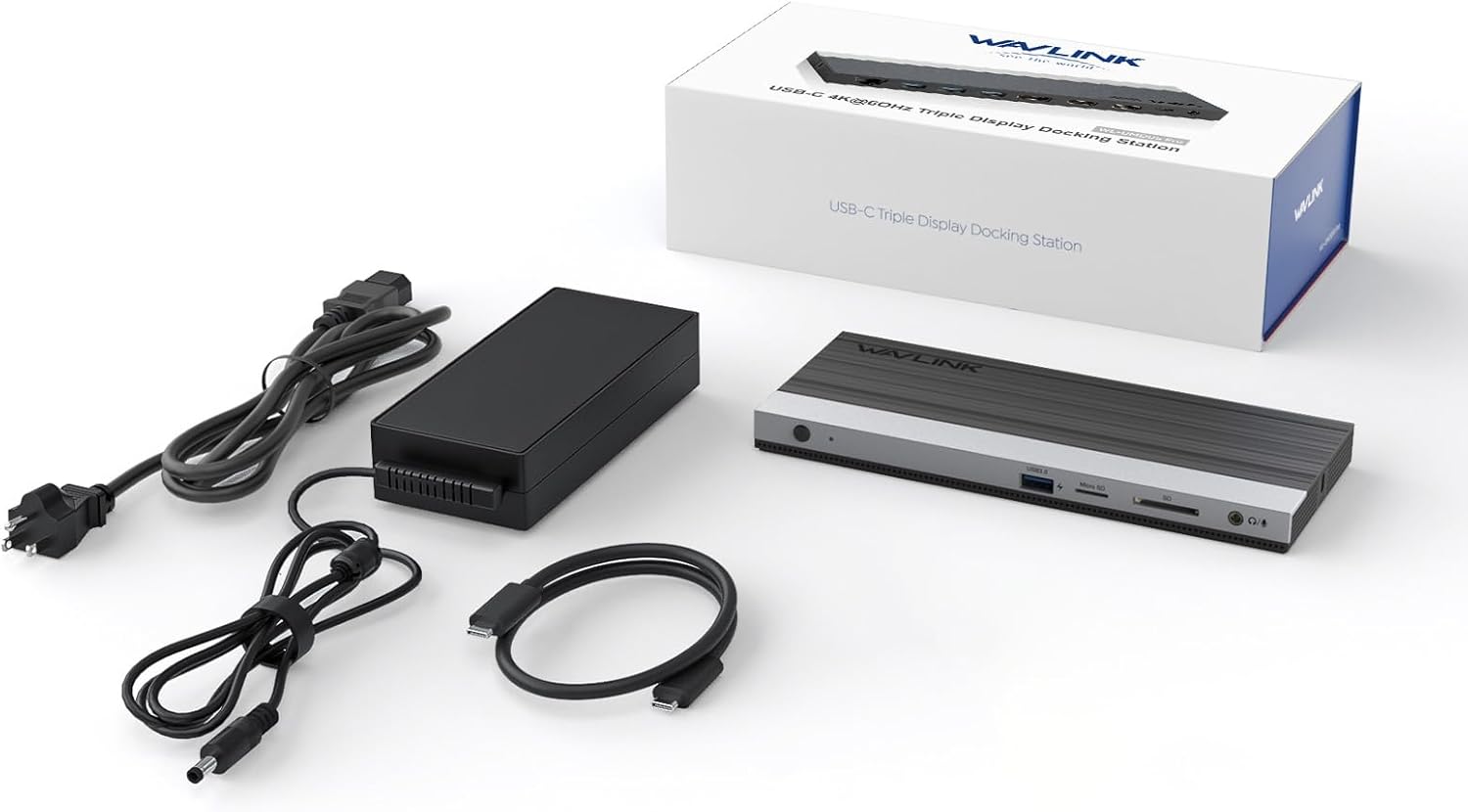
Figure 2: Dimensions of the WAVLINK WL-UMD05 Docking Station.
4. Орнотуу нускамалары
4.1. Шайкештикти текшерүү
Before connecting, ensure your laptop's USB-C port supports DisplayPort Alt режими (for video output) and Power Delivery (for charging). Not all USB-C ports have these capabilities. Refer to your laptop's manual or manufacturer for confirmation.

Figure 3: USB-C Port Compatibility Guide.
4.2. Драйверди орнотуу
The WAVLINK WL-UMD05 docking station is generally plug-and-play for Windows 10/11 and macOS 10.12+ operating systems. No additional drivers are typically required. For older operating systems or specific issues, drivers may be available on the WAVLINK official webсайт. Visit www.wavlink.com for support and driver downloads.
4.3. Док станциясын туташтыруу
- Connect the included 130W power adapter to the DC 20V Power Порт on the docking station, then plug the adapter into a power outlet.
- Connect one end of the included USB-C to USB-C cable to the Upstream USB-C Port (Computer) on the docking station.
- Connect the other end of the USB-C cable to a compatible USB-C port on your host laptop. The LED indicator on the dock will illuminate blue.

Figure 4: Power Delivery setup with 100W charging.
4.4. Дисплейлерди туташтыруу
Connect your external monitors to the DisplayPort жана HDMI порттору on the docking station using appropriate cables. The docking station supports up to three external displays.
4.5. Перифериялык түзүлүштөрдү туташтыруу
Connect your USB devices (keyboard, mouse, external hard drives, etc.) to the USB 3.0 порттору. Insert SD or Micro SD cards into the respective slots. For a wired network connection, connect an Ethernet cable to the Гигабит Ethernet порту. Plug your headphones or headset into the 4-Pole Phone Jack.

Figure 5: Connecting USB devices and memory cards.
5. Operating Modes (Display Configurations)
5.1. Windows Display Settings
For Windows users, you can configure your display settings by right-clicking on your desktop and selecting 'Display settings'.

Figure 6: Windows Display Settings for multiple monitors.
Extend Mode (Windows):
Allows you to display different content on each connected monitor, creating an extended desktop workspace. The docking station supports up to three independent screens (e.g., 4K@60Hz single, 2K dual, 1080P triple).

Figure 7: Windows Extend Mode with three displays.
Mirror Mode (Windows):
Duplicates your laptop's display across all connected external monitors.
Video 1: USB C Triple Display Docking Station Overview.
5.2. macOS Display Settings
For macOS users, access display settings via 'Apple menu > System Preferences > Displays'.

Figure 8: macOS Display Settings for multiple monitors.
Mirror Mode (macOS):
All external monitors will mirror the content of your laptop's display or show the same content across all external displays.

Figure 9: macOS Mirror Mode with three displays.
Non-Mirror Mode (macOS):
Due to macOS limitations (MST not supported), external displays will show the same content, but it can be different from the laptop's display. For example, your laptop screen can show one thing, and all three external monitors will show another identical content.
Video 2: USB C Triple Display Docking Station for MacBook and Windows.
6. Техникалык шарттар
| Өзгөчөлүк | Description |
|---|---|
| Модель номери | WL-UMD05 |
| Порттар | 2x HDMI 4K@60Hz, 1x DisplayPort 4K@60Hz, 4x USB 3.0 (5Gbps, 1x with BC 1.2 fast charging), Gigabit Ethernet, SD/TF Card Slots, 4-Pole Phone Jack, Upstream USB-C (100W PD), DC 20V Power Input |
| Power Delivery | 100W to host laptop (requires 130W power adapter input) |
| Маалыматтарды өткөрүү ылдамдыгы | USB 3.0 up to 5Gbps, SD/TF up to 104MB/s |
| Display Resolution | Single Display: 4K@60Hz (HDMI/DP). Dual Display: 2K@60Hz. Triple Display: 1080P@60Hz (Windows). Mac: Mirror displays or same content on external monitors. |
| Шайкештик | Thunderbolt 3/4, USB-C laptops (DisplayPort Alt Mode & Power Delivery). Windows 10/11 (driver-free), macOS 10.12+ supported. |
| Өлчөмдөр | 10.51 x 5.08 x 2.95 дюйм |
| Элемент Салмагы | 2.56 фунт |
7. Кыйынчылыктарды
- Дисплей чыгышы жок:
- Ноутбугуңуздун USB-C порту DisplayPort Alt режимин колдой турганын текшериңиз.
- Бардык кабелдик туташууларды текшериңиз (ноутбукка USB-C, мониторлорго HDMI/DP).
- Verify the docking station is powered on and the LED indicator is blue.
- Көйгөйдү чечүү үчүн бир эле мониторду туташтырып көрүңүз.
- Adjust display settings in your operating system (Extend/Mirror).
- Ноутбук заряддалбай жатат:
- Ноутбугуңуздун USB-C порту Power Delivery функциясын колдой турганын текшериңиз.
- Ensure the 130W power adapter is correctly connected to the dock and a power outlet.
- Verify the USB-C cable is fully inserted into both the dock and the laptop.
- USB түзмөктөрү таанылбайт:
- Түзмөктү док-станциянын башка USB портуна туташтырып көрүңүз.
- Ensure the device is functioning correctly when connected directly to your laptop.
- Ethernet туташуу маселелери:
- Ethernet кабелинин док станцияга жана роутерге/модемге туташканын текшериңиз.
- Ноутбугуңуздагы тармак жөндөөлөрүн текшериңиз.
- MacBook Display Limitations:
- macOS does not support Multi-Stream Transport (MST) for extended displays. All external monitors will display the same content.
8. Кепилдик жана колдоо
WAVLINK provides a 2-year limited warranty for this product. For any questions or technical support, please feel free to contact us:
- Телефондук колдоо: +1 8889730883 (UTC-5) Mon-Fri 9AM-6PM
- Электрондук почта колдоо: contact@wavlink.com
- Alternatively, you can contact us via Amazon.
We are committed to providing solutions within 24 hours and offer life-long technical support.
Video 3: Triple Monitor Docking Station with Dual HDMI DisplayPort.


