1. Киришүү
The Wyze AX3000 Dual-Band Wi-Fi 6 Mesh Router System provides fast, whole-home Wi-Fi coverage. This system utilizes Wi-Fi 6 technology for gigabit speeds and mesh networking to eliminate dead spots and expand coverage seamlessly throughout your home. It supports a high number of connected devices without compromising speed.
The Wyze Mesh Router system is designed to replace traditional routers and extenders, offering a unified network experience. Management of the network, including parental controls and device prioritization, is performed through the Wyze app.

Image: The Wyze Mesh Router system ensures comprehensive Wi-Fi coverage throughout your home, eliminating dead zones.
2. Пакеттин мазмуну
Пакетиңизде бардык буюмдар бар экенин текшериңиз:
- 2 x Wyze Mesh Routers
- Quick Start Guide
- 1 x 3-foot Ethernet Cable
- 2 x Power Adapters (12V 1A)
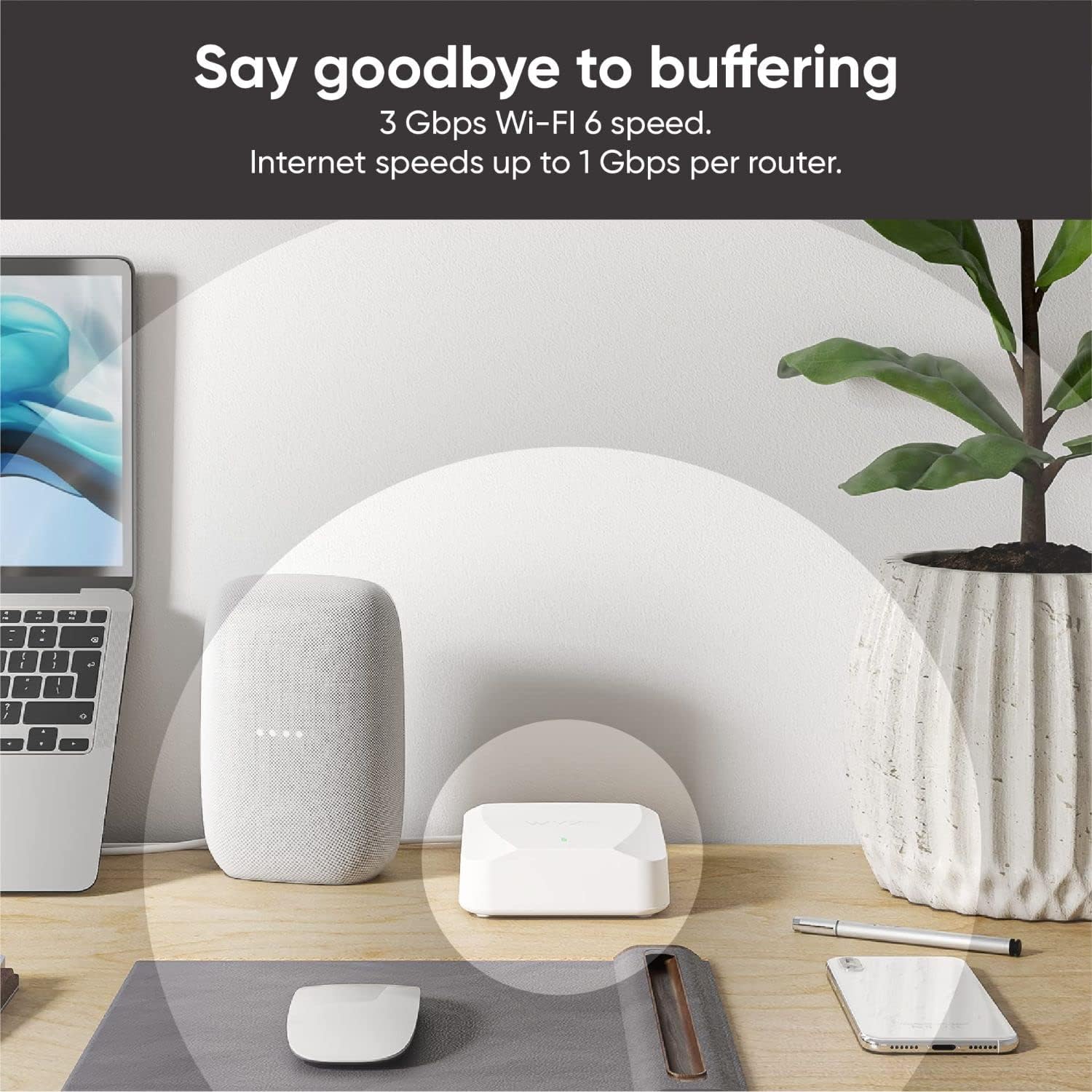
Image: Contents of the Wyze Mesh Router 2-pack, including two routers, power adapters, and an Ethernet cable.
3. Орнотуу колдонмосу
Setting up your Wyze Mesh Router system is a straightforward process guided by the Wyze app. Follow these steps for initial installation:
- Wyze колдонмосун жүктөп алыңыз: Издөө "Wyze" in your mobile device's app store (iOS or Android) and download the official Wyze app.
- Create or Log In: Open the app and create a new Wyze account or log in with your existing credentials.
- Connect the First Router:
- Connect one end of the provided Ethernet cable to the WAN port of your primary Wyze Mesh Router.
- Ethernet кабелинин экинчи учун модемиңиздин LAN портуна туташтырыңыз.
- Plug the power adapter into the primary router and then into a power outlet. Wait for the router to power on.
- Колдонмодогу нускамаларды аткарыңыз: In the Wyze app, select "Add a new device" and choose the Wyze Mesh Router. The app will guide you through connecting to the router via Bluetooth and configuring your new Wi-Fi network name (SSID) and password.
- Position Additional Routers: The app will assist you in placing additional Wyze Mesh Routers to optimize coverage. Place them strategically to extend the Wi-Fi signal without creating dead spots. Ensure each router is within range of another router or the primary router for optimal mesh performance.
- Түзмөктөрдү туташтыруу: Once the mesh network is established, connect your devices (laptops, tablets, smart home devices) to the new Wi-Fi network using the SSID and password you created.

Image: The Wyze app provides step-by-step instructions for a simple, plug-and-play installation of the mesh router system.
Note on Wired Backhaul: Each Wyze Mesh Router includes two 1 Gbps Ethernet ports. These ports support wired backhaul, allowing you to connect routers via Ethernet cables for a more stable and faster connection between mesh nodes, especially useful for larger homes or areas with interference.

Image: Wyze Mesh Routers featuring two Ethernet ports each, supporting wired backhaul for enhanced network performance.
4. Операция
The Wyze Mesh Router system is designed for seamless operation, providing a unified Wi-Fi network throughout your home. All network management is handled through the Wyze app.
4.1 Wyze App Control Center
The Wyze app serves as the central control hub for your mesh network. From the app, you can:
- Monitor Network Status: View the status of all connected routers and devices.
- Ылдамдык тесттерин иштетүү: Check your internet speed directly from the app.
- Ата-энелик көзөмөл: Set up and manage parental controls to restrict internet access for specific devices or users.
- Приоритеттүү түзмөктөр: Assign priority to certain devices for critical tasks like gaming or video conferencing.
- Топтук түзмөктөр: Organize devices by rooms or floors and manage their connectivity.
- Коноктор тармагы: Create a separate guest Wi-Fi network for visitors.

Image: The Wyze Mesh Router supports over 50 devices per router, ensuring stable connections for a smart home environment.
4.2 Кемчиликсиз роуминг
With mesh technology, your devices automatically connect to the strongest Wi-Fi signal as you move throughout your home. This ensures uninterrupted connectivity for activities like video calls and streaming.
5. Техникалык тейлөө
Proper maintenance ensures the longevity and optimal performance of your Wyze Mesh Router system.
- Программалык камсыздоонун жаңыртуулары: Regularly check for and install firmware updates through the Wyze app. Updates often include performance improvements, new features, and security enhancements.
- Вентиляция: Ensure your routers are placed in well-ventilated areas. Avoid placing them in enclosed spaces or stacking them with other electronics, as this can lead to overheating and affect performance. The devices can generate significant heat during operation.
- Тазалоо: Periodically clean the exterior of the routers with a soft, dry cloth to prevent dust buildup, which can impede airflow.
- Power Cycle: If you experience minor network issues, try power cycling your routers by unplugging them from the power outlet for 30 seconds and then plugging them back in.

Image: A Wyze Mesh Router positioned on an open shelf, demonstrating proper placement for adequate ventilation.
6. Кыйынчылыктарды
If you encounter issues with your Wyze Mesh Router system, refer to the following common troubleshooting steps:
- Интернет байланышы жок:
- Модемиңиз туура иштеп жатканын текшериңиз.
- Бардык Ethernet кабелдери бекем туташтырылганын текшериңиз.
- Power cycle both your modem and all Wyze Mesh Routers.
- Spotty Wi-Fi Coverage or Dead Spots:
- Review the placement of your mesh routers using the Wyze app's placement guide. You may need to move a router closer to the primary unit or another mesh node.
- Ensure there are no major obstructions (thick walls, large metal objects) between routers.
- Consider using wired backhaul if possible, especially for routers further apart.
- Devices Disconnecting Frequently:
- Роутериңиздин микропрограммасы жаңыртылганын текшериңиз.
- Башка электрондук шаймандардын кийлигишүүсүн текшериңиз.
- Try restarting the affected device and the mesh router it connects to.
- Router Running Hot:
- This is a known characteristic. Ensure the router is in a well-ventilated area and not enclosed.
- Эч кандай желдетүүчү тешиктерди жаап албаңыз.
- If excessive heat causes performance issues, consider elevating the router slightly to improve airflow underneath.
- Wyze колдонмосунун көйгөйлөрү:
- Колдонмоңуз эң акыркы версияга жаңыртылганын текшериңиз.
- Проблемалар чечилбесе, колдонмонун кэшин тазалаңыз же колдонмону кайра орнотуңуз.
- Verify your phone's Bluetooth is enabled during initial setup or when prompted by the app.
For further assistance, refer to the Wyze support resources mentioned in the Support & Warranty section.
7. Техникалык шарттар
| Өзгөчөлүк | Деталь |
|---|---|
| Бренд | WYZE |
| Модель номери | WF6DBMRS |
| Зымсыз түрү | 802.11ax (Wi-Fi 6) |
| Жыштык тилкесинин классы | Кош тилкелүү |
| Coverage (per router) | 1500 кв. |
| Max Devices (per router) | 50+ |
| Ethernet порттору | 2 x 1 Gbps ports per router (supports wired backhaul) |
| Операция системасы | ZyNOS |
| CPU | Qualcomm ARM Cortex A53 Dual-Core 1 GHz |
| Flash Memory | 128 MB |
| RAM | 512 MB |
| Өлчөмдөрү (LxWxH) | 6.54 x 5.28 x 4.88 дюйм |
| Элемент Салмагы | 1.87 фунт |
| Түс | Ак |
| Байланыш технологиясы | Ethernet, Wi-Fi |

Image: Key features and specifications of the Wyze AX3000 Dual-Band Wi-Fi 6 Mesh Router.

Image: Detailed internal specifications including CPU, memory, and antenna features.
8. Колдоо жана кепилдик
For technical support, warranty information, or to access additional resources, please visit the official Wyze support webсайтка же кардарларды тейлөөгө кайрылыңыз.
- Онлайн колдоо: Visit wyze.com/support Көп берилүүчү суроолор, көйгөйлөрдү чечүү боюнча колдонмолор жана коомчулук форумдары үчүн.
- Wyze App: The Wyze app often provides direct access to support articles and contact options.
- Кепилдик: Information regarding the product warranty period and terms can typically be found on the Wyze official website or within the product packaging. Keep your proof of purchase for warranty claims.
- Коопсуздук: The Wyze Mesh Router is equipped with Firedome, an advanced security software designed to protect connected devices from security threats.


