1. Киришүү
Welcome to the user manual for your ETOE Smart Projector. This portable projector features Android TV 10.0, native 1080P resolution with 4K support, Chromecast built-in, and advanced picture correction capabilities. Designed for both indoor and outdoor use, its fully-sealed optical engine ensures long-lasting performance. This manual provides essential information for setup, operation, maintenance, and troubleshooting to help you get the most out of your device.

The ETOE Smart Projector, a compact and versatile device for home entertainment.
Official Product Video: ETOE D2 Pro Home Theater Projector Overview
Бул видеодо толук маалымат берилетview of the ETOE D2 Pro 1080P Android TV 10.0 Home Theater Projector, highlighting its key features and capabilities.
2. Кутуда эмне бар
Upon unboxing your ETOE Smart Projector, please ensure all the following items are present:
- ETOE D2 Pro Projector (x1)
- Remote Control (x1, batteries not included)
- DC 19V Adapter (x1)
- Кубат кабели (x1)
- Колдонуучунун колдонмосу (x1)
3. Орнотуу
3.1 Баштапкы күйгүзүү
- Connect the DC 19V Adapter to the projector's power input port.
- Кубат кабелин розеткага сайыңыз.
- Press and hold the power button on the projector or the remote control to turn on the device.
3.2 Тармактык туташуу
For full functionality, including streaming apps and Chromecast, connect your projector to a Wi-Fi network.
- Navigate to 'Settings' on the Android TV home screen.
- "Тармак жана Интернет" бөлүмүн тандаңыз.
- Choose your Wi-Fi network from the list and enter the password.
3.3 Google Каттоо эсебин орнотуу
Sign in with your Google account to access Google Play Store, personalized recommendations, and voice assistant features.
- Follow the on-screen prompts during the initial setup process to sign in to your Google account.
- If you skip this step, you can always sign in later via 'Settings' > 'Accounts & Sign-in'.
3.4 Picture Adjustment (Keystone & Zoom)
The ETOE Smart Projector offers advanced picture correction features to ensure a perfectly rectangular image, even when placed at an angle.

Digital Keystone and Zoom functions allow for flexible projector placement and image sizing.
- Автоматтык негизги ташты оңдоо: The projector is equipped with automatic keystone correction. Upon startup or movement, it will attempt to correct the image shape automatically.
- Кол менен ачкычты оңдоо: If automatic correction is not perfect, navigate to 'Settings' > 'Projection Settings' > 'Four Point Correction' to manually adjust each corner of the image.
- Digital Zoom: Adjust the projection size without moving the projector by going to 'Settings' > 'Projection Settings' > 'Zoom In/Out'. You can adjust the size from 50% to 100%.
4. Проекторду иштетүү
4.1 Android TV & Apps
Your ETOE Smart Projector runs on Android TV 10.0, providing access to a vast library of content.

The Android TV 10.0 interface offers access to over 8000 apps, similar to a smartphone.
- Үй экранында навигация: Use the directional buttons on the remote to navigate through apps and content on the home screen.
- Колдонмолорго кирүү: Select the 'Apps' icon to view all installed applications. You can download more from the Google Play Store.
- Үн пульт: Press the Google Assistant button on your remote to use voice commands for searching content, opening apps, or controlling playback.
Official Product Video: How to watch Youtube video on Pro Series Projector?
This video demonstrates how to access and watch YouTube videos on your ETOE Pro Series Projector.
4.2 Screen Mirroring & Casting (Chromecast Built-in)
Easily cast content from your Android or iOS devices, or even your laptop, to the projector's large screen.
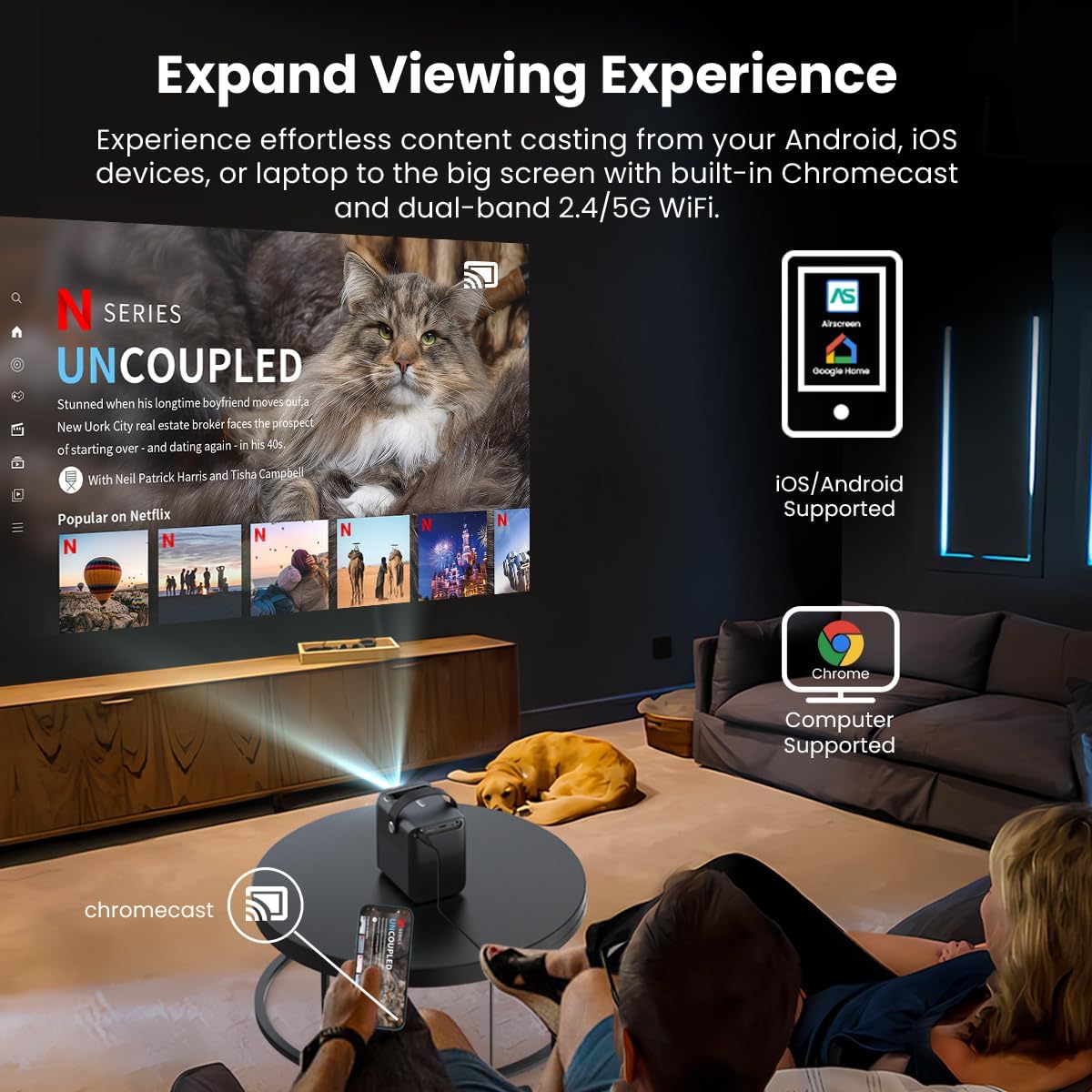
Chromecast built-in allows for effortless content sharing from Android, iOS, and laptop devices.
- Түзмөгүңүз менен проектор бир Wi-Fi тармагына туташып турганын текшериңиз.
- On your mobile device or computer, open a Chromecast-enabled app (e.g., YouTube, Netflix, Google Chrome).
- Tap the 'Cast' icon (usually a rectangle with a Wi-Fi symbol) and select your ETOE projector from the list of available devices.
4.3 Versatile Connectivity (HDMI, USB)
The projector offers multiple ports for connecting external devices.
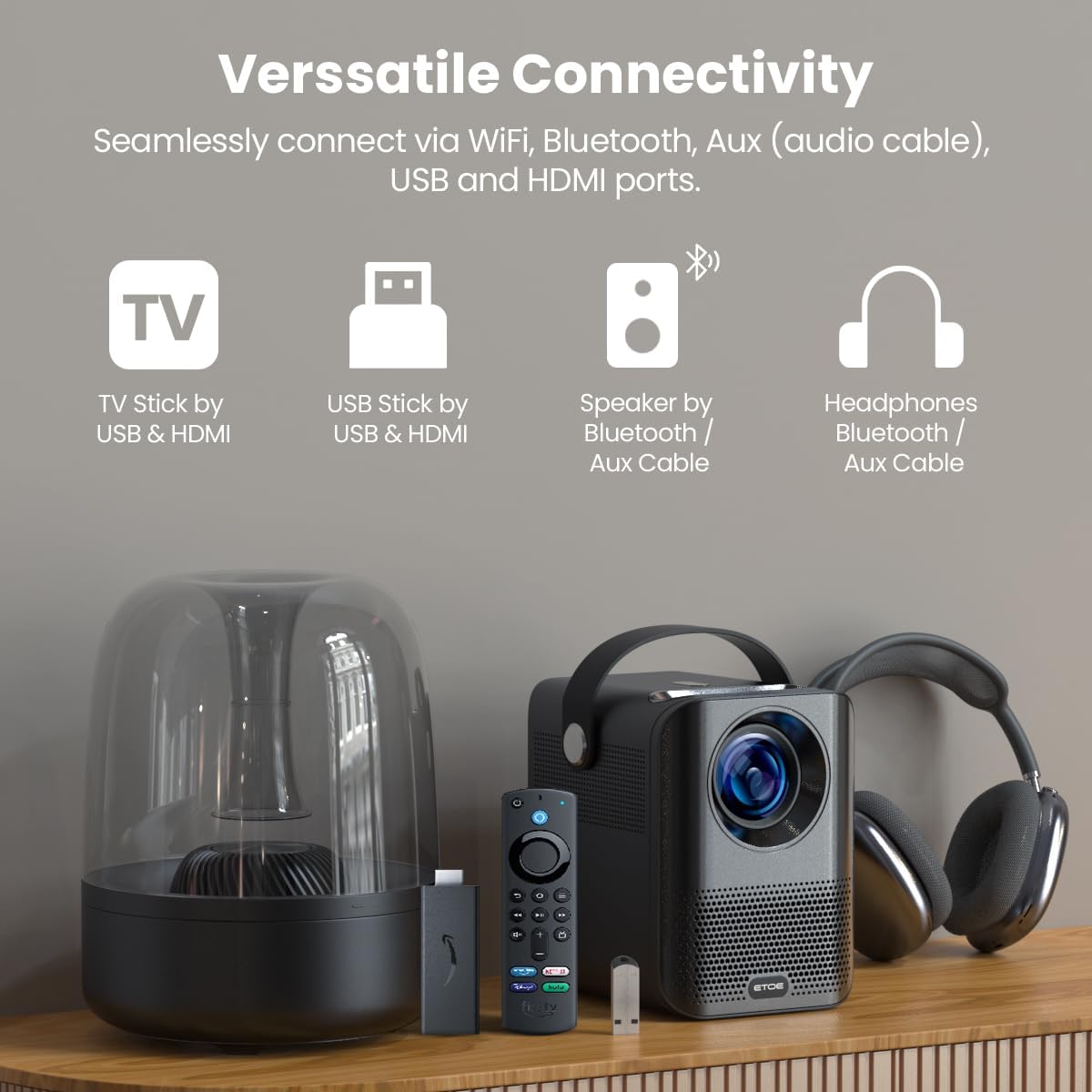
Connect TV sticks, USB drives, and other devices via HDMI and USB ports.
- HDMI: Connect gaming consoles (PS5/PS4, X-Box ONE), laptops, or TV sticks/boxes via the HDMI port. Select the HDMI input source from the projector's input menu.
- USB: Plug in USB drivers to play media files directly. Select the USB input source from the projector's input menu.
4.4 аудио
The projector has built-in speakers, but you can also connect external audio devices.
- Камтылган динамиктер: The projector features integrated speakers for audio playback.
- Bluetooth Audio: Pair Bluetooth speakers or headphones for a more immersive audio experience. Navigate to 'Settings' > 'Remotes & Accessories' > 'Add accessory' to pair your Bluetooth device.
5. Техникалык тейлөө
5.1 Dust-Free Optical Engine
The ETOE Smart Projector features a fully-sealed optical engine, designed to prevent dust from entering the lens and affecting image quality. This significantly reduces the need for internal cleaning.

The fully-sealed optical engine ensures long-lasting, dust-free performance.
5.2 Жалпы тазалоо
- Сырткы: Use a soft, dry cloth to wipe the exterior of the projector. Avoid abrasive cleaners or solvents.
- Объектив: Gently clean the projector lens with a lens cleaning cloth or specialized lens wipes. Do not use paper towels or rough materials that could scratch the lens.
6. Кыйынчылыктарды
If you encounter any issues with your ETOE Smart Projector, please refer to the common problems and solutions below.
| Көйгөй | Мүмкүн чечим |
|---|---|
| No picture/Power off unexpectedly | Ensure the power cable is securely connected. Check the power outlet. If it turns off randomly, contact support. |
| бүдөмүк сүрөт | Adjust focus manually via settings or remote. Ensure the projection surface is flat and smooth. Clean the lens. |
| Үн жок/Төмөн үн | Check volume levels on the projector and connected devices. Ensure external speakers/headphones are properly connected or paired via Bluetooth. |
| Wi-Fi туташуу маселелери | Ensure the projector is within range of your Wi-Fi router. Re-enter Wi-Fi password. Restart the projector and router. |
| Пульт иштебей жатат | Check batteries and replace if necessary. Ensure there are no obstructions between the remote and the projector. Re-pair the remote via Bluetooth if it's a voice remote. |
If the issue persists after trying these solutions, please contact ETOE customer support for assistance.
7. Техникалык шарттар
| Өзгөчөлүк | Деталь |
|---|---|
| Бренд | etoe |
| Модель номери | A1172 |
| Display Resolution | 1920 x 1080 (Native Full HD) |
| Жарыктык | 400 ANSI челинин |
| Операция системасы | Android TV 10.0 |
| Байланыш технологиясы | Wireless, Chromecast, Bluetooth, HDMI, USB |
| Элемент Салмагы | 2.2 фунт |
| Продукциянын өлчөмдөрү | 5.31 x 4.45 x 5.83 дюйм |
| Динамик түрү | Камтылган |
| Өзгөчөлүктөр | Portable, Digital Keystone, Digital Zoom, Fully-Sealed Optical Engine |
| Сунушталган Колдонуулар | Үй кинотеатры |
8. Кепилдик жана колдоо
ETOE stands behind the quality of its products. Your projector comes with:
- 12 айлык сатуудан кийинки тейлөө
- Өмүр бою техникалык колдоо
If you have any questions or require assistance, please contact us directly. There is no need to return the projector for initial support inquiries.


