Introduction
The Rapoo M500 is a versatile multi-mode wireless mouse designed for seamless connectivity across various devices. It supports Bluetooth 3.0, Bluetooth 4.0, Bluetooth 5.0, and 2.4G wireless connections, allowing you to switch between up to three devices with ease. Featuring silent click technology and adjustable DPI settings, the M500 provides a quiet and precise user experience. This manual provides detailed instructions for setting up, operating, maintaining, and troubleshooting your Rapoo M500 mouse.

Figure 1: Rapoo M500 Silent Multi-Mode Wireless Mouse (Camo Red)
Жайгашуу
Пакеттин мазмуну
- Rapoo M500 Silent Multi-Mode Wireless Mouse
- USB кабыл алгыч (чычкандын ичинде сакталат)
- 2 x AA батарейкалар (алдын ала орнотулган)
- Ыкчам баштоо колдонмосу (бул санариптик колдонмодо камтылган эмес)
Battery Installation and USB Receiver Location
The Rapoo M500 mouse comes with two AA batteries pre-installed. The USB receiver is conveniently stored within the battery compartment at the bottom of the mouse. To access the battery compartment and the USB receiver:
- Gently slide open the battery cover located on the underside of the mouse.
- Remove the plastic pull-tab from between the battery contacts to activate the pre-installed batteries.
- Locate the small USB receiver stored next to the batteries. Remove it for 2.4G wireless connection.
- Батареянын капкагын бекем жабыңыз.
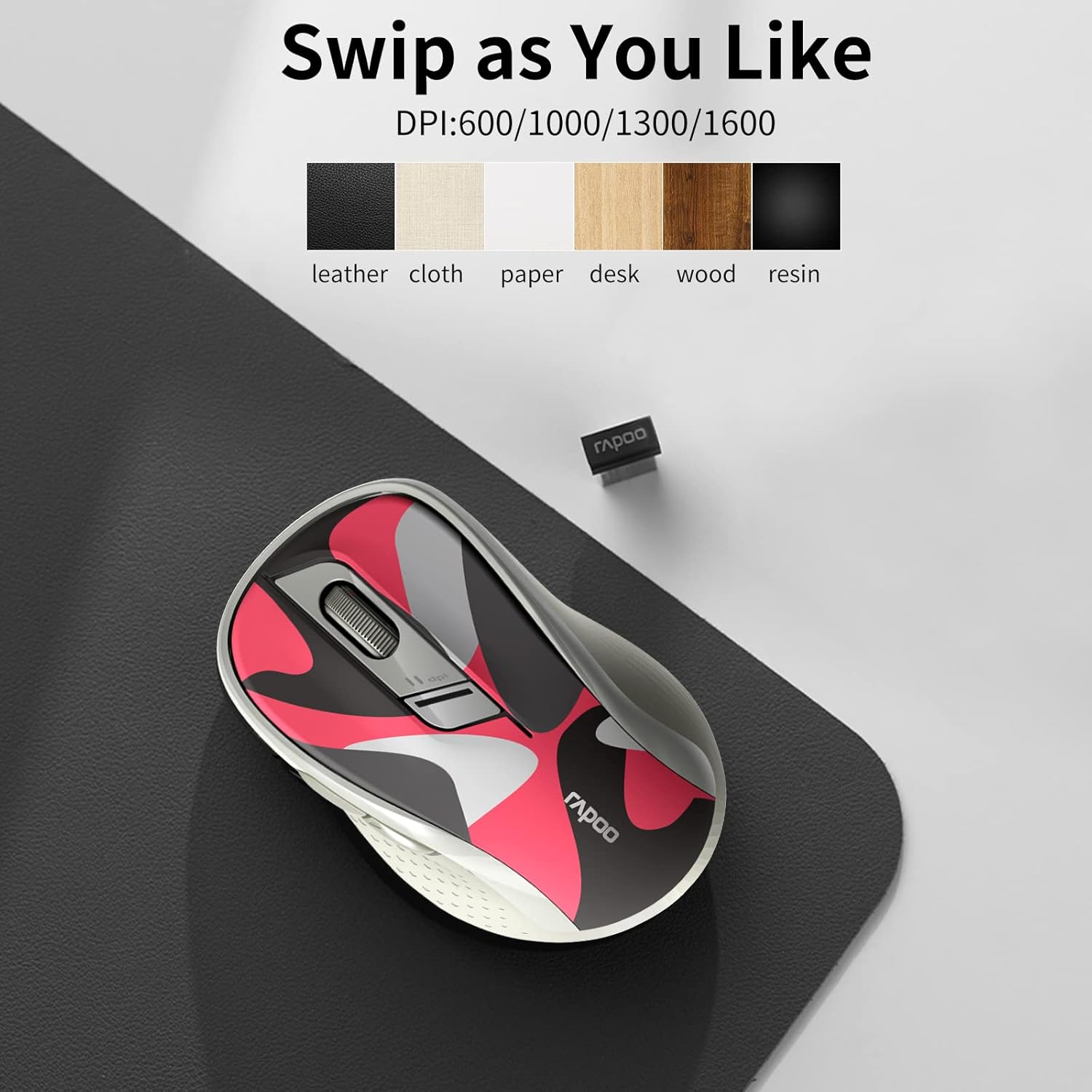
Figure 2: Underside of the mouse with ON/OFF switch and Bluetooth pairing button. The battery compartment and USB receiver are located here.
Чычканыңызды туташтыруу
The Rapoo M500 supports multiple connection modes: 2.4G Wireless via USB receiver and Bluetooth (3.0/4.0/5.0). You can connect to up to three devices simultaneously and switch between them.

Figure 3: Multi-device connection capabilities of the Rapoo M500 mouse.
2.4G зымсыз туташуу
- Remove the USB receiver from the battery compartment of the mouse.
- USB ресиверди компьютериңиздеги же түзмөгүңүздөгү жеткиликтүү USB портуна кыстарыңыз.
- Turn on the mouse using the ON/OFF switch located on the bottom. The mouse will automatically connect to the receiver.
Bluetooth Connection (Bluetooth 3.0/4.0/5.0)
The mouse can store up to two Bluetooth connections (BT1 and BT2).
- Turn on the mouse using the ON/OFF switch on the bottom.
- Short press the device switch button (located on the top of the mouse, near the scroll wheel) to select either BT1 or BT2 channel. The indicator light will flash quickly.
- Press and hold the Bluetooth pairing button on the bottom of the mouse for 3-5 seconds until the indicator light flashes slowly. This puts the mouse into pairing mode.
- On your device (laptop, tablet, etc.), go to Bluetooth settings and search for new devices. Select "RAPOO M500" from the list to pair.
- Once connected, the indicator light on the mouse will stop flashing.

Figure 4: Detailed connection steps for 2.4G wireless and Bluetooth modes.
Иштөө нускамалары
Туташкан түзмөктөрдүн ортосунда которулуу
The Rapoo M500 allows you to quickly switch between the three connected devices (one 2.4G wireless and two Bluetooth devices).
- To switch, simply short press the device switch button located on the top of the mouse, behind the scroll wheel.
- Each press will cycle through the connected channels: 2.4G (indicated by a specific light pattern), BT1, and BT2.
DPI (сезгичтик) жөндөө
The mouse features 4 adjustable DPI levels to control cursor speed and precision: 600, 1000, 1300, and 1600 DPI.
- To change the DPI setting, press the DPI button located on the top of the mouse, just below the scroll wheel.
- Each press will cycle through the available DPI levels. The cursor speed will change accordingly.

Figure 5: The mouse supports various surfaces and adjustable DPI settings.
Үнсүз чыкылдатуу функциясы
The Rapoo M500 utilizes silent micro-motion technology, significantly reducing click noise by up to 90%. This feature is ideal for quiet environments such as libraries, offices, or late-night use, ensuring a disturbance-free experience.

Figure 6: Experience quiet operation with the silent click feature.
Ergonomics and Portability
Designed with ergonomics in mind, the Rapoo M500 features a streamlined arc and finger rest to reduce strain during prolonged use, maximizing comfort. Its compact and lightweight design also makes it highly portable, fitting easily into a pocket or bag for travel.

Figure 7: The compact design ensures easy portability.
Драйверди ыңгайлаштыруу
For advanced customization of buttons and functions, you can download the official driver from the Rapoo website. This software allows you to assign specific functions to the mouse buttons, enhancing your productivity.
- Расмий Рапого барыңыз webсайт (www.rapoo.com) to download the latest driver for the M500 model.
- Install the driver and follow the on-screen instructions to customize button assignments and other settings.
- Note: The Windows version driver supports 2.4G wireless connection for code matching operations. Bluetooth 3.0 connection may not support the Windows version driver.

Figure 8: Driver software allows for advanced customization of mouse functions.
Техникалык тейлөө
Батарея өмүрү жана алмаштыруу
The Rapoo M500 mouse is designed for long-lasting battery performance, providing up to 12 months of usage on two AA batteries. To conserve battery life when not in use, utilize the ON/OFF switch located on the bottom of the mouse.

Figure 9: Extended battery life of up to 12 months.
When the mouse performance degrades or the indicator light suggests low power, replace the two AA batteries. Ensure correct polarity when inserting new batteries.
Чычканыңызды тазалоо
Оптималдуу аткарууну жана гигиенаны сактоо үчүн чычканыңызды дайыма тазалап туруңуз:
- Тазалоодон мурун чычканды өчүрүңүз.
- Бир аз жумшак, түксүз кездемени колдонуңуз dampсыртын сүртүү үчүн суу же жумшак тазалоо эритмеси менен сырдалган.
- Катуу химиялык заттарды, абразивдүү тазалагычтарды колдонуудан же суюктуктарды чычканга түздөн-түз чачуудан алыс болуңуз.
- Оптикалык сенсор үчүн, чаңды же таштандыларды акырын кетирүү үчүн кургак кебез таякчасын колдонуңуз.
Проблемаларды чечүү
| Көйгөй | Мүмкүн себеп | Чечим |
|---|---|---|
| Чычкан жооп бербей жатат / Курсор кыймылдаган жок. |
|
|
| Intermittent connection / Laggy movement. |
|
|
| DPI setting not changing. |
|
|
Техникалык шарттар
| Өзгөчөлүк | Деталь |
|---|---|
| Модел | RAPOO M500 |
| Байланыш | Bluetooth 3.0, Bluetooth 4.0, Bluetooth 5.0, 2.4G Wireless |
| DPI деңгээли | 600, 1000, 1300, 1600 (Жөнгө салынуучу) |
| Кыймылды аныктоо | Оптикалык |
| Түзмөктөрдүн саны | Up to 3 (1 x 2.4G, 2 x Bluetooth) |
| Power Source | 2 x AA батарейкалар |
| Батареянын иштөө мөөнөтү | 12 айга чейин |
| Продукциянын өлчөмдөрү | 3.25 x 2.02 x 0.62 дюйм (8.26 x 5.13 x 1.57 см) |
| Элемент Салмагы | 4.6 унция (130.4 грамм) |
| Шайкештик | Windows 7/8/10/XP, Vista 7/8, Linux, macOS, Android (Bluetooth) |
Кепилдик жана колдоо
Rapoo products are designed with quality and reliability in mind. For information regarding warranty coverage, technical support, driver downloads, and frequently asked questions, please visit the official Rapoo webсайтка же түздөн-түз кардарларды тейлөөгө кайрылыңыз.
- Официалдуу Webсайт: www.rapoo.com
- Кардарларды тейлөө: Refer to the contact information available on the official webсиздин аймак үчүн сайт.
Сураныч, кепилдик дооматтар үчүн сатып алуу далилиңизди сактап коюңуз.


