1. Киришүү
Welcome to the user manual for your Azpen Xcite X1160 11.6 Inch Laptop. This guide provides essential information for setting up, operating, maintaining, and troubleshooting your device. Please read this manual thoroughly to ensure proper use and to maximize your laptop's performance and longevity.
2. Коопсуздук маалыматы
- Кубаттуу адаптер: Use only the original power adapter provided with your laptop. Using unauthorized adapters may damage the device and void your warranty.
- Батареяга кам көрүү: Do not attempt to replace the battery yourself. Avoid exposing the laptop to extreme temperatures, direct sunlight, or liquids.
- Тазалоо: Disconnect the power adapter before cleaning. Use a soft, dry cloth. Avoid liquid cleaners or aerosols.
- Вентиляция: Ensure proper airflow around the laptop. Do not block ventilation openings.
- Демонтаж: Do not attempt to disassemble or repair the laptop yourself. Contact customer support for assistance.
3. Пакеттин мазмуну
Пакетиңизде бардык буюмдар бар экенин текшериңиз:
- Azpen Xcite X1160 11.6 Inch Laptop
- Кубаттуу адаптер
4. Продукт бүтүп калдыview
Familiarize yourself with the physical components and ports of your Azpen Xcite X1160 laptop.

Фронт view of the Azpen Xcite X1160 laptop, displaying the screen and keyboard layout.

Фронт view of the Azpen Xcite X1160 laptop, highlighting the display and keyboard.

Жогорудан төмөн view of the Azpen Xcite X1160 laptop, showing the full keyboard and screen.

Төмөнкү view of the Azpen Xcite X1160 laptop, showing ventilation and rubber feet.

Жабык view of the Azpen Xcite X1160 laptop, displaying the Azpen brand logo on the lid.
Порттор жана туташуу:
- USB 3.0 Type-C порттору: Two ports for high-speed data transfer and connecting compatible peripherals.
- 3.5 мм гарнитура уячасы: Наушниктерди же тышкы динамиктерди туташтыруу үчүн.
- 3.5mm Power Connector: Ноутбукту заряддоо үчүн кубат адаптерин туташтыруу үчүн.
- Wi-Fi: Integrated 802.11bgn for wireless internet access.
- Bluetooth: For connecting wireless accessories such as mice, keyboards, or headphones.
5. Орнотуу
5.1 Батареяны заряддоо
Before first use, connect the power adapter to the laptop's 3.5mm power connector and plug it into a power outlet. Allow the laptop to charge fully. The charging indicator light will typically change color or turn off when charging is complete.
5.2 Баштапкы күйгүзүү жана Windows орнотуу
- Press and hold the power button located on the laptop's chassis until the screen illuminates.
- Follow the on-screen instructions to complete the Windows 10 Home initial setup. This includes selecting your region, language, creating a user account, and connecting to a Wi-Fi network.
- Once setup is complete, your laptop will be ready for use.
6. Иштөө нускамалары
6.1 Күйгүзүү/өчүрүү
- Күйгүзүү үчүн: Кубат баскычын басыңыз.
- Жабуу: Windows Start баскычын чыкылдатып, андан кийин Кубат > Өчүрүү тандаңыз.
- Кайра баштоо үчүн: Windows Start баскычын чыкылдатып, андан кийин Кубат > Кайра баштоону тандаңыз.
- Уктоо үчүн: Windows Start баскычын чыкылдатыңыз, андан кийин Power > Sleep режимин тандаңыз же ноутбуктун капкагын жабыңыз.
6.2 Сенсордук панелди колдонуу
The integrated touchpad functions as a mouse. Use the following gestures:
- Бир жолу таптоо: Сол чыкылдатуу.
- Эки манжа менен таптаңыз: Оң чыкылдатыңыз.
- Эки манжа менен жылдыруу: Сыдыруу үчүн эки манжаңызды өйдө же ылдый сүйрүңүз.
- Чымчып-кичирейтүү: Чоңойтуу же кичирейтүү үчүн эки манжаңызды чымчыңыз же ажыратыңыз.
6.3 Баскычтопту колдонуу
The laptop features a standard QWERTY keyboard. Function keys (F1-F12) often have secondary functions (e.g., volume control, screen brightness) accessible by pressing the 'Fn' key simultaneously.
6.4 Wi-Fiга туташуу
- Click the Wi-Fi icon in the taskbar (usually in the bottom-right corner).
- Тизмеден каалаган Wi-Fi тармагын тандаңыз.
- Click 'Connect' and enter the network password if prompted.
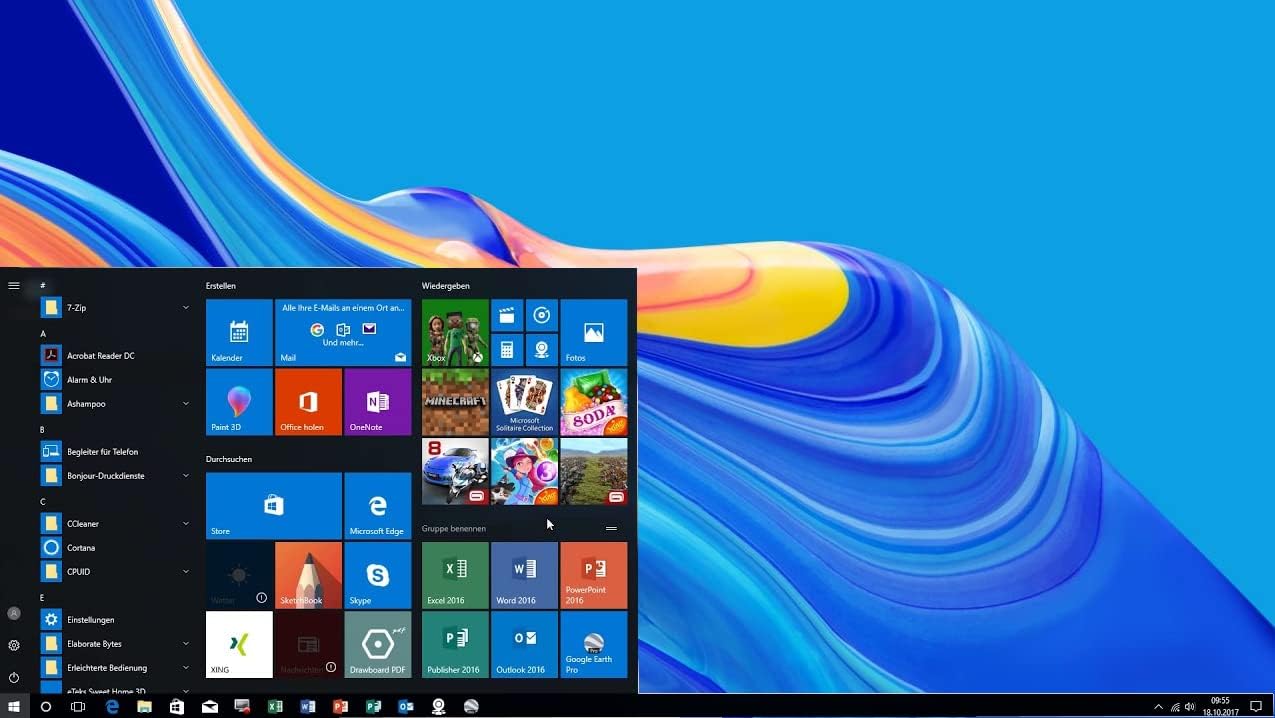
Экран view of the Azpen Xcite X1160 laptop showing the Windows 10 Start Menu.
6.5 Bluetooth түзмөктөрүн туташтыруу
- Go to 'Settings' > 'Devices' > 'Bluetooth & other devices'.
- Bluetooth күйгүзүлгөнүн текшериңиз.
- Bluetooth түзмөгүңүздү жупташтыруу режимине коюңуз.
- "Bluetooth же башка түзмөк кошуу" баскычын чыкылдатып, "Bluetooth" тандаңыз.
- Жупташтырууну аяктоо үчүн тизмеден түзмөгүңүздү тандап, экрандагы көрсөтмөлөрдү аткарыңыз.
7. Техникалык тейлөө
7.1 Ноутбугуңузду тазалоо
- Экран: Use a soft, lint-free microfiber cloth. For stubborn smudges, lightly dampчүпүрөктү суу же экранга арналган тазалоо эритмеси менен сүртүңүз.
- Баскычтоп жана шасси: Жумшак, кургак чүпүрөктү колдонуңуз. Кысылган аба куюлган банка ачкычтардын ортосундагы чаңды кетире алат.
- Avoid harsh chemicals, abrasives, or excessive moisture.
7.2 Батареяга кам көрүү
- Батареянын иштөө мөөнөтүн узартуу үчүн, бат-баттан батарейканы толук зарядсыздандырбаңыз.
- Ноутбукту узак убакыт бою колдонбосо, салкын, кургак жерде сактаңыз.
7.3 Программалык камсыздоо жаңыртуулары
Regularly check for and install Windows updates to ensure your system has the latest security patches and performance improvements. Go to 'Settings' > 'Update & Security' > 'Windows Update'.
7.4 Сактагычты башкаруу
Мезгил-мезгили менен ачык-айкын керексиз files and applications to maintain optimal performance. You can use Windows' built-in 'Disk Cleanup' tool or manually uninstall programs from 'Settings' > 'Apps' > 'Apps & features'.
8. Кыйынчылыктарды
Бул бөлүмдө ноутбукуңузда кездешүүчү жалпы көйгөйлөр каралат.
| Маселе | Мүмкүн чечим |
|---|---|
| Ноутбук күйбөйт. | Ensure the power adapter is securely connected and plugged into a working outlet. Allow the battery to charge for at least 30 minutes before attempting to power on again. |
| Wi-Fi туташпай жатат. | Check if Wi-Fi is enabled in Windows settings. Restart your router and modem. Verify the Wi-Fi password. |
| Жай аткаруу. | Close unnecessary applications. Check for and install Windows updates. Run a disk cleanup. Consider uninstalling unused software. |
| Экран бош же бүлбүлдөп турат. | Try adjusting screen brightness using the function keys. Restart the laptop. If connected to an external monitor, disconnect it. |
9. Техникалык шарттар
Detailed technical specifications for the Azpen Xcite X1160 laptop.

The Azpen Xcite X1160 is powered by an Intel Quad-Core Processor.
| Өзгөчөлүк | Деталь |
|---|---|
| Модел | X1160 |
| Screen Size | 11.6 дюйм |
| Screen Resolution | 1366 x 768 пиксель |
| Процессор | Intel Processor N4000 Lake (up to 2.68 GHz) |
| RAM | 4 ГБ LPDDR4 |
| Сактагыч | 64 GB EMMC (Expandable via Micro SD up to 128GB) |
| Операция системасы | Windows 10 Home |
| Графика | Intel Gen8-LP |
| Зымсыз байланыш | 802.11bgn, Bluetooth |
| Порттар | 2 USB 3.0 Type-C, 3.5mm Headphone Jack, 3.5mm Power Connector |
| Батареянын иштөө мөөнөтү | 6 саатка чейин |
| Салмагы | 3.08 фунт |
| Өлчөмдөрү (LxWxH) | 10.9 x 0.6 x 7.5 дюйм |
10. Кепилдик жана колдоо
For warranty information and technical support, please refer to the documentation included with your purchase or visit the official Azpen webсайт. Кепилдик дооматтар үчүн сатып алганыңыздын далилин сактаңыз.


