1. Киришүү
This manual provides essential information for setting up, operating, maintaining, and troubleshooting your Dell OptiPlex 5000 Micro PC. Please read this guide thoroughly before using your computer to ensure proper operation and to maximize its lifespan.
The Dell OptiPlex 5000 is a compact and responsive desktop computer designed for business environments, featuring an Intel Core i5 12th Gen processor and Windows 10 Pro operating system.
2. Кутуда эмне бар
Таңгакта бардык буюмдар бар экенин текшериңиз:
- OptiPlex 5000 Micro PC
- Pro зымсыз клавиатура жана чычкан
- USB Receiver (for wireless keyboard and mouse)
- Электр кабели (АКШ)
- Safety/Environment and Regulatory Guide (English/French Multi-language)
- Quick Start Guide
- Жеткирүү материалы
- Кубаттуу адаптер
3. Орнотуу нускамалары
3.1 Перифериялык түзүлүштөрдү туташтыруу
Follow these steps to connect your Dell OptiPlex 5000 Micro PC:
- Баскычтоп менен чычканды туташтыруу: Insert the USB receiver for the wireless keyboard and mouse into an available USB port on the computer.
- Мониторду туташтыруу: Connect your monitor to the computer using an HDMI or DisplayPort cable. The OptiPlex 5000 supports up to four independent displays.
- Тармакка туташуу (милдеттүү эмес): For a wired network connection, connect an Ethernet cable from your router or modem to the Ethernet port on the back of the computer.
- Туташуу кубаты: Connect the power adapter to the computer's power input, then plug the power cord into a wall outlet.
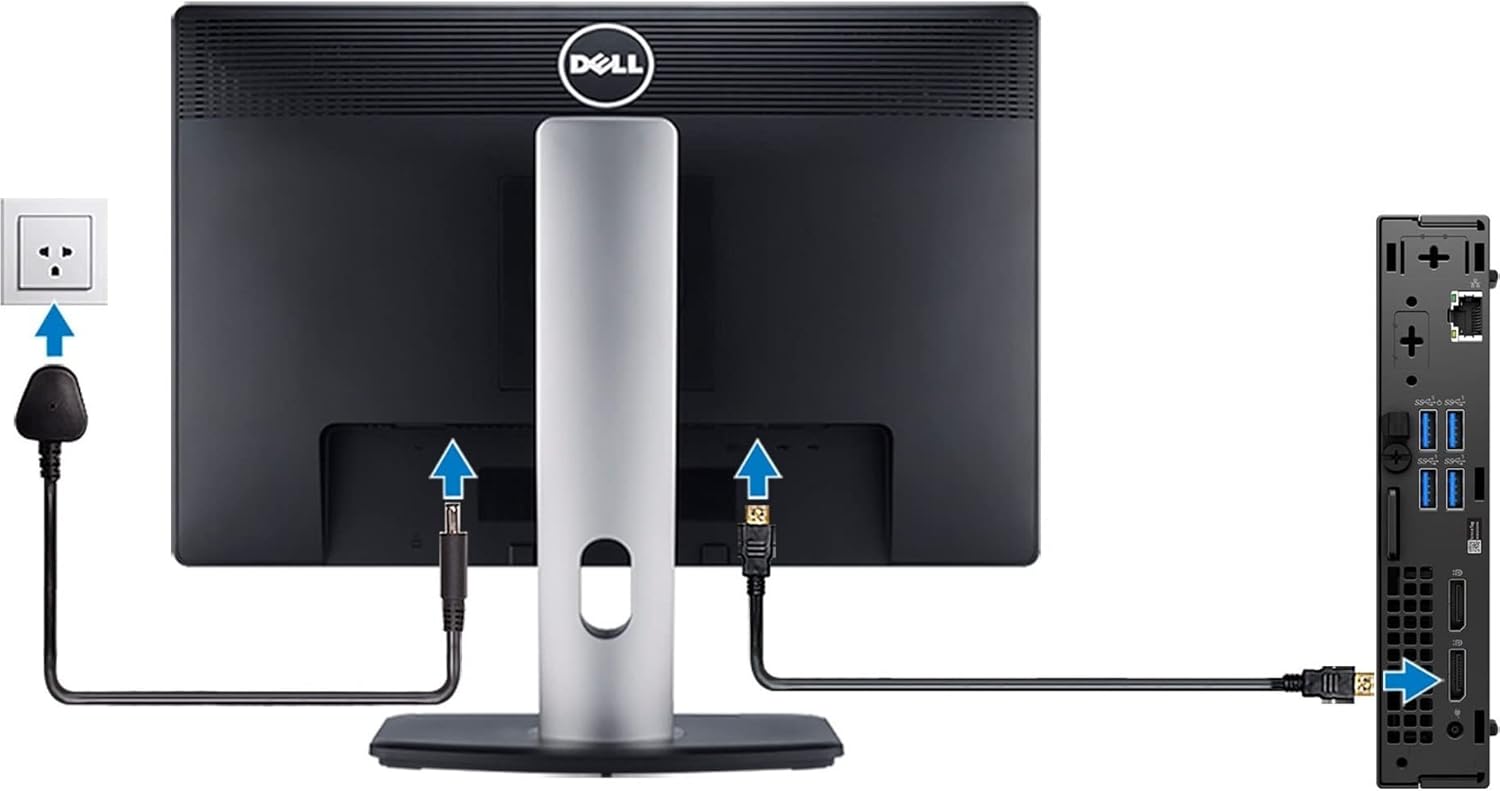
Figure 3.1: Connecting power, monitor, and network cables.

Figure 3.2: Connecting an Ethernet cable.

3.3-сүрөт: Мисample of a complete setup with multiple displays and peripherals.
3.2 Баштапкы күйгүзүү
After connecting all peripherals and power, press the power button located on the front of the OptiPlex 5000 to turn on the computer. Follow the on-screen instructions to complete the initial Windows 10 Pro setup.
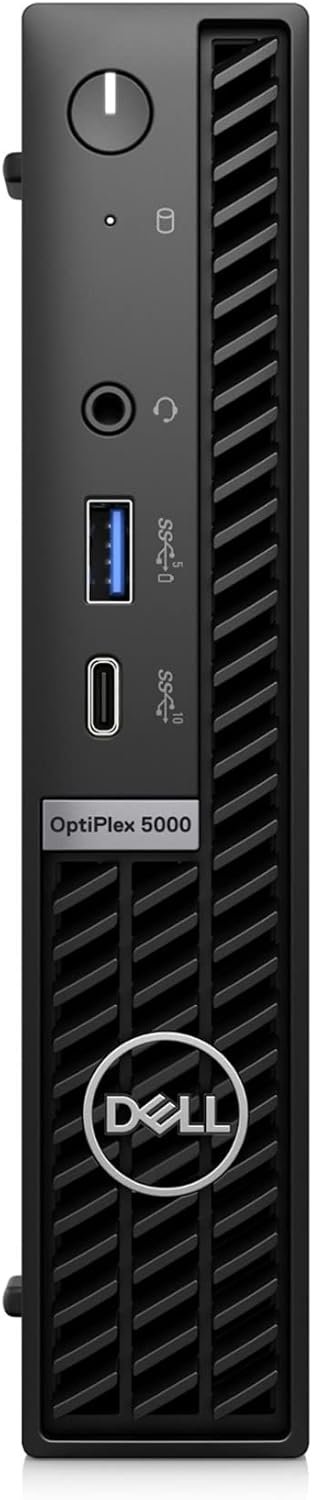
Figure 3.4: Front panel of the OptiPlex 5000.
4. Иштөө нускамалары
4.1 Негизги операция
Your Dell OptiPlex 5000 comes pre-installed with Windows 10 Pro. Upon first boot, you will be guided through the operating system setup. Once complete, you can begin using your computer for various tasks.
- Көп тапшырма: Windows 10 Pro allows you to snap up to four applications to different locations on the screen for efficient multitasking.
- Virtual Desktops: Create individual desktops for specific projects or tasks to organize your workspace.
- Байланыш: Utilize the high-speed Wi-Fi 6E for wireless network access or the Ethernet port for a wired connection.
4.2 Dell Optimizer Features
The OptiPlex 5000 includes Dell Optimizer, an AI-based software designed to enhance your PC's performance in the background.
- ExpressResponse: Improves application performance by adapting to your usage patterns.
- ExpressConnect: Optimizes conference calls and network connectivity for better remote work experiences.
- Intelligent Audio: Enhances sound quality and reduces background noise during calls using automated tuning and neural noise-cancellation.
5. Техникалык тейлөө
5.1 Жалпы кам көрүү
- Тазалоо: Regularly clean the exterior of the computer with a soft, dry cloth. Avoid using liquid cleaners directly on the device.
- Вентиляция: Ensure that the ventilation openings are not blocked to prevent overheating. Maintain adequate space around the computer for airflow.
- Программалык камсыздоо жаңыртуулары: Оптималдуу иштөөнү жана коопсуздукту камсыз кылуу үчүн операциялык тутумуңузду жана драйверлериңизди жаңыртып туруңуз.
5.2 Компоненттерге кирүү
The OptiPlex 5000 is designed for simple maintenance with tool-less access to the chassis. This allows for easy upgrades or servicing of internal components without needing to remove the front bezel.
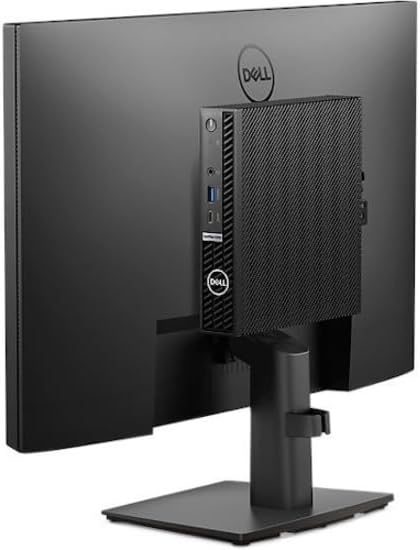
Figure 5.1: OptiPlex 5000 mounted on a monitor stand.
6. Кыйынчылыктарды
This section provides solutions to common issues you might encounter with your Dell OptiPlex 5000.
- Кубат жок:
- Ensure the power adapter is securely connected to both the computer and a working wall outlet.
- Verify the power cord is not damaged.
- Башка электр розеткасын колдонуп көрүңүз.
- Дисплей жок:
- Check that the monitor is powered on and the video cable (HDMI/DisplayPort) is securely connected to both the computer and the monitor.
- Мониторуңузда туура киргизүү булагы тандалганын текшериңиз.
- If using multiple monitors, try connecting only one monitor to isolate the issue.
- Тармакка туташуу маселелери:
- For wired connections, ensure the Ethernet cable is properly connected and the router/modem is functioning.
- For wireless connections, verify Wi-Fi is enabled in Windows settings and you are connected to the correct network. Restart your router/modem if necessary.
- Жай аткаруу:
- Керексиз тиркемелерди жабыңыз.
- Windows жана драйверлер жаңыртылганын текшериңиз.
- Run a system diagnostic or antivirus scan.
For more complex issues or if the problem persists, please refer to the Dell support website or contact Dell technical support.
7. Техникалык шарттар
| Өзгөчөлүк | Description |
|---|---|
| Модель номери | PX13N |
| Процессор | Intel Core i5-12500T Hexa-core (6 Core) 2 GHz (12th Gen) |
| RAM | 16 ГБ DDR4 SDRAM |
| Сактагыч | 512 GB M.2 PCI Express NVMe 3.0 x4 SSD |
| Графика | Intel UHD Graphics 770 (Интеграцияланган) |
| Операция системасы | Windows 10 Pro |
| Зымсыз байланыш | 802.11ac (Wi-Fi 6E support) |
| Өлчөмдөрү (LxWxH) | 9.3 x 5.2 x 19.6 дюйм |
| Элемент Салмагы | 5.7 фунт |
| Түс | Кара |
| Max Screen Resolution | 3840 x 2160 |

Figure 7.1: Rear ports of the OptiPlex 5000.
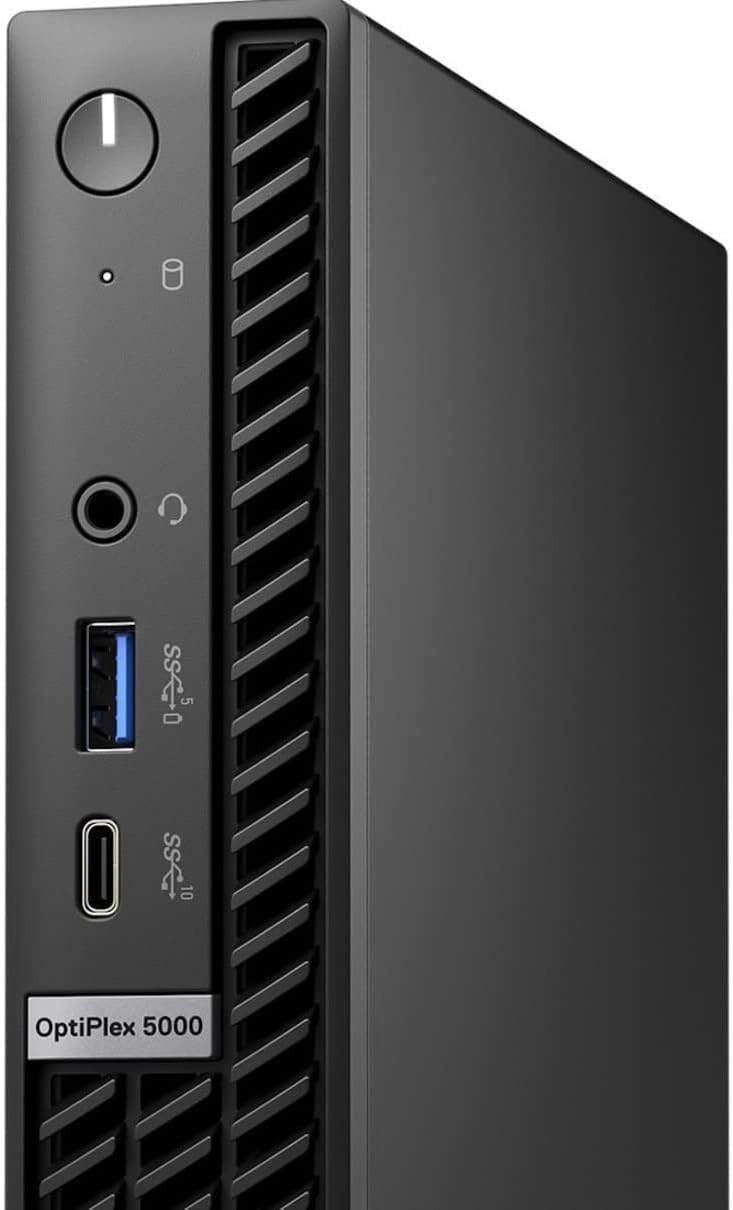
7.2-сүрөт: алдыңкы жана каптал view of the OptiPlex 5000.
8. Кепилдик жана колдоо
8.1 Продукциянын кепилдиги
Your Dell OptiPlex 5000 Micro PC is covered by Dell's standard limited hardware warranty. For detailed information regarding warranty terms, conditions, and duration, please refer to the warranty documentation included with your product or visit the official Dell support webсайт.
Protection plans are available for extended coverage. For details, refer to the information provided at the time of purchase or contact Dell support.
8.2 Техникалык колдоо
For technical assistance, driver downloads, or further troubleshooting, please visit the official Dell Support webсайт:
When contacting support, please have your service tag or express service code ready. This information can typically be found on a label on your computer.


