Introduction
This user manual provides comprehensive instructions for the safe operation, setup, and maintenance of your SIMREX X900 Drone. Please read this manual thoroughly before operating the drone to ensure proper function and to avoid damage or injury. The SIMREX X900 is a foldable RC quadcopter featuring 1080P HD camera, optical flow positioning, altitude hold, and headless mode, designed for ease of use and stable flight.
Коопсуздук эрежелери
Always prioritize safety when operating the drone. Failure to follow these guidelines may result in injury, damage to the drone, or property damage.
- Учуу чөйрөсү: Fly in open areas, away from people, animals, buildings, and obstacles. Avoid flying near airports or restricted airspace.
- Аба ырайы шарттары: Do not fly in strong winds, rain, snow, or fog. Optimal conditions are calm and clear.
- Батареянын коопсуздугу: Use only the provided charger and battery. Do not overcharge or puncture batteries. Discontinue use if batteries are damaged or swollen.
- Пропеллердин коопсуздугу: Keep hands, face, and loose clothing away from rotating propellers. Always turn off the drone before handling propellers.
- Көрүү сызыгы: Учуу учурунда дрондун көрүү сызыгын дайыма сактаңыз.
- Жашы боюнча сунуш: This product is recommended for adults.
Пакеттин мазмуну
Пакетте бардык компоненттер бар экенин текшериңиз:
- SIMREX X900 Drone
- Алыстан башкаруу
- Заряддалуучу батарея (1 камтылган)
- Запастык пропеллер
- USB заряддагыч
- Колдонуучунун Колдонмосу (бул документ)
Компоненттер бүттүview
Familiarize yourself with the main components of your SIMREX X900 drone and its remote control.

Image: The SIMREX X900 drone in its unfolded state, alongside its remote control and a smartphone mounted on the controller. The drone is red and black with four propellers. The remote control is black with joysticks and buttons.
Дрондун компоненттери:
- Пропеллер: Four rotating blades for lift and thrust.
- Моторлор: Drive the propellers.
- Камера: 1080P HD camera located at the front for photo and video capture.
- Батарея бөлүмү: Дрондун кайра заряддалуучу батареясы жайгашкан.
- Оптикалык агым сенсору: Located on the bottom, assists with stable hovering.
- Бүктөлүүчү курал: Allow for compact storage and portability.
Алыстан башкаруунун компоненттери:
- Сол джойстик: Controls altitude (throttle) and rotation (yaw).
- Оң Джойстик: Controls forward/backward (pitch) and left/right (roll).
- Кубат баскычы: Пультту күйгүзөт/өчүрөт.
- Бир баскычтуу учуп-конуу баскычы: Автоматтык түрдө учуп же конууну баштайт.
- Ылдамдык которуштуруу: Adjusts flight speed (beginner, intermediate, advanced).
- Башсыз режим баскычы: Башсыз режимди иштетет/өчүрөт.
- 3D оодаруу баскычы: Initiates a 360-degree flip.
- Телефон ээси: Mount for your smartphone to view FPV түрмөгү.
Жайгашуу
1. Батареяны заряддоо
Connect the drone battery to the USB charger and plug it into a USB power source (e.g., computer USB port, USB wall adapter). The indicator light on the charger will show charging status. Ensure the battery is fully charged before each flight for optimal performance and flight time.
2. Installing Propellers
The propellers are marked with 'A' or 'B'. Match them to the corresponding motor arms. Ensure they are securely fastened. Incorrect installation will prevent the drone from flying correctly.
3. Controller Setup
Install the required batteries into the remote control. Ensure correct polarity. Power on the remote control.
4. App Installation (Optional for FPV)
FPV үчүн (Биринчи жак үчүн View) and advanced control features, download the official SIMREX drone app from your smartphone's app store (iOS/Android compatible). Издөө "SIMREX FPV" or refer to the QR code in the quick start guide if provided.
Иштөө нускамалары
1. Дронду жана пультту жупташтыруу
- Дронду тегиз, тегиз жерге орнотуңуз.
- Дрондун кубат которгучун күйгүзүңүз. Дрондун индикатор чырактары күйүп-өчөт.
- Алыстан башкарууну күйгүзүңүз.
- Push the left joystick (throttle) all the way up, then all the way down. The drone's lights will become solid, indicating successful pairing.
2. Калибрлөө
After pairing, perform a gyroscope calibration for stable flight. Push both joysticks to the bottom-right corner simultaneously until the drone's lights flash rapidly and then become solid again. This indicates successful calibration.
3. Учуу жана конуу
- Бир ачкычтуу учуу: Press the One-Key Takeoff/Landing button. The drone will automatically ascend and hover at a stable altitude.
- Кол менен учуп кетүү: Slowly push the left joystick (throttle) upwards. The propellers will spin, and the drone will ascend.
- Бир ачкыч конуу: Press the One-Key Takeoff/Landing button again. The drone will automatically descend and land gently.
- Кол менен конуу: Slowly pull the left joystick (throttle) downwards until the drone lands. Once landed, push the joystick all the way down to stop the motors.
4. Flight Controls and Features
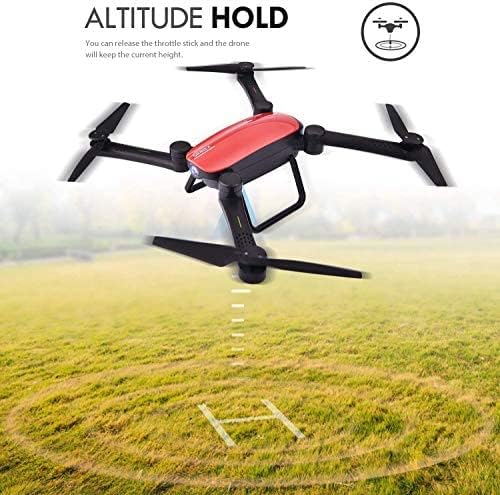
Image: The SIMREX X900 drone hovering above a grassy field, with an arrow indicating its stable altitude. Text highlights "ALTITUDE HOLD" and explains that releasing the throttle stick will maintain the current height.
Бийиктикти кармоо: The drone is equipped with an advanced barometer to automatically maintain its current altitude. You can release the throttle stick, and the drone will hover steadily at that height, making it easier to control and capture stable photos/videos.
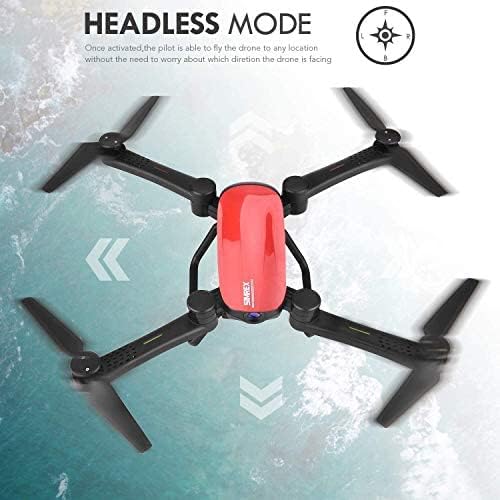
Image: The SIMREX X900 drone viewed from above, with arrows indicating movement directions relative to the pilot. Text highlights "HEADLESS MODE" and explains that once activated, the pilot can fly the drone without worrying about its orientation.
Башсыз режим: Activate Headless Mode by pressing the dedicated button on the remote. In this mode, the drone's forward direction is always relative to the pilot, regardless of the drone's actual orientation. This simplifies control, especially for beginners.

Image: Three instances of the SIMREX X900 drone performing a 360-degree flip in mid-air, illustrating the "3D STUNT" feature. Text indicates "360° flips and rolling with one single button."
3D Flips (Stunt Mode): To perform a 360-degree flip, press the 3D Flip button on the remote control, then quickly push the right joystick in the desired flip direction (forward, backward, left, or right). Ensure sufficient altitude before attempting flips.

Image: A hand holding the SIMREX X900 drone's remote control, with a blurred background showing the drone flying. Text describes "GRAVITY SENSOR MODE ON PHONE APP & CONTROLLER," explaining that both the phone app and controller can operate by activating gravity sensor mode, controlling flight by holding and moving the device.
Тартылуу сенсорунун режими: When using the smartphone app, you can activate Gravity Sensor Mode. This allows you to control the drone's pitch and roll by tilting your smartphone, providing an intuitive flight experience. This mode can also be activated on the controller.

Image: Two options for controlling the SIMREX X900 drone: "PHONE WIFI DIRECT CONTROL" showing a smartphone with on-screen controls, and "TRANSMITTER CONTROL WITH PHONE MONITOR" showing the remote control with a smartphone mounted. Text indicates iOS/Android compatibility for phone control.
FPV and WiFi Live Video: Connect your smartphone to the drone's WiFi network (SSID usually starts with "SIMREX" or "X900"). Open the SIMREX app to view a live video feed from the drone's 1080P HD camera. You can also control the drone directly from the app or use the remote control with your phone as a monitor.

Image: The SIMREX X900 drone shown in both its folded and unfolded states, with dimensions provided. Text highlights "FOLDABLE DESIGN" and states it "Saves the space & easy to carry." Aircraft folding size is 138x93x48mm, and unfolding size is 383.2x356.7x88.4mm.
Бүктөлүүчү Дизайн: The SIMREX X900 features a foldable arm design, allowing for easy storage and portability. To fold, gently push the arms inwards towards the drone's body. To unfold, pull the arms outwards until they click into place. Ensure all arms are fully extended before flight.
Техникалык тейлөө
- Тазалоо: Дронду жана пультту тазалоо үчүн жумшак, кургак чүпүрөктү колдонуңуз. Күчтүү химиялык заттарды же эриткичтерди колдонбоңуз.
- Пропеллер текшерүү: Regularly check propellers for damage (cracks, bends). Replace damaged propellers immediately using the provided spares.
- Батареяга кам көрүү: Батареяларды салкын, кургак жерде сактаңыз. Толук заряддалган же толугу менен түгөнгөн батареяларды узак убакытка сактабаңыз. Узак мөөнөткө сактоо үчүн аларды болжол менен 50% га чейин заряддаңыз.
- Сактагыч: When not in use, store the drone in its original packaging or a protective case to prevent damage.
Проблемаларды чечүү
| Көйгөй | Мүмкүн себеп | Чечим |
|---|---|---|
| Дрон пультка жооп бербейт. | Not paired, low battery (drone or remote), interference. | Re-pair the drone and remote. Charge batteries. Fly in an open area away from other wireless devices. |
| Учуу учурунда учкучсуз учат. | Not calibrated, uneven surface at takeoff, wind. | Perform gyroscope calibration. Take off from a flat surface. Avoid flying in windy conditions. |
| Пропеллерлер айланбайт. | Propellers blocked, motor issue, low battery. | Check for obstructions. Ensure battery is charged and connected. |
| FPV каналы үзгүлтүккө учурап же ажыратылган. | Weak WiFi signal, too far from drone, app issue. | Ensure strong WiFi connection. Fly closer to the drone. Restart the app and drone. |
Техникалык шарттар
| Өзгөчөлүк | Деталь |
|---|---|
| Бренд | SIMREX |
| Модель аты | X900 |
| Видео тартуунун резолюциясы | 1080p |
| Байланыш технологиясы | Wi-Fi |
| Skill Level | Beginner |
| Батарея сыйымдуулугу | 1800 миллионamp Саат |
| Максималдуу диапазон | 120 метр |
| Материал | Пластик |
| Оптикалык сенсор технологиясы | Оптикалык агым |
| Бүктөлүүчү дизайн | Ооба |
| Элемент Салмагы | 1.39 фунт |
| Пакеттин өлчөмдөрү | 10.08 x 6.81 x 3.11 дюйм |
Кепилдик жана колдоо
SIMREX provides a standard warranty for manufacturing defects. Please refer to the product packaging or the official SIMREX website for specific warranty terms and conditions. For technical support, troubleshooting assistance, or spare parts, please contact SIMREX customer service through their official channels. Keep your purchase receipt as proof of purchase for warranty claims.
For more information, visit the official SIMREX store: SIMREX Store on Amazon


