1. Киришүү
This manual provides essential information for the setup, operation, and maintenance of your JLab Go Cam USB HD Webcam. The Go Cam is designed to deliver high-definition video and clear audio for various communication needs, including video conferencing, live streaming, and online meetings.
Негизги өзгөчөлүктөр төмөнкүлөрдү камтыйт:
- Full 1080p video resolution at 30 frames per second (FPS).
- 2.1 Megapixel sensor for clear image capture.
- Built-in omni-directional microphone for natural sound.
- Optimized for various lighting conditions.
- Plug-and-play compatibility with PC, Mac, and Chromebook devices.
2. Баштоо
2.1 Коробканы ачуу
Сиздин пакетиңизде төмөнкү заттар бар экенин текшериңиз:
- JLab Go Cam USB HD Webcam
- Quick Start Guide
2.2 Системалык талаптар
The JLab Go Cam is compatible with the following operating systems:
- Windows (PC)
- macOS (Mac)
- Chrome OS (Chromebook)
No additional software or drivers are typically required for basic functionality.
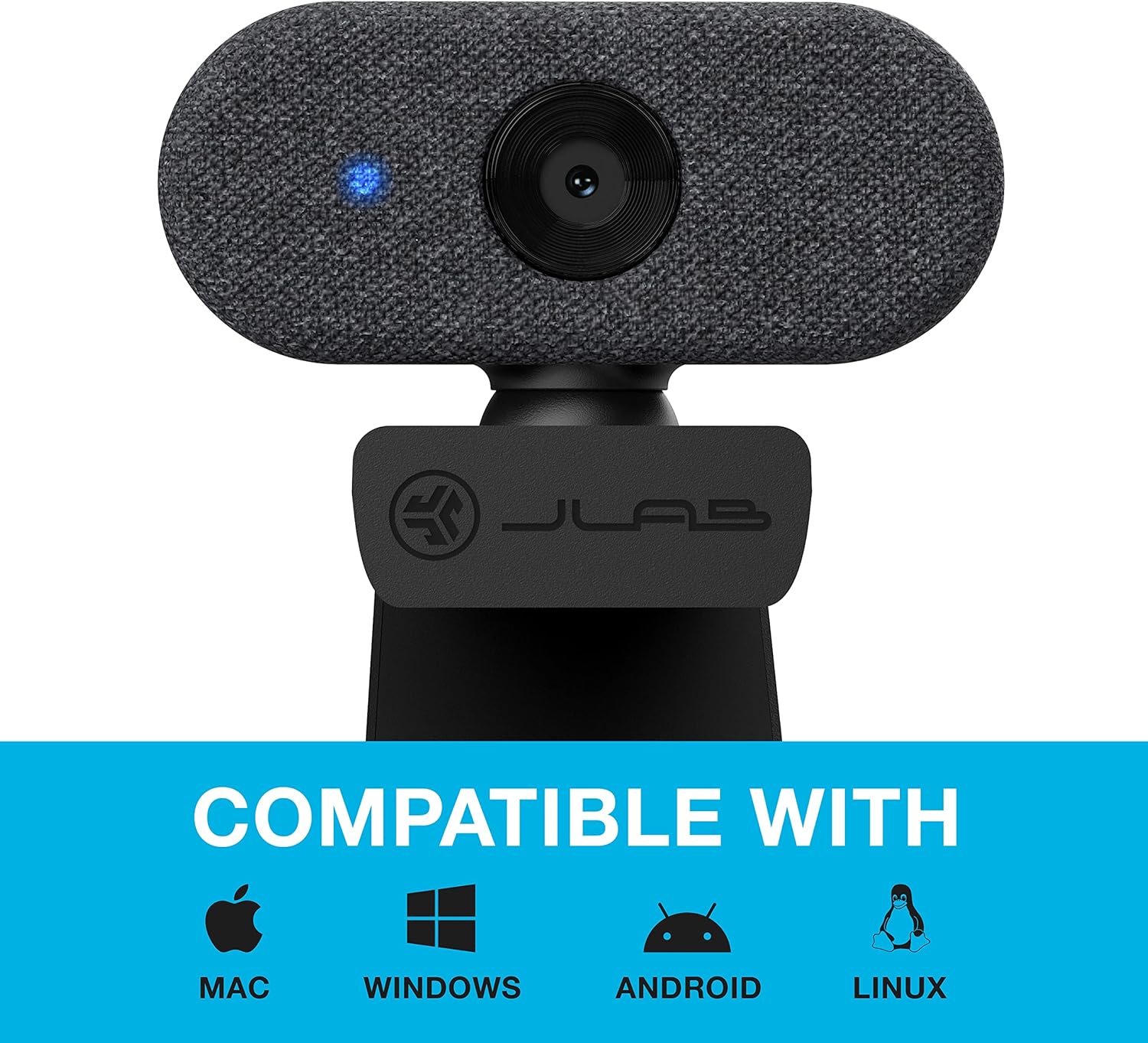
Image: The JLab Go Cam is compatible with Mac, Windows, Android, and Linux operating systems.
2.3 Физикалык орнотуу
The JLab Go Cam features a versatile clip-on design for easy mounting.
- Mounting on a Monitor/Laptop: ачыңыз webcam's integrated clip and place it securely on top of your monitor or laptop screen. Adjust the angle to ensure the webкамера туруктуу жана сизге караган абалда.
- Иш тактада жайгаштыруу: The clip can also serve as a stand for placing the webcam on a flat surface, such as a desk.

Image: The JLab Go Cam webcam showing its adjustable clip for mounting.
3. Операция
3.1 Туташтыруу Webcam
The JLab Go Cam is a plug-and-play device. Simply connect the integrated USB cable from the webcam to an available USB port on your computer. The operating system should automatically detect and install the necessary drivers.
3.2 Тиркемелер менен колдонуу
кошулгандан кийин, webcam can be selected as your video and audio input device in most video conferencing, streaming, and recording applications (e.g., Zoom, Google Meet, Microsoft Teams, Skype, OBS Studio).
- Open your preferred application.
- Navigate to the application's settings or preferences, typically found under 'Audio & Video' or 'Devices'.
- Select 'JLab Go Cam' as your camera device.
- Select 'JLab Go Cam' or a similar entry as your microphone device.
- A blue indicator light on the webcam will illuminate when the camera is active and in use.
3.3 Видео жана аудио сапаты
The Go Cam provides 1080p Full HD video at 30 frames per second, ensuring clear and detailed visuals. The built-in omni-directional microphone captures sound from all directions, making conversations sound natural.

Image: The JLab Go Cam provides high-definition video for clear communication.

Image: The omni-directional microphone ensures clear audio capture.
3.4 Low Light Performance
The webcam is designed to perform effectively in various lighting conditions, including low-light environments, to maintain image clarity.

Image: The JLab Go Cam adapts to different lighting conditions.
4. Техникалык тейлөө
To ensure the longevity and optimal performance of your JLab Go Cam, follow these simple maintenance guidelines:
- Линзаны тазалоо: Gently wipe the camera lens with a soft, lint-free cloth. Avoid abrasive materials or harsh cleaning chemicals.
- Денени тазалоо: кургак же бир аз колдонуу damp тазалоо үчүн кездеме webcam's exterior.
- Сактагыч: Колдонулбаган учурда, дүкөндү сактаңыз webкамераны таза, кургак жерде, өтө жогорку температурадан алыс сактаңыз.
- Кабельге кам көрүү: USB кабелин зыянга учуратпоо үчүн өтө ийилип же бурулбаңыз.
5. Кыйынчылыктарды
If you encounter issues with your JLab Go Cam, refer to the following troubleshooting steps:
5.1 Webcam Not Detected or No Image/Sound
- USB туташуусун текшерүү: камсыз кылуу webcam's USB cable is securely plugged into a functioning USB port on your computer. Try a different USB port.
- Компьютерди кайра иштетүү: Кээде жөнөкөй өчүрүп-күйгүзүү аныктоо көйгөйлөрүн чече алат.
- Verify Application Settings: Confirm that 'JLab Go Cam' is selected as both the video and audio input device within your video conferencing or recording application's settings.
- Түзмөк башкаргычын (Windows) / Система маалыматын (Mac) текшериңиз: экендигин текшериңиз webcam is recognized by your operating system.
5.2 Poor Image Quality (Dark, Pixelated, or Unclear)
- Жарыктандыруу шарттары: Ensure adequate lighting in your environment. Position yourself facing a light source rather than having a bright light behind you.
- Таза линза: Акырын тазалаңыз webжумшак, түксүз кездеме менен жабдылган камера линзасын.
- Application Resolution: Check if your application's video settings are configured for 1080p resolution.
- No Dedicated Software: Please note that the JLab Go Cam does not come with proprietary software for advanced image adjustments (e.g., brightness, contrast, white balance). Adjustments may need to be made through your operating system's camera settings or the specific application you are using.
5.3 Аудио сапаты начар
- Микрофон тандоо: Ensure 'JLab Go Cam' is selected as the microphone input in your application's audio settings.
- Микрофондун үнү: Check the microphone input level in your computer's sound settings and within the application.
- Экологиялык ызы-чуу: Minimize background noise for clearer audio.
5.4 Blue Indicator Light
The blue light on the front of the webcam indicates that the camera is actively in use by an application.
6. Техникалык шарттар
| Бренд | Jlab |
| Модель номери | WGOCAMRBLK124 |
| Видео тартуунун резолюциясы | 1080p (Full HD) |
| секундасына кадр (FPS) | 30 FPS |
| Мегапикселдер | 2.1 мегапиксел |
| Микрофон түрү | Omni-Directional |
| Байланыш технологиясы | USB |
| Өзгөчө өзгөчөлүк | Төмөн жарык аткаруу |
| Элемент Салмагы | 4.2 унция |
| Продукциянын өлчөмдөрү | 1.9 x 2.75 x 1.9 дюйм |
7. Кепилдик жана колдоо
7.1 Кепилдик маалыматы
The JLab Go Cam USB HD Webкамера менен келет JLab Two-Year Warranty. Please refer to the official JLab webТолук кепилдик шарттары жана шарттары үчүн сайтка же сатып алуу документтериңизге кайрылыңыз.
7.2 Кардарларды колдоо
Көбүрөөк жардам, техникалык колдоо же кепилдик боюнча дооматтар үчүн JLab расмий колдоо кызматына кайрылыңыз webсайтына кириңиз же алардын кардарларды тейлөө бөлүмүнө кайрылыңыз. Байланыш маалыматын адатта JLab сайтынан тапса болот webсайтында же продуктуңуз менен кошо берилген Тез баштоо колдонмосунда.


