1. Киришүү
This manual provides detailed instructions for the installation, operation, and maintenance of your Spedal MINIEYE AC1 Dash Cam. Please read this manual thoroughly before using the device to ensure proper functionality and safety. The MINIEYE AC1 is designed to record your driving journey in high definition and offers advanced features for enhanced road safety.
2. Продукт бүтүп калдыview
2.1 Негизги өзгөчөлүктөрү
- 1944P Ultra Full HD Recording: Таза видеолорду тартатtage with a 140° wide-angle field of view.
- AI ADAS (Advanced Driver-Assistance System): Provides real-time alerts for collision avoidance.
- Камтылган G-сенсор: Automatically detects sudden movements or impacts and locks footage.
- 24 саат бою унаа токтотуучу жайды көзөмөлдөө: Monitors your vehicle even when parked (requires hardwire kit, sold separately).
- Күчтүү түнкү көрүнүш: Ensures clear recordings in low-light conditions.
- Цикл жаздыруу: Эң эски тамактын үстүнөн жазылатtage эс тутум картасы толгондо, үзгүлтүксүз жаздырууну камсыз кылат.
- APP көзөмөлү: Manage settings, view footage, and download videos via a dedicated mobile application.
2.2 Пакеттин мазмуну
Төмөндө тизмеленген нерселердин баары пакетиңизде бар экенин текшериңиз:
- MINIEYE AC1 Dash Cam Unit
- Унаа заряддагыч
- Электр кабели
- Монитор кабели
- Host Base
- GPS модулу
- Электростатикалык чаптама
- Лом (кабелдерди өткөрүү үчүн)
- көбүк деңгээли
- Free 32GB TF Card (MicroSD Card)
- Колдонуучунун Колдонмосу (бул документ)
2.3 Аппараттын компоненттери
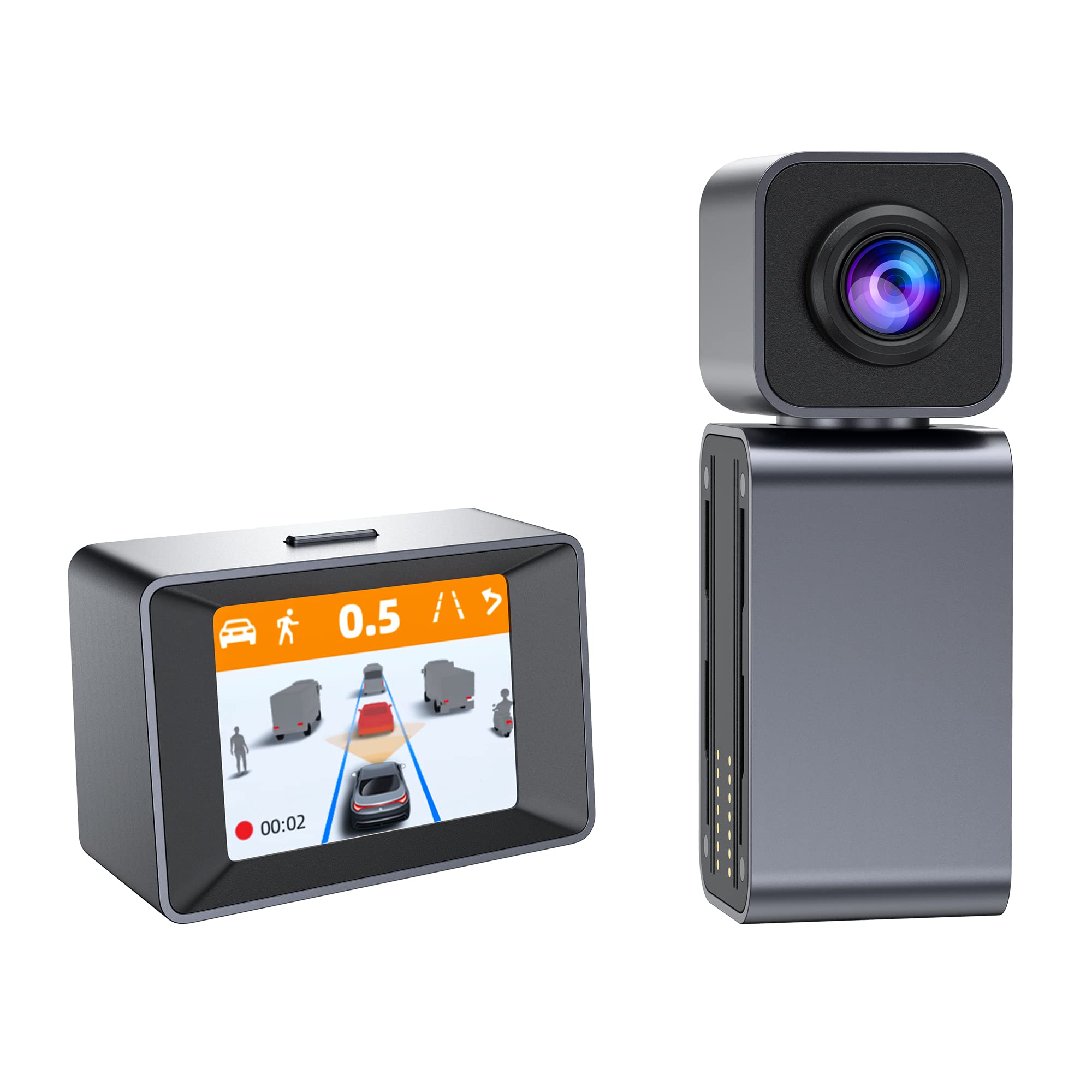
Image: The MINIEYE AC1 Dash Cam showing the main recording unit with its lens and the separate display unit. The display unit shows a simulated traffic scenario with distance warnings, illustrating the ADAS functionality.
3. Орнотуу
3.1 Орнотуу
- Айнек даярдоо: Clean the area on your windshield where the dash cam will be mounted. Ensure it is free of dust and grease.
- Электростатикалык стикерди чаптаңыз: Apply the electrostatic sticker to the cleaned area. This helps in easy removal and prevents residue on the windshield.
- Attach Host Base: Secure the host base to the electrostatic sticker. Use the bubble level to ensure the base is level for optimal camera angle.
- Видеорегистраторду орнотуу: Attach the MINIEYE AC1 Dash Cam unit to the host base.
- TF картасын салыңыз: Insert the provided 32GB TF card into the designated slot on the dash cam. Ensure it is inserted correctly until it clicks into place.
- Туташуу кубаты: Connect the power cable to the dash cam and route it along the windshield edge and dashboard using the crowbar to tuck it neatly. Plug the car charger into your vehicle's cigarette lighter socket.
- Connect Monitor (if applicable): If using an external monitor, connect it using the monitor cable.
- GPS модулун туташтырыңыз: Attach the GPS module to the dash cam for location and speed data recording.
3.2 Баштапкы күйгүзүү жана жөндөөлөр
- Күйгүзүү: Start your vehicle. The dash cam will automatically power on and begin recording.
- TF картасынын форматы: It is recommended to format the TF card upon first use and periodically thereafter to ensure optimal performance. This can usually be done through the device settings or the mobile app.
- Камеранын бурчун тууралоо: Adjust the camera lens to ensure it captures the road ahead clearly, covering the desired field of view.
3.3 Колдонмону башкарууну орнотуу
- Колдонмону жүктөп алуу: Издөө the "MINIEYE" in your smartphone's app store (iOS or Android) and install it.
- Wi-Fi'га туташуу: Enable Wi-Fi on your smartphone and connect to the dash cam's Wi-Fi network. The network name and password can typically be found in the dash cam's settings or manual.
- Түзмөктү жупташтыруу: Open the MINIEYE app and follow the on-screen instructions to pair your dash cam.
- Орнотууларды конфигурациялоо: Use the app to adjust recording resolution, G-sensor sensitivity, parking monitoring settings, and other preferences.
4. Иштөө нускамалары
4.1 Негизги жаздыруу
Once powered on, the MINIEYE AC1 automatically begins continuous loop recording. Video files are saved in segments (e.g., 1, 3, or 5 minutes) to the TF card. When the card is full, the oldest unprotected fileлар үстүнөн жазылган.
4.2 G-сенсор жана өзгөчө кырдаалдарды жаздыруу
The built-in G-Sensor detects sudden impacts or rapid acceleration/deceleration. When triggered, the current video segment is automatically locked and saved to a protected folder, preventing it from being overwritten by loop recording. The sensitivity of the G-Sensor can be adjusted via the mobile app.
4.3 Паркингге мониторинг
With the optional hardwire kit (not included), the dash cam can monitor your vehicle while parked. If an impact or motion is detected, the dash cam will automatically record a short video segment. Ensure this feature is enabled and configured in the app settings.
4.4 ADAS (Advanced Driver-Assistance System)
The AI ADAS features provide real-time alerts to enhance driving safety:
- Алдыдагы кагылышуу эскертүүсү (FCW): Алдыдагы унаага өтө тез жакындап келе жатсаңыз, сизге эскертет.
- Жолдон кетүү эскертүүсү (LDW): Унааңыз сигнал бербей туруп тилкеден чыгып кетсе, сизге кабарлайт.
- Front Vehicle Start Alert: Informs you when the vehicle in front of you has started moving after a stop.
These alerts are typically visual on the display and/or audible. Calibration may be required for optimal ADAS performance.
4.5 Viewing жана жүктөө Footage
Footagе болот viewed directly on the dash cam's display (if available) or more conveniently through the MINIEYE mobile application. Use the app to browse recorded videos, download important clips to your smartphone, or share them.
5. Техникалык тейлөө
- Линзаны тазалоо: Видеонун сапатын так камсыз кылуу үчүн камеранын линзасын жумшак, мамыксыз чүпүрөк менен үзгүлтүксүз тазалап туруңуз.
- TF картасынын форматы: Format the TF card every 2-4 weeks to prevent data corruption and maintain optimal recording performance. Back up any important files форматтоодон мурун.
- Программалык камсыздоонун жаңыртуулары: Check the MINIEYE app or official website periodically for firmware updates. Keeping your dash cam's firmware updated ensures access to new features and performance improvements.
- Сактагыч: Узак мөөнөткө колдонулбаганда, сызык камерасын күн тийбеген, салкын, кургак жерде сактаңыз.
6. Кыйынчылыктарды
- Dash Cam күйбөй жатат:
- Check the car charger connection and ensure the vehicle's cigarette lighter socket is functioning.
- Ensure the power cable is securely connected to the dash cam.
- Жаздыруудагы көйгөйлөр (мисалы, тоңдуруу, бузулуу) fileс):
- TF картасын форматтоо.
- Try a different high-speed (Class 10 or U1/U3) TF card.
- Ensure the TF card is not full of locked files.
- Колдонмо туташуу көйгөйлөрү:
- Ensure the dash cam's Wi-Fi is enabled.
- Камераны да, смартфонуңузду да өчүрүп күйгүзүңүз.
- Verify you are connecting to the correct Wi-Fi network and using the correct password.
- ADAS Alerts Not Functioning:
- Ensure ADAS features are enabled in the app settings.
- Perform ADAS calibration if available in the app.
- Камера объективинин таза жана тоскоолдуксуз экенин текшериңиз.
7. Техникалык шарттар
| Өзгөчөлүк | Деталь |
|---|---|
| Модель аты | MINIEYE AC1 |
| Бренд | Spedal |
| Видео тартуунун резолюциясы | 1944p |
| Чыныгы бурч View | 140 градус |
| Байланыш технологиясы | USB, Wireless (for App Control) |
| Башкаруу ыкмасы | Колдонмо |
| Монтаж түрү | Соруу Тоосу |
| Унаа кызматынын түрү | Машина |
| Өндүрүүчү | Shenzhen Youjia Innov Tech Co., Ltd |
8. Кепилдик жана колдоо
For warranty information, technical support, or service inquiries, please refer to the warranty card included with your product or visit the official Spedal website. You may also contact Spedal customer service directly through the contact information provided on their website or within the MINIEYE mobile application.
Кепилдик дооматтары үчүн сатып алганыңыздын далилин сактап коюңуз.


