1. Киришүү
This manual provides essential information for setting up, operating, maintaining, and troubleshooting your Alienware X17 R2 Gaming Laptop. Please read this guide thoroughly to ensure optimal performance and longevity of your device.
The Alienware X17 R2 is designed for high-performance gaming and demanding tasks, featuring advanced cooling technologies, powerful processors, and dedicated graphics.
2. Продукт бүтүп калдыview
The Alienware X17 R2 is engineered to deliver an immersive gaming experience in a thin 17-inch form factor. Key features include:
- Powerful Intel CPUs: Experience high-performance action across all your favorite games with 12th Gen Intel Core processors.
- Next-Gen GPUs: Game unrestrained with NVIDIA GeForce RTX 3070Ti graphics, Dynamic Boost 2.0, and Deep Learning Super Sampling technology.
- Patented Quad Cooling: An industry-first design uses four intelligently controlled and programmable fans to dissipate heat.
- Узартылган ойноо убактысы: Improve battery life with Advanced Optimus technology from NVIDIA—now available on all display options.
- Legend 2.0 Industrial Design: A fresh evolution in design with a high-endurance finish and customizable AlienFX lighting.

Сүрөт 2.1: Алдыңкы view of the Alienware X17 R2 Gaming Laptop displaying a game.
3. Орнотуу
3.1 Кутудан чыгаруу жана алгачкы текшерүү
- Ноутбукту жана бардык аксессуарларды таңгактан этияттык менен алып салыңыз.
- "Кутунун ичинде эмне бар" бөлүмүндө көрсөтүлгөн бардык нерселердин бар экенин текшериңиз.
- Ноутбукта физикалык зыяндын бар-жоктугун текшериңиз. Эгер зыян табылса, дароо сатуучуга кайрылыңыз.
3.2 Кубатты туташтыруу
- Connect the power adapter to the charging port located at the rear of the laptop.
- Электр шнурунун розеткага сайыңыз.
- The power indicator light will illuminate, indicating the laptop is receiving power.
3.3 Биринчи жүктөө жана операциялык системаны орнотуу
- Press the Alienware head power button to turn on the laptop.
- Windows 11 Home орнотуу процессин аяктоо үчүн экрандагы көрсөтмөлөрдү аткарыңыз. Буга аймакты тандоо, Wi-Fi тармагына туташуу жана колдонуучу аккаунтун түзүү кирет.
- Allow the system to download and install any necessary updates.
4. Ноутбугуңузду иштетүү
4.1 Баскычтоп жана сенсордук такта
The Alienware X17 R2 features a backlit keyboard and a responsive touchpad. The AlienFX lighting allows for customizable colors and effects across the keyboard and other zones.

4.1-сүрөт: Детальдуу view арткы жарыктандырылган клавиатуранын жана сенсордук панелдин.
4.2 Дисплей жана графика
Enjoy stunning visuals on the 17.3-inch FHD display with a 480Hz refresh rate and 3ms response time. The NVIDIA GeForce RTX 3070Ti graphics card ensures smooth gameplay and high-fidelity rendering. The laptop supports Dolby Vision for optimized color profiles.
4.3 аудио
Experience immersive 3D sound via Dolby Atmos, designed to deliver audio as studios intended.
4.4 Порттар жана туташуу
The laptop offers a variety of ports for peripherals and external displays:

4.2-сүрөт: Арткы view illustrating the various connectivity ports.
- USB 3.0 порттору: 3 ports for connecting various USB devices.
- USB-C порттору: For versatile connectivity, including Thunderbolt 4.
- HDMI2.1: Supports up to 4K/120Hz output for external displays.
- Ethernet: Killer E3100 RJ45 Ethernet for stable wired network connections.
- Зымсыз: Killer Wi-Fi 6 (802.11ax) and Bluetooth for wireless connectivity.
5. Техникалык тейлөө
5.1 Тазалоо
- Экранды жана сырткы беттерди тазалоо үчүн жумшак, түксүз чүпүрөктү колдонуңуз.
- Катуу химиялык заттарды же абразивдүү материалдарды колдонуудан алыс болуңуз.
- Regularly clean the cooling vents to prevent dust buildup, which can affect performance.
5.2 Программалык камсыздоо жаңыртуулары
Ensure your operating system and drivers are kept up-to-date. Windows Update will handle OS updates, and Alienware Command Center can assist with driver and firmware updates.
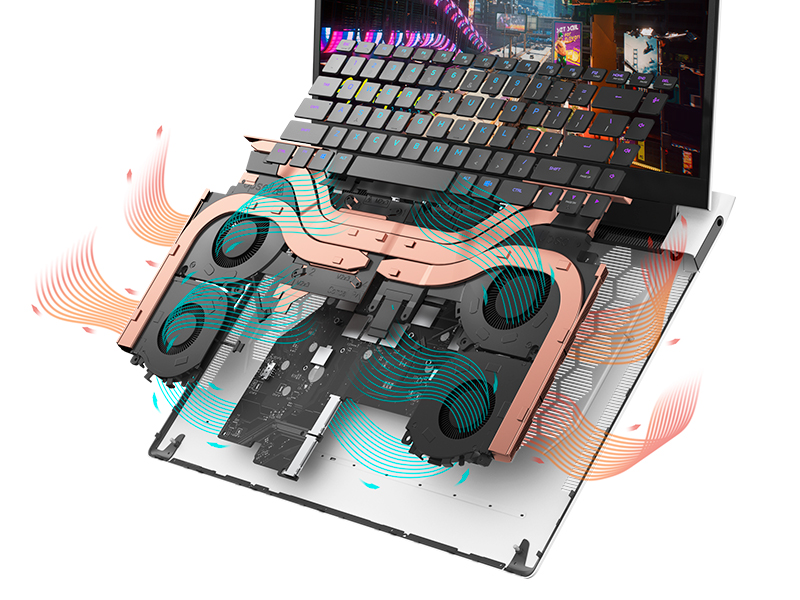
Figure 5.1: Alienware Command Center for system management.
6. Кыйынчылыктарды
If you encounter issues with your Alienware X17 R2, consider the following basic troubleshooting steps:
- Кубат жок: Кубат адаптери ноутбукка да, иштеген электр розеткасына да бекем туташып турганын текшериңиз. Кубат индикаторунун жарыгын текшериңиз.
- Дисплей маселелери: If the screen is black, try connecting an external monitor to verify if the issue is with the laptop's display or the graphics card. Update graphics drivers.
- Ашыкча ысып кетүү: Ensure cooling vents are clear of obstructions. Use Alienware Command Center to monitor temperatures and adjust fan profiles.
- Иштин басаңдашы: Керексиз тиркемелерди жабыңыз. Процессорду же оперативдүү эстутумду талап кылган фон процесстерин текшериңиз. SSDде жетиштүү бош орун камсыз кылыңыз.
- Программалык камсыздоо көйгөйлөрү: Restart the laptop. If issues persist, consider performing a system restore or reinstalling the problematic software.
7. Техникалык шарттар
| Өзгөчөлүк | Спецификация |
|---|---|
| Screen Size | 17.3 дюйм |
| Screen Resolution | 1920 x 1080 пиксел (FHD) |
| Процессор | Intel Core i9-12900H (3.8 ГГц, 14 ядро) |
| RAM | 16 ГБ DDR5 (4800 МГц) |
| Катуу диск | 1 ТБ SSD (Катуу абалдагы диск) |
| Графикалык сопроцессор | NVIDIA GeForce RTX 3070 Ti (8 GB GDDR6) |
| Операция системасы | Windows 11 Home |
| Зымсыз түрү | 802.11ax (Killer Wi-Fi 6), Bluetooth |
| USB 3.0 порттору | 3 |
| Элемент Салмагы | 6.82 фунт |
| Продукциянын өлчөмдөрү | 11.79 x 15.72 x 0.58 дюйм |
8. Кутуда эмне бар
- Alienware X17 R2 оюн ноутбуку
- Кубаттуу адаптер
- Электр кабели
- Документация
9. Расмий продукт Videos
Alienware X17 R2 Gaming Laptop Overview
Видео 9.1: Аткаминер бүттүview of the Alienware X17 R2 Gaming Laptop, highlighting its design, cooling, and performance features.
About Alienware X17 R2 Gaming Laptop
Video 9.2: A detailed look at the Alienware X17 R2 Gaming Laptop, showcasing its features and design elements.
10. Кепилдик жана колдоо
Your Alienware X17 R2 Gaming Laptop comes with a standard manufacturer's warranty. For detailed warranty information, please refer to the documentation included with your product or visit the official Alienware support webсайт.
For technical support, driver downloads, and service requests, please visit the Alienware support portal. You can also find FAQs and community forums for additional assistance.


