1. Киришүү
This manual provides essential instructions for the setup, operation, and maintenance of your Mercusys TP-Link MW300RE Wireless Wifi Extender. This device is designed to expand your existing wireless network coverage, eliminating Wi-Fi dead zones and improving signal strength in areas previously difficult to reach.
The MW300RE features a compact design, three external antennas with MIMO technology for enhanced performance, and a smart signal indicator to assist with optimal placement. It supports a single band speed of 300 Mbps and can also function as a wireless adapter via its Ethernet port.
2. Продукт бүтүп калдыview
The Mercusys MW300RE is a wall-plug Wi-Fi range extender. Below are its key components and features:
- Тышкы антенналар: Three adjustable antennas for optimal signal reception and transmission.
- Электр сайгычы: Integrated power plug for direct wall outlet connection.
- WPS/Reset баскычы: Used for quick setup (WPS) and factory reset.
- Сигнал LED: A multicolor LED indicator that helps determine the best location for the extender.
- Ethernet порту: Allows wired connection for devices or to function as a wireless adapter.
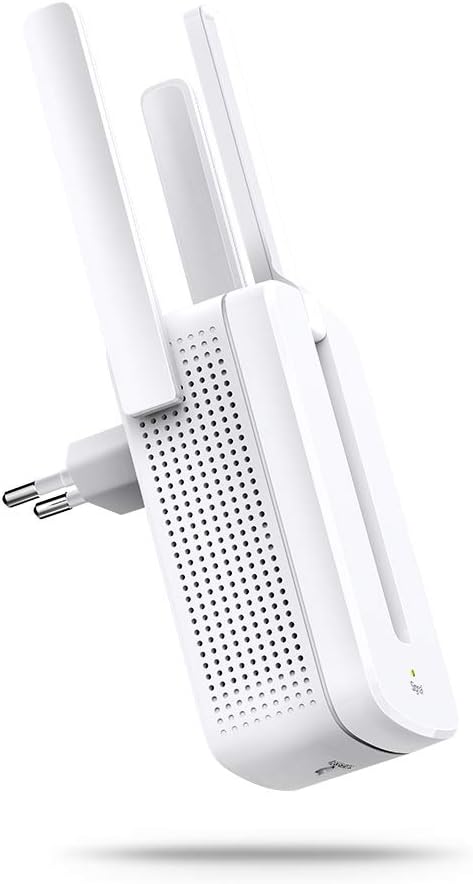
2.1-сүрөт: Фронт view of the Mercusys MW300RE Wireless Wifi Extender, highlighting its three external antennas.

2.2-сүрөт: Артка view of the Mercusys MW300RE, showing the integrated power plug and product information label.

2.3-сүрөт: Фронт view of the extender, showing the signal indicator light at the bottom.
3. Орнотуу
The Mercusys MW300RE can be set up quickly using the WPS (Wi-Fi Protected Setup) button or through a web браузер.
3.1. Quick Setup using WPS Button
- Күйгүзүү: Plug the MW300RE into an electrical outlet near your main router. Wait for the Power LED to turn solid.
- Роутерде WPS баскычын басыңыз: Негизги Wi-Fi роутериңиздеги WPS баскычын басыңыз.
- Extenderдеги WPSти басыңыз: Within two minutes, press the WPS button on your MW300RE extender.
- Туташуу ырастоо: The Signal LED on the extender should change color (e.g., solid green or orange) to indicate a successful connection. If it does not, try repositioning the extender closer to the router and repeat the steps.

3.1-сүрөт: Visual guide for WPS button setup, illustrating the sequence of pressing WPS on both the router and the extender.
3.2. Setup via Web Browser (Alternative Method)
- Extender менен туташуу: Plug the MW300RE into an electrical outlet. Connect your computer or mobile device to the extender's default Wi-Fi network (e.g., "Mercusys_Extender").
- Мүмкүнчүлүк Web Интерфейс: ачуу а web browser and enter the default management address (usually
mwlogin.netor an IP address like192.168.1.254). - Кирүү: Суралган учурда кирүү сырсөзүн түзүңүз.
- Экрандагы нускамаларды аткарыңыз: The setup wizard will guide you through selecting your main Wi-Fi network and configuring the extender's settings.
- Кеңейтүүчүнү көчүрүү: Once configured, unplug the extender and move it to a location between your router and the Wi-Fi dead zone. Ensure the Signal LED indicates a good connection (e.g., solid green).
4. Кеңейтүүчүнү иштетүү
After successful setup, the MW300RE will extend your Wi-Fi coverage. Here's how to ensure optimal operation:
4.1. Оптималдуу жайгаштыруу
The location of your extender is crucial for performance. Use the Smart Signal Indicator LED to find the best spot:
- Катуу жашыл: Туташуу жакшы. Кеңейткич идеалдуу жерде жайгашкан.
- Solid Orange/Red: Weak connection. Move the extender closer to your router.
- Өчүк: No connection. Move the extender closer to your router or check the power.
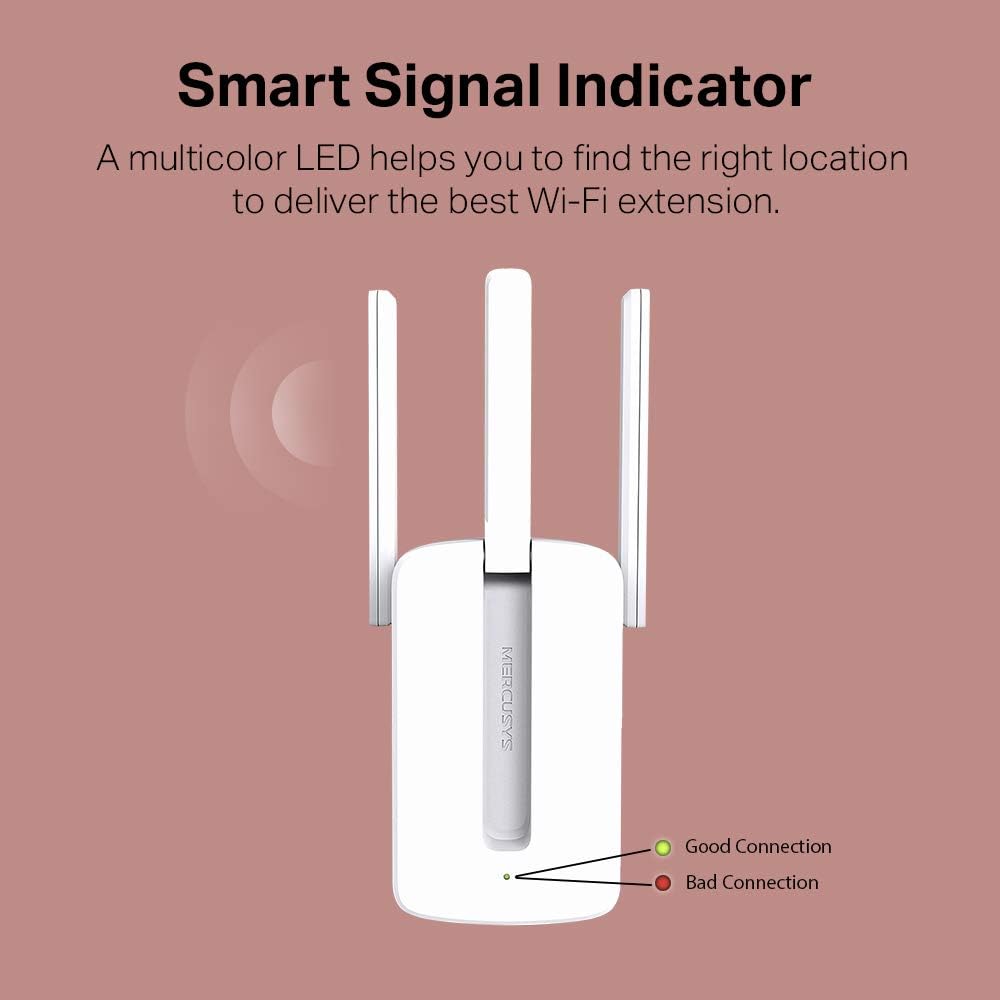
4.1-сүрөт: Explanation of the Smart Signal Indicator LED colors for optimal placement.

4.2-сүрөт: Illustration of the MW300RE extending Wi-Fi coverage to eliminate dead zones in a home environment.
4.2. Using the Ethernet Port
The Ethernet port on the MW300RE allows you to connect a wired device, such as a desktop computer, gaming console, or smart TV, to your Wi-Fi network. This functions as a wireless adapter for that device, providing a stable wired connection while still extending Wi-Fi wirelessly.
5. Техникалык тейлөө
To ensure the longevity and optimal performance of your Mercusys MW300RE, follow these maintenance guidelines:
- Тазалыкты сактоо: Түзмөктү жумшак, кургак чүпүрөк менен үзгүлтүксүз сүртүп туруңуз. Суюк тазалоочу каражаттарды же аэрозольдорду колдонуудан алыс болуңуз.
- Вентиляция: Ensure the ventilation holes are not blocked. Do not place the device in enclosed spaces or cover it with cloth.
- Экологиялык шарттар: Operate the device within its specified temperature and humidity ranges. Avoid direct sunlight, excessive heat, or moisture.
- Программалык камсыздоонун жаңыртуулары: Check the official Mercusys website periodically for firmware updates. Updating firmware can improve performance, add features, and fix bugs.
- Power Cycle: If you experience persistent issues, try power cycling the device (unplug it, wait 10 seconds, then plug it back in).
6. Кыйынчылыктарды
If you encounter problems with your MW300RE, refer to the following common issues and solutions:
- No Internet Access after Connecting to Extender:
- Негизги роутериңизде интернетке кирүү мүмкүнчүлүгү бар экенин текшериңиз.
- Check the Signal LED on the extender. If it's off or red, reposition the extender closer to the router.
- Роутериңизди да, кеңейтүүчүнү да кайра иштетип көрүңүз.
- Ensure the extender is configured correctly. If necessary, perform a factory reset and reconfigure.
- Алсыз сигнал же жай ылдамдык:
- Relocate the extender to an optimal position, using the Signal LED as a guide (solid green indicates a good connection).
- Ensure there are no major obstructions (thick walls, metal objects, large appliances) between the router, extender, and your devices.
- Minimize interference from other electronic devices operating on the 2.4 GHz band (e.g., microwaves, cordless phones).
- WPS орнотуудагы каталар:
- Роутериңиз WPSти колдой турганын жана WPS иштетилгенин текшериңиз.
- Press the WPS button on your router and then on the extender within two minutes.
- Эгерде WPS иштебей калса, колдонуңуз web browser setup method (Section 3.2).
- Forgot Management Password:
- Perform a factory reset on the extender. With the extender powered on, use a pin to press and hold the Reset button for about 5 seconds until the LEDs flash. The extender will revert to factory default settings, and you can set a new password during re-setup.
7. Техникалык шарттар
| Өзгөчөлүк | Деталь |
|---|---|
| Бренд | MERCUSYS |
| Модел | MW300RE V4.0 |
| Өндүрүүчү | TP-Link |
| Продукциянын өлчөмдөрү | 7.48 x 10.15 x 7.58 см |
| Салмагы | 110 г |
| Зымсыз стандарт | 802.11n |
| Маалыматтарды өткөрүү ылдамдыгы | 300 Мбит/сек |
| Жыштык тилкесинин классы | Single Band (2.4 GHz) |
| Антенналар | MIMO технологиясы менен 3 тышкы антенна |
| Өзгөчөлүктөр | LED Indicator, Access Point Mode |
| Ethernet порту | 1x 10/100 Mbps Ethernet Port |
| Шайкеш түзмөктөр | Маршрутизатор |
| Системалык талаптар | Microsoft Windows 98SE, NT, 2000, XP, Vista or Windows 7, 8, 10, Mac OS, NetWare, UNIX or Linux |
| Камтылган компоненттер | MW300RE 300 Mbps Wi-Fi Range Extender, Quick Installation Guide |
8. Кепилдик жана колдоо
For warranty information, technical support, and additional resources, please refer to the official Mercusys website or the documentation included with your product. You can typically find FAQs, troubleshooting guides, and contact information for customer service there.
The product is manufactured by TP-Link. For the most up-to-date support, visit the Mercusys support page.


