Introduction
This manual provides essential information for setting up, operating, and maintaining your Dell Pro Tower Desktop PC. This system is designed for business and general computing tasks, featuring a 14th Gen Intel Core i5-14500 vPro processor, 16GB DDR5 RAM, and a 1TB PCIe SSD, running on Windows 11 Pro.
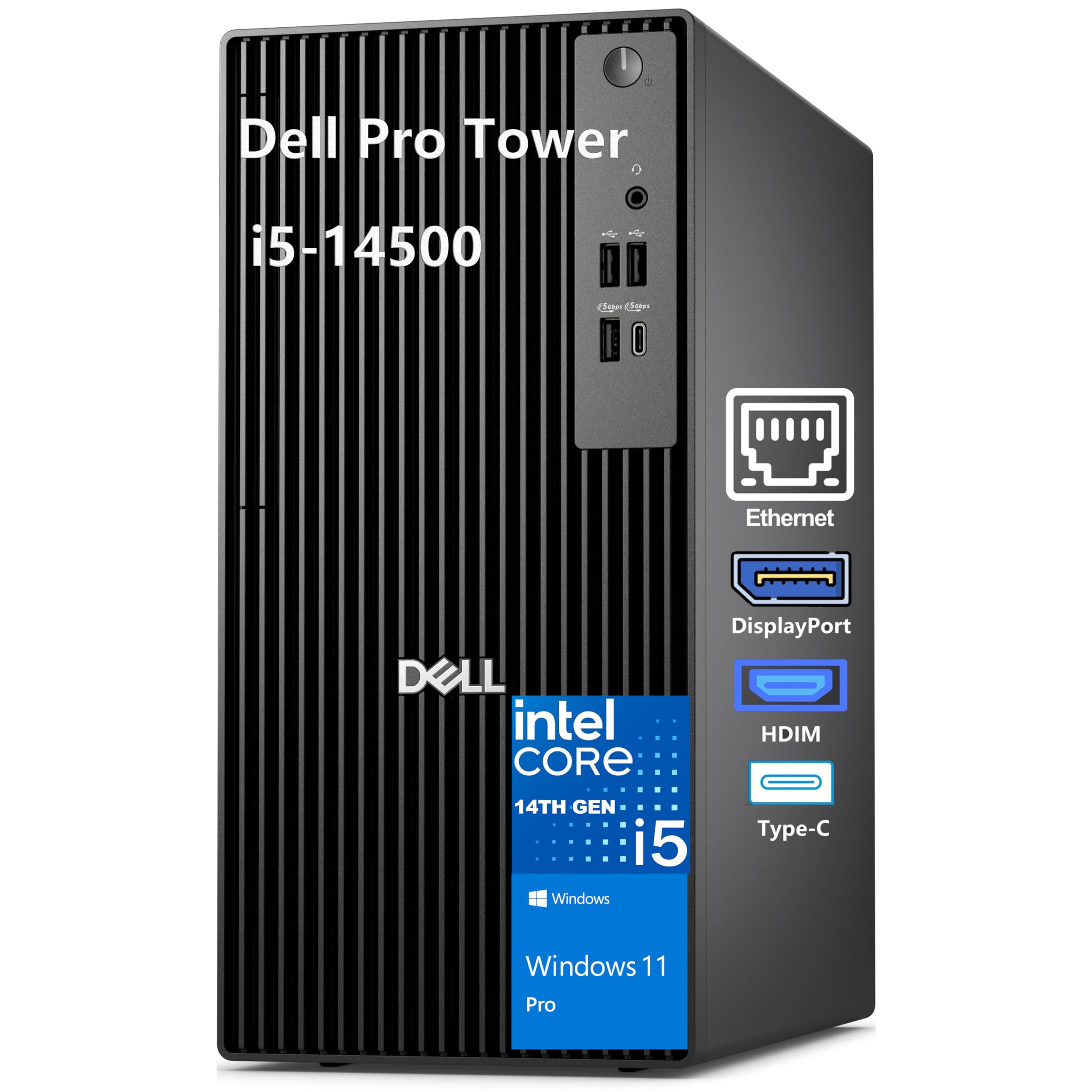
Сүрөт: алдыңкы view of the Dell Pro Tower Desktop PC.
Орнотуу нускамалары
1. Пакеттен чыгаруу жана жайгаштыруу
- Компьютерди жана бардык аксессуарларды таңгактан кылдаттык менен чыгарып алыңыз.
- Place the tower on a stable, flat surface with adequate ventilation. Ensure no vents are obstructed.
2. Перифериялык түзүлүштөрдү туташтыруу
Connect your monitor, keyboard, mouse, and other devices to the appropriate ports on the computer.

Сүрөт: алдыңкы view of the Dell Pro Tower with labeled ports.
Алдыңкы порттор:
- Power Button with diagnostic LED
- Global Headset Jack
- USB 2.0 (480 Mbps) Type-A Port
- USB 2.0 (480 Mbps) Type-A Port
- USB 3.2 Gen 1 (5 Gbps) Type-A Port
- USB 3.2 Gen 1 (5 Gbps) Type-C Port

Сүрөт: Арткы view of the Dell Pro Tower with labeled ports.
Арткы порттор:
- DisplayPort 1.4a (up to 4096 x 2160 @60Hz)
- HDMI 2.1 (up to 4096 x 2160 @60Hz)
- USB 3.2 Gen 1 (5 Gbps) Type-A Port
- USB 3.2 Gen 1 (5 Gbps) Type-A Port
- USB 2.0 (480 Mbps) Type-A Port with Smart Power On
- USB 2.0 (480 Mbps) Type-A Port with Smart Power On
- Кулпу шакеги
- RJ45 Ethernet Port (1 Gbps)
- Three Expansion Slots (PCIe x1, PCIe x1, PCIe x16)
- Kensington Security Cable Slot
- Power-cord Connector Port
- Power-supply Diagnostic Light
3. Power Connection
- Connect the power cord to the power-cord connector port on the rear of the computer.
- Электр шнурунун экинчи учун жерге туташтырылган электр розеткасына сайыңыз.
4. Баштапкы күйгүзүү жана операциялык системаны орнотуу
- Мунаранын алдыңкы жагындагы кубат баскычын басыңыз.
- Follow the on-screen instructions to complete the Windows 11 Pro setup. This includes setting up your user account, network connection, and privacy settings.
5. Тармакка кошулуу
- Зымдуу туташуу: Connect an Ethernet cable from your router or modem to the RJ45 Ethernet Port on the rear of the computer.
- Зымсыз туташуу: This model requires a USB WiFi adapter for wireless connectivity. Insert the provided USB WiFi adapter into an available USB port. Follow the on-screen instructions to connect to your wireless network.
Иштөө нускамалары
Негизги операция
- Күйгүзүү/өчүрүү: Press the power button to turn the computer on. To shut down, click the Start button in Windows, then select Power > Shut down.
- Кайра баштоо: Компьютерди өчүрүп-күйгүзүү үчүн, "Баштоо" баскычын чыкылдатып, андан кийин "Кубат" > "Кайра иштетүү" тандаңыз.
- Уйку режими: To put the computer into sleep mode, click the Start button, then select Power > Sleep.
Multi-Display Setup
The Dell Pro Tower supports multiple displays using the HDMI 2.1 and DisplayPort 1.4a outputs. Connect your monitors to these ports. Windows 11 Pro allows you to configure display settings (extend, duplicate, or second screen only) via the Display Settings menu.

Image: Dell Pro Tower connected to multiple monitors in an office setting.
Техникалык тейлөө
Жалпы кам көрүү
- Компьютерди таза, чаңсыз чөйрөдө кармаңыз.
- Avoid placing liquids or food near the computer.
- Ашыкча ысып кетүүнүн алдын алуу үчүн туура желдетүүнү камсыз кылыңыз.
Тазалоо
- Сырткы беттерди тазалоо үчүн жумшак, мамыксыз чүпүрөктү колдонуңуз.
- өжөр белгилери үчүн, бир аз гampчүпүрөктү суу же жумшак, абразивдүү тазалагыч менен жууп салыңыз.
- Use compressed air to clear dust from vents and ports periodically.
Программалык камсыздоо жаңыртуулары
- Regularly check for and install Windows updates to ensure system security and performance.
- Keep device drivers updated, especially for graphics and network components.
Проблемаларды чечүү
Көйгөйгө туш болсоңуз, төмөнкү жалпы көйгөйлөрдү чечүү кадамдарын караңыз:
- Кубат жок: Ensure the power cord is securely connected to both the computer and the electrical outlet. Check the power-supply diagnostic light on the rear of the unit.
- Дисплей жок: Verify that the monitor is properly connected to the DisplayPort or HDMI port and is powered on. Try connecting to a different display port or monitor if available.
- No Internet Connection (Wireless): Ensure the USB WiFi adapter is correctly installed and drivers are up to date. Check your router and network settings.
- No Internet Connection (Wired): Verify the Ethernet cable is securely connected. Check your router/modem and network settings.
- Система токтоп калат/жооп бербей калат: Press and hold the power button for 10 seconds to force a shutdown. Restart the computer. If the issue persists, check for recent software installations or updates.
For more complex issues, consult the Dell support webсайтка же техникалык колдоо менен байланышыңыз.
Техникалык шарттар
| Компонент | Деталь |
|---|---|
| Модел | Dell Pro Tower Desktop |
| Процессор | 14th Gen Intel Core i5-14500 vPro (14 Cores, 20 Threads, up to 5.0GHz) |
| Графика | Intel UHD Graphics 770 (Интеграцияланган) |
| Операция системасы | Windows 11 Professional English 64bit |
| Эстутум (RAM) | 16 ГБ DDR5 SDRAM |
| Сактагыч | 1TB PCIe SSD |
| Оптикалык диск | Жок |
| Зымсыз | No Built-in Wireless LAN Card (USB WiFi Adapter included) |
| Front Ports | 2x USB 2.0, 1x USB 3.2 Gen 1 Type-C, 1x USB 3.2 Gen 1 Type-A, 1x Universal audio jack |
| Арткы порттор | 2x USB 2.0 (with Smart Power On), 2x USB 3.2 Gen 1 Type-A, 1x DisplayPort 1.4a, 1x HDMI 2.1, 1x RJ45 Ethernet Port |
| Өлчөмдөрү (HxWxD) | 324.30 мм (12.77 дюйм) x 154.00 мм (6.06 дюйм) x 293.00 мм (11.54 дюйм) |
| Салмагы | 5.44 кг (12.00 фунт) баштап |
| Электр камсыздоо | 180W Bronze Power Supply |

Image: Diagram showing the dimensions of the Dell Pro Tower Desktop PC.
Кепилдик жана колдоо
Your Dell Pro Tower Desktop PC comes with a standard manufacturer's warranty. For detailed warranty information, including terms and conditions, please refer to the documentation provided with your purchase or visit the official Dell support webсайт.
Техникалык жардам, драйверди жүктөп алуу же кошумча колдоо алуу үчүн, кириңиз www.dell.com/support or contact Dell customer service directly.


