1. Киришүү
This manual provides detailed instructions for the setup, operation, maintenance, and troubleshooting of your vretti Thermal Label Printer. Please read this manual thoroughly before using the printer to ensure proper functionality and to prevent damage.
The vretti 420B is a versatile thermal label printer designed for various applications, including shipping labels, address labels, barcodes, and custom labels. It supports both USB and 2.4G WiFi connectivity for Windows, macOS, iOS, Android, and Chrome OS systems.
2. Орнотуу
2.1 Пакеттин мазмуну
- vretti Thermal Label Printer (Model 420B)
- Кубаттуу адаптер
- USB кабели
- USB Flash Drive (containing drivers, manual, and video tutorials)
- Label Spindle and Fasteners
- Quick Start Guide
2.2 Физикалык байланыш
- Принтерди туруктуу, тегиз бетке коюңуз.
- Connect the power adapter to the printer's power port and plug it into a power outlet.
- For USB connection: Connect the USB cable from the printer to your computer.
- Turn on the printer using the power switch located at the rear. The indicator light will illuminate.

Image: The vretti 420B Thermal Label Printer, demonstrating its compact design and a label being fed through the output slot. A USB drive and a smartphone displaying the EZLABEL app are also shown, indicating connectivity options.
2.3 этикеткаларды жүктөө
- Принтердин үстүнкү капкагын ачыңыз.
- Place the label roll onto the label spindle and secure it with the fasteners.
- Insert the label roll with the spindle into the internal label bin. Ensure the labels feed smoothly from the bottom of the roll.
- Pull the leading edge of the labels through the printer's output slot until it extends slightly past the cutter.
- Adjust the label guides to fit the width of your labels snugly, without being too tight.
- Жогорку капкакты жабыңыз.

Сүрөт: ички view of the vretti thermal label printer, highlighting the built-in label bin designed to hold a roll of labels, eliminating the need for an external label holder.
2.4 Driver Installation & Software
The printer supports various operating systems. Drivers and necessary software are provided on the included USB flash drive. It is recommended to download the latest drivers from the official vretti webоптималдуу аткаруу үчүн сайт.
- Windows (11/10/7/XP): Insert the USB drive, locate the Windows driver folder, and follow the installation wizard.
- MacOS: Insert the USB drive, locate the macOS driver folder. If you encounter a "The application can't be opened" message, go to "System Settings" > "Privacy & Security", scroll down, and click "Open Anyway".
- Linux: Refer to the instructions on the USB drive for Linux driver installation.
- Chrome OS: Obtain the Chrome OS extension from the USB drive and drag it to the Chrome extensions page.
- iOS (iPhone/iPad) & Android: Download the "EZLABEL" app from your device's app store to print wirelessly. Download EZLABEL App
- Энбелгилерди долбоорлоо программасы: For advanced label design, consider using the 4Barcode software. Download 4Barcode Software

Image: The vretti thermal label printer positioned between a laptop and a smartphone, illustrating its dual connectivity options: USB for computers and WiFi for mobile devices. Icons for Windows, Linux, macOS, Android, and iOS are displayed, indicating broad compatibility.

Image: A split image showing two primary printing methods: on the left, a user printing via USB cable from a laptop, compatible with Mac, Windows, and Linux; on the right, a user printing wirelessly via WiFi from a smartphone, compatible with iPhone, Android, Tablet, Windows, and Mac.

Image: A screenshot demonstrating how to install the Chromebook extension for the printer. It shows navigating to the Chrome extensions page and dragging the printer's extension file USB дискинен.
2.5 Label Calibration
After loading labels, press the feed button (the single button on top of the printer) once. The printer will automatically detect the label size and calibrate itself. This ensures accurate printing and prevents blank labels.
3. Иштөө нускамалары
3.1 Printing via WiFi (2.4GHz)
Ensure your printer is connected to a 2.4GHz WiFi network (5GHz networks are not supported). Use the "EZLABEL" app on your iOS or Android device to connect to the printer and initiate print jobs. Follow the in-app instructions for WiFi setup and printing.
3.2 Printing via USB
Once the drivers are installed, your computer will recognize the vretti printer. You can print directly from any application that supports printing, such as shipping software, word processors, or image editors. Select the vretti printer from your printer list and ensure the correct label size is selected in the print settings.
3.3 Supported Label Types and Sizes
The printer supports direct thermal labels with widths between 1 inch (25.4mm) and 4.5 inches (115mm). The maximum print width is 4.25 inches (108mm). It is ideal for 4x6 inch shipping labels, warehouse labels, barcode labels, ID labels, package labels, mailing labels, and round labels.

Image: A visual guide demonstrating the adjustable label width of the vretti printer, supporting labels from 0.78 to 4.6 inches (19-116mm). Various label examples are shown, including standard shipping labels, custom designs, and circular labels, highlighting the printer's versatility.

Сүрөт: иллюстрация шоуcasing the printer's capability to handle various label sizes and shapes, including circular labels (e.g., 2"x1", 3"x2", 3"x3") and standard 4"x6" shipping labels, along with examples of printed barcodes and text.
3.4 Printing Speed and Quality
The printer offers clear and high-speed printing, with a maximum print speed of 152mm/s, capable of printing approximately 72 labels per minute (4x6 inch labels).

Image: A person working in a warehouse setting, surrounded by boxes, while the vretti thermal label printer rapidly prints labels. Text overlays indicate a print speed of 152mm/s and 72 labels per minute, emphasizing its efficiency for high-volume printing.

Image: A comparison showing the vretti printer's speed of 72mm/s for 4x6 labels per minute, contrasted with a generic 'Other' printer, implying faster output from the vretti model.
3.5 Платформанын шайкештиги
The vretti printer is compatible with major logistics and e-commerce platforms, including but not limited to UPS, eBay, Amazon, Shopify, FedEx, DHL, USPS, EasyShip, PayPal, Wish, Lazada, Walmart, AliExpress, ShipWorks, EasyPost, Stamps.com, Etsy, Endicia, J&T Express, Shippo, ShipStation, Shipwire, XPS Ship, Flash Express, and Canada Post.

Image: A group of people collaborating around a laptop, with a graphic displaying logos of numerous major e-commerce and shipping platforms such as Amazon, eBay, Shopify, UPS, FedEx, and USPS, indicating the printer's wide compatibility.

Image: A wide shot showing the vretti printer on a desk with a background of a living room, overlaid with logos of various e-commerce and shipping platforms like Amazon, eBay, Shopify, UPS, and FedEx, emphasizing its broad applicability for small businesses.
3.6 No Ink Cartridge Required
As a direct thermal printer, the vretti 420B does not require ink cartridges or toner. It uses heat to print on thermal labels, reducing ongoing costs and maintenance.
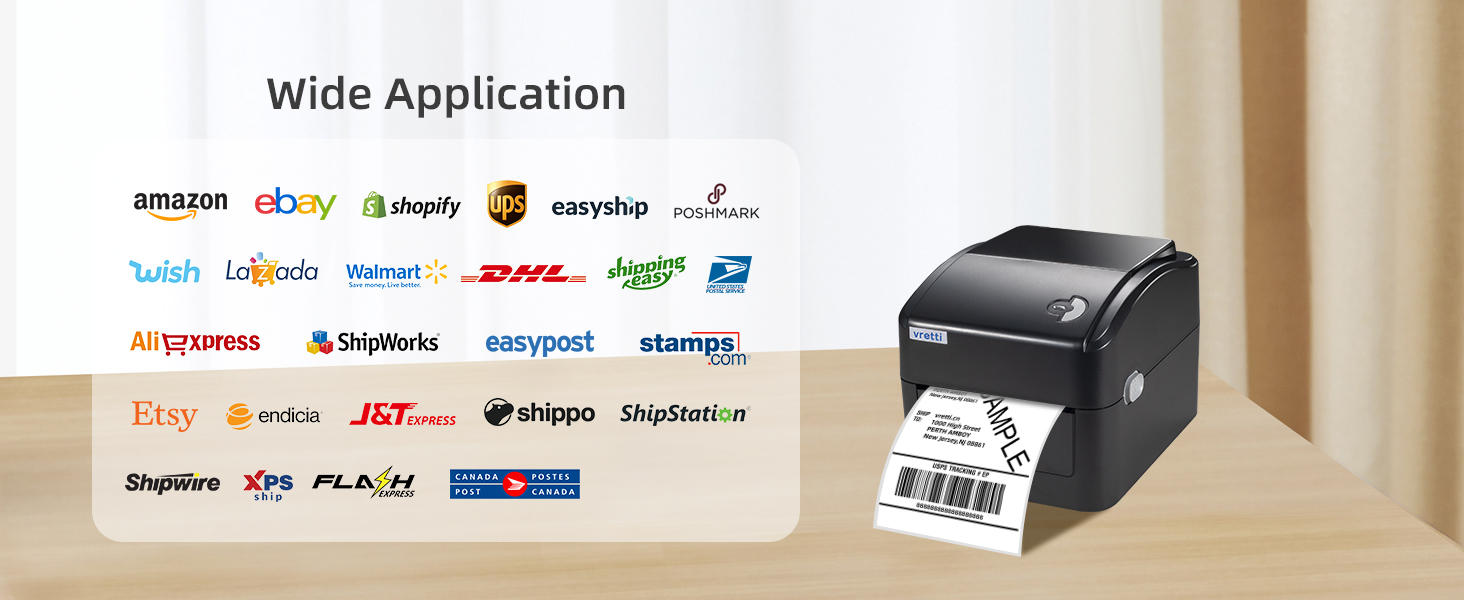
Image: A visual representation emphasizing that the printer does not require ink cartridges. The image shows a forest background with the text 'NO INK CARTIDGE' and an inset of the printer's internal mechanism, highlighting the absence of an ink system.
4. Техникалык тейлөө
4.1 Басып чыгаруу башын тазалоо
To maintain print quality, regularly clean the print head. Turn off the printer and unplug it. Use an alcohol swab or a lint-free cloth lightly dampened with isopropyl alcohol to gently wipe the print head surface. Allow it to dry completely before closing the cover and turning the printer back on.
4.2 Жалпы кам көрүү
- Принтерди таза, чаңсыз чөйрөдө сактаңыз.
- Принтерди түз күн нуруна же өтө жогорку температурага дуушар кылбаңыз.
- Do not use abrasive cleaners or solvents on the printer's exterior.
- Принтер иштеп жатканда анын айланасындагы желдетүүнүн жакшы болушун камсыз кылыңыз.
5. Кыйынчылыктарды
5.1 Жалпы маселелер жана чечимдер
- Принтер жооп бербей жатат: Ensure the power cable is securely connected and the printer is turned on. Check USB or WiFi connection.
- Начар басып чыгаруу сапаты: Clean the print head. Ensure you are using direct thermal labels. Check print darkness settings in your printer driver.
- Энбелгилер туура эмес азыктандырылды: Recalibrate the labels by pressing the feed button. Ensure labels are loaded correctly and guides are adjusted properly.
- WiFi туташуу көйгөйлөрү: Verify your router is broadcasting a 2.4GHz signal. The printer does not support 5GHz WiFi. Ensure the printer is within range of the WiFi signal.
- "Application can't be opened" on Mac: This is a common macOS security feature. Go to "System Settings" > "Privacy & Security", scroll down, and click "Open Anyway" next to the driver application.
- Printer offline: Компьютериңиздин принтер жөндөөлөрүндө принтер "Принтерди оффлайн режиминде колдонуу" деп коюлбагандыгын текшериңиз.
For further assistance, refer to the detailed troubleshooting guides and video tutorials on the included USB drive or visit the official vretti support webсайт.
6. Техникалык шарттар
| Өзгөчөлүк | Спецификация |
|---|---|
| Бренд | vetti |
| Модель аты | 420B |
| Басма технологиясы | Термикалык |
| Байланыш технологиясы | Wi-Fi (2.4 ГГц), USB |
| Принтердин чыгышы | Монохромдуу |
| Максималдуу басып чыгаруу ылдамдыгы | 152 mm/s (72 labels/minute for 4x6) |
| Max Print Width | 4.25 дюйм (108мм) |
| Энбелгилердин кеңдиги | 1 дюймдан (25.4 мм) 4.5 дюймга чейин (115 мм) |
| Көчүрүүнүн максималдуу чечилиши (кара-ак) | 203 DPI |
| Продукциянын өлчөмдөрү | 8 x 6.69 x 5.9 дюйм |
| Элемент Салмагы | 4.58 фунт |
| Өзгөчө өзгөчөлүк | Көчмө, орнотулган этикетка кутусу |
7. Кепилдик маалыматы
The vretti Thermal Label Printer comes with a limited warranty. For specific terms and conditions, please refer to the warranty card included in your product packaging or visit the official vretti webсайт. Сатып алуу квитанциясын кепилдик дооматтары үчүн сатып алуунун далили катары сактаңыз.
8. Колдоо
For technical support, driver downloads, or additional resources, please visit the official vretti website or contact their customer service. Contact information can typically be found on the quick start guide or the brand's official online presence.
Онлайн ресурстар:
- Official vretti Store on Amazon: Вретти дүкөнү


