Introduction
Thank you for choosing the Aigo Q38 USB Wired Gaming Mouse. This manual provides detailed instructions for setting up, operating, maintaining, and troubleshooting your new gaming mouse. Please read this manual carefully before use to ensure optimal performance and longevity of your device.
Жайгашуу
The Aigo Q38 gaming mouse is designed for easy plug-and-play installation. Follow these steps to get started:
- Чычканды туташтыруу: Locate an available USB port on your computer. Insert the USB connector of the Aigo Q38 mouse firmly into the USB port.
- Драйверди орнотуу: For most operating systems (including Windows XP and Linux), the mouse will be automatically detected, and the necessary drivers will be installed without user intervention. Wait a few moments for your system to recognize the device.
- Сыноо функциясы: Once installed, move the mouse and click the buttons to ensure it is functioning correctly.

Сүрөт: Үстүңкү бети view of the Aigo Q38 USB Wired Gaming Mouse, showing its ergonomic design and the attached USB cable. This view highlights the primary left and right click buttons, the scroll wheel, and two side buttons.
Иштөө нускамалары
The Aigo Q38 mouse features 7 buttons and an optical sensor for precise control. Its ambidextrous and ergonomic design ensures comfortable use for extended periods.
- Сол чыкылдатуу баскычы: Primary action button, typically used for selecting items, opening files, and confirming actions.
- Оң баскычты чыкылдатуу: Secondary action button, typically used for opening context menus or accessing additional options.
- Жылдыруу дөңгөлөгү: Документтерди жылдыруу үчүн колдонулат жана web pages. It also functions as a clickable middle button for various actions depending on the application.
- Каптал баскычтары: The mouse includes additional buttons, typically located on the side, which can be programmed for various functions in games or applications. Refer to your game or software settings for customization options.
- DPI жөндөө: The Aigo Q38 mouse features adjustable DPI (Dots Per Inch) settings, allowing you to change the cursor sensitivity on the fly. The available DPI settings are 800, 1200, 1600, and 2400. A dedicated DPI button (often located near the scroll wheel or on the underside) allows you to cycle through these settings.
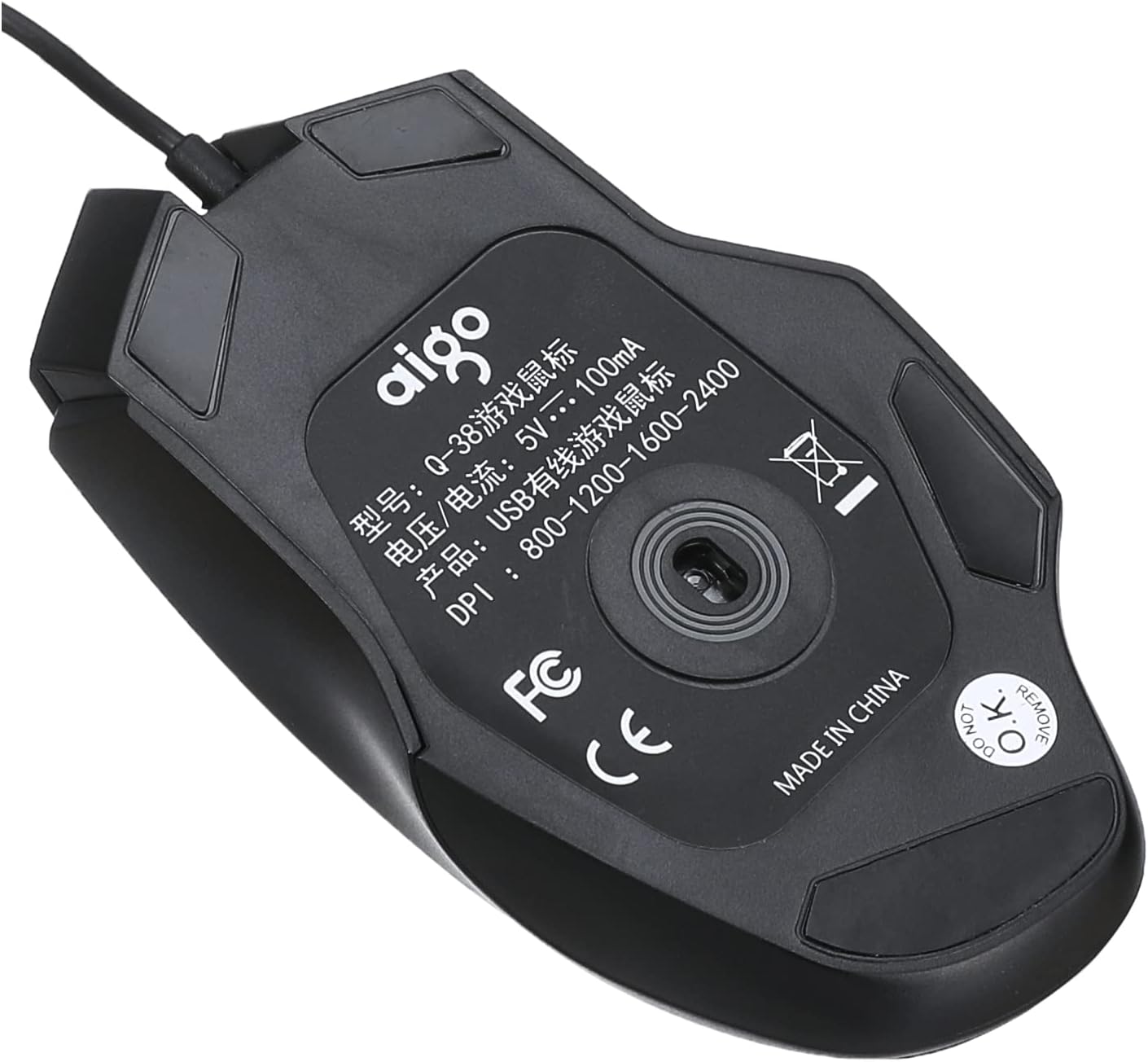
Сүрөт: Төмөнкү view of the Aigo Q38 USB Wired Gaming Mouse, showing the optical sensor, product model (Q-38), power specifications (5V --- 100mA), and DPI settings (800-1200-1600-2400).
Техникалык тейлөө
Proper maintenance ensures the longevity and performance of your Aigo Q38 gaming mouse.
- Тазалоо: Чычкандын бетин сүртүү үчүн жумшак, кургак чүпүрөктү колдонуңуз. өжөр кир үчүн, бир аз гampчүпүрөктү суу же жумшак тазалоо эритмеси менен жууп салыңыз. Катуу химиялык заттарды же абразивдүү материалдарды колдонуудан алыс болуңуз.
- Сенсор тазалоо: Occasionally, dust or debris may accumulate around the optical sensor on the bottom of the mouse. Use a cotton swab or compressed air to gently clean the sensor area.
- Сактагыч: Узак мөөнөткө колдонулбаганда чычканды күн нурунан жана экстремалдык температурадан алыс, таза, кургак чөйрөдө сактаңыз.
Проблемаларды чечүү
If you encounter issues with your Aigo Q38 gaming mouse, try the following troubleshooting steps:
- Чычкан жооп бербейт:
- USB кабелинин компьютериңиздин USB портуна бекем туташтырылганын текшериңиз.
- Чычканды башка USB портуна туташтырууга аракет кылыңыз.
- Компьютериңизди өчүрүп күйгүзүңүз.
- Test the mouse on another computer to determine if the issue is with the mouse or your computer.
- Курсордун туруксуз кыймылы:
- Clean the optical sensor on the bottom of the mouse for any dust or debris.
- Ensure you are using the mouse on a suitable surface. Highly reflective or transparent surfaces may interfere with optical tracking. A mouse pad is recommended.
- Баскычтар иштебейт:
- Check for any physical obstructions preventing the buttons from clicking properly.
- Ensure no software conflicts are present. Try testing the mouse in a different application or after restarting your computer.
Техникалык шарттар
Below are the technical specifications for the Aigo Q38 USB Wired Gaming Mouse:
| Модел | Q38 |
| Бренд | Айго |
| Байланыш технологиясы | USB Wired |
| Кыймылды аныктоо | Оптикалык |
| Button Quantity | 7 |
| DPI орнотуулары | 800 / 1200 / 1600 / 2400 |
| Operating Voltage/Current | 5V --- 100mA |
| Колдун багыты | Эки тараптуу |
| Өзгөчөлүктөр | Эргономикалык дизайн |
| Сунушталган Колдонуулар | Оюндар |
| Шайкеш түзмөктөр | Ноутбук, персоналдык компьютер |
| Операция системасы | Linux, Windows XP |

Сүрөт: каптал view of the Aigo Q38 USB Wired Gaming Mouse, illustrating its approximate length of 5.1 inches (12 cm).
Кепилдик жана колдоо
For warranty information and customer support, please refer to the documentation provided with your purchase or contact the retailer where you purchased the Aigo Q38 USB Wired Gaming Mouse. You may also visit the official Aigo webкошумча жардам жана продукт маалымат алуу үчүн сайт.


