1. Киришүү
The MINISFORUM HM80 Mini PC is a compact desktop computer designed for various computing tasks, from everyday use to multimedia and light gaming. It features an AMD Ryzen 7 4800U processor, integrated AMD Radeon Graphics, and extensive connectivity options. This manual provides essential information for the proper setup, operation, and maintenance of your device.
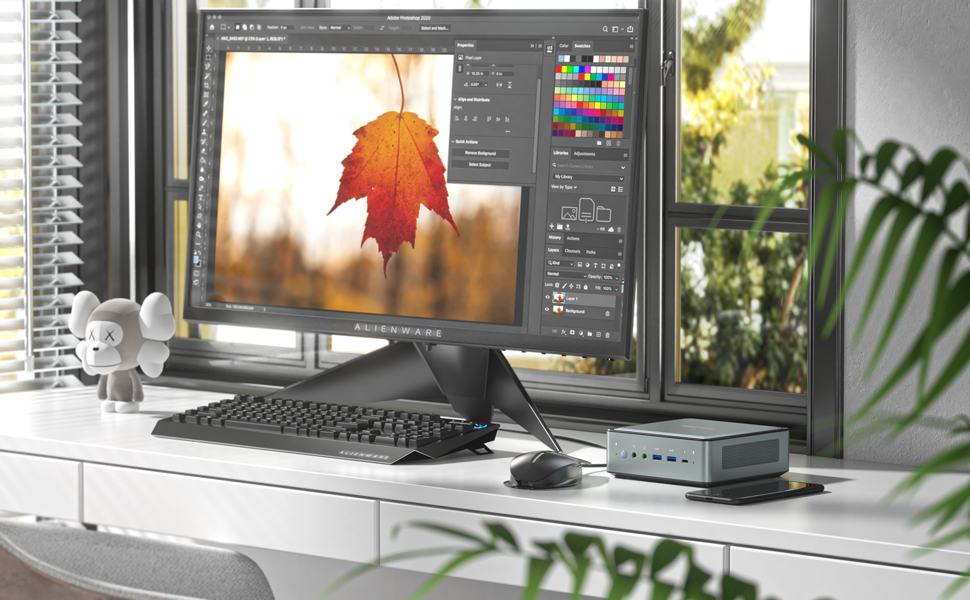
Image: The MINISFORUM HM80 Mini PC in a typical desktop setup, demonstrating its compact size next to a monitor.
2. Пакеттин мазмуну
Пакетте бардык буюмдар бар экенин текшериңиз:
- 1x MINISFORUM HM80 Mini PC
- 1x HDMI кабели
- 1x Кронштейн
- 1x АКШ кубат адаптери
- 1x Instruction Manual
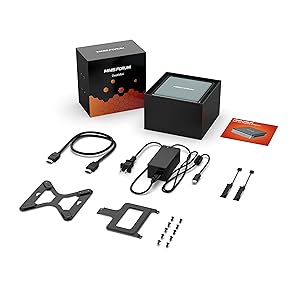
Image: All components included in the MINISFORUM HM80 Mini PC retail package.
3. Продукт бүтүп калдыview
3.1 Негизги өзгөчөлүктөрү
- Процессор: AMD Ryzen 7 4800U (8 ядро/16 жип, 4.0 ГГц чейин)
- Графика: Integrated AMD Radeon Graphics (1750 MHz)
- Эстутум: DDR4 RAM (2x SODIMM slots, expandable up to 64GB)
- Сактагыч: M.2 2280 PCIe SSD (up to 2TB) and 2x 2.5-inch SATA HDD slots (up to 2TB each)
- Дисплей чыгаруу: Triple 4K@60Hz output via HDMI 2.0, DisplayPort, and USB-C
- Тармак: Dual RJ45 ports (1000/2500Mbps), WiFi 6 (802.11ax), Bluetooth 5.1
- USB порттору: 6x USB ports (various types)

Image: Visual representation of the MINISFORUM HM80's core components and features.
3.2 Порттун жайгашуусу
Familiarize yourself with the port layout for proper connection of peripherals.

Сүрөт: деталдуу view of the front and rear input/output ports on the MINISFORUM HM80 Mini PC.
- Алдыңкы порттор: Power Button, 3.5mm Microphone Jack, 3.5mm Audio Jack, USB 3.1 Port x2, USB-C Port
- Арткы порттор: USB 3.0 Port x4, 2.5G LAN Port x2, HDMI Port, DisplayPort, USB-C Port, Kensington Lock, Reset Hole
4. Орнотуу нускамалары
4.1 Баштапкы туташуу
- Дисплейди туташтыруу: Use an HDMI, DisplayPort, or USB-C cable to connect your monitor(s) to the corresponding port(s) on the Mini PC.
- Перифериялык түзүлүштөрдү туташтыруу: Клавиатураңызды, чычканыңызды жана башка USB түзмөктөрүңүздү жеткиликтүү USB портторуна сайыңыз.
- Тармакка туташуу (милдеттүү эмес): For a wired connection, connect an Ethernet cable from your router or modem to one of the RJ45 LAN ports. For wireless, ensure your WiFi network is available.
- Туташуу кубаты: Plug the power adapter into the DC-in port on the Mini PC, then connect the power adapter to an electrical outlet.
4.2 Биринчи жүктөө
- Mini PCтин алдыңкы бетинде жайгашкан кубат баскычын басыңыз.
- The system will boot up. If it's the first time, it may guide you through the Windows 11 Pro setup process. Follow the on-screen instructions to complete the operating system configuration.
5. Иштөө нускамалары
5.1 Негизги операция
- Күйгүзүү/өчүрүү: Press the power button to turn the PC on. To turn off, use the operating system's shutdown function or press and hold the power button for a few seconds for a forced shutdown (not recommended for regular use).
- Кайра баштоо: Use the operating system's restart function.
- Уйку режими: Use the operating system's sleep function.
5.2 Triple Display Setup
The HM80 supports connecting up to three independent displays simultaneously at 4K@60Hz resolution. Connect your monitors to the HDMI, DisplayPort, and USB-C video outputs. Once connected, configure the display settings within your operating system (e.g., Windows Display Settings) to extend or duplicate your desktop across the screens.

Image: The MINISFORUM HM80 Mini PC supporting a triple 4K display setup.
5.3 Тармакка туташуу
- Зымдуу тармак: Connect an Ethernet cable to either of the two RJ45 ports. The system will automatically detect the connection.
- Wireless Network (Wi-Fi 6): Access network settings in your operating system, select your desired Wi-Fi network, and enter the password if required. The device supports 5GHz/2.4GHz dual-band Wi-Fi 6.
- Bluetooth 5.1: Enable Bluetooth in your operating system settings to pair with compatible devices such as keyboards, mice, or audio peripherals.
6. Техникалык тейлөө жана жаңылоо
6.1 Component Upgrades
The MINISFORUM HM80 Mini PC allows for upgrades to its RAM and storage components. Always ensure the device is powered off and disconnected from the power source before performing any internal maintenance.

Image: Exploded diagram illustrating the upgradeable components of the HM80 Mini PC.
- RAM: The device has two SODIMM slots for DDR4 memory. Each slot can support up to 32GB, for a total of 64GB.
- M.2 SSD: A 2280 PCIe SSD slot is available, supporting drives up to 2TB.
- 2.5 дюймдук SATA HDD/SSD: Two 2.5-inch SATA drive bays are available, each supporting drives up to 2TB.
Refer to the detailed instructions provided with your upgrade components or consult the MINISFORUM support website for specific upgrade procedures.
6.2 Дубалга монтаждоо
The included mounting bracket allows you to attach the Mini PC to the back of a VESA-compatible monitor or to a wall, saving desk space.
- Attach the mounting bracket to the desired location (e.g., VESA holes on a monitor or a wall) using appropriate screws.
- Slide the Mini PC onto the bracket until it securely locks into place.

Image: The MINISFORUM HM80 Mini PC installed using the wall mount bracket.
6.3 Тазалоо
To maintain optimal performance, periodically clean the exterior of the Mini PC with a soft, dry cloth. Ensure ventilation openings are free from dust accumulation. Do not use liquid cleaners directly on the device.
7. Кыйынчылыктарды
This section addresses common issues you might encounter with your MINISFORUM HM80 Mini PC.
- Кубат жок:
- Ensure the power adapter is securely connected to both the Mini PC and a working electrical outlet.
- Электр розеткасынын иштешин башка аспап менен текшерүү аркылуу текшериңиз.
- Эгер бар жана туура келсе, башка кубат адаптерин колдонуп көрүңүз.
- Дисплей чыгышы жок:
- Check that the display cable (HDMI, DisplayPort, or USB-C) is firmly connected to both the Mini PC and the monitor.
- Монитордун күйгүзүлгөнүн жана туура киргизүү булагына коюлганын текшериңиз.
- Мүмкүн болсо, башка дисплей кабели же монитор менен сынап көрүңүз.
- System Unresponsive / Freezing:
- If the system becomes unresponsive, press and hold the power button for approximately 5-10 seconds to force a shutdown. Wait a few moments, then power it back on.
- Consider using the reset hole (located on the rear panel) with a thin pin if the power button is unresponsive. This will force a restart.
- Ensure the system has adequate ventilation to prevent overheating.
- Тармакка туташуу маселелери:
- Зымдуу туташуулар үчүн Ethernet кабелинин жана роутердин абалын текшериңиз.
- For Wi-Fi, ensure the Wi-Fi adapter is enabled in the operating system and you are connected to the correct network with the correct password.
- Роутериңизди/модемиңизди өчүрүп күйгүзүңүз.
8. Техникалык шарттар
Detailed technical specifications for the MINISFORUM HM80 Mini PC:
| Өзгөчөлүк | Спецификация |
|---|---|
| Процессор | AMD Ryzen 7 4800U (8 өзөк, 16 жип, 4.0 ГГц чейин) |
| Графика | Integrated AMD Radeon Graphics (1750 MHz) |
| RAM түрү | DDR4 SDRAM |
| Максималдуу RAM сыйымдуулугу | 64 GB (2x SODIMM slots) |
| Сактагыч (SSD) | 512 GB M.2 2280 PCIe SSD (expandable up to 2TB) |
| Storage (HDD) | 2x 2.5-inch SATA HDD slots (each up to 2TB) |
| Max Screen Resolution | 3840 x 2160 пиксел (4K) |
| Display Outputs | HDMI 2.0, DisplayPort, USB-C (supports triple 4K@60Hz) |
| LAN порттору | 2x RJ45 (1000/2500Mbps) |
| Зымсыз байланыш | WiFi 6 (802.11ax), Bluetooth 5.1 |
| USB порттору | 2x USB 2.0, 3x USB 3.0, 1x USB-C |
| Операция системасы | Windows 11 Pro |
| Өлчөмдөрү (LxWxH) | 5.87 x 5.91 x 2.2 дюйм (14.96 x 14.96 x 5.55 см) |
| Элемент Салмагы | 3.34 фунт (1.51 кг) |
| Түс | Кара |
9. Кепилдик жана колдоо
9.1 Кепилдик маалыматы
MINISFORUM products typically come with a limited warranty. Please refer to the warranty card included in your package or visit the official MINISFORUM webаймагыңызга жана сатып алуу күнүнө тиешелүү кепилдиктин толук шарттары жана эрежелери үчүн сайтты караңыз.
9.2 Техникалык колдоо
For technical assistance, troubleshooting beyond this manual, or inquiries about your product, please contact MINISFORUM customer support. Support contact information can usually be found on the official MINISFORUM webсайтында же продукт документациясында.
MINISFORUM Official Webсайт: www.minisforum.com


