Introduction
The AQIRYS Mira is a compact 65% mechanical keyboard designed for versatility and performance. It offers triple connectivity options: wired USB-C, 2.4GHz wireless, and Bluetooth, making it compatible with PC, Mac, mobile devices, and consoles. Featuring Outemu Red mechanical switches, N-key rollover, full anti-ghosting, and dynamic RGB backlighting, the Mira keyboard provides a responsive and customizable typing and gaming experience. Its hot-swap design allows for easy switch replacement.
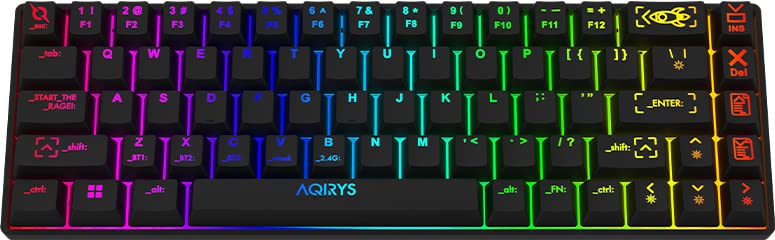
Image: The AQIRYS Mira 65% Mechanical Keyboard, showcasinанын компакттуу жайгашуусу жана жандуу RGB арткы жарыгы.
Жайгашуу
Пакеттин мазмуну
- AQIRYS Mira 65% Mechanical Keyboard
- USB-C - USB-A кабели
- 2.4 ГГц зымсыз доңгл (адатта клавиатуранын батарея бөлүмүндө же атайын уячада сакталат)
- Keycap Puller (optional, for maintenance)
- Switch Puller (optional, for maintenance)
Баскычтопту заряддоо
Before initial use, ensure the keyboard is fully charged. Connect the provided USB-C cable to the keyboard's USB-C port and the other end to a powered USB port on your computer or a USB wall adapter. The charging indicator will show the charging status.
Байланыш режимдери
The AQIRYS Mira keyboard supports three connection modes: Wired, 2.4GHz Wireless, and Bluetooth. A switch on the keyboard (usually on the back or side) allows you to select the desired mode.
1. Зымдуу туташуу
- Баскычтоптогу режим которгучун "Зымдуу" же "USB" абалына коюңуз.
- USB-C кабелин клавиатурага, ал эми USB-A учун компьютериңизге туташтырыңыз.
- Клавиатура сиздин операциялык системаңыз тарабынан автоматтык түрдө таанылат.
2. 2.4 ГГц зымсыз туташуу
- Locate the 2.4GHz USB dongle.
- Plug the USB dongle into an available USB port on your computer or device.
- Баскычтоптогу режим которгучун '2.4G' абалына коюңуз.
- Баскычтоп автоматтык түрдө туташуу керек. Болбосо, басыңыз Fn + P жупташтыруу үчүн 3 секунд.
3. Bluetooth туташуусу
The keyboard can pair with up to three different Bluetooth devices.
- Клавиатурадагы режим которгучун 'BT' абалына коюңуз.
- To enter pairing mode for a specific slot (BT1, BT2, or BT3), press and hold Fn + Q (BT1 үчүн), Fn + W (BT2 үчүн), же Fn + E (for BT3) for 3-5 seconds. The corresponding key (Q, W, or E) will flash rapidly, indicating pairing mode.
- On your device (PC, Mac, mobile), enable Bluetooth and search for new devices. Select "AQIRYS Mira" from the list.
- Once paired, the flashing light will become solid for a few seconds and then turn off.
- To switch between paired Bluetooth devices, short press Fn + Q, Fn + W, же Fn + E.

Сүрөт: каптал view of the AQIRYS Mira keyboard, highlighting the USB-C port for wired connection and charging.
Иштөө нускамалары
Негизги функциялар жана айкалыштар
The AQIRYS Mira keyboard features a 68-key US layout. Many functions are accessed via the Fn башка баскычтар менен айкалышта.
- Fn + 1/2/3: Bluetooth түзмөктөрүнүн (BT1, BT2, BT3) ортосунда которулуңуз.
- Fn + P: Initiate 2.4GHz pairing (hold for 3 seconds).
- Fn + Backspace: Ачкычты өчүрүү.
- Fn + \|: Toggle backlight effects.
- Fn + [{: Арткы жарыктын жарыктыгын азайтыңыз.
- Fn + ]}: Арткы жарыктын жарыктыгын жогорулатыңыз.
- Fn + ;:: Жарыктын ылдамдыгын азайтыңыз.
- Fn + '"': Арткы жарыктын ылдамдыгын жогорулатыңыз.
- Fn + ,<: Decrease backlight color (for static modes).
- Fn + .>: Increase backlight color (for static modes).
- Fn + Left Arrow: Мурунку трек.
- Fn + Right Arrow: Кийинки трек.
- Fn + Өйдө жебе: Үнүн көтөрүү.
- Fn + Төмөн жебе: Үнү басылды.
- Fn + Enter: Ойнотуу/Тыныгуу.
- Fn + Win: Windows баскычын кулпулоо/ачуу.
Арткы жарыкты ыңгайлаштыруу
The keyboard features full RGB dynamic backlighting. Basic adjustments can be made using Fn key combinations as listed above. For in-depth customization, including per-key lighting and advanced effects, connect the keyboard in wired mode and use the dedicated AQIRYS software (available for download from the official AQIRYS webсайт).
N-Key оодарылып кетүү жана арбактарга каршы
The Mira keyboard supports N-key rollover and full anti-ghosting, ensuring that every keystroke is registered accurately, even when multiple keys are pressed simultaneously. This is particularly beneficial for fast typing and gaming.
Hot-Swap Switch Design
The keyboard's hot-swap design allows you to change mechanical switches without soldering. It is compatible with Outemu 3-pin switches. This feature enables customization of typing feel and easy replacement of faulty switches.
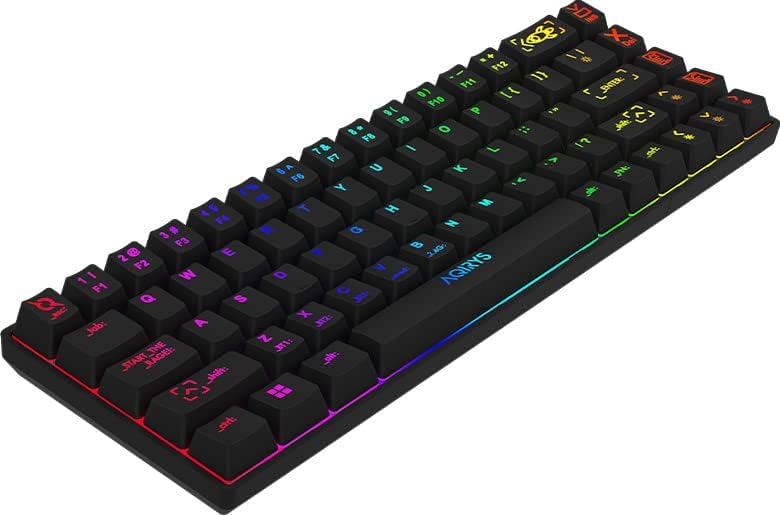
Image: Close-up of the AQIRYS Mira keyboard's keycaps, illustrating the US layout and RGB backlighting.
Техникалык тейлөө
Баскычтопту тазалоо
- Чаңды тазалоо: Баскыч капкактарынын ортосундагы чаңды жана калдыктарды үйлөө үчүн кысылган аба банкасын колдонуңуз.
- Бетти тазалоо: Gently wipe the keycaps and chassis with a soft, lint-free cloth dampаз өлчөмдөгү суу же жумшак, абразивдүү тазалоо эритмеси менен тазалаңыз. Ашыкча нымдуулуктан сактаныңыз.
- Терең тазалоо: For thorough cleaning, you may use a keycap puller to remove keycaps and clean the switches and plate underneath. Ensure the keyboard is powered off and disconnected before removing keycaps.
Коммутаторду алмаштыруу (Ысык алмаштыруу)
The AQIRYS Mira keyboard features hot-swappable switches, allowing for easy replacement without soldering.
- Өчүрүү: Ensure the keyboard is disconnected from power and turned off.
- Баскыч капкагын алып салуу: Use a keycap puller to carefully remove the keycap from the switch you wish to replace.
- Которуштурууну алып салуу: Use a switch puller to grasp the top and bottom clips of the switch. Gently pull the switch straight up and out of the PCB.
- Жаңы которгуч киргизүү: Align the pins of the new Outemu 3-pin compatible switch with the holes on the PCB. Press the switch firmly until it clicks into place. Ensure the pins are not bent.
- Баскыч капкагын алмаштыруу: Баскыч капкагын кайра жаңы которгучка коюңуз.

Сүрөт: альтернатива view of the AQIRYS Mira keyboard, highlighting the keycap profiles and overall design.
Проблемаларды чечүү
- Клавиатура жооп бербей жатат (зымдуу):
- USB-C кабели клавиатурага жана компьютерге бекем туташып турганын текшериңиз.
- Компьютериңиздеги башка USB портун колдонуп көрүңүз.
- Ensure the keyboard mode switch is set to 'Wired' or 'USB'.
- Keyboard not responding (2.4GHz Wireless):
- Ensure the 2.4GHz USB dongle is securely plugged into your device.
- Ensure the keyboard mode switch is set to '2.4G'.
- Клавиатуранын батареясы заряддалганын текшериңиз.
- Try re-pairing by holding Fn + P 3 секундга.
- Bluetooth жупташтыруу көйгөйлөрү:
- Ensure the keyboard mode switch is set to 'BT'.
- Түзмөгүңүздүн Bluetooth функциясы күйгүзүлгөнүн жана табыла турганын текшериңиз.
- Make sure the keyboard is in pairing mode (e.g., Fn + Q held for 3-5 seconds, with the key flashing).
- Forget the device from your computer's Bluetooth settings and try pairing again.
- Try pairing to a different Bluetooth slot (BT1, BT2, BT3).
- Катталбаган ачкычтар же эки жолу терүү:
- Check for any debris under the keycap or around the switch.
- If a specific switch is faulty, consider replacing it using the hot-swap feature.
- Арткы жарык иштебейт же күңүрт:
- Баскычтоптун батареясы заряддалганын текшериңиз.
- жардамы менен жарыктыгын тууралаңыз Fn + [{ жана Fn + ]}.
- Арткы жарыктын эффекттерин колдонуп, айланып өтүңүз Fn + \|.
- If using software, ensure settings are correctly applied.
Техникалык шарттар
| Бренд | AQIRYS |
| Модел | Мира |
| Байланыш | 2.4 ГГц зымсыз, Bluetooth, USB-C зымдуу |
| Макет | US Layout, 68 Keys (65% Form Factor) |
| Которгучтар | Outemu Red Mechanical (Linear, 4mm travel, 47gF actuation) |
| Anti-Ghosting | N-Key Rollover, Full Anti-Ghosting |
| Арткы жарык | Full RGB Dynamic Backlight |
| Батарея | 1300 мАч литий батареясы |
| Шайкештик | PC (Windows 10), Mac, Mobile (Smartphone, Tablet), Console |
| Продукциянын өлчөмдөрү | 30.8 x 10.1 x 3.9 см |
| Элемент Салмагы | 900 г |
| Материал | Пластмасса, резина |
| Камтылган компоненттер | USB кабели |
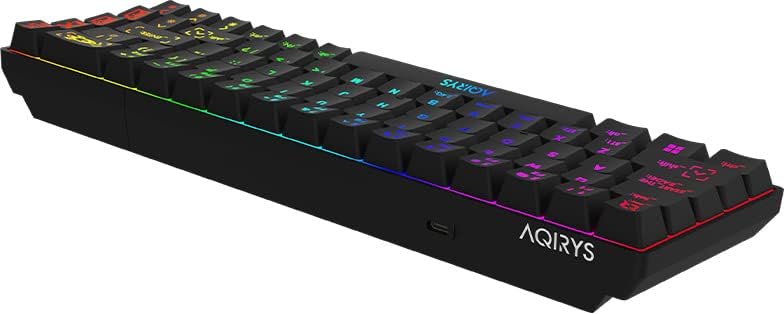
Image: A low-angle view of the AQIRYS Mira keyboard, highlighting the chassis design and rubber coating.
Кепилдик маалымат
For detailed warranty terms and conditions, please refer to the warranty card included with your product or visit the official AQIRYS website. Warranty coverage typically includes manufacturing defects for a specified period from the date of purchase. Keep your proof of purchase for warranty claims.
Кардарларды колдоо
If you encounter any issues not covered in this manual or require further assistance, please visit the AQIRYS official website for support resources, FAQs, and contact information for customer service. You may also reach out to your retailer for product support.


