Introduction
This manual provides comprehensive instructions for setting up, operating, maintaining, and troubleshooting your TP-Link Archer AX10000 WiFi 6 Tri-Band Gaming Router. Designed for large homes, this router offers advanced wireless capabilities, high-speed connectivity, and robust security features to ensure an optimal network experience.
Пакеттин мазмуну
Пакетиңизде бардык буюмдар бар экенин текшериңиз:
- WiFi 6 Gaming Router Archer AX10000
- Кубаттуу адаптер
- RJ45 Ethernet кабели
- Ыкчам орнотуу колдонмосу
Продукт бүттүview
The TP-Link Archer AX10000 is a high-performance router featuring a distinctive design with multiple antennas for enhanced coverage. It is equipped with various ports for wired connections and advanced internal components for efficient data handling.

1-сүрөт: Жогорудан төмөн view of the TP-Link Archer AX10000 router, showcasing its eight extended antennas and central design.
Физикалык байланыштар
The rear panel of the router provides multiple connectivity options for both internet and local network devices.
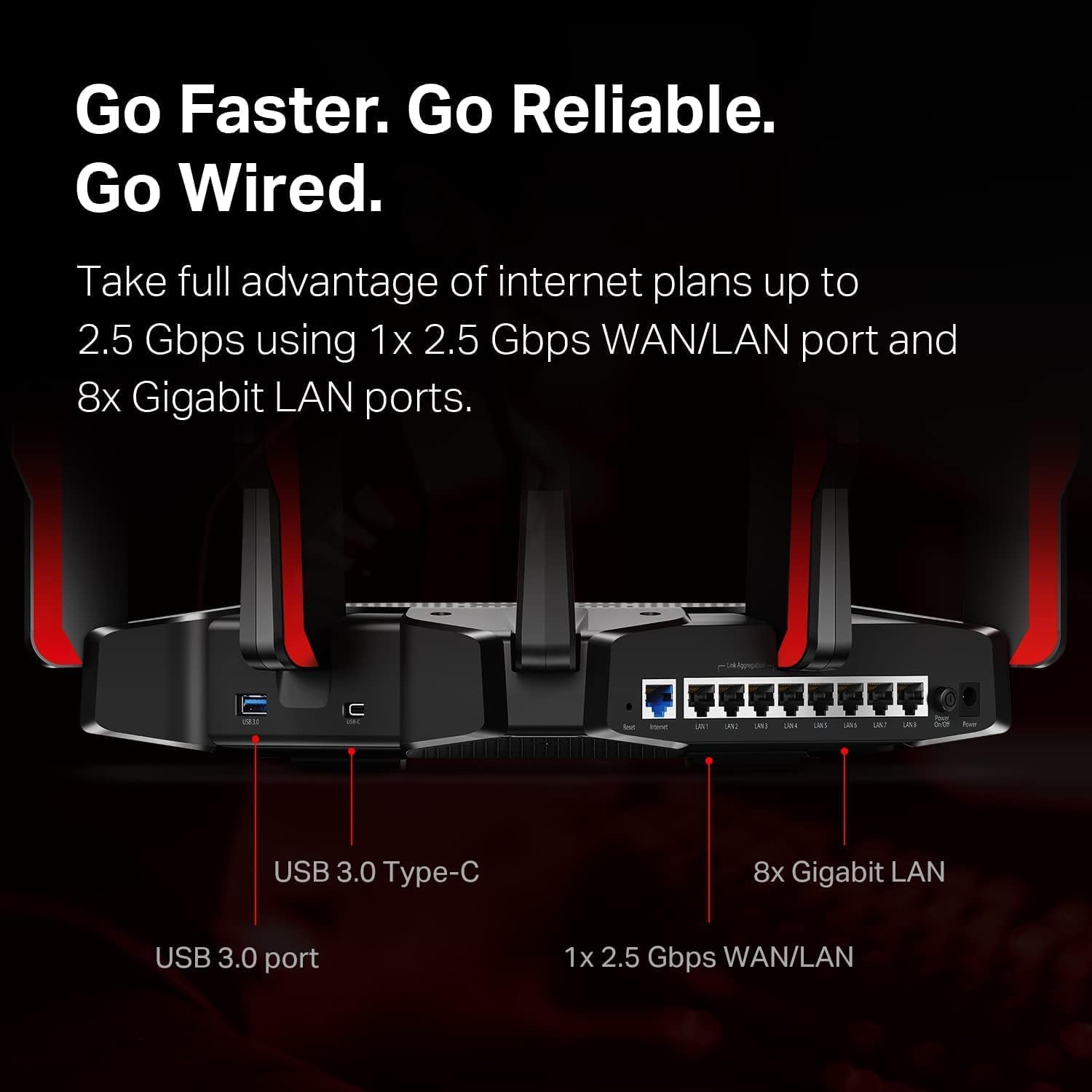
2-сүрөт: Rear panel of the router, highlighting the USB 3.0 Type-C port, USB 3.0 port, 1x 2.5 Gbps WAN/LAN port, and 8x Gigabit LAN ports.
The bottom label contains essential information for initial setup and network access.
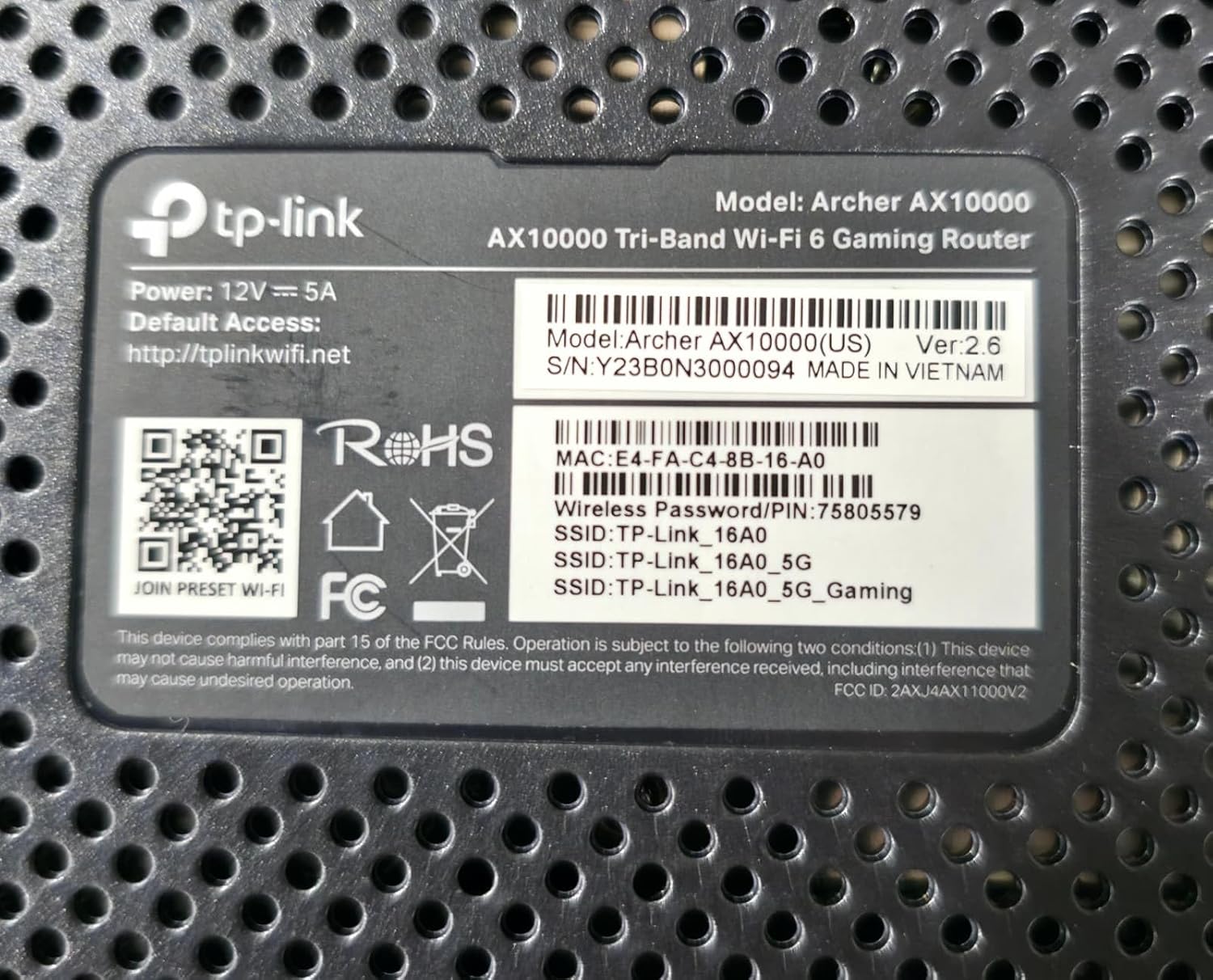
3-сүрөт: Product label on the bottom of the router, displaying model number, default access information, and wireless password/PIN.
Жайгашуу
Follow these steps to set up your TP-Link Archer AX10000 router:
- Маршрутизаторду таңгактан чыгаруу: Роутерди жана бардык аксессуарларды таңгактан этияттык менен алып салыңыз.
- Маршрутизаторду жайгаштырыңыз: Place the router in a central location in your home, away from obstructions and devices that may cause interference. Ensure antennas are oriented for optimal signal.
- Аппаратты туташтыруу:
- Connect your modem's Ethernet cable to the router's 2.5G WAN/LAN port.
- Кубат адаптерин роутерге туташтырыңыз жана аны розеткага сайыңыз.
- Power on the router. Wait for the LED indicators to stabilize, typically indicating a successful boot-up and internet connection.
- Роутерге туташуу:
- Зымсыз: Connect to the default Wi-Fi network (SSID) printed on the router's label using the provided password.
- текст: Connect a computer to one of the router's Gigabit LAN ports using an Ethernet cable.
- Маршрутизаторду конфигурациялаңыз:
- ачуу а web браузерди жана демейки кирүү дарегин киргизиңиз (мисалы, http://tplinkwifi.net) or use the TP-Link Tether app.
- Follow the on-screen instructions to create a new password, set up your Wi-Fi network name (SSID) and password, and complete the initial setup.
Видео 1: A user demonstrating the unboxing and initial setup of a TP-Link Tri-Band Wi-Fi 6 Router, highlighting its components and connectivity options.
Иштөө нускамалары
Once your router is set up, you can optimize its performance and utilize its features:
- кирүү Web Башкаруу интерфейси: ачуу а web браузер жана багыттоо http://tplinkwifi.net. Log in with your router password to access advanced settings.
- TP-Link Tether колдонмосун колдонуу: Download the TP-Link Tether app from your mobile app store. The app allows for easy management of your network, including device prioritization, parental controls, and guest network setup.
- Optimizing for Gaming: The Archer AX10000 features a dedicated gaming band. Ensure your gaming devices are connected to this band for reduced latency and improved performance. Utilize the router's Quality of Service (QoS) settings to prioritize gaming traffic.
- Кеңири камтуу: The router's 8 high-performance antennas and Beamforming technology ensure strong and stable Wi-Fi signals throughout your home.
- Ата-энелик көзөмөл: Configure parental controls through the web interface or Tether app to manage internet access times and filter content for specific devices.
- Коноктор тармагы: Create a separate guest Wi-Fi network to provide internet access to visitors without sharing your main network password.
- VPN сервери: The router supports VPN functionality, allowing you to securely access your home network from remote locations.
- Өркүндөтүлгөн коопсуздук: Your security is a priority with features like Game Protector and WPA3 encryption.
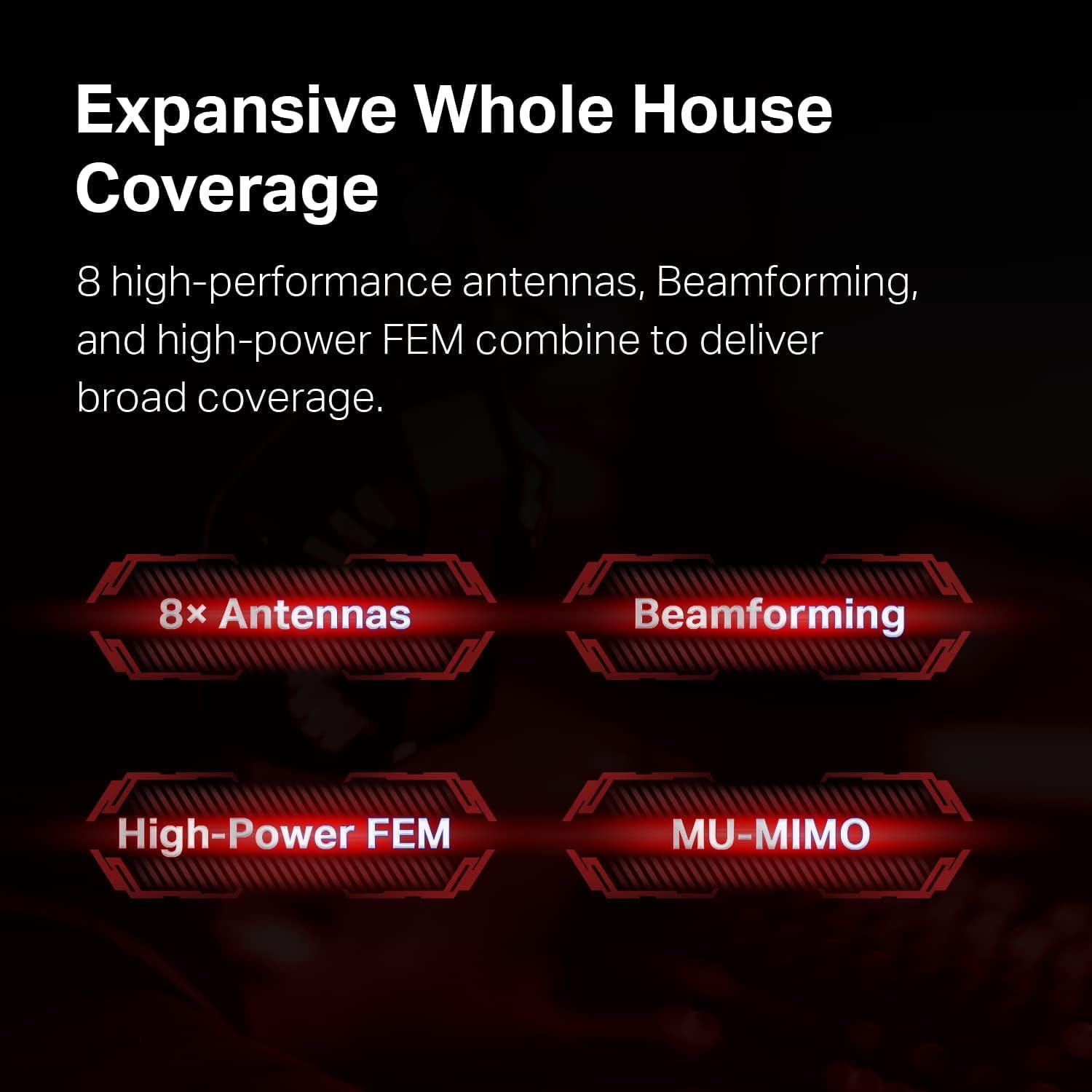
4-сүрөт: Illustration of the router's features contributing to expansive whole house coverage, including 8 antennas, Beamforming, High-Power FEM, and MU-MIMO.

5-сүрөт: Visual representation of the router's security features, HomeCare and WPA3, safeguarding connected devices.
Техникалык тейлөө
Үзгүлтүксүз техникалык тейлөө роутериңиздин оптималдуу иштешин жана узак мөөнөттүү иштешин камсыз кылат:
- Программалык камсыздоонун жаңыртуулары: Periodically check for and install firmware updates through the router's web management interface or the Tether app. Updates often include performance improvements and security patches.
- Кадимки кайра жүктөө: Роутериңизди бир нече жума сайын өчүрүп-күйгүзүү анын эс тутумун тазалоого жана анча чоң эмес иштөө көйгөйлөрүн чечүүгө жардам берет.
- Оптималдуу жайгаштыруу: Ensure the router remains in an open, central location, free from physical obstructions or electronic devices that could cause interference.
- Тазалоо: Ашыкча ысып кетпеши үчүн, роутерди таза жана чаңсыз кармаңыз. Тазалоо үчүн жумшак, кургак чүпүрөк колдонуңуз.
Проблемаларды чечүү
If you encounter issues with your router, try the following solutions:
- Интернетке кирүү жок:
- Check all cable connections between the router, modem, and power source.
- Модемди жана роутерди өчүрүп күйгүзүңүз.
- Интернет провайдериңиздин (ISP) байланышы активдүү экенин текшериңиз.
- Жай Wi-Fi ылдамдыгы:
- Түзмөктөрүңүз тиешелүү Wi-Fi диапазонуна туташкандыгын текшериңиз (жогорку ылдамдык үчүн 5 ГГц, кеңири камтуу үчүн 2.4 ГГц).
- Маршрутизаторду башка электрондук түзмөктөрдөн алыстатуу менен тоскоолдуктарды азайтыңыз.
- Фондо иштеп жаткан өткөрүү жөндөмдүүлүгүн көп талап кылган тиркемелерди текшериңиз.
- Роутердин микроб программасын жана түзмөк драйверлерин жаңыртыңыз.
- Тез-тез өчүрүүлөр:
- Ensure the router is placed optimally and not obstructed.
- Check for conflicting Wi-Fi channels and adjust if necessary via the router settings.
- Роутердин микропрограммасын жаңыртуу.
- Маршрутизаторду башкаруу барагына кирүү мүмкүн эмес:
- Түзмөгүңүздүн роутердин тармагына туташканын текшериңиз.
- Ensure you are using the correct default access address (http://tplinkwifi.net) жана сырсөз.
- Браузериңиздин кэшин тазалап көрүңүз же башка браузерди колдонуп көрүңүз.
Техникалык шарттар
Detailed technical specifications for the TP-Link Archer AX10000 router:

6-сүрөт: Internal hardware specifications, highlighting the 1.8 GHz Quad-Core CPU and 1 GB RAM for robust performance.
| Өзгөчөлүк | Деталь |
|---|---|
| Продукциянын өлчөмдөрү | 12 x 10 x 4 дюйм |
| Элемент Салмагы | 5.7 фунт |
| Элемент моделинин номери | Archer AX10000 |
| Бренд | TP-Link |
| Модель аты | Archer AX10000 |
| Өзгөчө өзгөчөлүк | WPS |
| Жыштык тилкесинин классы | Tri-Band |
| Зымсыз байланыш стандарты | 2.4 GHz Radio Frequency, 5 GHz Radio Frequency, 802.11ax |
| Шайкеш түзмөктөр | Персоналдык компьютер |
| Продукт үчүн сунушталган колдонуу | Оюндар |
| Камтылган компоненттер | Power Adapter, Quick Installation Guide, RJ45 Ethernet Cable, WiFi 6 Gaming Router Archer AX10000 |
| Байланыш технологиясы | Ethernet, USB, Wi-Fi |
| Түс | Кара жана Кызыл |
Кепилдик жана колдоо
Кепилдик жөнүндө маалымат жана техникалык колдоо алуу үчүн төмөнкүлөргө кайрылыңыз:
- Кайтаруу саясаты: This product is eligible for a 90-day refund/replacement return policy.
- Өндүрүүчү: TP-Link. For detailed warranty terms and technical assistance, please visit the official TP-Link support webсайтка же кардарларды тейлөөгө кайрылыңыз.


