
1. Киришүү
The MUNBYN P130 is a high-speed 4x6 USB thermal label printer designed for efficiency in home and small business environments. Utilizing direct thermal technology, it eliminates the need for ink or toner, offering a cost-effective and environmentally friendly printing solution. This manual provides comprehensive instructions for setting up, operating, maintaining, and troubleshooting your P130 printer.

Image: The MUNBYN P130 printer on a desk, highlighting its ink-free operation and high-speed printing capability of 150 labels per minute.
2. Орнотуу колдонмосу
2.1. Кутуда эмне бар
- MUNBYN P130 Thermal Label Printer
- Кубаттуу адаптер
- Электр кабели
- USB кабели
- User Manual
- 30pcs Test Labels
- USB Flash Drive (for driver installation)
2.2. Драйверди орнотуу
The MUNBYN P130 printer is compatible with Windows, macOS, and Chrome OS. Driver installation is straightforward using the provided USB Flash Drive.
- Insert the USB Flash Drive into an available USB port on your computer.
- Орноткучту таап, иштетиңиз file for your operating system (Windows, macOS, or Chrome OS).
- Follow the on-screen prompts to complete the driver installation. This process typically takes less than one minute.
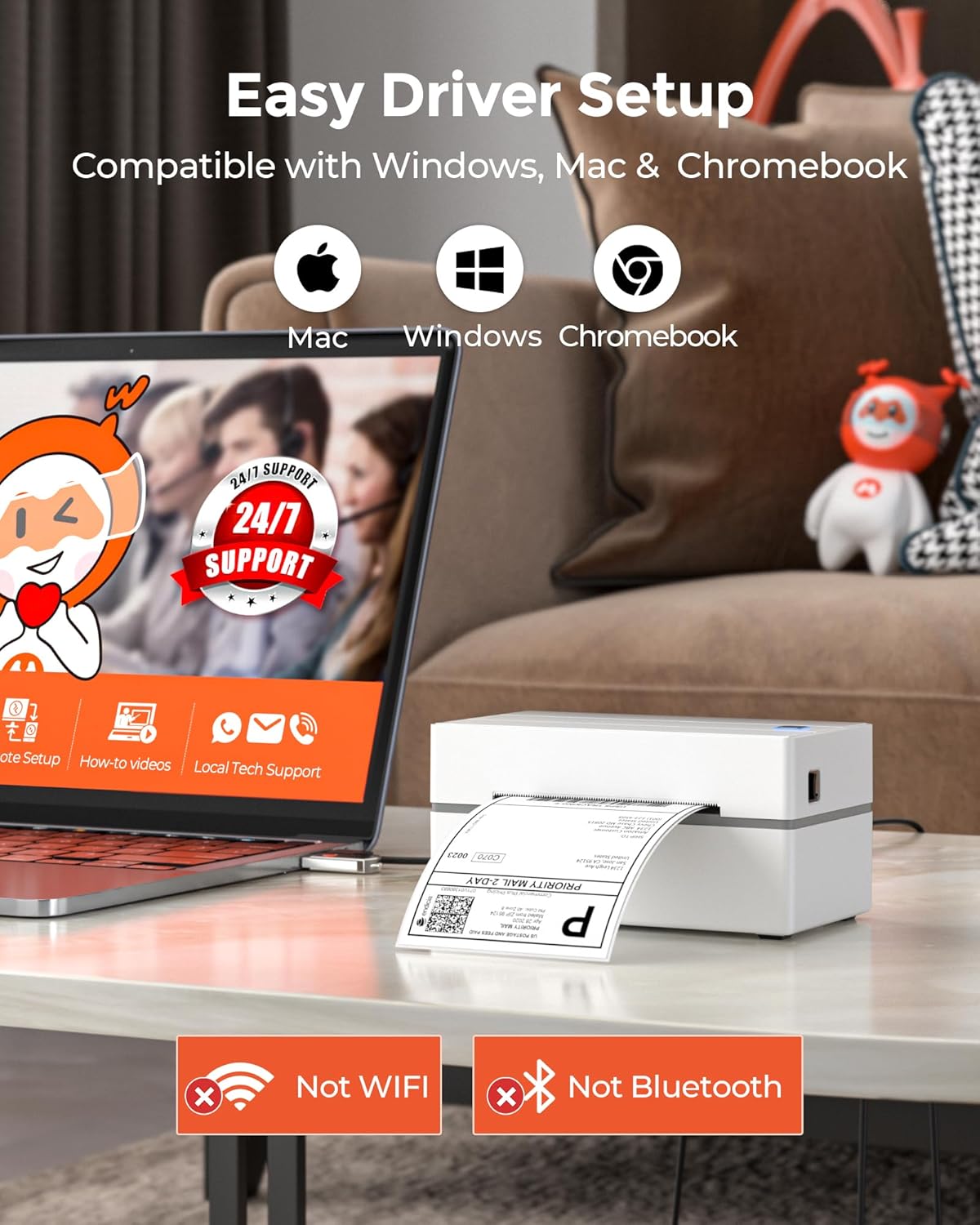
Image: A MUNBYN P130 printer connected to a laptop, with icons indicating compatibility with Mac, Windows, and Chromebook, and emphasizing easy driver setup.
Эскертүү: The P130 printer connects via USB only. It does not support Bluetooth or Wi-Fi connectivity and is not compatible with iPhone/iPad or Linux operating systems.
2.3. Энбелгилер жүктөлүүдө
Proper label loading ensures optimal print quality and prevents jams.
- Принтердин үстүнкү капкагын ачыңыз.
- Place the roll of thermal labels into the label compartment, ensuring the labels feed from the bottom of the roll and the printable side faces upwards.
- Feed the leading edge of the labels through the printer's slot until it extends slightly past the print head.
- Adjust the label guides to snugly fit the width of your labels, without being too tight.
- Close the top cover. The printer will automatically detect the label size and calibrate.

Image: A close-up of the MUNBYN P130 printer in action, demonstrating its ability to clearly print 300,000 standard labels and automatically detect label size.
2.4. Принтерди туташтыруу
Connect the printer to your computer using the provided USB cable. Plug one end into the printer's USB port and the other into an available USB port on your computer. Connect the power adapter to the printer and then to a power outlet.
3. Иштөө нускамалары
3.1. Printing a Test Label
After successful driver installation and label loading, you can print a test label to confirm functionality:
- Ensure the printer is powered on and connected.
- From your computer's printer settings, select the MUNBYN P130 printer.
- Choose the option to print a test page or a sample label.
3.2. Printing from Applications
The MUNBYN P130 is designed for seamless integration with various e-commerce and shipping platforms. It is compatible with:
- Shipping Carriers: UPS, USPS, FedEx, DHL
- E-commerce Platforms: Etsy, eBay, Amazon, PayPal, Shopify, ShipStation, Shippo, ShippingEasy, Poshmark, etc.
When printing from your chosen platform or software, select the MUNBYN P130 as your printer and ensure the correct label size (e.g., 4x6 inches) is selected in the print settings.

Image: The MUNBYN P130 printer displayed alongside a comprehensive list of major shipping carriers and e-commerce platforms it is compatible with, including UPS, USPS, FedEx, DHL, Etsy, eBay, Amazon, and Shopify.
3.3. Label Size Compatibility and Automatic Identification
The P130 printer supports thermal labels with widths ranging from 1.57 inches to 4.3 inches. This versatility allows you to print various label types, including shipping labels, product labels, and barcodes.
The printer features automatic label identification, which means it can detect the size and characteristics of the loaded labels and adjust its settings accordingly. This ensures accurate and consistent printing without manual configuration for each label type.

Image: The MUNBYN P130 printer demonstrating its compatibility with various label sizes, including circular, 3x3, 2.25x1.25, 3x2, and 4x6 inches, covering diverse e-commerce needs.
4. Техникалык тейлөө
4.1. Принтерди тазалоо
Regular cleaning helps maintain print quality and extends the life of your thermal printer. Since it's an ink-free printer, cleaning focuses on dust and debris.
- Сырткы: сыртын жумшак менен сүртүңүз, гamp кездеме. Абразивдүү тазалагычтардан алыс болуңуз.
- Басма башчысы: Gently wipe the print head with an alcohol swab or a specialized thermal printer cleaning wipe. Ensure the printer is off and cooled down before cleaning the print head.
- Тасма ролик: Clean the platen roller (the rubber roller that feeds the labels) with an alcohol swab to remove any adhesive residue or dust.
Perform cleaning periodically, especially if you notice a decrease in print quality or frequent label jams.
4.2. Сактоо
Store the printer in a cool, dry place away from direct sunlight and excessive dust. When not in use for extended periods, it is recommended to disconnect the power cable.
Store thermal labels in a cool, dark place to preserve their printability and adhesive quality.
5. Кыйынчылыктарды
If you encounter issues with your MUNBYN P130 printer, refer to the common troubleshooting steps below. For more detailed solutions, please consult the dedicated Көйгөйлөрдү чечүү боюнча колдонмо (PDF).
5.1. Жалпы маселелер жана чечүү жолдору
- Принтер жооп бербей жатат:
- Ensure the power cable is securely connected to both the printer and the power outlet.
- Verify the USB cable is firmly connected to both the printer and your computer.
- Check if the printer's power indicator light is on.
- Принтерди да, компьютериңизди да өчүрүп күйгүзүңүз.
- Poor Print Quality (Faded/Missing Lines):
- Басып чыгаруучу башты "Техникалык тейлөө" бөлүмүндө сүрөттөлгөндөй тазалаңыз.
- Жогорку сапаттагы термо этикеткаларды колдонуп жатканыңызды текшериңиз.
- Check printer driver settings for darkness or density adjustments.
- Этикеткалар туура эмес берилүүдө / Кагаз тыгылып калуу:
- Ensure labels are loaded correctly and the label guides are adjusted to the label width.
- Тыгылып калган этикеткаларды этияттык менен алып салыңыз.
- Тасма роликти тазалаңыз.
- Verify that the label roll is not too tight or too loose.
- Printer Not Detected by Computer:
- Reinstall the printer driver using the provided USB Flash Drive or download the latest driver from the MUNBYN webсайт.
- Try connecting the printer to a different USB port on your computer.
- Ensure your operating system is compatible (Windows, macOS, Chrome OS).
6. Техникалык шарттар
| Өзгөчөлүк | Деталь |
|---|---|
| Модель аты | P130 |
| Элемент моделинин номери | ITPP130 |
| Басма технологиясы | Термикалык |
| Байланыш технологиясы | USB гана |
| Принтердин чыгышы | Монохромдуу |
| Макс басып чыгаруу ылдамдыгы (монохромдуу) | 150 ppm (labels per minute) |
| Резолюция | 203 x 203 DPI (Dots Per Inch) |
| Максималдуу медиа өлчөмү | 4.3 дюйм (туурасы) |
| Шайкеш келген этикеткалардын туурасы | 1.57-4.3" |
| Шайкеш түзмөктөр | Windows, macOS, Chromebook, PC, Laptops |
| Продукциянын өлчөмдөрү (D x W x Y) | 3.89" x 7.16" x 3.42" |
| Элемент Салмагы | 1.58 фунт (0.72 килограмм) |
| Камтылган компоненттер | Power Adapter, Power Cable, USB Cable, User Manual, 30pcs Test Labels, USB Flash Drive |
7. Кепилдик маалыматы
The MUNBYN P130 Thermal Label Printer comes with an extended warranty. For specific details regarding the warranty period, coverage, and claims process, please refer to the warranty card included with your product or contact MUNBYN customer support directly.
8. Кардарларды колдоо кызматы
MUNBYN is committed to providing lifetime customer support for your P130 printer. If you require assistance with setup, operation, troubleshooting, or any other inquiries, please reach out to our support team through the following channels:
- Live Chat (via MUNBYN official webсайт)
- Телефон чалуулар
- Алыскы иштакта колдоо
- Электрондук почта колдоо
Please have your product model number (P130 or ITPP130) and any relevant details about your issue ready when contacting support to ensure a swift resolution.


