1. Киришүү
Сатып алганыңыз үчүн рахматasing the Ysametp 5G WiFi Bluetooth Projector. This device is designed to provide a high-quality home theater experience with its native 1080p Full HD resolution, 4K support, and integrated Android system. Please read this manual thoroughly before using the projector to ensure proper operation and to maximize its lifespan.
2. Коопсуздук маалыматы
Please observe the following safety precautions to prevent damage to the projector and ensure user safety:
- Электр камсыздоо: Көрсөтүлгөн кубат адаптерин гана колдонуңуз. Розеткадагы үнүн текшериңизtage проектордун талаптарына дал келет.
- Вентиляция: Вентиляция тешиктерин жаппаңыз. Ашыкча ысып кетүүнүн алдын алуу үчүн проектордун айланасында адекваттуу аба агымын камсыз кылыңыз.
- Жайгашкан жери: Проекторду туруктуу, тегиз жерге коюңуз. Аны күн нуру түз тийген жерге, жылуулук булактарынын жанына же нымдуулугу жогору же чаңдуу чөйрөгө койбоңуз.
- Тазалоо: Тазалоодон мурун электр кубатынан ажыратыңыз. Жумшак, кургак чүпүрөктү колдонуңуз. Суюк же аэрозоль тазалагычтарды колдонбоңуз.
- Көздү коргоо: l болгондо проектордун объективине тике карабаamp күйүп турат, анткени жаркыраган жарык көзгө зыян келтириши мүмкүн.
- Ремонттор: Проекторду өз алдынча оңдоого аракет кылбаңыз. Бардык тейлөө иштерин квалификациялуу адистерге тапшырыңыз.
3. Пакеттин мазмуну
Пакетте бардык буюмдар бар экенин текшериңиз:
- Ysametp 5G WiFi Bluetooth Projector (Model DE-M8-E-An)
- Алыстан башкаруу
- Power Cable (AC 220V with Schuko plug)
- HDMI кабели
- User Manual
4. Продукт бүтүп калдыview
Проектордун компоненттери жана интерфейстери менен таанышыңыз.
4.1 Фронт View

Сүрөт: алдыңкы view of the Ysametp Projector, highlighting the projection lens and side ventilation grilles.
4.2 Rear and Side Interfaces
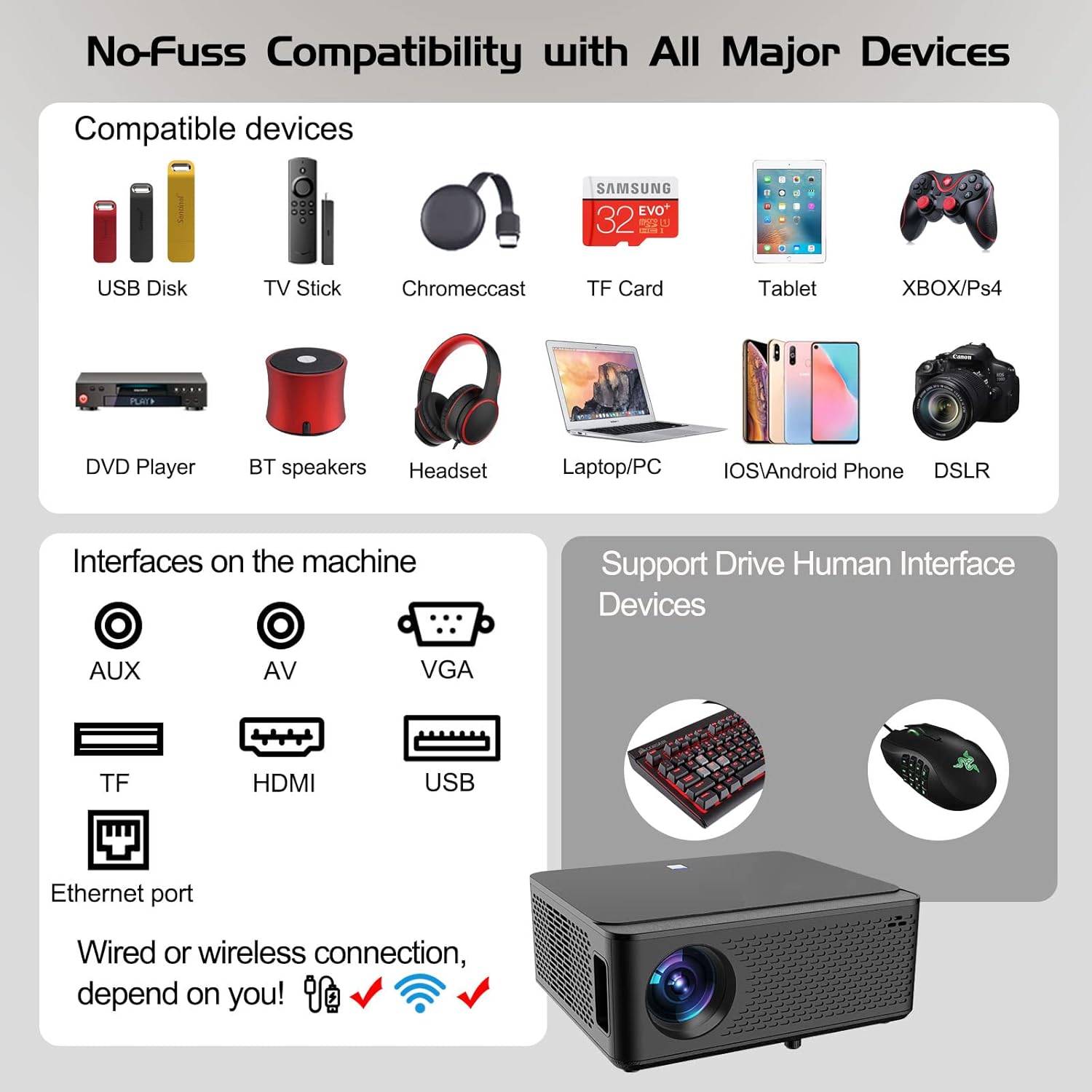
Image: Diagram illustrating the various input and output ports available on the Ysametp Projector, including USB, HDMI, AV, VGA, TF card slot, and Ethernet port.
The projector features a comprehensive set of ports for versatile connectivity:
- Ethernet порту: Зымдуу интернет байланышы үчүн.
- VGA порту: For connecting to older computers.
- USB-A порту: For connecting USB flash drives or external devices.
- HDMI порту: Ар кандай булактардан жогорку сапаттагы аудио жана видео киргизүү үчүн.
- AV киргизүү: For connecting analog audio/video devices.
- 3.5 мм аудио чыгышы: Тышкы динамиктерди же наушниктерди туташтыруу үчүн.
- TF карта уячасы: For reading media from Micro SD cards.
- Кубат киргизүү: AC кубат кабелин туташтыруу үчүн.
4.3 Жогорку башкаруу элементтери
The top of the projector includes a power button for basic on/off functionality. Further controls are available via the remote control and the on-screen display.
4.4 Фокусту тууралоо
A mechanical focus adjustment screw is located on the side of the lens for manual image clarity control.
5. Орнотуу
5.1 Орнотуу
Position the projector on a stable surface. The projection distance will determine the screen size. For optimal viewпроектордун проекциялык бетине перпендикуляр экенин текшериңиз.
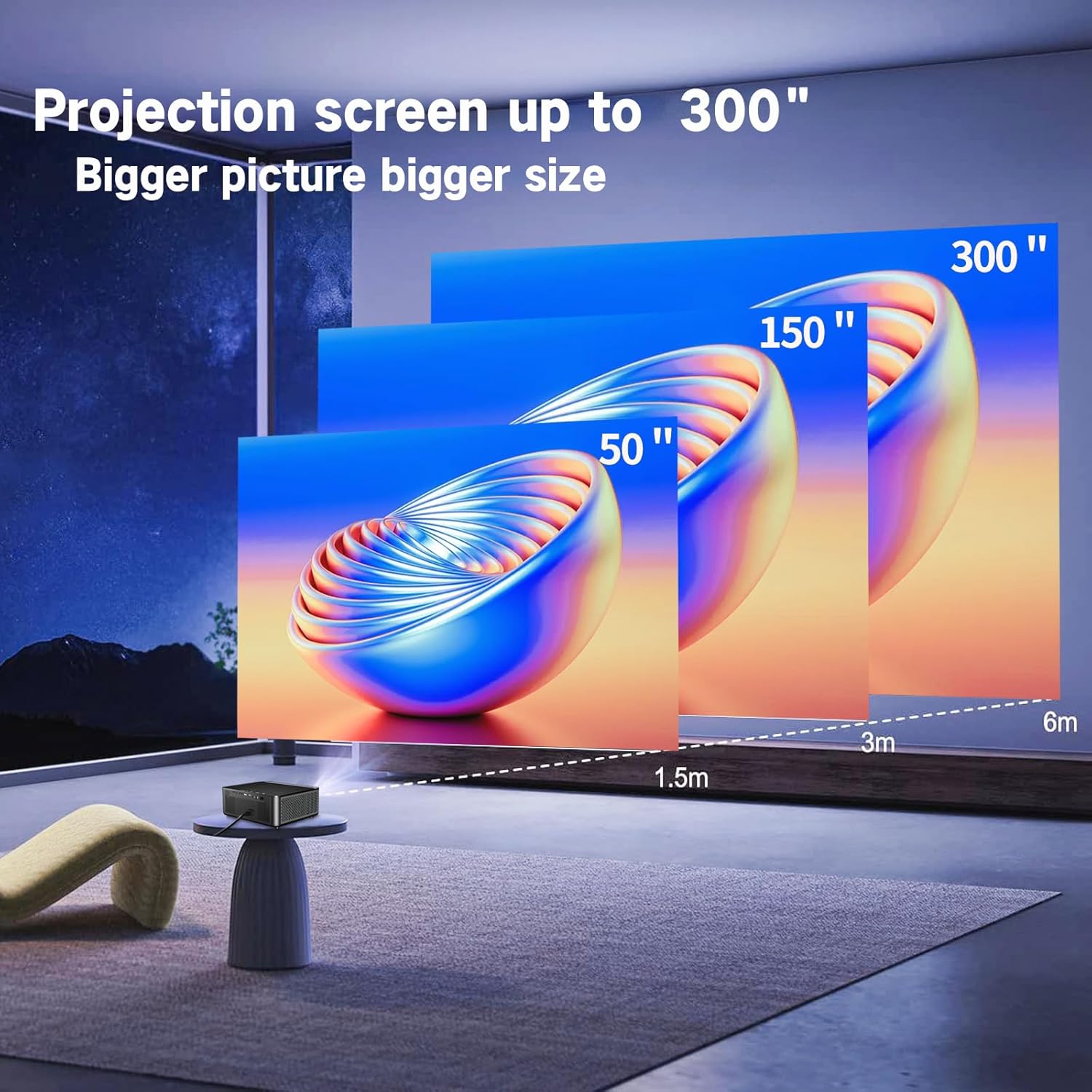
Image: Illustration demonstrating recommended projection distances for achieving screen sizes of 50, 150, and 300 inches.
5.2 Кубат туташтыруу
- Электр кабелин проектордун кубат киресине туташтырыңыз.
- Электр кабелинин экинчи учун ылайыктуу электр розеткасына сайыңыз.
5.3 Баштапкы күйгүзүү
- Аппаратты иштетүү үчүн проектордун же пульттун кубат баскычын басыңыз.
- Проектордун күйүшү үчүн бир аз күтө туруңуз.
5.4 Фокустоо жана Keystone коррекциясы
After powering on, adjust the image for clarity and proper geometry:
- Фокус: Rotate the mechanical focus adjustment screw near the lens until the image appears sharp and clear.
- Негизги ташты оңдоо: If the projected image is trapezoidal (wider at the top or bottom), use the 4D keystone correction feature via the on-screen menu to adjust the image corners until it forms a perfect rectangle.

Image: Diagram showing how 4P/4D keystone correction can be used to adjust the corners of a projected image to achieve a rectangular shape.
6. Иштөө нускамалары
6.1 Тышкы түзмөктөрдү туташтыруу
The projector supports various connection methods:
- HDMI: Connect gaming consoles (PS4, Xbox), laptops, or other HDMI-enabled devices using an HDMI cable.
- USB: Insert a USB flash drive into the USB-A port to play media fileтүздөн-түз с.
- TF картасы: Insert a Micro SD (TF) card into the TF card slot to access media.
- VGA/AV: Use these ports for older devices requiring analog connections.
- Bluetooth: Жакшыртылган аудио үчүн Bluetooth динамиктерин же кулакчындарды жупташтырыңыз.

Image: The projector shown with various compatible devices, including laptops, smartphones, gaming consoles, USB drives, and external speakers, demonstrating its versatile connectivity.
6.2 Using the Integrated Android System
The projector comes with an integrated Android system, allowing access to a wide range of applications.

Image: The projector displaying its Android interface, featuring icons for popular streaming services and apps such as Netflix, YouTube, Prime Video, Hulu, Spotify, and TikTok.
- Тармак туташуусу: Connect the projector to your home Wi-Fi network via the settings menu or use an Ethernet cable for a wired connection.
- Колдонмого мүмкүндүк алуу: Navigate the Android interface using the remote control. You can download and install applications from the Google Play Store.
- Агым: Enjoy content from pre-installed or downloaded streaming services.
6.3 5G WiFi Screen Mirroring
Mirror your smartphone, tablet, or PC screen wirelessly to the projector.

Image: A family enjoying content mirrored from a smartphone onto the large projected screen, illustrating the 5G WiFi Screen Mirroring feature for iOS, Android, and Windows devices.
- Ensure both the projector and your device are connected to the same 5G WiFi network.
- Select the "Screen Mirroring" option on the projector's menu.
- On your smartphone/tablet/PC, activate its screen mirroring function (e.g., "Smart View" for Android, "AirPlay" for iOS, "Cast" for Windows).
- Select the projector from the list of available devices to establish the connection.
7. Техникалык тейлөө
7.1 Линзаны тазалоо
Проектордун линзасын оптикалык беттер үчүн атайын жасалган жумшак, түксүз чүпүрөк менен акырын сүртүңүз. Абразивдүү тазалагычтарды же ашыкча күч колдонбоңуз.
7.2 Проектордун корпусун тазалоо
Use a soft, dry cloth to clean the exterior of the projector. Avoid using harsh chemicals or solvents.
7.3 Optical Engine Protection
The projector features a full-sealed optical engine designed to prevent dust from entering the internal components, reducing the need for frequent internal cleaning and extending the device's lifespan.

Сүрөт: ички view diagram of the projector's full-sealed optical engine, highlighting its design to prevent dust from entering and affecting performance.
7.4 Лamp Жашоо
The projector utilizes advanced SmarEco technology to minimize energy consumption and extend the lamp's lifespan up to 60,000 hours, providing long-term reliability.

Сүрөт: деталдуу диаграмма showcasing the projector's lamp technology, indicating a lifespan of over 30,000 hours.
8. Кыйынчылыктарды
Проекторуңузда көйгөйлөргө туш болсоңуз, төмөнкү жалпы көйгөйлөрдү жана чечимдерди караңыз:
| Көйгөй | Мүмкүн себеп | Чечим |
|---|---|---|
| Экранда сүрөт жок. | Power cable loose; incorrect input source; device not connected. | Check power connections. Select correct input source (HDMI, AV, etc.). Ensure external device is powered on and connected properly. |
| Сүрөт бүдөмүк. | Focus not adjusted; projector too far/close. | Adjust the focus ring on the lens. Ensure projector is within optimal projection distance. |
| Сүрөт трапеция түрүндө. | Проектор экранга перпендикуляр эмес. | Use the 4D keystone correction feature in the settings menu to adjust the image shape. |
| Үн жок. | Volume too low; external audio device not connected; incorrect audio output selected. | Increase volume. Check external speaker/headphone connection. Ensure correct audio output is selected in settings. |
| WiFi'га туташа албай жатат. | Туура эмес сырсөз; диапазондон тышкары; тармак маселеси. | Verify WiFi password. Move projector closer to router. Restart router and projector. |
9. Техникалык шарттар
Key technical specifications for the Ysametp 5G WiFi Bluetooth Projector (Model DE-M8-E-An):
- Бренд: Ысаметп
- Модель номери: DE-M8-E-An
- Түсү: Кара
- Продукт түрү: Портативдик проектор
- Байланыш технологиясы: HDMI, USB, Wi-Fi (5G), Bluetooth
- Өзгөчөлүктөр: Integrated WiFi, Android System, 4D Keystone Correction
- Шайкеш түзмөктөр: Game Consoles, Speakers, Laptops, Smartphones, Tablets
- Дисплейдин чечилиши: Native 1920 x 1080 (Full HD)
- Максималдуу дисплей чечилиши: 4096 x 2160 (4K Support)
- Дисплей түрү: DLP
- Продукциянын өлчөмдөрү: 26L x 23W x 11H сантиметр
- Форма фактору: Portable
- Монтаж түрү: Стол орнотуу
- Lamp Өмүрүнүн узактыгы: 60,000 саатка чейин

Image: A visual comparison highlighting the projector's 20,000 Lumens brightness, Native 1080P resolution, and 4K support, contrasting it with a lower specification projector.
10. Кепилдик жана колдоо
The Ysametp Projector comes with a 3-year service warranty. For technical support or warranty claims, please contact Ysametp customer service through your purchase platform or the official Ysametp webсайт.


