1. Киришүү
Thank you for choosing the Cherry KW 9100 Slim Wireless Keyboard. This manual provides essential information for setting up, operating, and maintaining your new keyboard. The KW 9100 Slim is designed for both work and home office environments, offering flexible connectivity options and a comfortable typing experience with its silent SX Scissor Mechanism.

1.1-сүрөт: жогорудан ылдыйга view of the Cherry KW 9100 Slim Wireless Keyboard, showcasing анын толук жайгашуусу жана жарашыктуу дизайны.
2. Пакеттин мазмуну
Пакетиңизде бардык буюмдар бар экенин текшериңиз:
- Cherry KW 9100 Slim Wireless Keyboard
- USB кабели (USB-A дан USB-C га чейин)
- USB Receiver (2.4 GHz RF dongle)
- Көрсөтмө (бул документ)
- Magnetic Support Bar (pre-attached or separate)
3. Негизги өзгөчөлүктөрү
- Кош байланыш: Seamlessly switch between wireless RF (2.4 GHz) and Bluetooth transmission modes.
- Кайра заряддалуучу батарея: Built-in lithium rechargeable battery with USB-C connection for convenient charging.
- SX Scissor Mechanism: Cherry's proprietary low-profile scissor technology ensures a quiet and precise typing experience.
- Slim and Stable Design: Features a thin profile with a built-in metal plate for maximum stability and rigidity.
- Жөнгө салынуучу терүү бурчу: Includes a removable magnetic support bar for a steeper typing angle preference.
- Статус диоддору: Integrated LEDs for CAPS LOCK, NUM, and SCROLL keys.
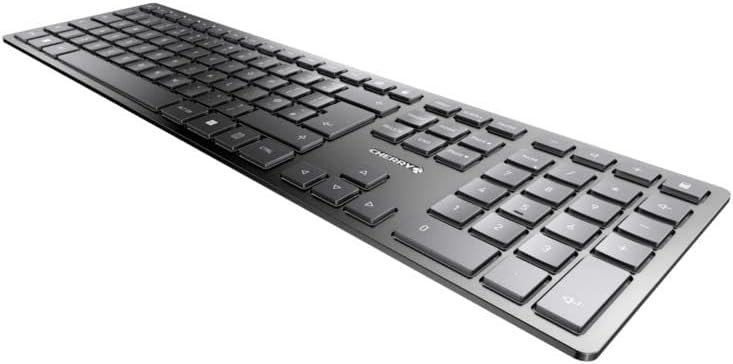
3.1-сүрөт: Бурчтуу view highlighting the slim profile and key layout of the keyboard.

Сүрөт 3.2: Жакын пландан view of the keys, illustrating the low-profile design and quiet SX Scissor Mechanism.
4. Орнотуу жана туташуу
4.1 Баскычтопту заряддоо
Биринчи жолу колдонуудан мурун, клавиатураны толук заряддоо сунушталат.
- Connect the supplied USB-A to USB-C cable to the USB-C port on the keyboard.
- Connect the other end of the cable to a USB-A port on your computer or a compatible USB power adapter.
- The charging indicator LED will illuminate. The keyboard can be used while charging.

Figure 4.1: Location of the USB-C charging port on the Cherry KW 9100 Slim keyboard.
4.2 Connecting via 2.4 GHz RF Wireless
For a stable and fast wireless connection, use the included USB receiver.
- Locate the USB receiver (dongle) in the package.
- USB ресиверди компьютериңиздеги жеткиликтүү USB-A портуна сайыңыз.
- On the keyboard, locate the connectivity switch (usually on the back or side) and set it to the "RF" or 2.4 GHz icon position.
- Баскычтоп сиздин компьютериңизге автоматтык түрдө кошулушу керек.
4.3 Bluetooth аркылуу туташуу
The keyboard supports Bluetooth connectivity for devices with Bluetooth capabilities.
- On the keyboard, set the connectivity switch to the "Bluetooth" icon position.
- The Bluetooth indicator LED on the keyboard will start blinking, indicating it's in pairing mode.
- Компьютериңизде же түзмөгүңүздө Bluetooth жөндөөлөрүн ачыңыз.
- Издөө new devices and select "Cherry KW 9100 Slim" from the list.
- Жупташтыруу процессин аяктоо үчүн экрандагы көрсөтмөлөрдү аткарыңыз.
4.4 Attaching the Magnetic Support Bar
The keyboard comes with a magnetic support bar that can be attached to adjust the typing angle.
- Locate the magnetic support bar.
- Align the bar with the magnetic strip on the underside of the keyboard.
- The magnets will snap the bar into place, providing an elevated typing angle.
- To remove, simply pull the bar away from the keyboard.

4.2-сүрөт: Каптал view of the keyboard demonstrating the elevated angle with the magnetic support bar attached.

Figure 4.3: Illustration of how the magnetic support bar attaches to the keyboard's underside.
5. Операция
5.1 Негизги колдонуу
Once connected, the Cherry KW 9100 Slim functions as a standard keyboard. Type as you normally would.

Figure 5.1: A user demonstrating typing on the Cherry KW 9100 Slim keyboard in an office setting.
5.2 Function Keys (F-Keys)
The F-keys (F1-F12) on the top row may have secondary functions accessible by pressing the Fn key simultaneously. Refer to the keycap legends for specific functions such as media control, volume adjustment, or brightness control.
5.3 Status LED
The keyboard features indicator LEDs for:
- CAPS LOCK: Caps Lock иштетилгенде күйөт.
- NUM: Illuminates when Num Lock is active.
- ЖЫЛДЫРУУ: Scroll Lock иштетилгенде күйөт.
- Battery/Charging: Indicates charging status or low battery.
6. Техникалык тейлөө
6.1 Баскычтопту тазалоо
Клавиатуранын көрүнүшүн жана функционалдуулугун сактоо үчүн:
- Тазалоодон мурун клавиатураны компьютерден ажыратыңыз.
- Бир аз жумшак, түксүз кездемени колдонуңуз dampсуу же жумшак тазалоо эритмеси менен.
- Ашыкча нымдуулуктан сактаныңыз жана тазалагычтарды түздөн-түз клавиатурага чачпаңыз.
- Ачкычтардын ортосундагы чаң жана таштанды үчүн кысылган абаны колдонуңуз.
6.2 Батареяга кам көрүү
The built-in rechargeable battery is designed for long life.
- Батарея индикатору аз кубаттуулукту көрсөткөндө клавиатураны кайра заряддаңыз.
- Батареянын иштөө мөөнөтүн узартуу үчүн бат-баттан толук зарядсыздануудан качыңыз.
- Клавиатураны узак убакыт бою колдонбосо, салкын, кургак жерде сактаңыз.
7. Кыйынчылыктарды
| Көйгөй | Мүмкүн себеп | Чечим |
|---|---|---|
| Keyboard not responding (RF) | USB receiver not plugged in; keyboard not in RF mode; low battery. | Ensure USB receiver is securely plugged in. Set keyboard switch to RF mode. Charge the keyboard. Try a different USB port. |
| Клавиатура жооп бербей жатат (Bluetooth) | Keyboard not in Bluetooth mode; not paired; out of range; low battery. | Set keyboard switch to Bluetooth mode. Ensure keyboard is paired with the device. Move keyboard closer to the device. Charge the keyboard. |
| Ачкычтар жабышчаак же жооп бербейт | Debris under keys; liquid spill. | Clean the keyboard using compressed air. If liquid spill, disconnect immediately and allow to dry completely before use. Do not attempt to disassemble. |
| Батарея заряддалбай жатат | Faulty USB cable or port; power source issue. | Try a different USB cable and/or USB port. Ensure the power source is active. |
8. Техникалык шарттар
| Өзгөчөлүк | Деталь |
|---|---|
| Модель номери | JK-9100US-2 |
| Байланыш | Bluetooth, 2.4 GHz RF (with USB receiver), USB-C (for charging) |
| Keyboard Description | Wireless, Full-size |
| Негизги механизм | SX Scissor Mechanism |
| Ачкычтардын саны | 108 |
| Түс | Кара |
| Материал | Metal (built-in plate) |
| Элемент Салмагы | 1.49 фунт (болжол менен 676 грамм) |
| Пакеттин өлчөмдөрү | 18.19 x 6.69 x 1.26 дюйм |
| Өндүрүүчү | CHERRY |
| Шайкеш түзмөктөр | PC |
| Сунушталган Колдонуулар | Gaming, Office, Work |
9. Кепилдик жана колдоо
Кепилдик жөнүндө маалымат жана техникалык колдоо алуу үчүн, расмий Cherry компаниясына кайрылыңыз website or contact Cherry customer service. Keep your proof of purchase for warranty claims.
Official Cherry Webсайт: www.cherry.de/en/
Кардарларды тейлөө: Чиновниктин байланыш бөлүмүнө кайрылыңыз webаймактык колдоо чоо-жайы үчүн сайт.


