1. Киришүү
This manual provides comprehensive instructions for the safe and efficient use of your MARKLIFE P50 Portable Bluetooth Thermal Label Printer. Please read this manual thoroughly before operating the device and retain it for future reference.
2. Коопсуздук маалыматы
- Аппаратты демонтаждабаңыз, оңдоого же өзгөртүүгө болбойт.
- Аппаратты суудан, нымдан жана жогорку температурадан алыс кармаңыз.
- Use only MARKLIFE approved labels and accessories.
- Басып чыгаргандан кийин дароо басып чыгаруучу башты кармабаңыз, анткени ал ысык болушу мүмкүн.
- Балдар жетпеген жерде сактаңыз.
3. Пакеттин мазмуну
Пакетиңизде бардык буюмдар бар экенин текшериңиз:
- MARKLIFE P50 этикетканын принтери
- 3 Rolls of Labels (2x 1.57"x1.18" white gap labels, 1x 2"x2" circle gap label)
- USB-C заряддоо кабели
- Колдонуучунун Колдонмосу (бул документ)
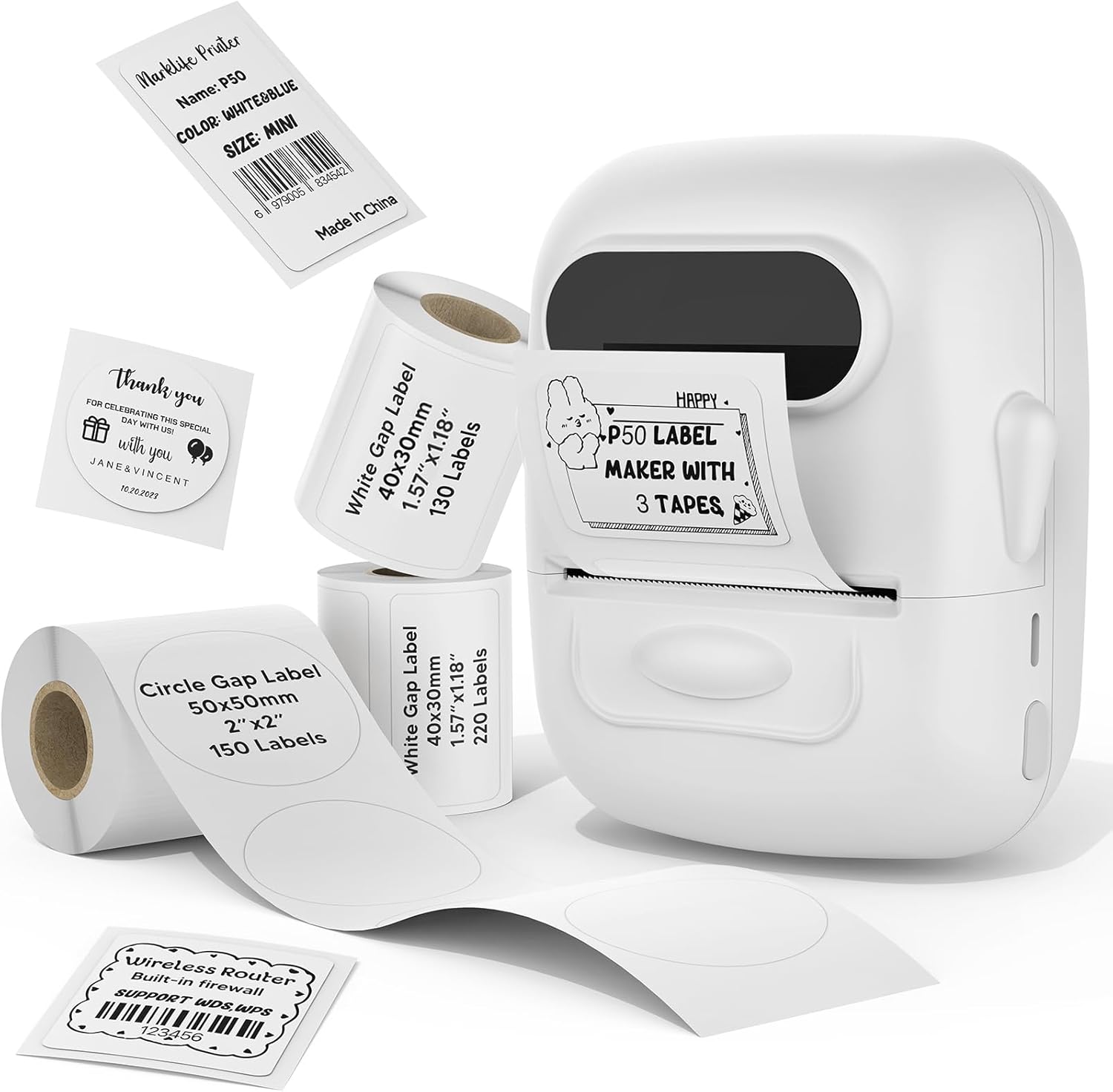
Image: MARKLIFE P50 Label Printer and various label rolls included in the package.
4. Продукт бүтүп калдыview
The MARKLIFE P50 is a compact, portable thermal label printer designed for various labeling needs. It connects wirelessly via Bluetooth to your smartphone or tablet and can also connect to a Windows PC via USB. It utilizes thermal printing technology, requiring no ink, and supports black and white printing only.

Image: The MARKLIFE P50 printer being placed into a handbag, highlighting its portable design and built-in 1200mAh battery with Type-C charging.
5. Орнотуу
5.1 Аппаратты заряддоо
Before first use, fully charge the printer using the provided USB-C cable and a compatible power adapter (not included). The charging indicator light will show the charging status.
5.2 этикеткаларды жүктөө
- Open the label compartment cover.
- Insert the label roll with the printing surface facing upwards.
- Ensure the label edge is aligned and extends slightly out of the printer slot.
- Close the cover firmly. The printer will automatically detect the label type and size.

Image: Illustration of label loading and compatible label widths (0.59 to 2.24 inches) for the P50 printer.
5.3 App Installation and Bluetooth Pairing (for Mobile Devices)
- Download the "Marklife" app from your device's app store (iOS or Android).
- Turn on the P50 printer.
- Смартфонуңузда же планшетиңизде Bluetooth иштетүү.
- Open the Marklife app and follow the on-screen instructions to connect to your P50 printer. The app will typically detect the printer automatically.
5.4 PC Connection (for Windows)
For Windows PC connectivity, download the official software from the MARKLIFE website. Connect the printer to your PC using the USB-C cable. The software will guide you through the printing process.

Image: The P50 label printer connected to both a laptop and a smartphone, illustrating its support for mobile and PC devices.
6. Операция
6.1 Basic Printing (via App)
- Ensure the printer is powered on and connected to the Marklife app.
- Select a template or create a new label design within the app.
- Enter your desired text, add images, barcodes, or QR codes.
- Adjust print settings (e.g., quantity, density) as needed.
- Tap the "Print" button in the app to initiate printing.

Image: Various label applications, such as clothing tags with barcodes, handmade soap labels, and price tags for baked goods, demonstrating the printer's versatility.
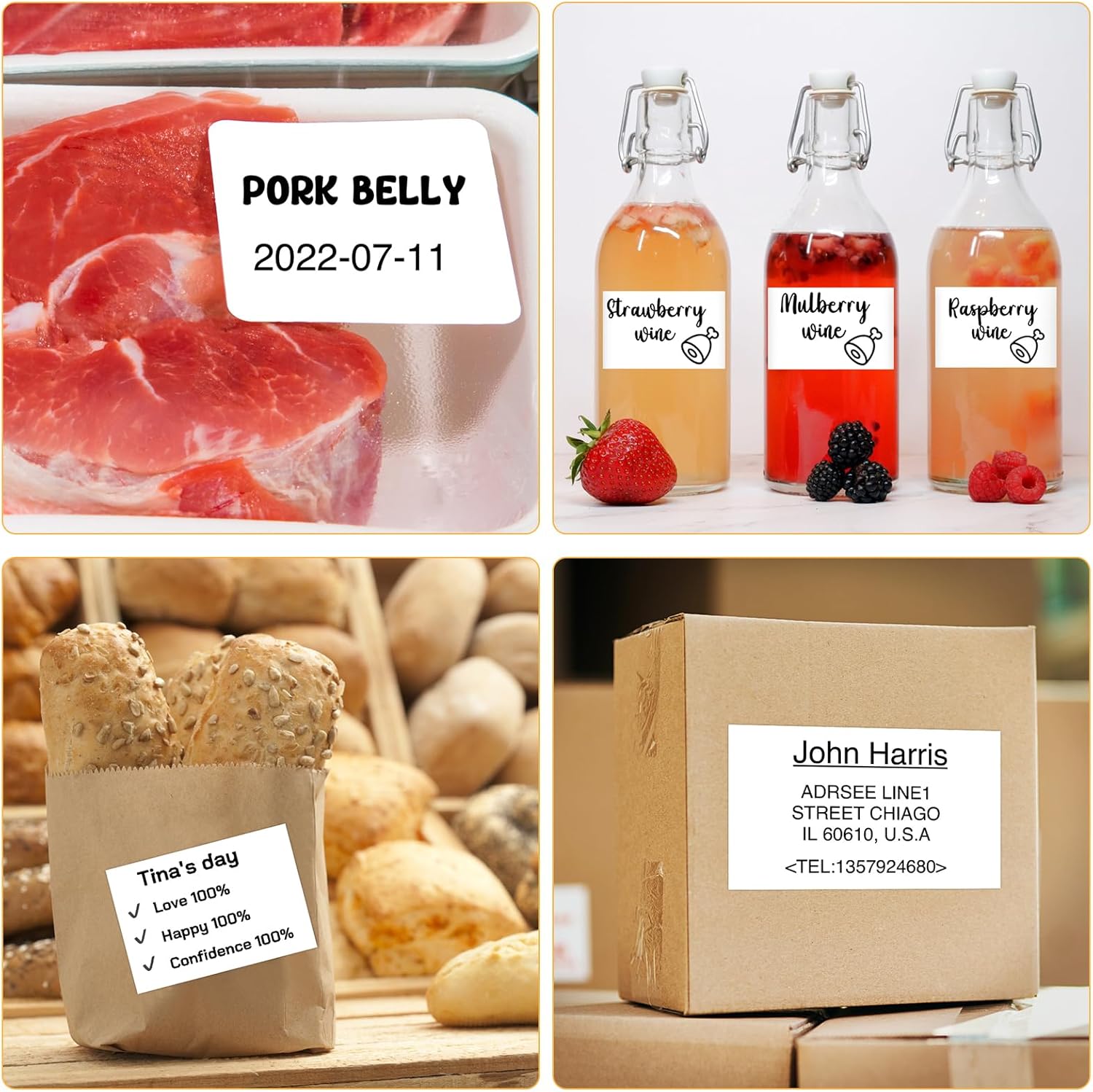
Сүрөт: Мисamples of labels for food items (pork belly, beverages) and a shipping address label, showcasing different label content possibilities.
6.2 Партиялык басып чыгаруу
The Marklife app supports batch printing for multiple copies of the same label or sequential labels. Refer to the app's specific instructions for detailed steps on batch printing functionality.

Image: The MARKLIFE P50 printer actively printing multiple barcode labels in a batch, demonstrating stable printing over a long duration.
7. Техникалык тейлөө
- Басып чыгаруу башын тазалоо: Жумшак, түксүз кездемени жеңил колдонуңуз dampened with alcohol to gently wipe the print head. Ensure the printer is off and cooled down before cleaning.
- Тышкы тазалоо: Wipe the printer's exterior with a soft, dry cloth. Do not use harsh chemicals.
- Энбелгилердин сактагычы: Store label rolls in a cool, dry place away from direct sunlight to preserve their quality.
8. Кыйынчылыктарды
| Көйгөй | Мүмкүн себеп | Чечим |
|---|---|---|
| Принтер күйбөй жатат | Батареянын аздыгы же кубат маселеси | Charge the printer using the USB-C cable. |
| Bluetooth аркылуу туташуу мүмкүн эмес | Bluetooth off, app issue, or printer not discoverable | Ensure Bluetooth is enabled on your device. Restart the printer and the app. Try re-pairing. |
| Басып чыгаруу сапаты начар | Dirty print head, incorrect label loading, or low print density setting | Clean the print head. Re-load labels correctly. Adjust print density in the app. |
| Энбелгилер туура эмес азыктандырылган | Improper label loading or label jam | Open the cover, re-seat the label roll, ensuring it's aligned. Clear any jammed labels. |
9. Техникалык шарттар
| Өзгөчөлүк | Деталь |
|---|---|
| Модел | P50 |
| Басма технологиясы | Термикалык |
| Байланыш | Bluetooth, USB |
| Шайкеш түзмөктөр | Android, iOS, Windows PC |
| Максималдуу медиа өлчөмү | 2 дюйм (57мм) |
| Print Width Range | 0.59" - 2.24" (15 мм - 57 мм) |
| Принтердин чыгышы | Монохром (кара жана ак) |
| Батарея | Built-in 1200mAh (rechargeable) |
| Заряддоо порту | USB-C |
| Продукциянын өлчөмдөрү | 4"D x 3"W x 2"H (болжол менен) |
| Элемент Салмагы | 6 унция (болжол менен) |
10. Кепилдик жана колдоо
The MARKLIFE P50 Label Printer comes with a limited warranty. For warranty details, technical support, or customer service inquiries, please refer to the official MARKLIFE webсайтка же түздөн-түз кардарларды колдоо менен байланышыңыз. Сатып алганыңыздын далили катары сатып алуу дүмүрчөгүңүздү сактаңыз.
Өндүрүүчү: MARKLIFE


