1. Киришүү
This manual provides detailed instructions for the Phomemo PM241BT Bluetooth Thermal Label Printer. Please read this guide thoroughly before using the printer to ensure proper operation and to maximize its lifespan. This printer is designed for efficient label printing for various applications, including shipping, addressing, and product labeling.

Image 1.1: Phomemo PM241BT printer in operation, connected via Bluetooth to a smartphone.
2. Коопсуздук маалыматы
Принтерге зыян келтирбөө же өзүңүзгө жаракат келтирбөө үчүн төмөнкү коопсуздук чараларын сактаңыз:
- Принтерди бөлүктөргө бөлбөңүз же өзгөртпөңүз.
- Принтерди суудан, нымдуулуктан жана түз күн нурунан алыс кармаңыз.
- Берилген кубат адаптерин жана кабелдерин гана колдонуңуз.
- Принтер туруктуу, жалпак бетке коюлганын текшериңиз.
- Басып чыгаргандан кийин дароо басып чыгаруучу башты кармабаңыз, анткени ал ысык болушу мүмкүн.
3. Пакеттин мазмуну
Пакетте бардык буюмдар бар экенин текшериңиз:
- Phomemo PM241BT Thermal Label Printer
- Кубаттуу адаптер
- USB кабели
- USB-C адаптери
- Электр кабели
- Quick Start Guide
- 10 x 4x6 inch Labels
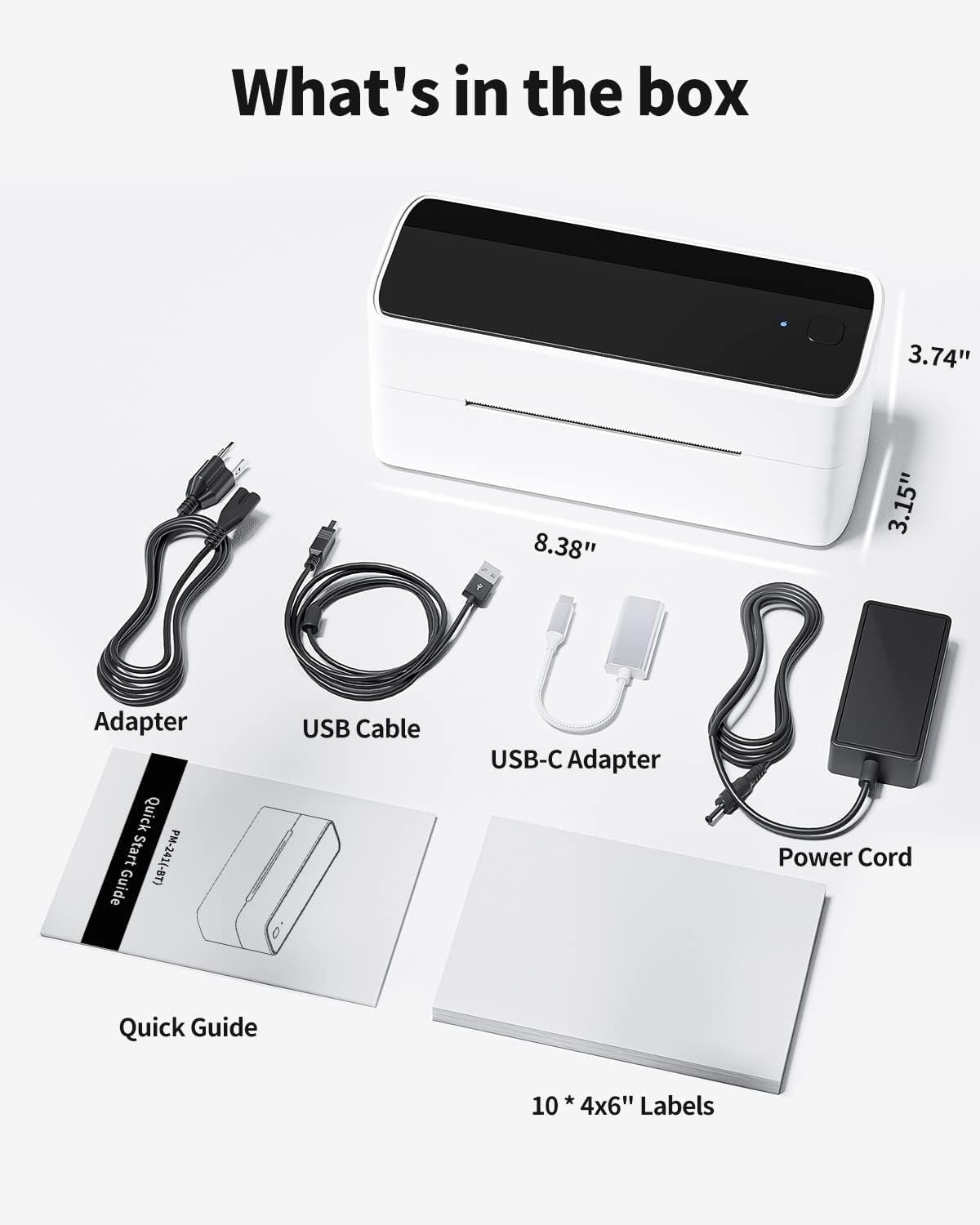
Image 3.1: All components included in the Phomemo PM241BT product package.
4. Орнотуу
4.1. Аппараттык туташуу
- Connect the power cord to the power adapter, then plug the adapter into the printer's power port.
- Электр шнурунун розеткага сайыңыз.
- If connecting via USB, connect the USB cable from the printer to your computer. Use the USB-C adapter if necessary.
4.2. Энбелгилер жүктөлүүдө
The printer supports thermal labels with a width of 1 inch (25.4 mm) to 4.6 inches (116 mm).
- Принтер күйгүзүлгөнүн текшериңиз.
- Принтердин үстүнкү капкагын акырын ачыңыз.
- Insert the thermal labels into the feed slot, ensuring the print side faces upwards.
- Adjust the label guides to fit the label width snugly.
- Close the top cover. The printer will automatically detect and calibrate the label size.
4.3. Программаны орнотуу жана туташуу
The Phomemo PM241BT offers both Bluetooth and USB connectivity.
4.3.1. Bluetooth Connection (Mobile Devices & Computers)
For Bluetooth connectivity, download the "Labelife" application or software.
- For Mobile (iOS/Android):
- Scan the QR code in the Quick Start Guide or search for "Labelife" in your device's app store to download the app.
- Мобилдик түзмөгүңүздө Bluetooth'ду иштетиңиз.
- Open the Labelife app and follow the on-screen instructions to connect to the PM241BT printer.
- For Computers (macOS/Windows/ChromeOS/Linux):
- Download the Labelife software from the official Phomemo website or the provided link in the Quick Start Guide.
- Install the software and ensure your computer's Bluetooth is enabled.
- Open Labelife and pair with the PM241BT printer.

Image 4.1: Bluetooth connection steps for mobile devices using the Labelife app.
4.3.2. USB Connection (Computers Only)
For USB connection, you will need to install the printer driver.
- USB кабелин колдонуп принтерди компьютериңизге туташтырыңыз.
- Visit labelife.net/#/pm246sbt to download the appropriate printer driver for your operating system (macOS, Windows, ChromeOS, Linux).
- Экрандагы көрсөтмөлөрдү аткаруу менен драйверди орнотуңуз.
- Once installed, your computer should recognize the PM241BT as a standard printer.

Image 4.2: USB connection and driver installation for PC.
5. Принтерди иштетүү
5.1. Printing via Bluetooth
After connecting your device via Bluetooth using the Labelife app:
- Open the Labelife app on your smartphone or computer.
- Select or create the label you wish to print. The app offers various templates for shipping, address, circular, and barcode labels.
- Confirm print settings (e.g., number of copies).
- Колдонмодон басып чыгаруу буйругун иштетиңиз.

Image 5.1: Wireless printing from a smartphone using Bluetooth.
5.2. Printing via USB
Once the USB driver is installed, you can print from any application on your computer that supports printing.
- Open the document or label file you want to print (e.g., PDF, image, or a label created in Labelife software).
- Go to 'File' > 'Print' or use the print shortcut (Ctrl+P or Cmd+P).
- Select "Phomemo PM241BT" from the list of available printers.
- Adjust print settings as needed (e.g., paper size, orientation). Ensure the label size matches the loaded labels.
- "Басып чыгаруу" баскычын чыкылдатыңыз.

Image 5.2: Printing from a laptop using a USB connection.
5.3. Supported Label Types and Platforms
The PM241BT printer is compatible with various thermal label types and major e-commerce/shipping platforms:
- Энбелгилердин түрлөрү: Shipping labels (4x6 inches), address labels, circular labels, barcode labels, FBA labels, Amazon Warehouse labels, price labels.
- Платформалар: Shopify, Etsy, eBay, Amazon, Hermes, Royal Mail Click & Drop, Parcelforce, DPD, UPS, DHL, FedEx, and others.

Сүрөт 5.3: Мисamples of various label types and sizes supported by the printer.
6. Техникалык тейлөө
Regular maintenance ensures optimal performance and extends the printer's life.
6.1. Басып чыгаруу башын тазалоо
Clean the print head if print quality degrades or after every few rolls of labels.
- Принтерди өчүрүп, электр шнурын сууруп алыңыз.
- Жогорку капкакты ачыңыз.
- Use an alcohol swab (70% isopropyl alcohol) to gently wipe the print head.
- Капкакты жаап, принтерди күйгүзүүдөн мурун басып чыгаруу башынын толук кургашына уруксат бериңиз.
6.2. Cleaning the Platen Roller
Clean the platen roller if labels are not feeding smoothly.
- Принтерди өчүрүп, электр шнурын сууруп алыңыз.
- Жогорку капкакты ачыңыз.
- Use an alcohol swab to clean the platen roller, rotating it manually to clean the entire surface.
- Колдонуудан мурун аны толугу менен кургатуу керек.
7. Кыйынчылыктарды
Жалпы маселелер жана аларды чечүү үчүн төмөнкү таблицаны караңыз:
| Көйгөй | Мүмкүн себеп | Чечим |
|---|---|---|
| Принтер күйбөй жатат | Power cable not connected; power outlet issue | Электр байланыштарын текшерүү; башка розеткага аракет кылып көрүңүз. |
| Басып чыгаруу сапаты начар | Dirty print head; incorrect label type; low print density setting | Clean the print head; ensure thermal labels are used; adjust print density in software. |
| Энбелгилер туура эмес азыктандырылган | Labels loaded incorrectly; label guides not adjusted; dirty platen roller | Reload labels correctly; adjust label guides; clean platen roller. |
| Bluetooth байланышы катасы | Bluetooth off; incorrect pairing; app issue | Ensure Bluetooth is on; re-pair device in Labelife app; restart app/device. |
| Принтер USB аркылуу компьютер тарабынан таанылган жок | Driver not installed; faulty USB cable | Install or reinstall the printer driver; try a different USB cable or port. |
8. Техникалык шарттар
- Модел: PM241BT
- Басып чыгаруу технологиясы: Термикалык
- Байланыш: Bluetooth (iOS, Android, macOS, Windows, ChromeOS, Linux via Labelife app), USB (macOS, Windows, ChromeOS, Linux)
- Басып чыгаруу чечими: 203 dpi
- Максималдуу басып чыгаруу ылдамдыгы: 150 mm/s (72 pages per minute)
- Колдоого алынган этикетканын туурасы: 1 inch (25.4 mm) to 4.6 inches (116 mm)
- Өлчөмдөрү: 11 x 22 x 16 см (4.3 x 8.7 x 6.3 дюйм)
- Салмагы: 1.05 кг (2.3 фунт)
- Операциялык системанын шайкештиги: iOS, Android, macOS, Windows, ChromeOS, Linux

Сүрөт 8.1: Бүттүview of connectivity options and compatible operating systems.
9. Кепилдик жана колдоо
Phomemo offers a limited warranty for the PM241BT printer. For specific warranty terms, please refer to the documentation included with your purchase or contact customer support.
9.1. Кардарларды колдоо кызматы
For technical assistance, troubleshooting, or warranty claims, please contact Phomemo customer service. Support is available 24 hours a day. You may also be eligible for free returns within 30 days of purchase.
Please visit the official Phomemo website for contact information or refer to your Quick Start Guide.


