1. Киришүү
Сатып алганыңыз үчүн рахматasing the LG UltraGear 24GN60R-B 24-inch FHD IPS 144Hz Gaming Monitor. This manual provides essential information for the safe and efficient use of your monitor. Please read it thoroughly before operating the product and retain it for future reference.
The LG UltraGear 24GN60R-B is designed to enhance your gaming experience with its 23.8-inch Full HD (1920 x 1080) IPS display, offering a 1ms response time and a 144Hz refresh rate. It supports HDR10 with sRGB 99% (Typ.) for vibrant colors and features AMD FreeSync Premium technology to minimize screen tearing and stuttering.
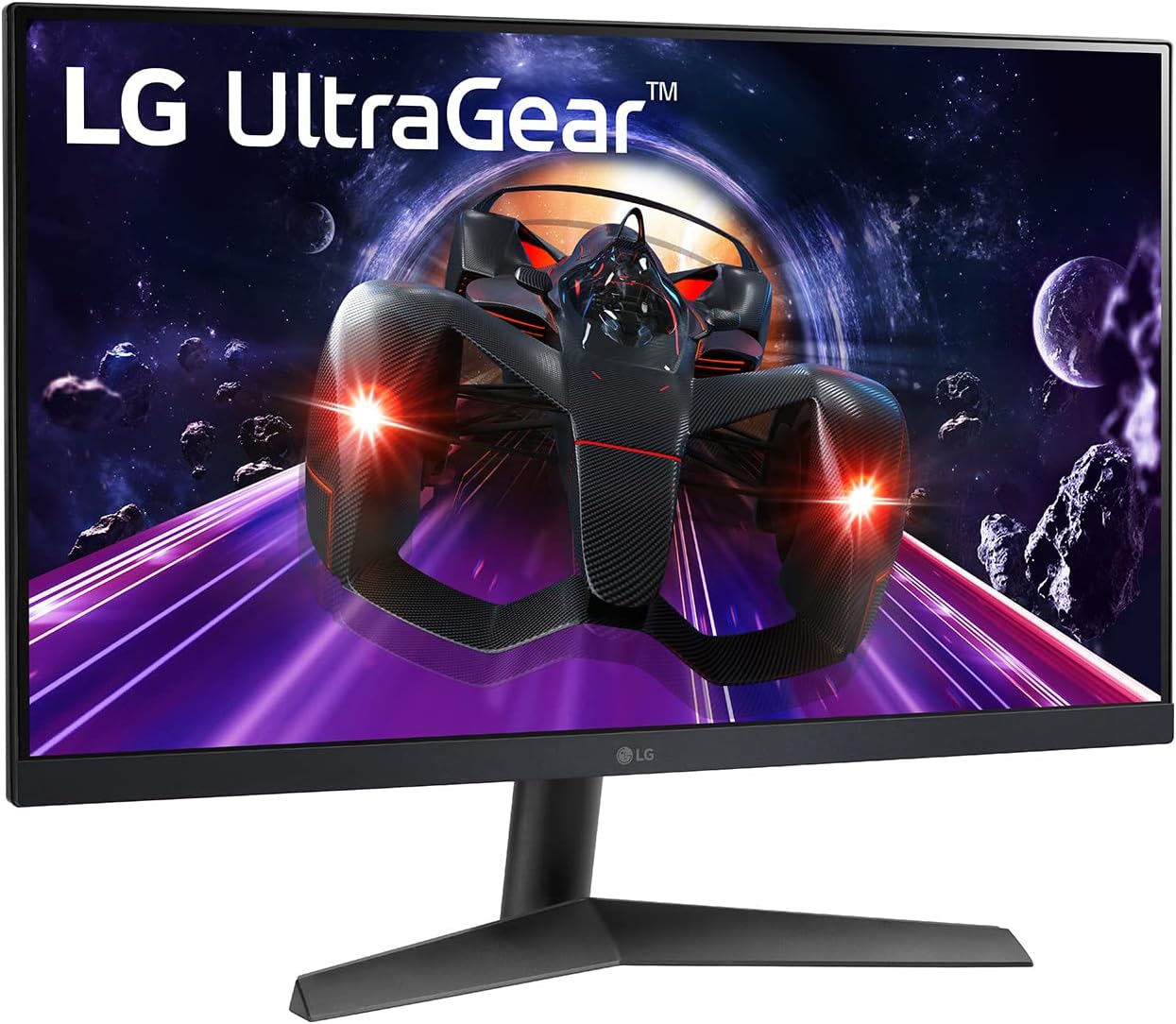
Сүрөт 1: Алдыңкы view of the LG UltraGear 24GN60R-B monitor.
2. Коопсуздук маалыматы
Please observe the following safety precautions to prevent damage to your monitor or injury to yourself.
- Күч: Use only the power cord and adapter supplied with the monitor. Do not overload power outlets.
- Вентиляция: Монитордун айланасында жетиштүү желдетүүнү камсыз кылыңыз. Вентиляция тешиктерин жаап албаңыз.
- Суюктук: Keep the monitor away from liquids. Do not spill any liquid into the monitor.
- Тазалоо: Unplug the monitor before cleaning. Use a soft, dry cloth. Do not use liquid or aerosol cleaners.
- Жайгашкан жери: Place the monitor on a stable, level surface. Avoid direct sunlight, heat sources, and excessive dust.
- Тейлөө: Мониторду өзүңүз тейлөөгө аракет кылбаңыз. Бардык тейлөөлөрдү квалификациялуу тейлөө кызматкерлерине тапшырыңыз.
3. Пакеттин мазмуну
Verify that all items are present in your product box. If any items are missing, contact your retailer.
- LG UltraGear 24GN60R-B Monitor
- Стенд базасы
- Stand Neck
- Кубаттуу адаптер
- Электр кабели
- HDMI кабели
- DisplayPort кабели
- Колдонуучунун Колдонмосу (бул документ)
4. Орнотуу
4.1 Стендди чогултуу
- Чийип кетпеши үчүн мониторду жумшак, таза бетке ылдый каратып кой.
- Тирөөчтүн мойнун монитордун арткы бетине бекитиңиз. Ал ордуна бекем орнотулганын текшериңиз.
- Attach the stand base to the bottom of the stand neck. Tighten the screw on the underside of the base to secure it.

2-сүрөт: Арткы view of the monitor with stand assembly.
4.2 Туташтыруучу кабельдер
Before connecting any cables, ensure the monitor and your computer are powered off.
- Кубат туташуу: Connect the power adapter to the monitor's DC-IN port, then plug the power cord into the adapter and a wall outlet.
- Видео туташуу: Connect one end of the HDMI or DisplayPort cable to the corresponding port on your computer's graphics card and the other end to the HDMI or DP-IN port on the monitor. For optimal performance, use the DisplayPort connection to achieve 144Hz refresh rate.
- Аудио туташуу (кошумча): If you wish to use external speakers or headphones, connect them to the HP/Audio Out port on the monitor.

Figure 3: Monitor port panel for connections.
4.3 Мониторду тууралоо
The monitor's stand allows for tilt adjustment. Gently hold the top and bottom edges of the monitor and tilt it to your desired viewing angle. The tilt range is typically -5° to 15°.
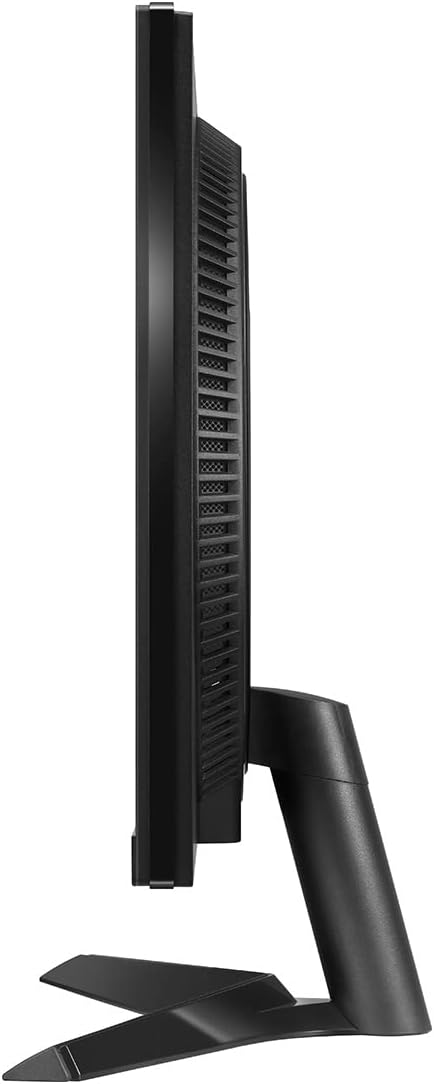
4-сүрөт: Каптал view of the monitor, showing tilt capability.
5. Мониторду иштетүү
5.1 Күйгүзүү/өчүрүү
Press the joystick button located at the bottom center of the monitor to turn it on. Press and hold the joystick button for a few seconds to turn it off.
5.2 Basic Controls (Joystick Button)
The joystick button serves multiple functions:
- Пресс: Power On/Off, Access OSD Menu.
- Өйдө/төмөн: Navigate menu options, adjust volume (when OSD is not active).
- Сол оң: Navigate menu options, change input source (when OSD is not active).
5.3 Негизги өзгөчөлүктөрү
- 144Hz жаңыртуу ылдамдыгы: Provides smoother motion and reduced input lag for gaming. Ensure your graphics card and connection cable (DisplayPort recommended) support this refresh rate.
- 1ms IPS Response Time: Minimizes motion blur and ghosting for fast-paced action.
- HDR10 колдоосу: Delivers dynamic contrast and high-fidelity color for a more immersive visual experience.
- AMD FreeSync Premium: Экрандагы жыртууну жана кекечтенүүнү жок кылуу үчүн монитордун жаңылоо ылдамдыгын AMD графикалык картаңыздын кадр ылдамдыгы менен синхрондоштуруу. Бул функцияны графикалык картаңыздын жөндөөлөрүнөн иштетиңиз.
6. Экрандагы дисплей (OSD) менюсу
The OSD menu allows you to adjust various monitor settings. To access the OSD menu, press the joystick button when the monitor is on.
6.1 Navigating the OSD
- Джойстикти жылдырыңыз Өйдө/Төмөн/Сол/Оң меню параметрлери боюнча чабыттоо.
- Press the joystick in параметрди тандоо же орнотууну ырастоо үчүн.
- Джойстикти жылдырыңыз Солго to go back to the previous menu or exit the OSD.
6.2 Жалпы OSD орнотуулары
- Оюн режими: Select various gaming presets (e.g., Gamer 1, FPS, RTS) or customize your own.
- Сүрөт: Adjust Brightness, Contrast, Sharpness, Gamma, Color Temperature, and Black Stabilizer.
- Киргизүү: Manually select the input source (HDMI1, HDMI2, DisplayPort).
- Жалпы: Configure Language, OSD Lock, Power LED, and perform a Factory Reset.
7. Техникалык тейлөө
7.1 Мониторду тазалоо
- Тазалоодон мурун мониторду дайыма электр розеткасынан сууруп алыңыз.
- Экранды акырын сүртүү үчүн жумшак, түксүз чүпүрөктү колдонуңуз. өжөр белгилери үчүн, жеңил гampen the cloth with water or a specialized screen cleaner (ensure it's alcohol-free and ammonia-free).
- Сыртын сүртүңүз casing with a soft, dry cloth. Avoid abrasive materials or strong chemical cleaners.
7.2 Сактоо
Мониторду узак убакытка сактасаңыз, бардык кабелдерди ажыратып, аны баштапкы таңгагына (эгер бар болсо) таңгактап, күн нурунан жана өтө температурадан алыс, салкын, кургак жерде сактаңыз.
8. Кыйынчылыктарды
If you encounter issues with your monitor, refer to the following troubleshooting guide.
| Көйгөй | Мүмкүн себеп | Чечим |
|---|---|---|
| Кубат жок / Күйгүзүү LED өчүк | Power cord not connected; Power outlet faulty; Monitor off. | Check power cord connections; Try a different outlet; Press the joystick button to turn on the monitor. |
| Сигнал жок / Экран бош | Видео кабель туташкан эмес; Туура эмес киргизүү булагы тандалып алынган; Компьютер уйку режиминде. | Ensure video cable (HDMI/DP) is securely connected; Select correct input source via OSD; Wake up computer. |
| Image flickering / Distorted | Cable issue; Graphics card driver outdated; Refresh rate mismatch. | Try a different video cable; Update graphics card drivers; Ensure refresh rate is set correctly in OS display settings. |
| Dead pixels or stuck pixels | Manufacturing defect; Normal panel characteristic. | Refer to LG's pixel policy for warranty coverage. Small numbers of dead/stuck pixels may be considered normal. |
| Наушниктерден/колонналардан үн чыкпайт | Аудио кабель туташкан эмес; Үнү өтө төмөн; Компьютерде туура эмес аудио чыгышы тандалды. | Check audio cable connection; Adjust monitor/PC volume; Select monitor as audio output device in PC settings. |
Эгер бул чечимдерди колдонуп көргөндөн кийин көйгөй чечилбесе, LG кардарларды колдоо бөлүмүнө кайрылыңыз.
9. Техникалык шарттар
| Өзгөчөлүк | Спецификация |
|---|---|
| Модель аты | 24GN60R-B |
| Screen Size | 24 дюйм (23.8 дюйм). viewжөндөмдүү) |
| Панел түрү | IPS |
| Резолюция | 1920 x 1080 (FHD) |
| Аспект катышы | 16:9 |
| Жаңыртуу ылдамдыгы | 144Hz |
| Жооп убактысы | 1 мс (GtG) |
| Жарыктык (Типтүү) | 300 кд/м² |
| HDR колдоо | HDR10 |
| Түс гаммасы | sRGB 99% (типтүү) |
| Adaptive Sync | AMD FreeSync Premium |
| Байланыш | 2 x HDMI, 1 x DisplayPort, 1 x Кулакчындын чыгышы |
| Өлчөмдөрү (стенд менен) | 21.29 x 12.75 x 1.69 inches (W x H x D) - Note: Product dimensions from source are 1.69 x 21.29 x 12.75 inches, assuming depth x width x height. Reordered for clarity. |
| Салмагы (стенд менен) | 8.67 фунт |
10. Кепилдик жана колдоо
10.1 Кепилдик маалыматы
Your LG UltraGear 24GN60R-B monitor comes with a limited warranty. Please refer to the warranty card included in your product packaging or visit the official LG webкепилдик мөөнөтү жана камтуунун өзгөчөлүктөрү сыяктуу кеңири шарттар жана эрежелер менен сайттан таанышсаңыз болот.
10.2 Кардарларды колдоо
For technical assistance, troubleshooting beyond this manual, or warranty claims, please contact LG Customer Support. You can find contact information and support resources on the official LG webсайт:
LG колдоо кызматына баш багыңыз Webсайт
When contacting support, please have your monitor's model number (24GN60R-B) and serial number ready.