1. Киришүү
This manual provides detailed instructions for the setup, operation, and maintenance of your Logitech MK670 Comfort Wave Wireless Keyboard and Mouse Combo, along with the included Mini Bluetooth Speaker, Gel Wrist Pad, and Gel Mouse Pad. Please read this manual thoroughly before using the products to ensure optimal performance and longevity.

Image 1.1: Complete bundle including the Logitech MK670 keyboard, mouse, mini Bluetooth speaker, and gel pads.
2. Продукциянын компоненттери
Сиздин пакетте төмөнкү элементтер болушу керек:
- Logitech MK670 Comfort Wave Wireless Keyboard
- Logitech зымсыз чычкан
- Logitech бириктирүүчү USB кабыл алгычы
- Мини портативдик зымсыз Bluetooth спикери
- Gel Wrist Pad
- Gel Mouse Pad
- Micro USB Charging Cable (for speaker)
- Колдонуучунун документтери (бул колдонмо)
3. Орнотуу нускамалары
3.1. Logitech Keyboard and Mouse Setup
- Таңылганын ачуу: Carefully remove the keyboard and mouse from their packaging.
- Батареяларды салыңыз: The keyboard and mouse typically come with pre-installed batteries or require standard AA/AAA batteries. Open the battery compartments (usually on the underside of each device) and ensure batteries are correctly inserted.
- Locate Unifying Receiver: The small USB Unifying receiver is often stored inside the mouse's battery compartment for safekeeping. Remove it.
- Алуучуну туташтыруу: Logitech Unifying USB кабыл алгычын компьютериңиздеги жеткиликтүү USB портуна сайыңыз.
- Күйгүзүү: Turn on the keyboard and mouse using their respective power switches (usually located on the underside or side). The devices should automatically connect to your computer.

Image 3.1: The Logitech MK670 wireless keyboard and mouse, ready for connection via the Unifying receiver.
3.2. Mini Bluetooth Speaker Setup
- Заряддоо спикери: Before first use, fully charge the mini Bluetooth speaker using the provided Micro USB charging cable. Connect the Micro USB end to the speaker and the USB-A end to a power source (e.g., computer USB port, USB wall adapter). The charging indicator light will typically turn off or change color when fully charged.
- Күйгүзүү: Press and hold the power button on the speaker until you hear an audible prompt or see an indicator light flash, indicating it is in pairing mode.
- Bluetooth аркылуу жупташуу:
- Түзмөгүңүздө (смартфон, планшет, ноутбук) Bluetooth жөндөөлөрүнө өтүңүз.
- Bluetooth иштетилгенин текшериңиз.
- Издөө available devices. The speaker will typically appear as a name like "Mini Speaker" or similar.
- Select the speaker to pair. Once paired, you will hear a confirmation sound.
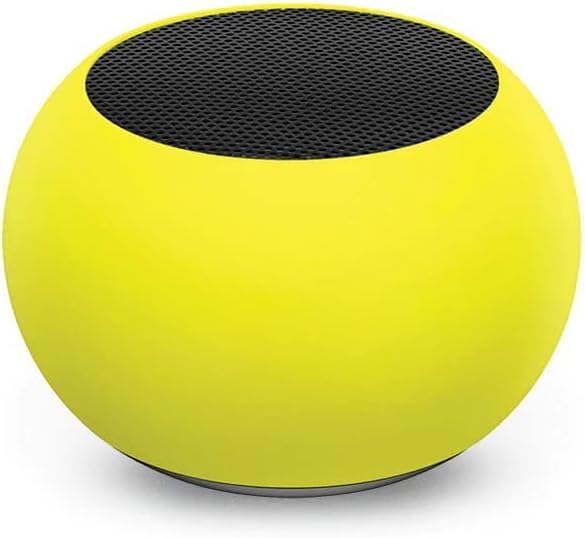
Сүрөт 3.2: Жакын план view of the compact mini Bluetooth speaker, highlighting its design.
3.3. Gel Pads Placement
- Keyboard Wrist Rest: Place the longer gel wrist pad directly in front of your Logitech MK670 keyboard, aligning it to support your wrists while typing.
- Mouse Pad with Wrist Rest: Position the gel mouse pad on your desk where you typically use your mouse. Ensure the integrated wrist rest provides comfortable support for your mousing hand.

Image 3.3: The ergonomic gel wrist pad and gel mouse pad, designed for comfort and support.
4. Иштөө нускамалары
4.1. Баскычтопту колдонуу
- Терүү: The Comfort Wave design provides an ergonomic layout for natural hand and wrist positioning.
- Сандык баскычтоп: Utilize the full-size numeric keypad for efficient data entry.
- Кыска Keys: Access common functions quickly using the dedicated shortcut keys (e.g., media controls, volume, application launch). Refer to the key legends for specific functions.
- Жөндөлүүчү кыйшаюучу буттар: Flip out the tilt legs on the underside of the keyboard to adjust the typing angle for personalized comfort.

Сүрөт 4.1: Каптал view of the Logitech MK670 keyboard, illustrating the adjustable tilt legs for ergonomic customization.
4.2. Чычканды колдонуу
- Pointing and Clicking: Use the mouse for precise cursor control, left-clicks, and right-clicks.
- Жылдыруу: The scroll wheel allows for smooth navigation through documents and web барактар.
- Эки тараптуу дизайн: Чычкан сол жана оң колдуу колдонуучулардын ыңгайлуу колдонуусу үчүн иштелип чыккан.
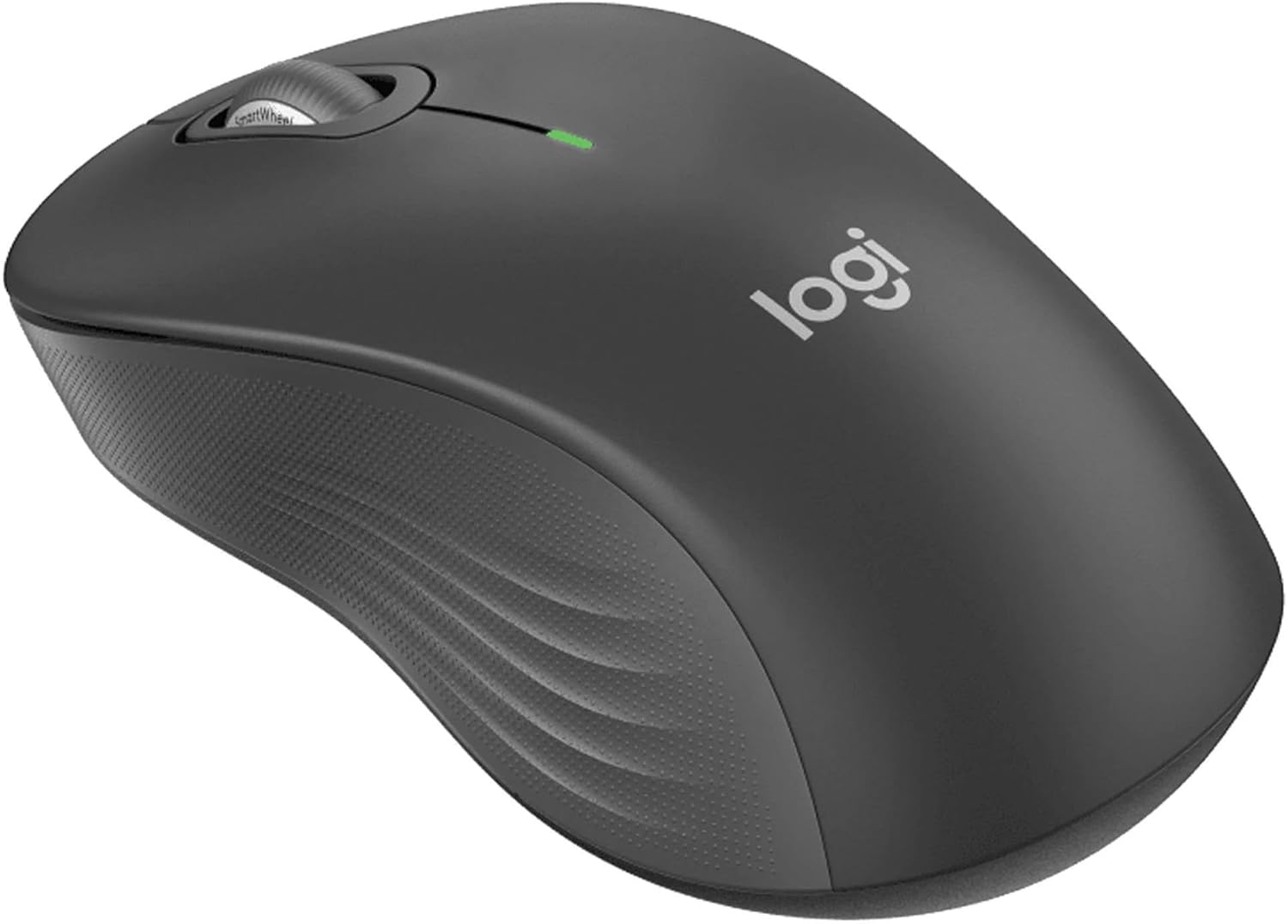
Сүрөт 4.2: деталдуу view of the Logitech wireless mouse, showcasing its ergonomic shape.
4.3. Mini Bluetooth Speaker Usage
- Күйгүзүү/өчүрүү: Динамикти күйгүзүү же өчүрүү үчүн кубат баскычын басып, кармап туруңуз.
- Bluetooth жупташууда: Once powered on, the speaker will automatically attempt to connect to the last paired device. If not, it will enter pairing mode for new connections (refer to Section 3.2).
- Үндү көзөмөлдөө: Volume is typically controlled via the connected device. Some speakers may have integrated volume buttons.
- Selfie Remote: The speaker may feature a remote selfie button. Consult the speaker's specific instructions for activation and use with your device's camera.
- Hands Free Чалуу: With its built-in microphone, the speaker can be used for hands-free calls when connected to a smartphone.
5. Техникалык тейлөө
5.1. Тазалоо
- Баскычтоп жана чычкан: Бир аз жумшак, түксүз кездемени колдонуңуз dampened with water or a mild cleaning solution. Avoid harsh chemicals or abrasive materials. For dust between keys, use compressed air.
- Mini Bluetooth Speaker: Wipe the exterior with a soft, dry cloth. Do not immerse in water.
- Gel Pads: Жарнама менен тазалаңызamp cloth and mild soap if necessary. Allow to air dry completely before reuse.
5.2. Battery Replacement (Keyboard and Mouse)
When the battery indicator light on your keyboard or mouse signals low power, replace the batteries with new ones of the same type (e.g., AA or AAA). Ensure correct polarity when inserting new batteries.
6. Кыйынчылыктарды
6.1. Keyboard/Mouse Not Responding
- Батареяларды текшерүү: Батареялар туура салынганын жана жетиштүү заряддалганын текшериңиз. Зарыл болсо, алмаштырыңыз.
- Кубат өчүргүчтөр: Verify that both the keyboard and mouse power switches are in the 'ON' position.
- USB кабыл алгыч: Ensure the Logitech Unifying USB receiver is securely plugged into a working USB port on your computer. Try a different USB port.
- Жакындык: Ensure the keyboard and mouse are within the operational range (up to 33 feet) of the USB receiver.
- Кайра жупташтыруу: If issues persist, you may need to re-pair the devices using Logitech's Unifying software (downloadable from the Logitech support webсайт).
6.2. Mini Bluetooth Speaker Connection Issues
- Динамик күчү: Динамик кубатталып, күйгүзүлгөнүн текшериңиз.
- Bluetooth күйүк: Verify Bluetooth is enabled on your source device.
- Түзмөктү унут: On your source device, 'forget' or 'unpair' the speaker from your Bluetooth device list, then attempt to pair again.
- Жакындык: Keep the speaker and source device within close range (typically 10 meters or 33 feet) for stable connection.
- Интерференция: Тоскоолдукка алып келиши мүмкүн болгон башка зымсыз түзмөктөрдөн алыс болуңуз.
6.3. No Sound from Speaker
- Үн деңгээли: Check the volume on both the speaker and the connected device.
- Source Device Output: Ensure your device's audio output is set to the Bluetooth speaker.
- Медиа ойнотуу: Verify that media is playing on your source device.
7. Техникалык шарттар
| Өзгөчөлүк | Деталь |
|---|---|
| Бренд | Logitech |
| Модел | MK670 (Keyboard & Mouse Combo) |
| Байланыш технологиясы | 2.4GHz Wireless (Keyboard & Mouse), Bluetooth 5.0 (Speaker) |
| Зымсыз диапазон | 33 фут (10 метр) чейин |
| Баскычтоптун өзгөчөлүктөрү | Ergonomic Comfort Wave design, Full-size with numeric keypad, Shortcut keys, Cushioned palm rest, Adjustable tilt legs |
| Чычкан өзгөчөлүктөрү | Ambidextrous design, Precise tracking |
| Спикердин өлчөмдөрү | 45.45 мм x 33 мм (1.75" x 1.3") |
| Спикердин салмагы | 2.46 унц |
| Динамиктин батареясынын сыйымдуулугу | 400mAh |
| Speaker Playback Time | 4 саатка чейин |
| Speaker Special Features | Magnetic base, Built-in mic, Remote selfie button, Glow in the Dark (Yellow variant) |
| Шайкеш түзмөктөр | Laptops, Gaming Consoles (for keyboard/mouse functionality), Bluetooth-enabled devices (for speaker) |
| Буюмдун Салмагы (Таңгак) | 4 фунт |
| Пакеттин өлчөмдөрү | 23 x 10 x 10 дюйм |
8. Кепилдик маалыматы
Logitech products are typically covered by a limited hardware warranty. For specific warranty terms and conditions, including duration and coverage details, please refer to the warranty card included with your product or visit the official Logitech webсайт. Кепилдик дооматтар үчүн сатып алганыңыздын далилин сактаңыз.
9. Колдоо
For further assistance, technical support, or to download the latest drivers and software for your Logitech products, please visit the official Logitech support webсайт. Сиз ошондой эле көп берилүүчү суроолорду жана коомдук форумдарды ал жерден таба аласыз.
Logitech колдоо Webсайт: https://support.logi.com/


