1. Киришүү
This manual provides detailed instructions for the setup, operation, and maintenance of your KYY 15.6-inch Portable Monitor (models K3 and K3-2). Please read this manual thoroughly before using the product to ensure proper functionality and to prevent damage.

Image 1.1: KYY 15.6-inch Portable Monitors (K3 Grey & K3-2 Black).
2. Пакеттин мазмуну
Төмөндө тизмеленген нерселердин баары пакетиңизге камтылганын текшериңиз:
- 1 x KYY K3 15.6-inch Portable Monitor (Grey)
- 1 x KYY K3-2 15.6-inch Portable Monitor (Black)
- 2 x Магниттик акылдуу капкак
- 2 x USB-C - USB-A кабели
- 2 x USB-C - USB-C кабели
- 2 x Mini-HDMI - HDMI кабели
- 2 x 5V 2.4A кубат адаптери
3. Продукциянын өзгөчөлүктөрү
- 1080P Full HD IPS Display: Enjoy a 1920x1080 resolution with a 178° wide viewing angle for clear and vivid visuals.
- HDR технологиясы: Enhances contrast and color for a more immersive viewтажрыйбасы.
- Портативдик дизайн: With a 0.3-inch slim profile and lightweight construction (approximately 1.7 lbs), these monitors are designed for easy transport.
- Low Blue Light Eye Protection: Reduces eye strain during extended use.
- Кош сүйлөөчүлөр: Integrated speakers provide audio output.
- Акылдуу капкак: Functions as a protective case and a foldable stand, offering adjustable viewбурчтар.

Image 3.1: KYY Portable Monitor display panel features.

Image 3.2: The KYY portable monitor's lightweight design facilitates on-the-go use.
4. Физикалык бүтүрүүview (Порттор жана башкаруу элементтери)
Familiarize yourself with the ports and control buttons on your KYY portable monitor:

Image 4.1: KYY Portable Monitor ports and controls layout.
- 3.5 мм аудио чыгышы: Наушниктерди же тышкы динамиктерди туташтырыңыз.
- Plus Button (+): Used for navigating menus and increasing values.
- Menu Button (I): Экрандагы дисплей (OSD) менюсуна кирет.
- Minus Button (-): Used for navigating menus and decreasing values.
- Power Button/Back Button: Powers the monitor on/off, or acts as a back button in the OSD menu.
- Кош сүйлөөчүлөр: Интеграцияланган аудио чыгаруу.
- Type-C Full Function Port (x2): Supports video input, data transfer, and power delivery with a single cable (if the connected device supports full-featured Type-C).
- Мини HDMI порту: Видео киргизүү үчүн түзмөктөргө HDMI аркылуу туташат.
5. Орнотуу жана туташуу
The KYY portable monitor offers versatile connectivity options. Ensure your device's ports are compatible with the monitor's inputs.

Сүрөт 5.1: Ар кандай түзүлүштөр менен универсалдуу шайкештик.
5.1 Connecting via USB-C (Full-Featured)
If your laptop, smartphone, or other device has a full-featured USB Type-C port that supports video output (DisplayPort Alternate Mode) and power delivery, you can connect the monitor using a single USB-C to USB-C cable.
- Connect one end of the USB-C to USB-C cable to your device's full-featured Type-C port.
- Connect the other end to one of the Type-C Full Function Ports on the monitor.
- Монитор сигналды автоматтык түрдө аныктап, күйгүзүшү керек.
5.2 Connecting via Mini HDMI and USB-C (Power)
If your device does not have a full-featured USB Type-C port, or if you are connecting to a device like a game console (PS4/PS5, Xbox, Switch) or a desktop PC, you will need to use both the Mini HDMI and a USB-C cable for power.
- Connect one end of the Mini-HDMI to HDMI cable to the monitor's Mini HDMI Port.
- Connect the other end of the HDMI cable to your device's HDMI output.
- Connect the provided 5V 2.4A Power Adapter to one of the monitor's Type-C Full Function Ports using a USB-C to USB-A cable (or USB-C to USB-C if using a power bank).
- Ensure the power adapter is plugged into a wall outlet.
- The monitor should power on and display the signal.
5.3 Extending Phone Screen
For smartphones with a full-featured Type-C port, you can extend or mirror your phone's display directly to the monitor using a single USB-C to USB-C cable.
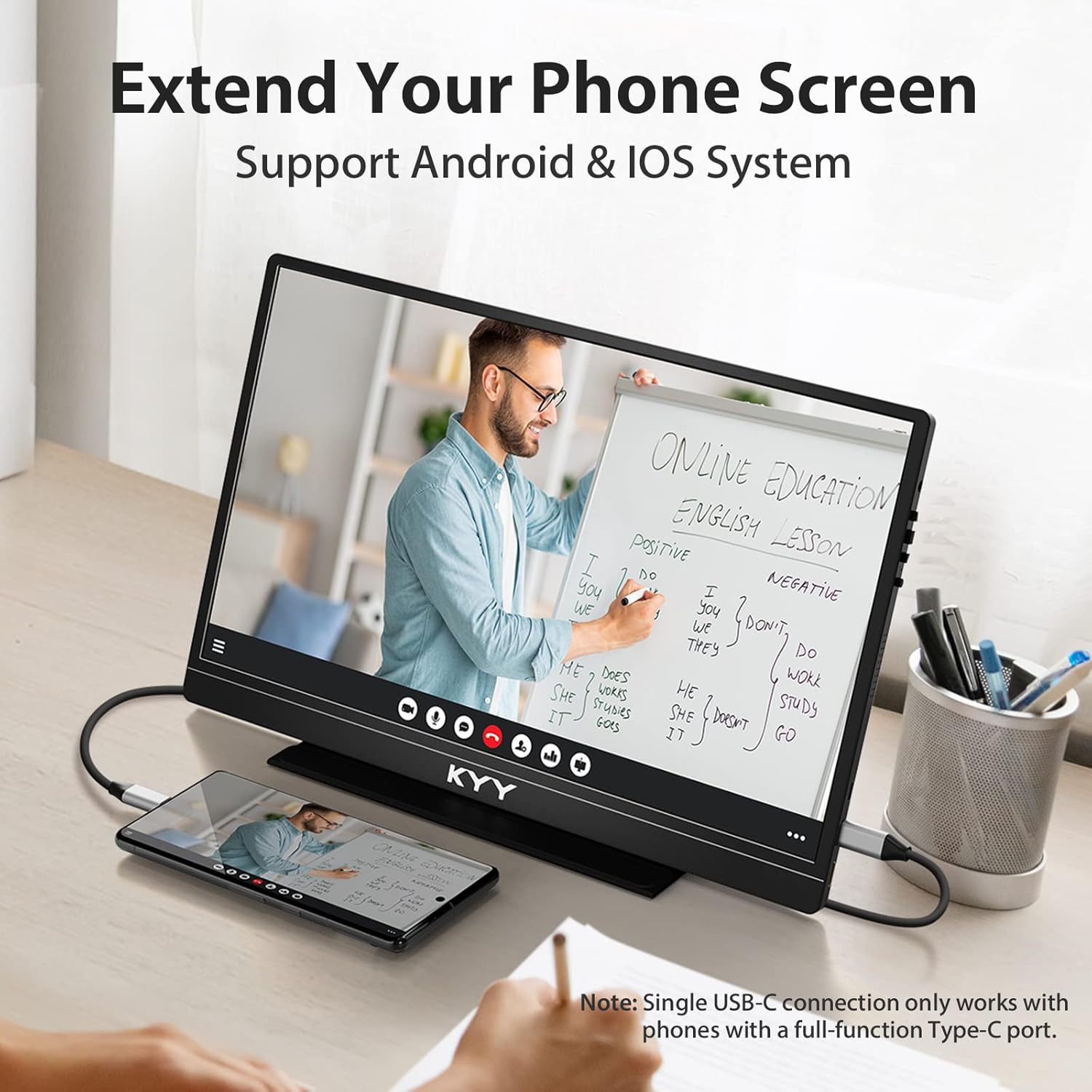
Image 5.2: Extending a phone screen to the KYY portable monitor.
5.4 Gaming Console Connection
Connect your gaming console (PS4/PS5, Xbox, Switch, Wii) using the Mini HDMI to HDMI cable for video and a USB-C cable with the power adapter for power.

Image 5.3: KYY portable monitor used for gaming with a Nintendo Switch.
6. Иштөө режимдери
The KYY portable monitor supports various display modes to enhance productivity and entertainment.

Image 6.1: Multiple operating modes for the KYY portable monitor.
- Кеңейтилген режим: Expands your desktop workspace across multiple screens, allowing you to view different content on each display.
- Duplicated Mode (Mirror Mode): Mirrors the content of your primary screen onto the portable monitor, ideal for presentations or sharing content.
- Экинчи экран режими: Негизги дисплей катары көчмө мониторду гана колдонот.
- Портрет режими: Orient the monitor vertically for tasks like reading documents, coding, or browsing webсайттар.
- Пейзаж режими: The standard horizontal orientation, suitable for most applications, video viewing, and gaming.
You can typically adjust these display modes through your operating system's display settings (e.g., Windows Display Settings, macOS System Preferences).
7. OSD менюсунун иштеши
The On-Screen Display (OSD) menu allows you to adjust various settings of your monitor, such as brightness, contrast, color, and input source.
7.1 K3 Model (Trackwheel Design)
The K3 model features a trackwheel for OSD navigation:
- Өйдө/ылдый жылдыруу: Меню параметрлери аркылуу өтүңүз же маанилерди тууралаңыз.
- Press In: Опцияны тандаңыз же жөндөөнү ырастаңыз.
- Ыкчам жөндөөлөр: Scroll the trackwheel up or down to quickly adjust brightness or volume without entering the full OSD menu.
7.2 K3-2 Model (One-to-One Button Design)
The K3-2 model uses dedicated buttons for OSD navigation:
- Plus Button (+): Navigate up or increase values.
- Minus Button (-): Navigate down or decrease values.
- Menu Button (I): Enter the OSD menu. Press again to select.
- Power/Back Button: Exit the current menu or go back to the previous level.
- Ыкчам жөндөөлөр: Press the Plus or Minus button to quickly adjust brightness or volume without entering the full OSD menu.
8. Smart Cover Functionality
The included magnetic smart cover serves as both a protective case and a versatile stand for your portable monitor.
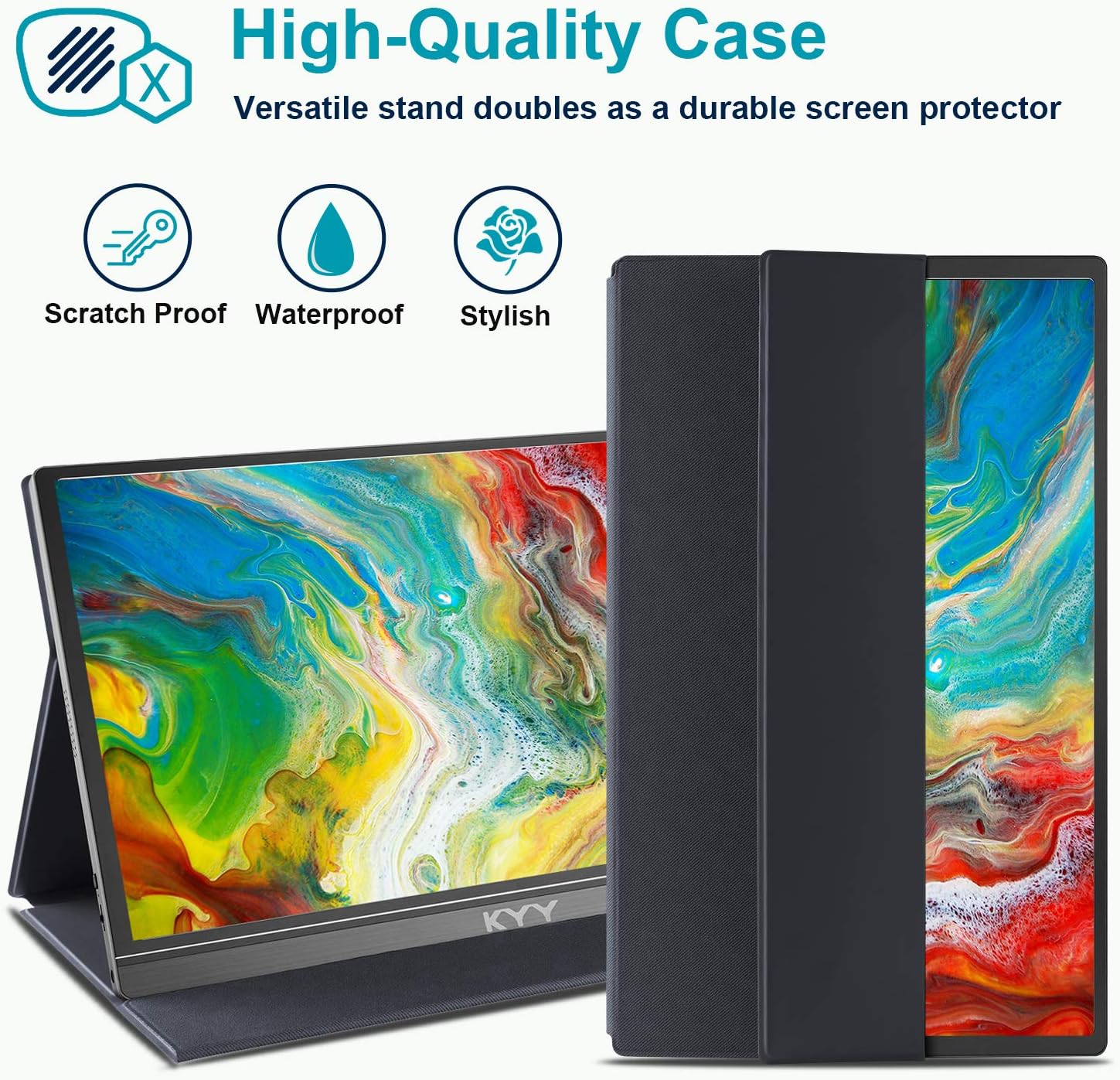
Image 8.1: KYY portable monitor with its high-quality smart cover.
8.1 Using as a Stand
The smart cover can be folded into various configurations to support the monitor in both landscape and portrait orientations, providing different viewing angles. The cover has two grooves on the bottom to secure the monitor at preferred angles.
To ensure stable support, fold the screen side of the smart cover back firmly to create a triangular base.
8.2 Коргоо
When closed, the magnetic smart cover protects the monitor screen from scratches and minor impacts, making it safe to carry in a backpack or briefcase.
9. Кыйынчылыктарды
If you encounter issues with your KYY portable monitor, refer to the following common problems and solutions:
- Сигнал жок / Кара экран:
- Бардык кабелдер коопсуз туташтырылганын текшериңиз.
- Verify that the monitor is receiving power (check power adapter connection or USB-C power source).
- If using USB-C, confirm that your device's Type-C port is full-featured and supports video output. If not, use HDMI for video and a separate USB-C for power.
- Түзмөгүңүздөгү башка кабелди же портту колдонуп көрүңүз.
- Check your device's display settings to ensure the external monitor is detected and enabled.
- Кубат жок:
- Ensure the power adapter is correctly plugged into a working wall outlet and connected to the monitor's Type-C port.
- If powering via a laptop's USB-C, ensure the laptop has sufficient power output.
- Сүрөттүн сапаты көйгөйлөрү (жылтылдап, бурмаланган түстөр):
- Кабель туташтыргычтарынын боштугун же бузулгандыгын текшериңиз.
- Adjust brightness, contrast, and color settings in the OSD menu.
- Ensure your device's graphics driver is up to date.
- Үн маселелери:
- Check the volume level on both the monitor (via OSD) and your connected device.
- Ensure audio output is directed to the monitor in your device's sound settings.
- If using headphones, ensure they are properly connected to the 3.5mm audio jack.
For further assistance, please contact KYY professional support.
10. Техникалык шарттар
| Screen Size | 15.6 дюйм |
| Резолюция | 1920 x 1080 (FHD 1080p) |
| Панел түрү | IPS |
| Аспект катышы | 16:9 |
| Сүрөттүн жарыктыгы | 250 кд/м² |
| Байланыш | 2 x USB Type-C (Full Function), 1 x Mini HDMI |
| Аудио | Dual Speakers, 3.5mm Audio Jack |
| Продукциянын өлчөмдөрү | 0.3 x 15.6 x 2.6 дюйм |
| Элемент Салмагы | 1.7 фунт |
| Тtage | 5 вольт |
| Screen Surface | Жылтырак |
11. Кароо жана тейлөө
- Экранды тазалоо: Бир аз жумшак, түксүз кездемени колдонуңуз dampсуу же экран тазалоочу эритме менен эритиңиз. Катуу химиялык заттардан же абразивдүү материалдардан алыс болуңуз.
- Денени тазалоо: Wipe the monitor's body with a soft, dry cloth.
- Сактагыч: When not in use, keep the monitor protected by its smart cover. Store in a cool, dry place away from direct sunlight and extreme temperatures.
- Колдонуу: Мониторду түшүрүп албоо же катуу сокку уруудан алыс болуңуз. Анын үстүнө оор буюмдарды койбоңуз.
12. Колдоо маалыматы
If you have any questions regarding device compatibility, connection issues, or require technical assistance, please contact the KYY professional support team. Refer to the product packaging or the official KYY webбайланыш маалыматы үчүн сайт.


