Introduction
This manual provides detailed instructions for the setup, operation, maintenance, and troubleshooting of your BEITONG Zeus 2 Elite Wireless Controller. Please read this manual thoroughly to ensure proper use and to maximize your gaming experience. This controller is designed for multi-platform compatibility, including PC, Nintendo Switch, iOS, and Android devices.

Image: The BEITONG Zeus 2 Elite Wireless Controller in Galaxy Black, showcasing анын эргономикалык дизайны жана баскычтардын жайгашуусу.
Пакеттин мазмуну
- BEITONG Zeus 2 Elite Wireless Controller
- Зымсыз кабыл алгыч (USB Dongle)
- 2 Extra Key Modulars (different pressing feels)
- 2 Extra Joysticks (different heights)
- 3 Extra D-Pads (different styles)
- USB-Cден USB-Aга өтүүчү кабель (6.5 фут)
Жайгашуу
1. Контроллерди заряддоо
Before initial use, fully charge the controller using the provided USB-C cable. Connect the USB-C end to the controller and the USB-A end to a power source (e.g., PC USB port, USB wall adapter). The LED indicator will show charging status and turn off when fully charged. A full charge provides up to 40 hours of gameplay.
2. Байланыш параметрлери
The BEITONG Zeus 2 Elite supports multiple connection methods:
- 2.4GHz Wireless (PC, Nintendo Switch, Steam Deck): Insert the USB wireless receiver into an available USB port on your device. The controller will automatically pair.
- Bluetooth 5.0 (PC, iOS, Android, Nintendo Switch): On your device, enable Bluetooth and search for available devices. Select "BEITONG Zeus 2 Elite" to pair. For iOS and Android, only native games are supported.
- Wired (PC, Nintendo Switch): Connect the controller directly to your device using the provided USB-C cable.

Сүрөт: An overview of the controller's innovative features, modularity, compatibility, and uniqueness, including optical switches, multi-platform support, and customizable components.
3. Installing Modular Parts
The controller features detachable and interchangeable components:
- AXBY Buttons: The controller comes with three types of button modules offering different pressing feels. To change, gently pry off the existing button module and snap in the desired one.
- Джойстиктер: Three joystick heights (6mm, 8mm, 10mm) are available. Pull up the existing joystick and push down the desired height joystick until it clicks into place.
- D-Pad: Two types of D-pad outer shells are included. These can be replaced by gently removing the current D-pad and attaching the preferred style.
- Face Shell: The face shell is replaceable. Gently detach it to customize the controller's appearance.

Image: Illustration of the controller's modular design, showing interchangeable key modules with different strokes and joystick heights (6mm, 8mm, 10mm).
Иштөө нускамалары
1. Негизги башкаруу элементтери
Familiarize yourself with the standard button layout and functions:
- ABXY баскычтары: Стандарттык аракет баскычтары.
- D-Pad: Багыттуу киргизүү.
- Аналогдук джойстиктер: Precise movement and camera control.
- Ийин баскычтары (LB, RB) жана триггерлер (LT, RT): Additional action inputs. The triggers utilize Hall Effect technology for 0.01mm pressing accuracy.
- Function (FN) Button: Activates special functions, including fly mouse mode.
- Profile Баскыч: Switches between different key configurations.
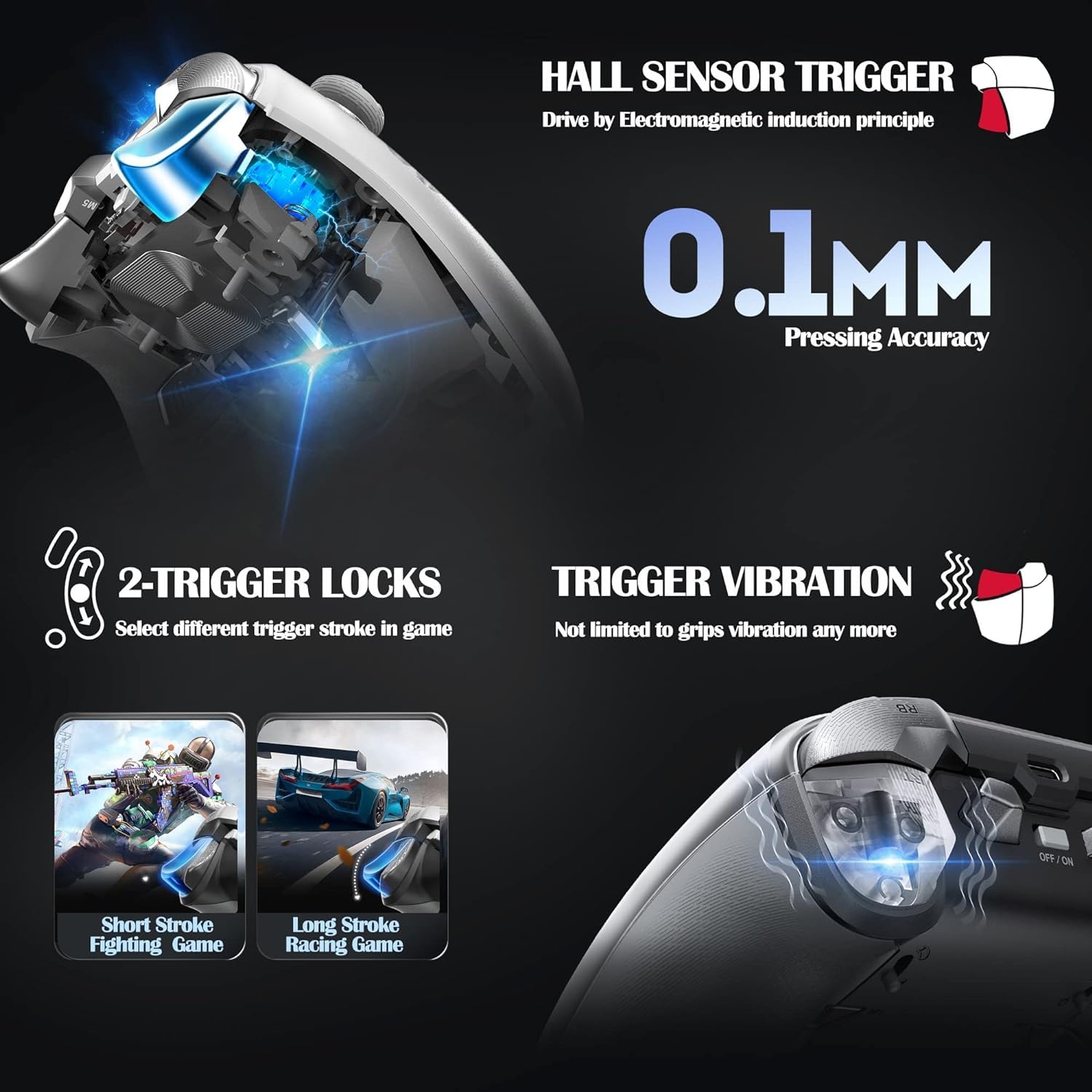
Сүрөт: деталдуу view of the Hall Sensor Triggers, highlighting 0.1mm pressing accuracy, trigger vibration, and the two-trigger lock system for short or long stroke selection.
2. Button Customization and Macro Programming
The controller features 6 additional keys on the backside that can be programmed. Up to 30 actions can be saved as macros. The Profile key allows switching between different key configurations for various game scenarios with a single click. Refer to the BEITONG Gamepad Assistant software for detailed customization options.
3. Six-Axis Somatosensory Control
Built-in 6-axis gyro sensor provides quick response for motion-sensing games. This feature offers enhanced control, particularly for games that utilize tilt or motion input. This is natively adapted for Nintendo Switch.
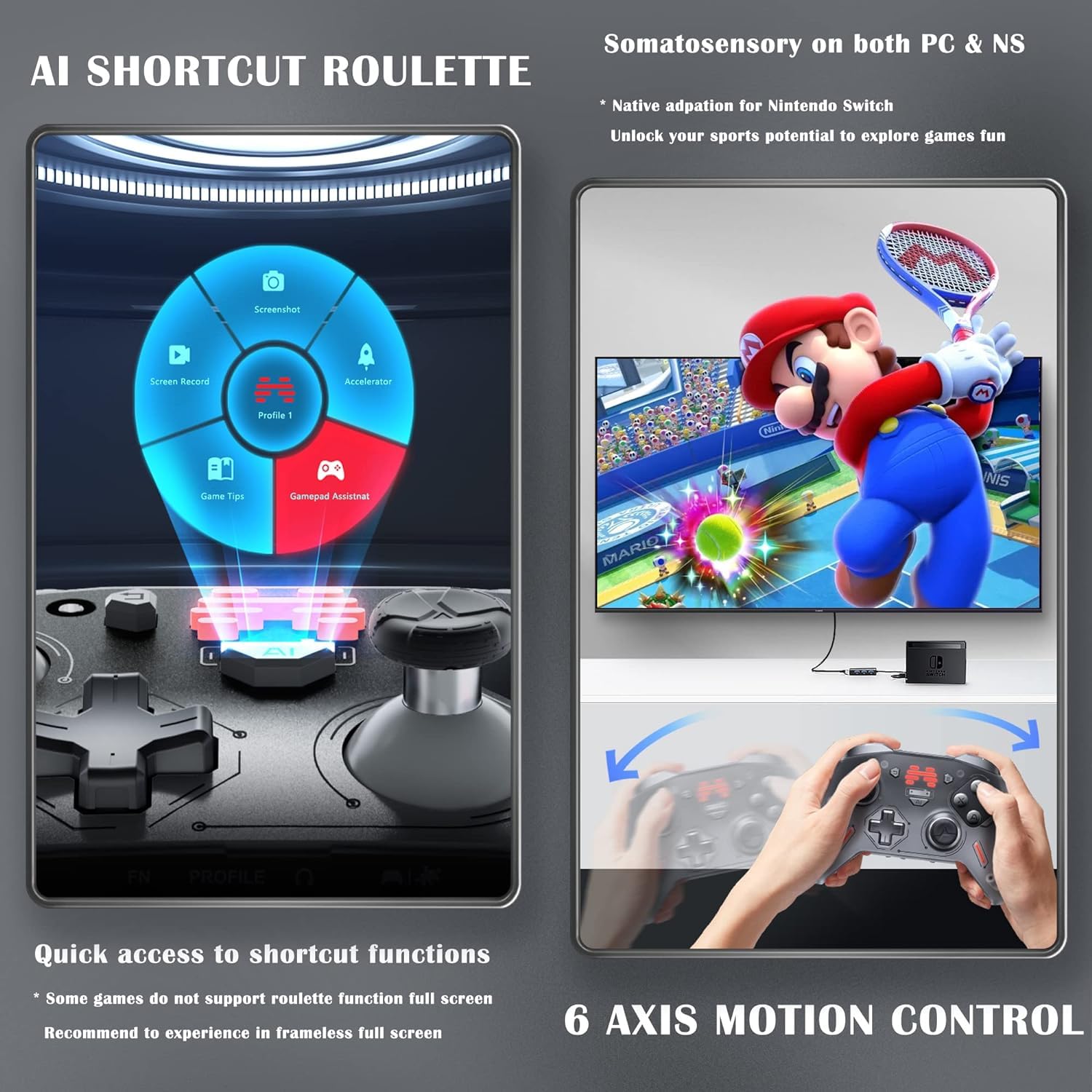
Image: Depiction of the AI Shortcut Roulette for quick access to functions and the 6-axis motion control feature, showing a user playing a motion-controlled game on Nintendo Switch.
4. 3.5mm Audio Jack & EQ Sound
The controller includes a 3.5mm audio jack with a built-in professional high-fidelity sound decoder. Customizable EQ settings, including frequency band, subwoofer, and channel balance, are available through the BEITONG Gamepad Assistant software.
5. FN Fly Mouse Function
The FN key can be used to switch the controller into a fly mouse mode, allowing for PC control without needing a separate mouse.
6. BEITONG Gamepad Assistant Software
Download and install the BEITONG Gamepad Assistant software on your PC or mobile device for advanced customization. This software allows you to:
- Configure button mappings and macros.
- Джойстикти жана триггердин сезгичтигин тууралаңыз.
- Customize EQ settings for audio.
- Manage vibration feedback.
- Контроллердин микропрограммасын жаңыртуу.

Image: Screenshot of the BEITONG Gamepad Assistant software interface on PC and mobile, demonstrating options for vibration settings, EQ customization, and button remapping.
Техникалык тейлөө
- Тазалоо: Контроллерди тазалоо үчүн жумшак, кургак чүпүрөктү колдонуңуз. Катуу химиялык заттарды же абразивдүү материалдарды колдонуудан алыс болуңуз.
- Сактагыч: Контроллерди түз күн нурунан жана экстремалдык температурадан алыс салкын, кургак жерде сактаңыз.
- Батареяга кам көрүү: Батареянын иштөө мөөнөтүн узартуу үчүн, контроллерди тез-тез толук зарядсыздандырбаңыз. Аны көпкө чейин колдонбосоңуз да, үзгүлтүксүз кубаттап туруңуз.
Проблемаларды чечүү
1. Контроллер туташпай жатат/жупташтырылбайт
- Контроллер заряддалганын текшериңиз.
- Verify the correct connection method (2.4GHz, Bluetooth, Wired) is selected on both the controller and your device.
- 2.4 ГГц үчүн, USB кабыл алгыч бекем сайылганын текшериңиз.
- Bluetooth үчүн, түзмөгүңүздүн Bluetooth функциясы иштетилгенин жана контроллер жупташтыруу режиминде экенин текшериңиз.
- Контроллерди да, түзмөгүңүздү да өчүрүп-күйгүзүп көрүңүз.
2. Firmware Upgrade Process
If you upgrade the controller/adapter's firmware using the BEITONG Gamepad Assistant software, you will need to re-pair them. Follow these steps:
- Контроллерди өчүрүңүз.
- Press and hold the Function (FN) button (located at the bottom of the controller).
- While holding the FN button, turn on the controller. Keep the FN button pressed until the lights on the controller quickly flash.
- Жупташтыруу процессинин аягына чыгышын күтүңүз.
3. Киргизүү кечигүү же жооп бербеген баскычтар
- Контроллердин толук заряддалганын текшериңиз. Батареянын аз заряды анын иштешине таасир этиши мүмкүн.
- Reduce interference by moving closer to the wireless receiver or Bluetooth device.
- Update the controller's firmware using the BEITONG Gamepad Assistant software.
- If using a wired connection, ensure the cable is securely connected and undamaged.
Техникалык шарттар
| Өзгөчөлүк | Деталь |
|---|---|
| Модель номери | BTP-T9 |
| Байланыш | Bluetooth 5.0, 2.4GHz Wireless, USB Wired |
| Шайкештик | PC, Nintendo Switch, Steam, iOS (native games only), Android (native games only) |
| Триггерлер | Hall Effect Triggers with 0.01mm accuracy, Trigger Locks, Trigger Vibration |
| Buttons | Optical Microswitches (0.25mm stroke), Interchangeable AXBY Modules |
| Джойстиктер | Anti-Wear, 3 Adjustable Heights |
| D-Pad | 2 Interchangeable Styles |
| Motion Control | Built-in 6-axis Gyro Sensor |
| Батарея сыйымдуулугу | 1000mAh Lithium Polymer (up to 40 hours) |
| Аудио | 3.5mm Audio Jack, High-Fidelity Sound Decoder, Customizable EQ |
| Өлчөмдөр | 6 x 4.3 x 2.4 дюйм |
| Салмагы | 11.2 унция |
Кепилдик жана колдоо
Кепилдик жөнүндө маалымат жана техникалык колдоо алуу үчүн, расмий BEITONG компаниясына кайрылыңыз website or contact BEITONG customer service. The BEITONG technology team is available to provide support for any issues encountered with the controller.


