1. Киришүү
The MAONO GamerWave DGM20 is a versatile USB condenser microphone designed for gaming, streaming, podcasting, and online communication. It features one-key noise cancellation, stunning RGB lighting, one-click mute with LED indicator, mic gain control, and zero-latency monitoring to enhance your audio experience.
2. Пакеттин мазмуну
Сураныч, төмөнкү нерселер үчүн кутучаны белгилеңиз:
- USB Gaming Microphone x1
- X1 тур
- Pop Filter x1
- Shock Mount x1
- USB-C to USB-A/USB-C 2-in-1 Cable x1
- Колдонуучунун колдонмосу x1
- Arm Stand Adapter x1

Image: MAONO GamerWave DGM20 microphone and its included accessories.
3. Орнотуу
The MAONO GamerWave DGM20 microphone is designed for plug-and-play convenience. No additional drivers or software are required for basic functionality.
3.1 Микрофонду туташтыруу
- Attach the microphone to the included stand or an arm stand using the provided adapter. Ensure the pop filter is positioned correctly in front of the microphone.
- Connect the USB-C end of the 2-in-1 cable to the microphone.
- Connect the USB-A or USB-C end of the cable to your computer, laptop, Mac, or Android phone.
- The microphone will be automatically recognized by your device.
Note: This microphone is not compatible with XBOX consoles.
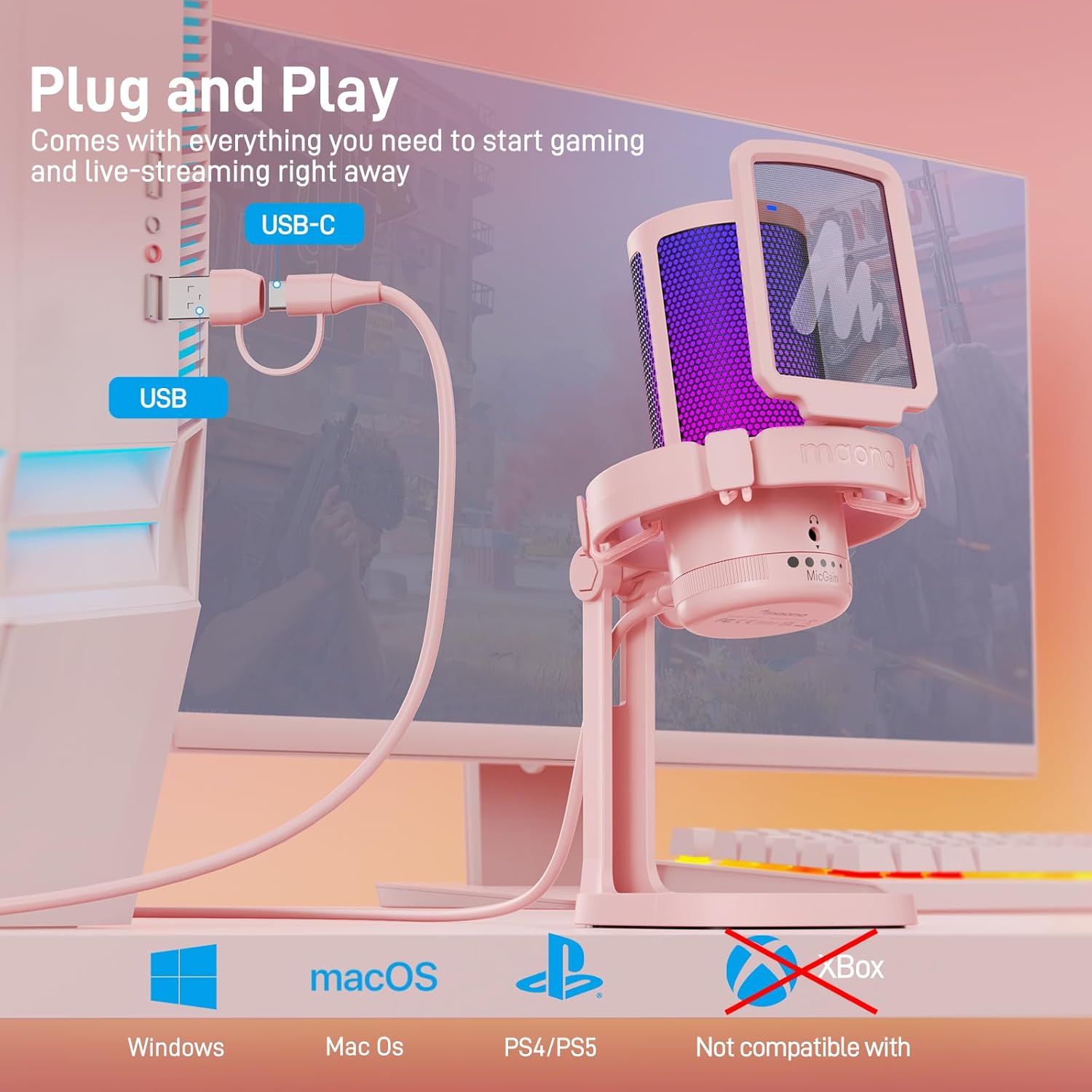
Image: The MAONO GamerWave DGM20 microphone connected to a computer, illustrating its plug-and-play setup.

Image: The MAONO GamerWave DGM20 microphone connected to various devices, including a PC and laptop, highlighting its broad compatibility.
4. Иштөө нускамалары
4.1 One-Key Noise Cancellation
The microphone features a one-key noise cancellation function to suppress background noise, ensuring clear voice pickup. Long press the dedicated button on the microphone to activate or deactivate this feature. A blue LED light indicates that noise cancellation is active.

Image: The MAONO GamerWave DGM20 microphone with its one-key noise cancellation feature, showing the difference in audio clarity before and after activation.
Video: A short demonstration of the MAONO GamerWave DGM20 microphone's noise cancellation feature.
4.2 Stunning RGB Lighting
The microphone features customizable RGB lighting with various modes including static solid colors, breathing light, and dynamic multicolor gradients. Tap the light button on the microphone to cycle through the modes. Long press the button to turn off the RGB lights.

Image: The MAONO GamerWave DGM20 microphone showcasing its controllable RGB lighting with static, breathing, and gradient modes.
Video: A demonstration of the MAONO GamerWave DGM20 USB RGB gaming microphone's lighting effects.
4.3 One-Click Mute with LED Indicator
Instantly mute or unmute the microphone with a single tap on the mute button. A green LED light indicates the microphone is active, while a red light signifies it is muted.
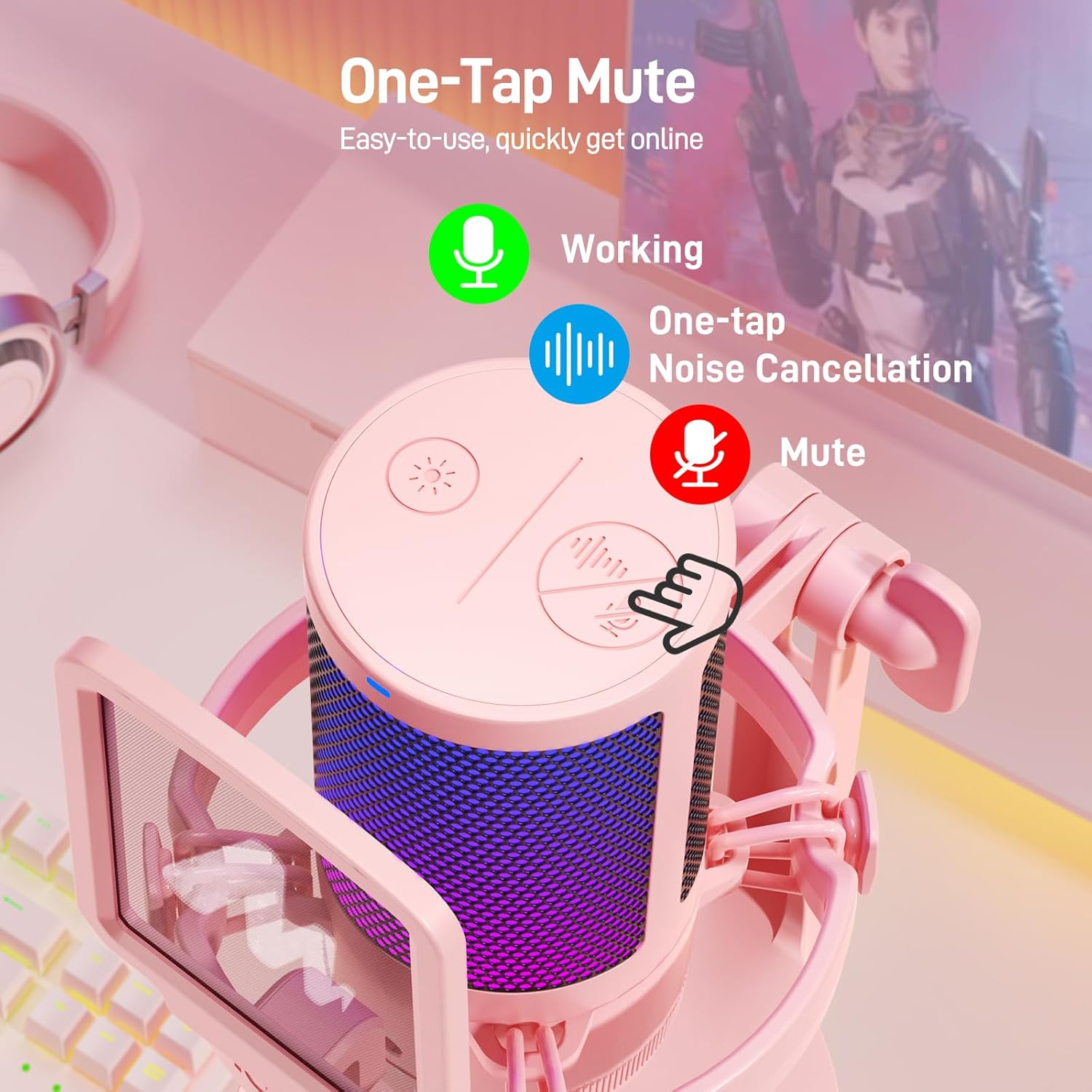
Image: The MAONO GamerWave DGM20 microphone showing the one-tap mute function and its corresponding LED indicator (green for active, red for muted).
4.4 Mic Gain Control and Monitoring
Adjust the microphone's sensitivity using the gain control knob located at the bottom. Turn the knob to increase or decrease the gain to suit your environment and desired audio level. For real-time audio monitoring without latency, plug your headphones into the 3.5mm jack on the microphone.
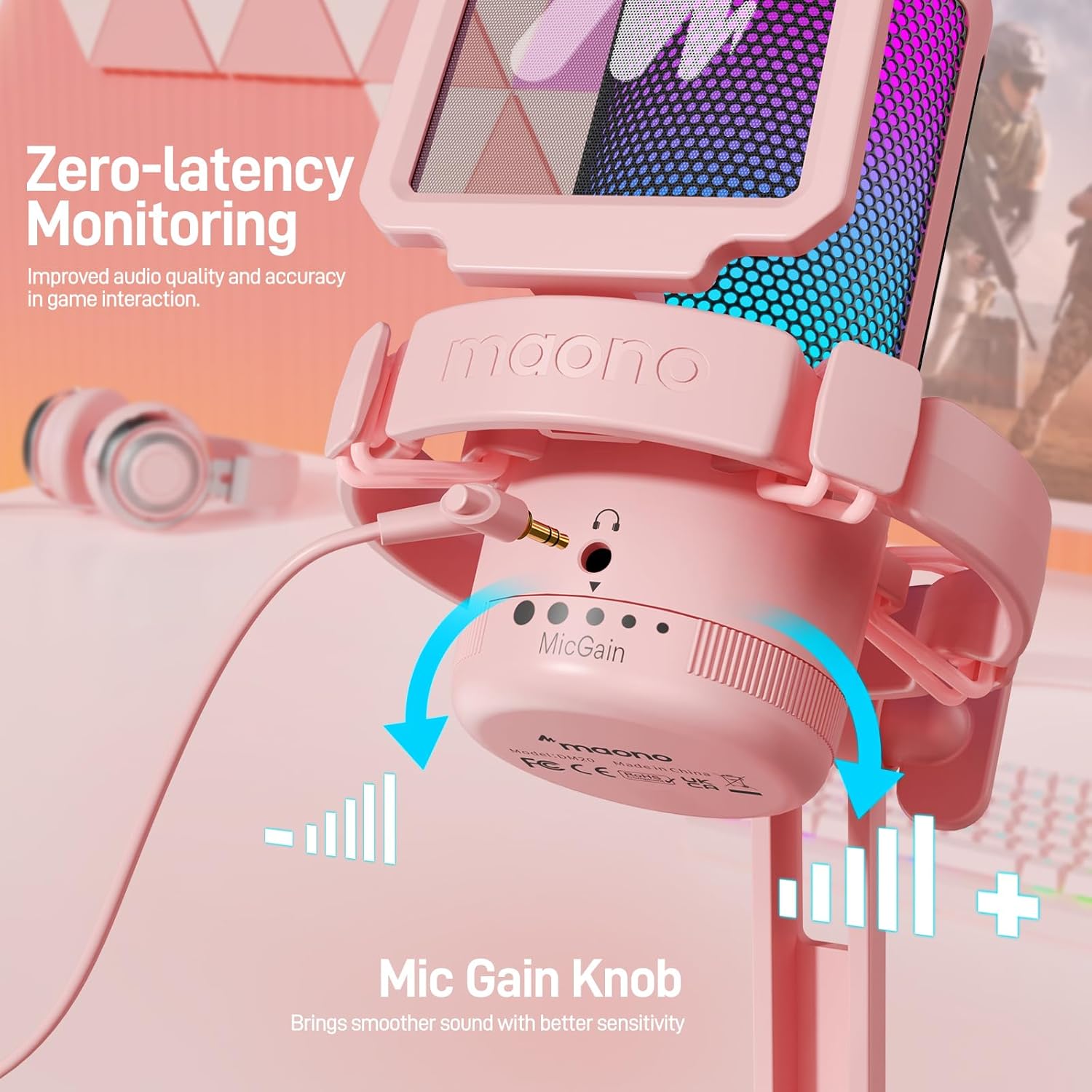
Image: The MAONO GamerWave DGM20 microphone highlighting the mic gain control knob and the 3.5mm jack for zero-latency monitoring.
4.5 Polar Pattern
The GamerWave DGM20 features a cardioid polar pattern, which means it primarily picks up sound from directly in front of the microphone. This design helps to isolate your voice and minimize unwanted background noise, making it ideal for single-speaker applications like streaming and podcasting.
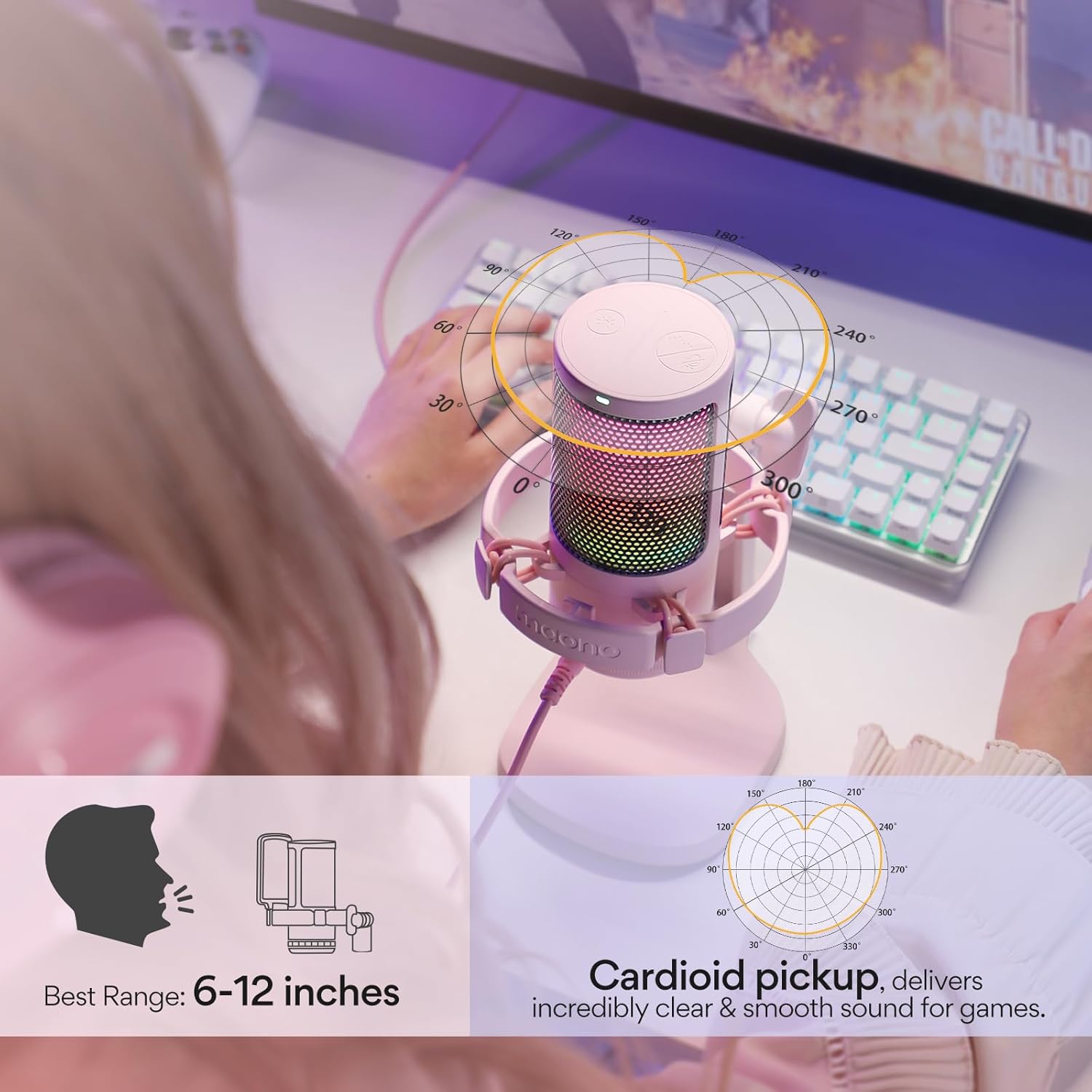
Image: The MAONO GamerWave DGM20 microphone with a diagram illustrating its cardioid pickup pattern, focusing on sound from the front.
5. Шайкештик
The MAONO GamerWave DGM20 is compatible with a wide range of devices:
- Computers (PC, Laptop, Desktop)
- Mac OS devices
- PlayStation 4 (PS4)
- PlayStation 5 (PS5)
- Android телефондору
Note: This microphone is not compatible with XBOX consoles.
6. Техникалык тейлөө
To ensure the longevity and optimal performance of your MAONO GamerWave DGM20 microphone, follow these maintenance guidelines:
- Тазалоо: Use a soft, dry cloth to wipe the microphone's exterior. Avoid using liquid cleaners or solvents, as they may damage the finish or internal components.
- Сактагыч: Микрофонду колдонбогон учурда, аны таза, кургак жерде, өтө жогорку температурадан, нымдуулуктан жана түз күн нурунан алыс сактаңыз.
- Колдонуу: Handle the microphone with care. Avoid dropping it or subjecting it to strong impacts, which can affect its performance.
- Кабельге кам көрүү: Do not bend or crimp the USB cable excessively. Store it neatly to prevent damage.
7. Кыйынчылыктарды
If you encounter issues with your MAONO GamerWave DGM20 microphone, try the following troubleshooting steps:
- Үн жок/Микрофон табылган жок:
- USB кабелинин микрофонго жана түзмөгүңүзгө бекем туташтырылганын текшериңиз.
- Микрофонду түзмөгүңүздөгү башка USB портуна туташтырып көрүңүз.
- Verify that the microphone is selected as the input device in your operating system's sound settings and any recording software you are using.
- Компьютериңизди же түзмөгүңүздү өчүрүп күйгүзүңүз.
- Үн сапатынын начардыгы/бурмалоо:
- Adjust the mic gain knob to an appropriate level. Too high gain can cause distortion, while too low can result in faint audio.
- Ensure you are speaking directly into the front of the microphone (where the MAONO logo is visible) due to its cardioid polar pattern.
- Activate the one-key noise cancellation feature if background noise is an issue.
- Check for any obstructions between your mouth and the microphone.
- RGB жарыктары иштебейт:
- Tap the RGB light button on the microphone to cycle through modes.
- Ensure the microphone is properly powered via the USB connection.
- Monitoring Audio Issues:
- Ensure your headphones are securely plugged into the 3.5mm jack on the microphone.
- Check your headphone volume.
8. Техникалык шарттар
| Өзгөчөлүк | Деталь |
|---|---|
| Микрофон форма фактору | Колдук |
| Өлчөмдөрү (L x W x Y) | 3.94 x 3.54 x 7.09 дюйм |
| Элемент Салмагы | 15.5 унция |
| Power Source | Электр зымдары |
| Материал | Металл, пластик |
| Ызы-чуунун катышы | 73 |
| Аппараттык платформа | Компьютер, компьютер, ноутбук, иш тактасы, Mac OS, PS4, PS5 |
| Каналдардын саны | 1 |
| Модель аты | GamerWave DGM20 Gaming Mic |
| Байланыш технологиясы | USB |
| Туташтыргыч түрү | USB, USB Type-C |
| Өзгөчөлүктөр | Controllable RGB Lights, One-key Noise Cancellation, One-tap Mute, Mic Gain Control, Zero Latency Monitoring, Plug and Play |
| Түс | Кызгылт |
| Полярдык үлгү | Бир багыттуу (Кардиоид) |
9. Кепилдик жана колдоо
For warranty information and technical support, please visit the official MAONO website or contact MAONO customer service. You can also visit the MAONO Store on Amazon продукт жөнүндө көбүрөөк маалымат жана колдоо ресурстары үчүн.