1. Киришүү
This manual provides comprehensive instructions for the setup, operation, and maintenance of your iDPRT 320E Thermal Label Printer. Please read this manual thoroughly before using the device to ensure proper functionality and to prevent damage. The iDPRT 320E is designed for efficient label printing in various environments, supporting multiple operating systems and connectivity options.
2. Кутуда эмне бар
Таңгактан чыгарууда бардык компоненттер бар экенин текшериңиз:
- iDPRT 320E Thermal Label Printer
- Instruction Manual
- USB маалымат кабели
- Кубаттуу адаптер
- Sample Labels
3. Продукт бүтүп калдыview
The iDPRT 320E Thermal Label Printer is a compact device designed for high-speed, high-resolution label printing. It features a simple design with essential ports for connectivity and an intuitive LED indicator for operational status.
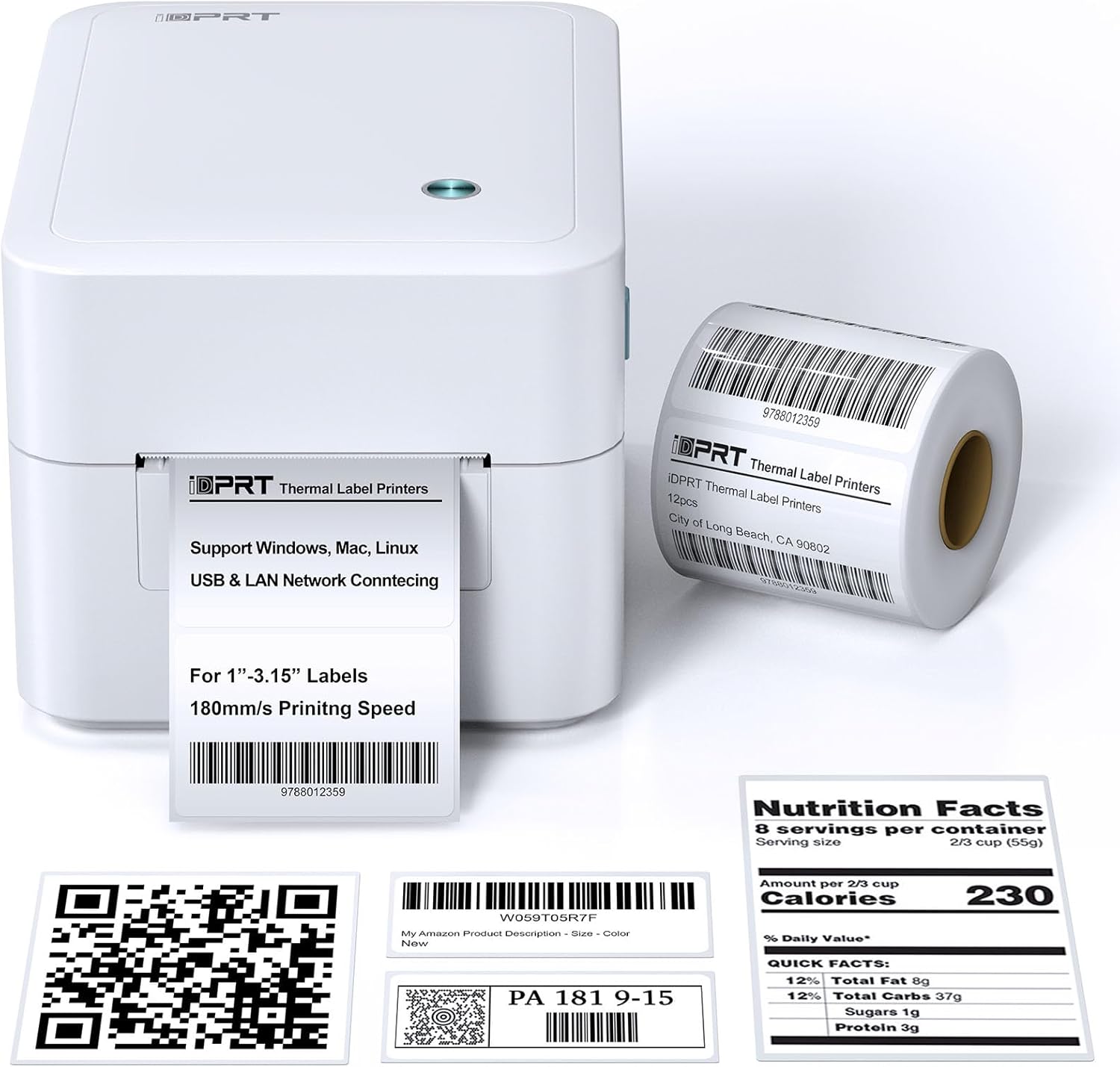
Сүрөт 3.1: Алдыңкы view of the iDPRT 320E Thermal Label Printer with sample этикеткалар.
Негизги компоненттер:
- Энбелгиден чыгуу уячасы: Басылган этикеткалар пайда болгон жерде.
- Cover Release Latches: Used to open the printer cover for label loading.
- Электр порту: Кубат адаптерине туташат.
- USB порт: Компьютерге түз туташуу үчүн.
- LAN порту: Тармак байланышы үчүн.
- LED көрсөткүчү: Принтердин абалын көрсөтөт.
4. Орнотуу нускамалары
4.1 Кубат туташтыруу
- Кубат адаптерин принтердин кубат портуна туташтырыңыз.
- Кубат адаптерин ылайыктуу электр розеткасына сайыңыз.
4.2 этикеткаларды жүктөө
The printer supports thermal labels with widths between 1 and 3.15 inches.
- Gently press the cover release latches on both sides of the printer to open the top cover.
- Place the roll of thermal labels into the label compartment, ensuring the labels feed from the bottom of the roll and the printable side faces upwards.
- Adjust the label guides to fit the width of your labels snugly, without creasing аларды.
- Pull a few labels past the print head and out through the label exit slot.
- Үстүнкү капкакты чыкылдагыча бекем жабыңыз.

Figure 4.1: Correct method for loading thermal labels into the printer.
4.3 Драйверди жана программалык камсыздоону орнотуу
To use the printer with your computer, you must install the appropriate drivers and the Label Designer software.
- Visit the official iDPRT website to download the latest drivers for your operating system (Windows, Mac, or Linux).
- Download and install the free Label Designer software from the official website. This software is available for Windows and as an online editor for Mac users.
- Follow the on-screen instructions to complete the installation process for both the drivers and the software.

Figure 4.2: The iDPRT 320E printer supports multiple operating systems.
4.4 Байланыш параметрлери
The iDPRT 320E offers flexible connectivity:
- USB туташуу: Берилген USB кабелин колдонуп принтерди түздөн-түз компьютериңизге туташтырыңыз.
- LAN Network Connection: Connect the printer to your local area network using an Ethernet cable for shared access.
- Мобилдик колдонмо: For direct printing from your smartphone, download the iDPRT mobile application.

Figure 4.3: USB and LAN network connectivity options.
5. Иштөө нускамалары
5.1 Creating Labels with Label Designer Software
The Label Designer software allows you to create and customize various label types.
- Launch the Label Designer software on your computer.
- Select a template or start a new label design.
- Customize your labels with text, barcodes, QR codes, images, and various fonts. The software supports different label sizes and layouts.
- Ensure the label dimensions in the software match the physical labels loaded in the printer.

Figure 5.1: Designing labels using the Label Designer software.
5.2 Этикеткаларды басып чыгаруу
Once your label design is complete and labels are loaded:
- In the Label Designer software, click the 'Print' button.
- Select the iDPRT 320E printer from the list of available printers.
- Adjust print settings such as quantity and print speed if necessary. The printer supports speeds up to 180mm/s and a resolution of 203 DPI.
- Confirm the settings and initiate printing.

Figure 5.2: The printer delivers high-quality 203 DPI resolution for clear labels.
Figure 5.3: The printer is capable of high-speed printing up to 180mm/s.
5.3 LED индикаторунун маанилери
The LED indicator on the printer provides visual feedback on its status:
- Green (Solid On): The printer is currently printing.
- Red (Solid On): The printer cover is not properly closed, or there is a paper jam/error.
- Blue (Solid On): Принтер иштөөгө даяр.
6. Техникалык тейлөө
6.1 Принтерди тазалоо
Үзгүлтүксүз тазалоо басып чыгаруу сапатын сактоого жардам берет жана принтердин иштөө мөөнөтүн узартат.
- Тазалоодон мурун принтердин өчүрүлгөнүн жана розеткадан суурулганын текшериңиз.
- Жумшак, түксүз кездемени колдонуңуз dampБасып чыгаруу башын акырын сүртүү үчүн изопропил спирти менен эритип коюңуз. Басып чыгаруу башын жылаңач кол менен кармабаңыз.
- Clean the exterior of the printer with a dry, soft cloth. Do not use abrasive cleaners or solvents.
- Remove any dust or label debris from the label compartment.
7. Кыйынчылыктарды
If you encounter issues with your iDPRT 320E printer, refer to the following common problems and solutions:
| Көйгөй | Мүмкүн себеп | Чечим |
|---|---|---|
| Принтер күйбөй жатат | Электр кабели үзүлдү; Розетка бузук | Электр кубатына туташууларды текшериңиз; башка розетканы колдонуп көрүңүз. |
| Энбелгилер басылбайт | Labels loaded incorrectly; Printer cover open; No drivers installed; Incorrect printer selected | Reload labels correctly; Close cover firmly; Install drivers; Select iDPRT 320E in print dialog. |
| Poor print quality (faded, blurry) | Print head dirty; Low-quality labels; Incorrect print density settings | Clean the print head; Use recommended thermal labels; Adjust print density in software settings. |
| Cannot connect via USB/LAN | Cable faulty; Driver issue; Network configuration problem | Try a different cable; Reinstall drivers; Verify network settings (for LAN). |
| Cannot connect via mobile app | App not installed; Printer not discoverable; Network issue | Ensure app is installed and updated; Check printer's network connection; Restart printer and app. |
| Mac Bluetooth connectivity issues | Direct Bluetooth printing to Mac is not supported; Driver limitations | Connect via USB or LAN for Mac systems. Mobile app connectivity is available for smartphones. |
8. Техникалык шарттар
Detailed technical specifications for the iDPRT 320E Thermal Label Printer:
| Өзгөчөлүк | Спецификация |
|---|---|
| Модель аты | 320E |
| Басма технологиясы | Термикалык |
| Максималдуу басып чыгаруу ылдамдыгы | 180 mm/s (Monochrome) |
| Максималдуу басып чыгаруу чечими | 203 DPI |
| Максималдуу медиа өлчөмү | 1"-3.15" inches width |
| Байланыш технологиясы | USB, LAN |
| Шайкеш түзмөктөр | PC (Windows, Mac, Linux), Mobile (iOS/Android via App) |
| Башкаруу ыкмасы | App, Software |
| Продукциянын өлчөмдөрү | 8.11"D x 6.1"W x 5.28"H |
| Элемент Салмагы | 3.78 фунт |
| Өзгөчөлүктөр | Automatic Label Recognition, LAN Network Connectivity |
9. Кепилдик жана колдоо
9.1 Кепилдик маалыматы
The iDPRT 320E Thermal Label Printer comes with a limited warranty. Please refer to the warranty card included in your product packaging or visit the official iDPRT webтолук шарттары жана шарттары үчүн сайт.
9.2 Кардарларды колдоо
For technical assistance, troubleshooting, or any inquiries regarding your iDPRT 320E printer, please contact our customer service team. You can reach us via the Amazon messaging system or through the contact information provided on the official iDPRT website. Our team is available to assist you with any pre-sales or after-sales support needs.


