1. Киришүү
This manual provides comprehensive instructions for the setup, operation, maintenance, and troubleshooting of your AJAZZ AK992 Wireless Mechanical Keyboard. Please read this manual thoroughly before using the product to ensure proper function and longevity.

Image 1.1: The AJAZZ AK992 Wireless Mechanical Keyboard, showcasing its full layout and coiled cable.
2. Пакеттин мазмуну
Пакетте бардык буюмдар бар экенин текшериңиз:
- 1 x AJAZZ AK992 Mechanical Keyboard
- 1 x 2.4 ГГц USB кабыл алгыч
- 1 x Custom Coiled USB-C Cable
- 1 x Баскыч капкагын тарткыч
- 1 x Которгуч тарткыч
- 4 x Replacement Switches
- 8 x Replacement Keycaps
- 1 х Колдонуучунун колдонмосу (бул документ)
3. Техникалык шарттар
| Өзгөчөлүк | Деталь |
|---|---|
| Модел | AK992 |
| Байланыш | Bluetooth 5.0, 2.4 ГГц зымсыз, USB-C зымдуу |
| Ачкычтар | 99 баскыч (98% жайгашуу) |
| Которгучтар | Hot-swappable (3-pin/5-pin compatible) |
| Баскыч капкактары | PBT OEM баскычтоп капкактары |
| Арткы жарыктандыруу | RGB (18+ effects) |
| Батарея сыйымдуулугу | 4000mAh |
| Өлчөмдөр | 16.5 x 2.2 x 2.8 дюйм |
| Салмагы | 2.48 фунт |
| Өндүрүүчү | MAGIC-REFINER |
4. Орнотуу
4.1 Баскычтопту заряддоо
Before initial use, fully charge the keyboard using the provided USB-C cable. Connect the USB-C end to the keyboard and the USB-A end to a power source (e.g., computer USB port, wall adapter).
- The keyboard features a 4000mAh battery, providing extended usage time.
- To check battery level, press FN + Back (Delete Key). The number keys 1-0 will light up to indicate the power proportion.
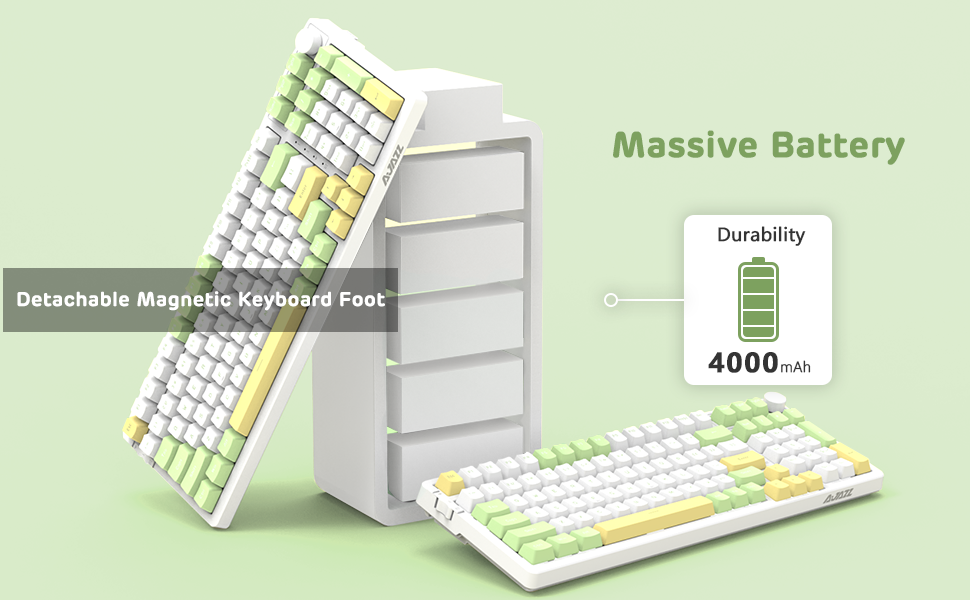
Image 4.1: Visual representation of checking the keyboard's battery level by pressing FN + Back (Delete Key).
4.2 Connecting the Keyboard (Three Modes)
The AK992 keyboard supports three connection modes: Bluetooth 5.0, 2.4GHz Wireless, and USB-C Wired. Use the sliding switch on the left side of the keyboard to select your desired mode.
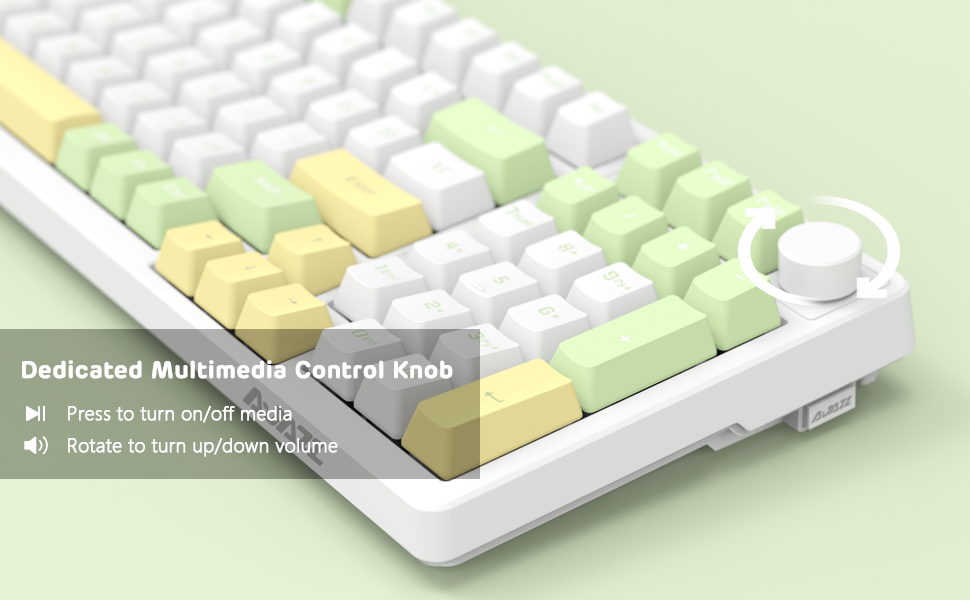
Image 4.2: Illustration of the three connection modes: USB-C, 2.4GHz, and Bluetooth 5.0, connecting to various devices.
4.2.1 2.4 ГГц зымсыз туташуу
- Locate the 2.4GHz USB receiver, typically stored in a compartment on the side of the keyboard.
- USB ресиверди компьютериңиздеги жеткиликтүү USB портуна сайыңыз.
- Slide the connection switch on the keyboard to the "2.4G" position.
- Клавиатура автоматтык түрдө туташышы керек.
4.2.2 Bluetooth 5.0 туташуу
The keyboard can store up to 3 Bluetooth devices.
- Slide the connection switch on the keyboard to the "BT" position.
- Басып кармап туруңуз FN + 1, FN + 2, же FN + 3 for 3-5 seconds to enter pairing mode for the desired profileИндикатор жарыгы тез күйүп-өчөт.
- On your device (PC, Mac, tablet, smartphone), enable Bluetooth and search for "AK992".
- Select "AK992" to pair. The indicator light on the keyboard will stop flashing once connected.
- Жупташтырылган Bluetooth түзмөктөрүнүн ортосунда которулуу үчүн басыңыз FN + 1/2/3 кыскача.
4.2.3 USB-C зымдуу туташуу
- Берилген USB-C оролгон кабелин клавиатуранын USB-C портуна туташтырыңыз.
- Кабелдин экинчи учун компьютериңиздеги USB портуна туташтырыңыз.
- Slide the connection switch on the keyboard to the "Wired" position.
- The keyboard will be recognized as a standard USB keyboard.

Image 4.3: The custom coiled USB-C cable with a metal aviation connector, designed for durability and stable data transmission.
5. Иштөө нускамалары
5.1 Multimedia Control Knob
The knob located in the upper right corner provides convenient multimedia control:
- Саат жебеси боюнча айлантуу: Үнүн жогорулатуу
- Сааттын жебесине каршы айландыруу: Үндү азайтуу
- Пресс: Play/Pause Media or Mute/Unmute Audio

Image 5.1: Close-up of the metal knob, illustrating its functions for volume control and media play/pause/mute.
5.2 RGB жарыгын башкаруу
The AK992 features dynamic RGB backlighting with multiple effects.
- FN + \| (Backslash/Pipe key): Cycle through 18+ RGB lighting effects.
- FN + ↑ / ↓: Арткы жарыктын жарыктыгын тууралаңыз.
- FN + ← / →: Арткы жарыктын ылдамдыгын/багытын тууралаңыз.
- FN + 1/2/3: Customize three sets of game or office lighting effects (requires software for full customization).
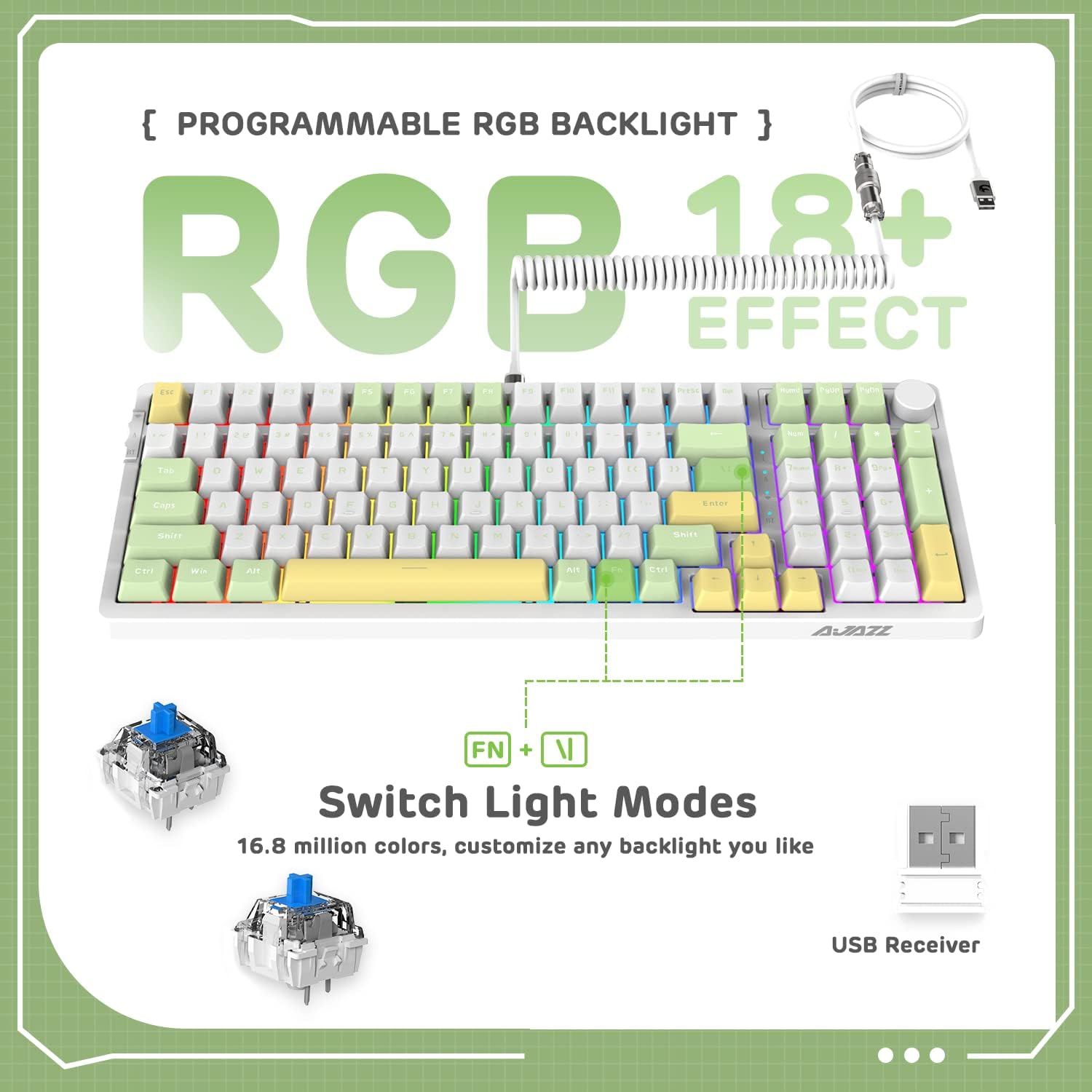
Image 5.2: The keyboard displaying various RGB lighting effects, highlighting the FN + \| key combination for switching modes.
5.3 Ыкчам алмаштыруучу которгучтар
The AK992 keyboard features a hot-swappable PCB, allowing users to change mechanical switches without soldering. It supports both 3-pin and 5-pin switches.
- Каалаган баскычтоптун капкагын этияттык менен алып салуу үчүн берилген баскычтоптун капкагын тартуучу каражатты колдонуңуз.
- Use the provided switch puller to gently grip the switch and pull it straight up to remove it from the PCB.
- Жаңы өчүргүчтүн төөнөгүчтөрүн платадагы тешиктер менен тегиздеңиз. Төөнөгүчтөрдүн түз экенин текшериңиз.
- Жаңы которгучту чыкылдагыча ордуна бекем басыңыз.
- Баскыч капкагын алмаштырыңыз.

Сүрөт 5.3: деталдуу view of the keyboard's hot-swappable PCB, showing removed keycaps and switches, along with replacement components.
5.4 Эргономикалык дизайн
The keyboard is designed with a two-stage tripod foot system, allowing adjustment of the typing angle to 5° or 8° for improved comfort and reduced hand fatigue.

Image 5.4: The keyboard's two-stage tripod design, illustrating the 5° and 8° adjustable typing angles.
6. Техникалык тейлөө
6.1 Тазалоо
- Disconnect the keyboard from all power sources and devices before cleaning.
- Бир аз жумшак, түксүз кездемени колдонуңуз dampачкыч капкактарын жана шассиди сүртүү үчүн суу же жумшак тазалоо эритмеси менен жабыңыз.
- Тереңирээк тазалоо үчүн, клавиатураны алып салуу үчүн берилген клавиатура тарткычын колдонуңуз жана астын кысылган аба же кичинекей щетка менен тазалаңыз.
- Avoid using harsh chemicals, abrasives, or solvents, as these may damage the keyboard's finish or components.
6.2 Сактоо
Store the keyboard in a cool, dry place away from direct sunlight and extreme temperatures. If storing for an extended period, ensure the battery is partially charged (around 50%) to preserve battery health.
7. Кыйынчылыктарды
| Көйгөй | Мүмкүн себеп | Чечим |
|---|---|---|
| Баскычтоп зымсыз режимде жооп бербейт. | Low battery, incorrect mode selected, receiver not plugged in (2.4G), not paired (Bluetooth). | Charge the keyboard. Ensure the mode switch is set correctly. Re-insert the 2.4G receiver. Re-pair Bluetooth device. |
| RGB арткы жарыгы иштебей жатат же күңүрт эмес. | Backlight turned off, brightness set too low, low battery. | Басыңыз FN + \| to cycle modes. Adjust brightness with FN + ↑. Charge the keyboard. |
| Баскычтар катталбай жатат же эки жолу терилип жатат. | Faulty switch, debris under keycap, software issue. | Remove keycap and clean. Replace the switch using the provided tools and spare switches. Test on another device. Update keyboard firmware if available. |
| Клавиатура тез-тез өчүп калат. | Тоскоолдук, кабыл алгычтан/түзмөктөн алыстык, батареянын заряды аз. | Reduce distance to receiver/device. Ensure no strong interference sources. Charge the keyboard. Try wired mode. |
8. Кепилдик жана колдоо
8.1 Кепилдик маалыматы
The AJAZZ AK992 Wireless Mechanical Keyboard is covered by a limited warranty against manufacturing defects. Please refer to the warranty card included in your package or contact your retailer for specific warranty terms and conditions. Keep your proof of purchase for warranty claims.
Эскертүү: The warranty typically covers defects in materials and workmanship under normal use. It does not cover damage caused by misuse, accidents, unauthorized modifications, or normal wear and tear.
8.2 Кардарларды колдоо
For technical assistance, troubleshooting, or general inquiries, please contact the manufacturer or your point of purchase. You may also visit the official AJAZZ or MAGIC-REFINER webКөп берилүүчү суроолор, драйверлерди жүктөп алуу жана кошумча колдоо ресурстары үчүн сайт.
Manufacturer: MAGIC-REFINER
Модели: AK992
9. Расмий продукт Video
Видео 9.1: Продукциянын расмий көргөзмөсүasing the AK992 99 Keys Gasket Wireless Mechanical Gaming Keyboard in use, demonstrating its features and RGB lighting. This video is provided by MAGIC-REFINER Direct.


